 logo
logo
Quick Answer: Open YouTube Studio and look for Active copyright strikes on the Dashboard. Open the strike details and review the available actions. If YouTube still shows Complete Copyright School, you probably haven’t finished it. If that action is gone and the strike shows expiration information, YouTube has likely recorded your completion.
Introduction
YouTube Copyright School doesn’t always leave a large “Completed” badge on your channel. This can make things confusing. You may finish the lesson and quiz, return to YouTube Studio, and still see an active copyright strike.
That doesn’t always mean something went wrong. Completing Copyright School normally allows an eligible strike to expire after 90 days. It doesn’t remove the strike right away. You need to check the strike status, required actions, expiration information, and the email connected to your channel.
What Is YouTube Copyright School?
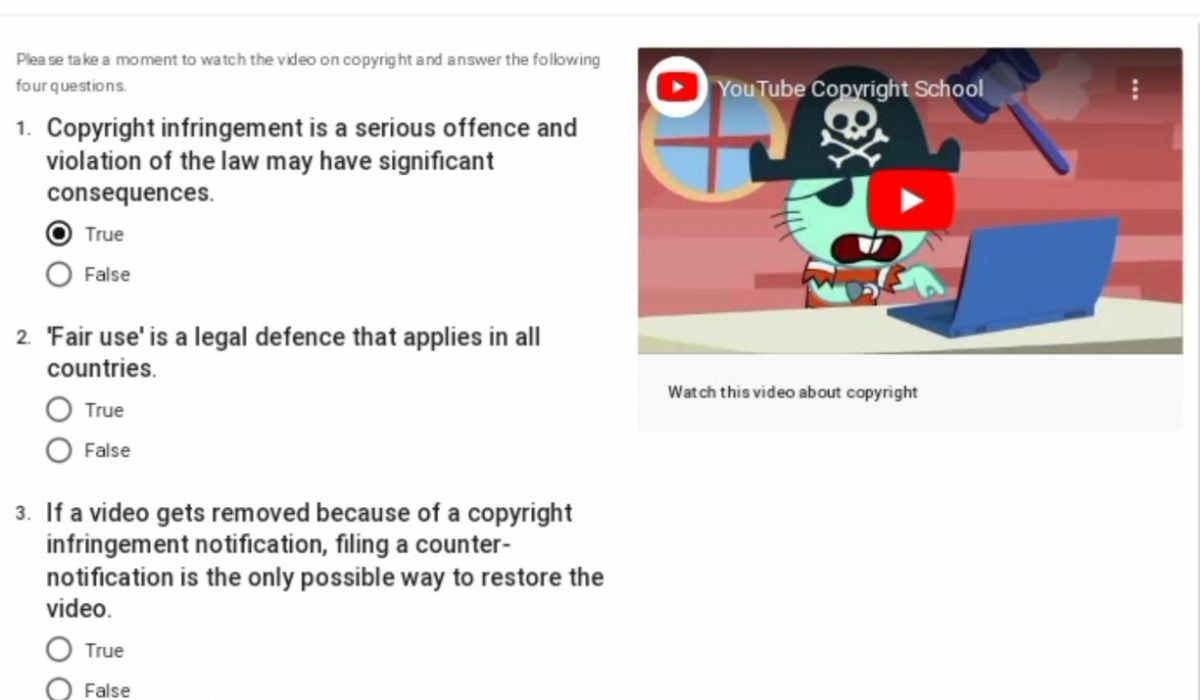 Copyright School is a short learning process that explains how copyright works on YouTube. It includes four questions about copyright rules and how creators should use content owned by other people.
YouTube may require you to complete it after receiving a copyright strike. According to YouTube, you only need to complete Copyright School once. After completion, eligible copyright strikes can expire after 90 days if your channel has fewer than three active strikes.
Copyright School is connected to copyright strikes, not normal Content ID claims. That difference matters because many creators confuse the two.
How to Check Copyright School Completion in YouTube Studio
The YouTube Studio Dashboard is the best place to start. Use a desktop browser if possible because it usually displays more information than the mobile app.
Follow these steps:
- Sign in to the correct YouTube channel
Visit YouTube Studio and confirm that you’re using the channel that received the strike. If your Google account manages several channels, check the channel name and profile image in the upper-right corner. - Open the Dashboard
Select Dashboard from the left menu. This page shows important channel notices, restrictions, and recent activity. - Find Active copyright strikes
Look for a card or notice named Active copyright strikes. Its position may change when YouTube updates Studio. - Open the strike information
Select the copyright notice to view the current status, affected video, and available actions. - Check for a Copyright School action
If YouTube still displays Complete Copyright School, Start Copyright School, or another required-action message, the process may not be finished. - Look for expiration information
If the school action has disappeared and the strike shows an expiration date or 90-day expiration information, the completion was likely saved.
YouTube Studio may use slightly different wording for different channels. Don’t rely on one exact button name. The main thing is whether Copyright School still appears as an unfinished action.
Check the Removed Video’s Copyright Details
If the Dashboard doesn’t clearly show the completion status, open the details for the removed video.
On a computer:
- Sign in to YouTube Studio.
- Select Content from the left menu.
- Open the filter bar and choose Copyright.
- Find the video with a Removed status.
- Look at the Restrictions column.
- Hover over or select Copyright.
- Click See details.
- Review the overview page and available actions.
The overview may show how the strike affects your video and channel. It can also display the claimant, current status, content involved, and steps you can take.
Look closely at the actions section. If Copyright School still needs to be completed, YouTube should normally show it there. If the only remaining step is waiting for the strike to expire, your completion was probably recorded.
Signs That Copyright School Has Been Completed
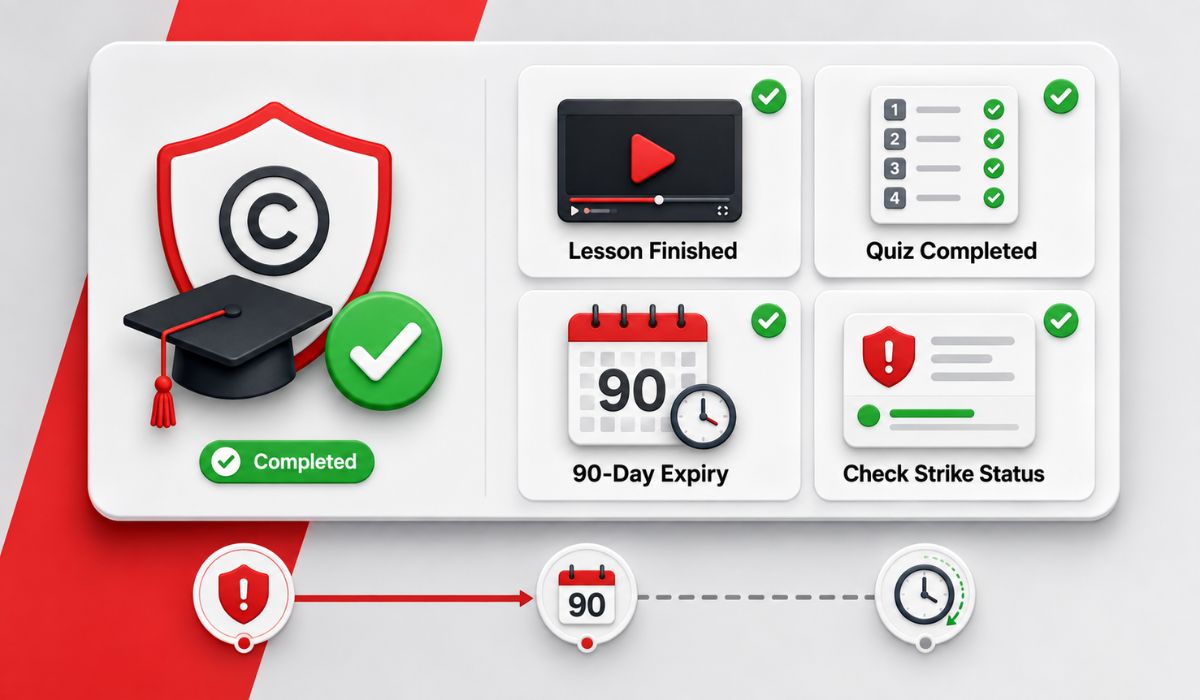 YouTube doesn’t always show the same confirmation screen to every creator. However, several signs can help you confirm completion:
- The Copyright School button no longer appears in the active strike details.
- YouTube no longer asks you to watch the lesson or answer the quiz.
- The strike information says it can expire after 90 days.
- An expiration date or remaining-time message appears.
- You saw a completion page after submitting all four questions.
- You received a related confirmation at the email connected to your channel.
The strongest check is the current strike status in YouTube Studio. An email can help, but an old or missing email shouldn’t be your only source.
If the school button is gone but the strike remains active, check when the strike was issued. You may simply be waiting for the 90-day period to finish.
How to Check on the YouTube Studio Mobile App
You can also review the strike through the YouTube Studio mobile app. Some details may be easier to find on a computer, but the app still gives you a quick check.
Try the following steps:
- Open the YouTube Studio app.
- Confirm that the correct channel is selected.
- Tap Dashboard.
- Open Notifications and check the copyright-strike notice.
You can also check through the affected video:
- Open Content in the Studio app.
- Select the video with a copyright restriction.
- Tap Restrictions.
- Select Review issues.
- Open the video title or copyright issue.
- Review the strike overview and available actions.
If the app doesn’t clearly show whether Copyright School is complete, sign in to YouTube Studio through a desktop browser. The desktop version usually provides a fuller overview.
Check Your YouTube Email for Confirmation
YouTube sends copyright-strike notices to the email address connected to the channel. Search that inbox for messages about the removal and Copyright School.
Useful search terms include:
- Copyright School
- Copyright strike
- Video removed
- YouTube copyright
- no-reply@youtube.com
Check your spam, trash, updates, and promotions folders too. The original strike email may contain the Copyright School link and explain what the channel needs to do.
Completion emails or messages can vary. If you can’t find one, it doesn’t prove that Copyright School is incomplete. Use YouTube Studio as your main source.
Be careful with fake copyright emails. Check the sender and avoid entering your Google password through an unknown link. When unsure, open YouTube Studio directly instead of clicking the email.
Does Completing Copyright School Remove the Strike?
No, completing Copyright School does not normally remove an active strike immediately. It allows an eligible copyright strike to expire after 90 days.
The 90 days are normally counted from the date the strike was applied to your channel. They don’t start from the day you finished Copyright School. For example, if you completed the school several days after receiving the strike, the original strike date still matters.
A strike can also be cleared earlier if the claimant retracts the copyright removal request or a valid counter notification is resolved in your favor. Those are separate processes.
Copyright School Completed but the Strike Is Still Active
Seeing an active strike after finishing the school can be normal. Check these possible reasons before assuming the completion failed:
| Possible reason | What to check |
|---|---|
| The 90 days haven’t passed | Review the strike issue or expiration date |
| The wrong channel is selected | Switch to the channel that received the strike |
| Studio hasn’t updated yet | Refresh the page or sign in again |
| The app shows limited details | Use YouTube Studio on a computer |
| The quiz wasn’t fully submitted | Check whether the school action still appears |
| Another strike is active | Review every active copyright strike |
| A retraction is pending | Check the removal-request status |
| A counter notification is pending | Open the affected video’s details |
Don’t calculate the 90 days only from memory. Use the date shown in the strike details or YouTube’s original email.
If the listed expiration date has already passed and the strike remains active, take screenshots of the details. Then use YouTube’s official Help Center or available Creator Support options.
What to Do if Copyright School Still Appears
If YouTube still asks you to complete Copyright School, open the action from the active strike notice.
Complete every part carefully:
- Open the Copyright School link.
- Watch or review the required copyright lesson.
- Answer all four questions.
- Submit the final answers.
- Wait for the completion message.
- Return to YouTube Studio.
- Reopen the strike and check the actions again.
Don’t close the page immediately after answering the final question. Wait until the website confirms submission or returns you to the correct screen.
If the link doesn’t work, try a desktop browser in private mode. You can also disable extensions that block scripts, clear the site cache, or test another browser. Confirm that you’re signed in to the affected channel before opening the school link.
Copyright Claim vs. Copyright Strike
You won’t normally be asked to complete Copyright School for a standard Content ID claim.
| Copyright claim | Copyright strike |
|---|---|
| Usually created through Content ID | Results from a copyright removal request |
| The video may stay available | The video is normally removed |
| May affect monetization or visibility | Affects the channel’s strike record |
| Usually doesn’t require Copyright School | May require Copyright School |
| Managed through claim options | Managed through strike-resolution options |
If your video says Copyright claim but your Dashboard shows no active copyright strike, you may be checking the wrong type of copyright issue.
Other Ways a Copyright Strike Can Be Resolved
There are three main ways a copyright strike may be resolved.
- Complete Copyright School and wait: An eligible strike can expire after 90 days once Copyright School has been completed.
- Request a retraction: You can contact the person or company that submitted the removal request. If they agree that the removal should be withdrawn, they can send a retraction to YouTube.
- Submit a counter notification: This option is for cases where you believe the content was removed because of a mistake or misidentification. It is a legal request and may share personal information with the claimant. Don’t submit one only because you want a valid strike removed faster.
Common Mistakes to Avoid
Several small mistakes can make the completion status harder to understand:
- Checking a Content ID claim instead of an active strike
- Opening Studio under the wrong channel
- Expecting the strike to disappear immediately
- Closing Copyright School before the final submission
- Deleting the affected video and expecting the strike to clear
- Filing a counter notification without understanding the legal process
- Clicking a fake Copyright School email
- Counting 90 days from the wrong date
Deleting a video after a copyright strike has been issued does not normally remove that strike. Check the official strike details before taking any action.
Frequently Asked Questions
How Do I Know if YouTube Copyright School Is Completed?
Open YouTube Studio and check Dashboard > Active copyright strikes. Open the strike details and review the available actions.
If the Copyright School action is gone and expiration information appears, YouTube has likely recorded your completion. If the action still appears, open it and complete the remaining steps.
Does YouTube Send a Copyright School Completion Email?
YouTube may send copyright-related messages to the channel’s email, but the messages shown can vary. You shouldn’t depend only on receiving a completion email.
Check the active strike in YouTube Studio for the most useful status information.
How Many Questions Are in YouTube Copyright School?
YouTube Copyright School contains four questions about how copyright works on the platform. Make sure you answer and submit all four.
Wait for the completion screen before leaving the page.
Do I Need to Complete Copyright School More Than Once?
YouTube says creators only need to complete Copyright School once. Future copyright strikes can still stay active for their own expiration period.
Completing the school once doesn’t protect a channel from later strikes.
When Will My Copyright Strike Expire?
An eligible copyright strike can expire 90 days after it was issued if Copyright School has been completed and the channel has fewer than three active strikes.
The strike might be cleared earlier through a claimant retraction or a successfully resolved counter notification.
Will Deleting the Video Remove the Copyright Strike?
No, deleting the affected video does not normally remove an existing copyright strike. The strike stays active until it expires or is resolved through another valid method.
If the removal request was only scheduled and the strike had not yet been applied, the situation may be different. Check the original YouTube email for the deadline and available action.
Final Thoughts
The easiest way to check Copyright School completion is through the active strike inside YouTube Studio. Open the strike details and look for any unfinished Copyright School action. If that action is gone and the strike displays expiration information, your completion was likely saved.
Remember, the strike won’t normally disappear as soon as you finish the school. It may remain visible until the 90-day period ends. If the mobile app doesn’t show enough information, use desktop Studio and check the official email connected to your channel.
