 logo
logo
Antigravity browser not working is annoying because the problem can show up in different ways. Maybe the browser does not open at all. Maybe it opens but stays blank. Sometimes it keeps loading, crashes, or Antigravity cannot control Chrome properly.
The confusing part is that the issue is not always inside Antigravity. It can be Chrome, browser permissions, old cache, extensions, internet settings, VPN, or even a stuck background process. So yeah, reinstalling the app straight away is not always the smart move.
In this guide, we’ll go through the common causes first, then the fixes you can try one by one. Start from the first fix and move down slowly. That usually works better than changing too many settings at once.
Why Does Antigravity Browser Not Working?
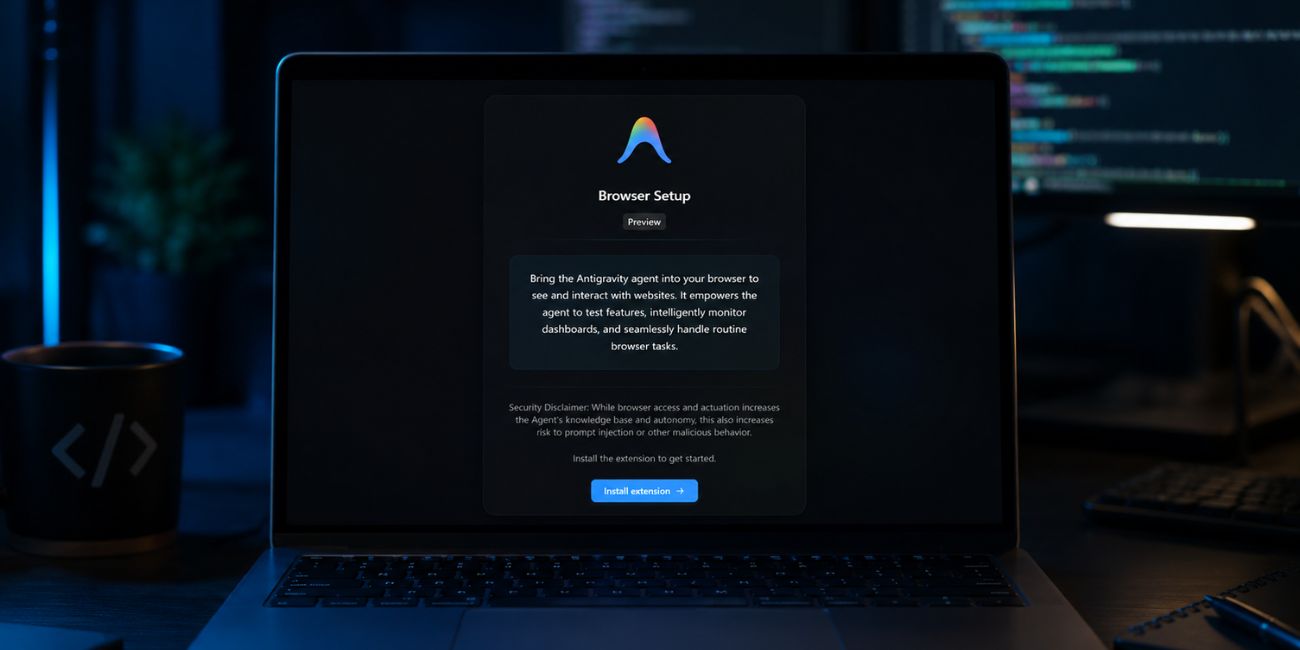 Antigravity Browser may stop working when it cannot open or control the browser properly. In many cases, this happens because Chrome is missing, outdated, blocked, or stuck in the background. Sometimes the browser window is open but hidden behind another window, so it looks like nothing happened.
Common Causes Why Antigravity Browser Not Working
Antigravity browser problems can come from small setup issues or bigger software conflicts. Some are easy to fix, like restarting the app. Others need a bit more checking, especially if Chrome permissions or security tools are involved.
Common causes include:
- Google Chrome is not installed
- Chrome is outdated
- Antigravity cannot open Chrome correctly
- Browser permission is blocked
- Chrome pop-ups are blocked
- Browser window is opening in the background
- Cache or temporary browser data is corrupted
- Browser extensions are interfering
- VPN or proxy is changing the connection
- Firewall or antivirus is blocking the app
- Internet connection is unstable
- Antigravity needs an update
- Chrome settings are broken or changed
How to Fix Antigravity Browser Not Working?
Before you try the fixes, close any extra Chrome windows and save your work. Then follow the steps in order. Some fixes may look simple, but don’t skip them too fast. A stuck browser process or hidden Chrome window can waste a lot of time if you miss it.
1. Restart Antigravity and Your Device
Close Antigravity completely and open it again. Don’t just minimize it. If the problem is still there, restart your computer too. This clears stuck processes, memory issues, and small app glitches that can stop the browser from opening.
After the restart, open Antigravity first, then try the browser task again. If the browser opens normally now, the issue was probably just a temporary background problem. It happens more often than people think.
2. Make Sure Google Chrome Is Installed and Updated
Antigravity often needs Chrome to open browser tasks. So if Chrome is not installed, broken, or too old, Antigravity may fail before the browser even appears. First, check Chrome by opening it normally from your desktop, Start menu, or app folder.
Follow these steps:
- Open Google Chrome manually.
- Try loading any normal website.
- Click the three dots in the top-right corner.
- Go to Help.
- Open About Google Chrome.
- Wait while Chrome checks for updates.
- Install the update if one is available.
- Relaunch Chrome.
- Close and reopen Antigravity.
- Try the browser task again.
If Chrome does not open at all, fix Chrome first. Antigravity will likely keep failing until Chrome can open and load websites on its own.
3. Check Chrome Permission, Pop-Ups, and Window Focus
This is one of those fixes people miss. Antigravity may be trying to open Chrome, but Chrome might be hidden behind another window. Or it may be waiting for a permission prompt. Sometimes a pop-up blocker or redirect setting can also stop the browser action from working correctly.
Try this:
- Run the browser task in Antigravity.
- Look at your taskbar or dock.
- Click the Chrome icon if it appears.
- Check if Chrome opened behind Antigravity.
- Look for any permission message.
- Allow the permission if it asks.
- Check whether pop-ups or redirects are blocked.
- Try the browser task again.
If you use two monitors, check the second screen too. It sounds silly, but Chrome windows can open on the wrong display. Then Antigravity looks broken when the browser is just sitting somewhere else.
4. Force Close Stuck Chrome or Antigravity Processes
Sometimes Chrome stays open in the background even after you close it. Antigravity can do the same. When that happens, the app may try to use an old broken browser session instead of starting fresh.
On Windows, press Ctrl + Shift + Esc to open Task Manager. Find Chrome and Antigravity, then end those tasks. On macOS, use Force Quit or Activity Monitor and close both apps from there.
Once they are fully closed, wait a few seconds. Then open Antigravity again and run the browser task. This gives the browser agent a clean start.
5. Clear Browser Agent Cache or Temporary Data
If Antigravity browser was working before but suddenly stopped, old cache can be the problem. Cache is meant to make things load faster, but damaged cache can cause loading errors, blank screens, login problems, and repeated browser failures.
Clear Chrome cache first:
- Open Chrome.
- Click the three dots in the top-right corner.
- Open Settings.
- Go to Privacy and security.
- Click Clear browsing data.
- Select Cached images and files.
- Select Cookies if login pages are also failing.
- Click Clear data.
- Close Chrome.
- Restart Antigravity.
- Test the browser again.
If Antigravity has a cache, browser agent data, or temporary data option in its own settings, clear that too. Just remember, clearing cookies can sign you out of some websites, so don’t do it while important work is open.
6. Disable Browser Extensions
Chrome extensions can quietly break browser tasks. Ad blockers, privacy tools, script blockers, download managers, and VPN extensions can stop pages from loading the normal way. Antigravity may then get stuck because the page is blocked or changed by the extension.
Use these steps to test it:
- Open Chrome.
- Click the three-dot menu.
- Go to Extensions.
- Open Manage Extensions.
- Turn off all extensions for now.
- Restart Chrome.
- Open Antigravity again.
- Try the browser feature.
- If it works, turn extensions on one by one.
- Test Antigravity after each extension.
This helps you find the bad extension. Don’t turn everything back on at once, or you won’t know which one caused the problem.
7. Turn Off VPN or Proxy
VPN and proxy tools can affect how Antigravity connects to websites. They can change your location, DNS route, and network behavior. Some websites may also block certain VPN servers, which can make the browser look broken even when Chrome is fine.
Turn off your VPN or proxy for a short test. Then restart Chrome and Antigravity. If the browser works after that, the issue is probably coming from the VPN connection or proxy settings.
You can still use a VPN later if needed. Just try a different server or turn it off when Antigravity needs normal browser access.
8. Check Your Internet Connection
A weak internet connection can make Antigravity browser look like it is not working. The browser may open, but pages keep loading. Login pages may freeze. Some websites may open slowly or not at all.
Open Chrome without Antigravity and visit a normal website. If it loads slowly there too, restart your router or switch to another network. You can also test with a mobile hotspot for a few minutes. If everything works on another connection, the problem is likely your network, not Antigravity.
9. Update Antigravity
If Antigravity is outdated, the browser feature may not work well with your current Chrome version or system setup. This can happen after Chrome updates, Windows updates, macOS updates, or app changes. Old app files can also cause small browser bugs.
Update Antigravity like this:
- Open Antigravity.
- Go to Settings or the app menu.
- Look for Check for updates.
- Install the available update.
- Close Antigravity fully.
- Restart your device if needed.
- Open Antigravity again.
- Run the browser task.
Try not to keep the old Antigravity window running while updating. Close it properly after the update, then test again with a fresh session.
10. Check Firewall and Antivirus Settings
Firewall and antivirus tools can block Antigravity or Chrome from working together. They may block internet access, browser control, or local app communication. The annoying part is that many security tools do this without showing a clear warning.
Open your firewall or antivirus settings and check the blocked apps list. If Antigravity or Chrome is blocked, allow it. You can also test by pausing the security tool for a short moment, but don’t leave protection off. The better option is to add a safe permission rule for the app.
After changing the setting, restart Antigravity and Chrome. Then test the browser again.
11. Reset Browser Settings
Resetting Chrome can help when browser settings are badly changed. This can fix broken permissions, strange startup behavior, blocked redirects, search setting issues, or extension changes that stayed even after turning extensions off.
Follow these steps:
- Open Chrome.
- Click the three-dot menu.
- Open Settings.
- Go to Reset settings.
- Click Restore settings to their original defaults.
- Read the message carefully.
- Confirm the reset.
- Restart Chrome.
- Open Antigravity.
- Test the browser again.
Chrome reset usually keeps bookmarks and saved passwords, but it may turn off extensions and reset some site settings. That is why you should try this after clearing cache and disabling extensions.
12. Reinstall Antigravity
Reinstalling should be one of the later fixes. If Antigravity files are damaged, a clean install can fix missing browser files or broken local setup. But don’t do this first because many browser problems are caused by Chrome, cache, or permissions.
Uninstall Antigravity, restart your computer, and then install it again from the source you normally trust. After installing it, open Chrome once by itself. Then open Antigravity and test the browser feature. This order helps because Chrome should be ready before Antigravity tries to use it.
13. Check If It Is a Server or Website Issue
Sometimes Antigravity is not the real problem. The website you are opening may be down. A login page may not be responding. Or the service Antigravity is trying to use may be having a temporary issue.
Test the same website in normal Chrome. Then try another website through Antigravity. If only one website fails, the website may be the issue. If every browser task fails in Antigravity but Chrome works fine, then the problem is more likely Antigravity setup, permission, cache, or browser agent data.
Prevention Tips for Antigravity Browser Problems
You can avoid many Antigravity browser issues by keeping the setup clean. Keep Chrome updated, keep Antigravity updated, and remove extensions you don’t use. Also, don’t ignore cache for too long, especially if you use browser tools daily.
A few simple habits help:
- Update Chrome when updates are available
- Keep Antigravity on the latest version
- Remove old or unknown extensions
- Clear cache when browser tasks start acting strange
- Avoid using VPN during browser testing
- Keep enough free storage on your device
- Restart your computer when apps begin freezing
- Check permissions after system updates
Final Thoughts
Antigravity browser not working usually comes down to a few normal things. Chrome may need an update. A permission box may be hidden. Cache may be broken. An extension, VPN, firewall, or old app version may also be getting in the way.
Start with the easy fixes and move slowly. Restart Antigravity, check Chrome, clear cache, disable extensions, and update the app. If nothing changes, then try reset or reinstall.
What problem are you seeing with Antigravity Browser – not opening, stuck loading, blank screen, or Chrome not launching? Comment the exact issue so it’s easier to figure out the next fix.
