 logo
logo
A Tradovate internal server error can show up at the worst time. You may be trying to log in, open charts, load your account, or check an order, and then the platform suddenly throws a server error. Not fun, especially when you’re watching the market.
The tricky part is that this error does not always mean your computer is broken. It can come from Tradovate’s side, your browser, your app session, your internet connection, or even a VPN. So before you start changing every setting, it helps to slow down and check the simple things first.
This guide explains what the Tradovate internal server error means, what usually causes it, and how to fix it step by step. Keep it calm. Most of the time, you just need to find where the problem is coming from.
What Does Tradovate Internal Server Error Mean?
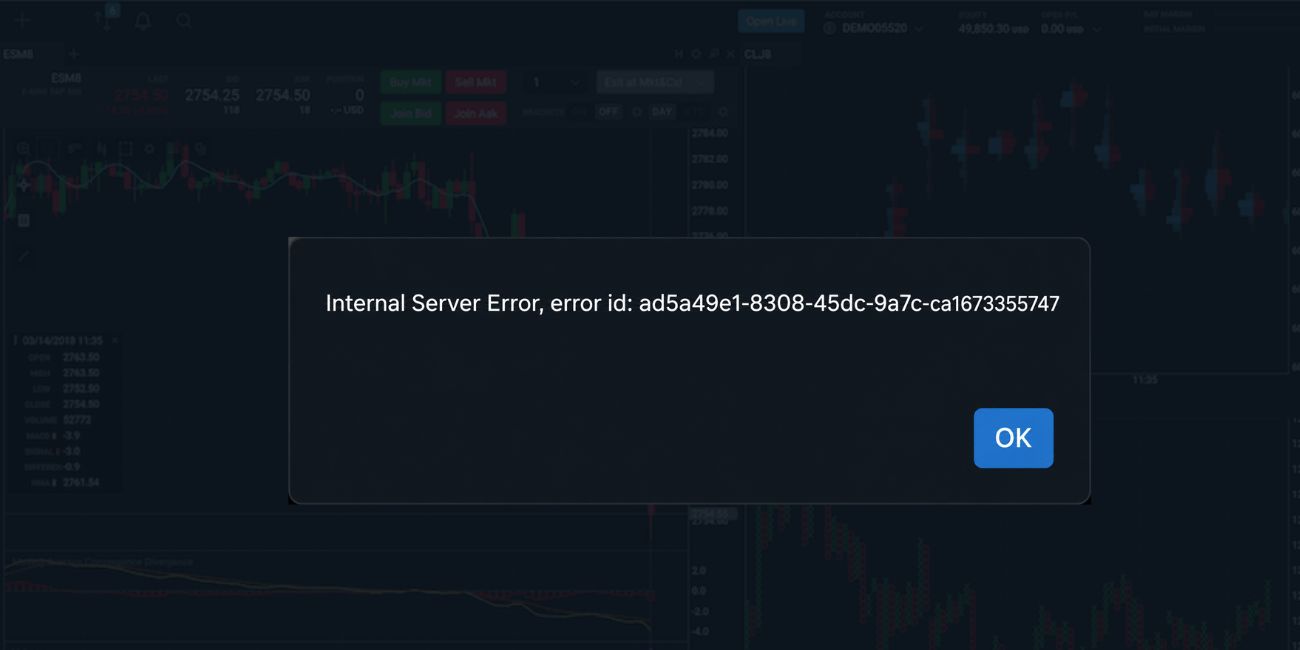 An internal server error means Tradovate received a request, but something failed while the platform was trying to process it. In simple words, your app or browser asked Tradovate to do something, like log in, load charts, open account data, or send an order request, but the server could not complete that action correctly.
This error can happen on the web platform, desktop app, or mobile app. Sometimes it is a real server-side issue. Other times, the server error appears because your browser session, cookies, internet route, or app files are not working right. That is why checking both sides matters.
Common Causes of Tradovate Internal Server Error
Tradovate internal server error can happen for more than one reason. Some causes are on Tradovate’s side, and some are on your device or network. The message may look the same, but the fix can be different.
Common causes include:
- Tradovate server outage or maintenance
- Expired login session
- Browser cache or cookies problem
- Weak or unstable internet connection
- VPN or proxy conflict
- Firewall blocking the platform
- Outdated Tradovate app
- App data corruption
- Browser extension conflict
- Account authentication problem
- High platform load during busy market times
- Wrong device date or time settings
How to Fix Tradovate Internal Server Error?
Start with status and session checks first. Then move to browser, app, and network fixes. Don’t uninstall the app right away unless the easier steps do nothing.
1. Refresh Tradovate and Try Again After a Moment
A temporary request failure can trigger an internal server error. This can happen when the platform is slow, your session pauses, or the server does not respond in time. Refreshing may fix it if it was only a small loading issue.
But don’t keep refreshing again and again during an order action. If you were placing or changing an order, check order status first. If you were just loading charts or logging in, refresh the page once, wait a short moment, and try again. Simple, but it does clear some short-lived errors.
2. Check If Tradovate Is Down or Under Maintenance
If many users are having the same issue, the problem may be on Tradovate’s side. In that case, clearing cache or changing your browser will not do much. You need to wait until the platform-side issue is fixed.
Check Tradovate’s official status or support channels if available. You can also look for recent user reports, but don’t rely only on random comments. If the error started suddenly and affects login, charts, and account loading at the same time, a server or maintenance issue is possible.
A few things to check:
- Is the web platform loading?
- Is the desktop app also showing the same error?
- Is the mobile app working?
- Are other users reporting the same problem?
- Did the error start during a busy market period?
- Is there any maintenance notice?
If the issue is clearly platform-side, wait and avoid making repeated trading actions until the platform is stable again.
3. Log Out and Log Back In
Sometimes your Tradovate session expires or gets stuck. The platform may still look like you are logged in, but account data, charts, or trading panels may fail to load. This can lead to an internal server error or a blank screen.
Log out of Tradovate fully, close the tab or app, then open it again and log back in. If you use two-factor authentication, complete it carefully and don’t leave the login window sitting too long. A clean login creates a fresh session, and that can fix errors caused by old authentication data.
4. Clear Browser Cache and Cookies
If you use Tradovate in a browser, old cache and cookies can cause login problems, loading errors, and broken platform screens. Cache helps websites load faster, but damaged cache can also keep loading the same broken files. Annoying, yes.
Here is the simple way to test it:
- Open your browser settings.
- Go to privacy or browsing data settings.
- Clear cached images and files.
- Clear cookies for Tradovate if login keeps failing.
- Close the browser fully.
- Open the browser again.
- Log in to Tradovate and test it.
Clearing cookies may sign you out of Tradovate and other websites. So make sure you know your login details before doing it. If you don’t want to clear everything, try clearing only the site data for Tradovate first.
5. Try a Different Browser or Private Window
A private window is a quick way to check if your browser data is the problem. It opens a cleaner session without most old cookies and stored site data. If Tradovate works in private mode, your normal browser session may have bad cache, cookies, or an extension conflict.
You can also try another browser like Chrome, Edge, or Firefox. This does not mean you have to switch browsers forever. It is just a test. If Tradovate works in another browser, the issue is probably not your account or Tradovate’s full server. It is more likely your current browser setup.
6. Disable VPN, Proxy, or Strict Firewall Rules
VPNs and proxies can change how your connection reaches Tradovate. Some trading platforms may not work well when the connection keeps changing routes, locations, or DNS paths. A strict firewall can also block parts of the platform from loading.
Turn off your VPN or proxy and test Tradovate again. If you are on a work, school, or public network, the firewall may be stricter than normal. Try a trusted home network or a mobile hotspot for testing. If Tradovate works on another connection, your network rules were likely part of the problem.
You don’t need to remove your VPN forever. Just test without it first. Then try a different server or change the VPN settings if needed.
7. Check Your Internet Connection
A trading platform needs more than just “connected” Wi-Fi. Your internet may work for normal browsing but still struggle with live charts, account data, and order panels. If the connection drops for a second, Tradovate may show loading issues or server errors.
Open a few normal websites and see if they load fast. Then test your connection on another device. If things feel slow, restart your router, move closer to Wi-Fi, or switch to a wired connection if you can. You can also use a mobile hotspot for a short test. If Tradovate works on the hotspot, your main network may be unstable.
8. Update the Tradovate App
If you use the Tradovate desktop app or mobile app, an old version can cause errors. App updates often fix login bugs, loading problems, and compatibility issues. So if your app has not been updated for a while, check that first.
Open the app store on mobile or the app update option on desktop if available. Install the latest version, then close the app fully and reopen it. Don’t just leave it running in the background. A fresh restart after updating gives the app a cleaner start.
If the web platform works but the desktop or mobile app still shows internal server error, the app itself may be the problem. In that case, update first before reinstalling.
9. Clear App Data or Reinstall Tradovate
Use this fix after the easier ones. If Tradovate app files are damaged, clearing app data or reinstalling can help. This is more useful when the error happens only in the desktop app or mobile app, not on the web platform.
On mobile, you may be able to clear app cache or app data from your phone settings. On desktop, you may need to uninstall the app, restart the device, and install it again. After reinstalling, log in fresh and test the platform before changing more settings.
Make sure you have your login details and two-factor method ready before removing the app. You don’t want to get locked out just because you forgot a password or lost access to your verification method.
10. Check Device Date, Time, and System Updates
Wrong date or time settings can cause login and authentication problems. It sounds small, but secure platforms often depend on correct system time. If your device time is wrong, Tradovate may fail to verify the session properly.
Set your device to automatic date and time. Then check for pending Windows, macOS, iOS, or Android updates. You don’t need to install every optional thing right away, but important system updates can fix browser, security, and connection issues. After updating, restart the device and test Tradovate again.
11. Contact Tradovate Support
If the error keeps happening after you try the main fixes, contact Tradovate support. This is especially important if the issue is tied to your account, orders, login, or market data. Support can check things you cannot see from your side.
Send clear details so they don’t have to guess. Include:
- The exact error message
- Time the error happened
- Your device type
- Browser or app version
- Whether it happened on web, desktop, or mobile
- Screenshot of the error
- Whether you were logging in, loading charts, or checking orders
Keep the message simple and direct. The more exact you are, the easier it is for support to understand the problem.
How to Prevent Tradovate Internal Server Error Again?
You can’t prevent every server error because some issues are outside your control. Still, you can reduce repeat problems by keeping your setup clean. Keep the app updated, clear browser cache when things start acting strange, and avoid unstable networks while using the platform.
A few habits help:
- Keep Tradovate updated
- Use a stable internet connection
- Avoid switching VPN servers during use
- Clear browser cache if the web platform gets stuck
- Don’t overload the browser with too many extensions
- Keep your device date and time automatic
- Restart the app before important sessions
- Check order status before repeating any trading action
Final Thoughts
Tradovate internal server error can come from the platform, your login session, browser cache, app files, VPN, firewall, or internet connection. So the best way to fix it is to check one thing at a time. Start with server status, then refresh, log in again, clear cache, and test another browser or app.
If the error appears during order actions, slow down and check your order status before repeating anything. That one step can save a lot of confusion. And if the error keeps coming back, contact Tradovate support with a screenshot and clear details.
Are you seeing the Tradovate internal server error during login, chart loading, or order placement? Comment the exact place where it appears so it’s easier to narrow down the cause.
