 logo

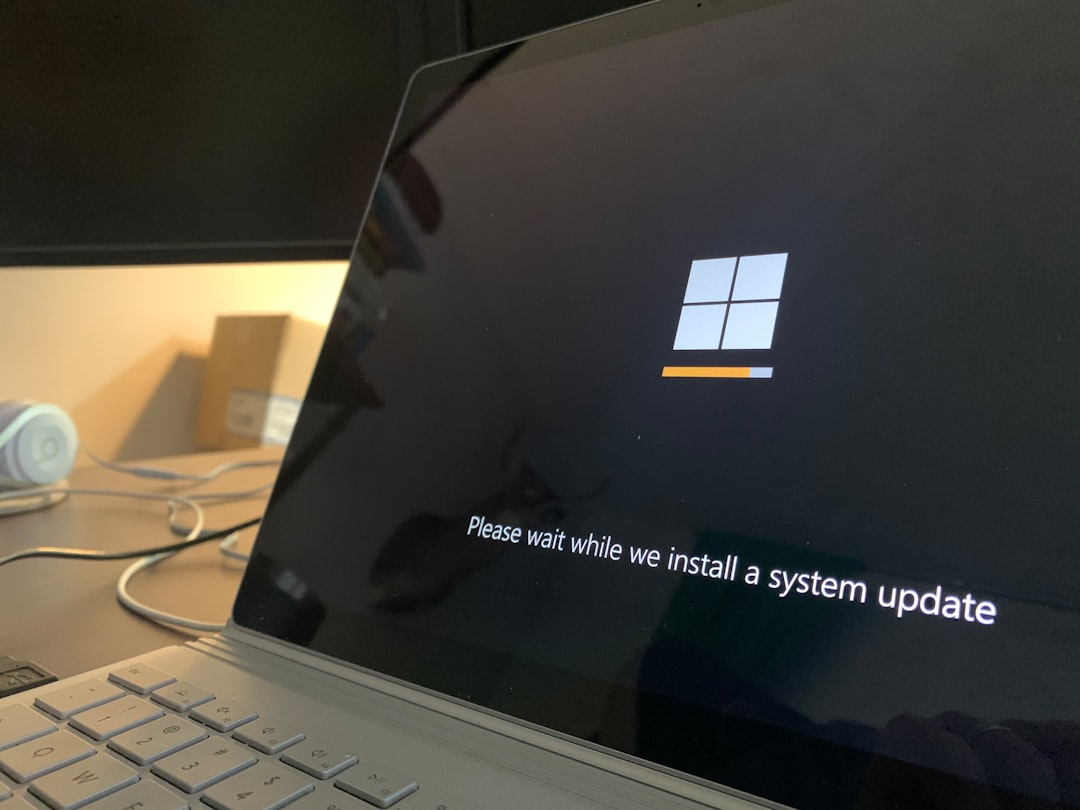
Fix KB5094126 first by clearing stuck Windows Update files, repairing system files, then checking logs if the install still fails. Microsoft’s own Windows update guidance starts with the troubleshooter, disk space checks, and restart loops before deeper repair work [source: Microsoft]. That order saves time, especially when Windows 11 keeps returning a vague error such as 0x800f081f, 0x8024200d, or a plain “Install error.”
TLDR: KB5094126 should be fixed by restarting the PC, freeing at least 10 GB of space, running the Windows Update troubleshooter, then using DISM and SFC repairs. If it still fails, the user should reset Windows Update components and install the update manually from the Microsoft Update Catalog. For example, on a small office laptop with only 3.8 GB free, cleanup plus a component reset can turn a repeated 95% failure into a clean install. Expect to waste time on the error screen, because Windows often hides the real cause in logs instead of saying it clearly.
Common reasons KB5094126 fails
KB5094126 can fail for several boring but common reasons. The update cache may be damaged. A previous update may be half-installed. Security software may block files. The system image may have missing components. The PC may also lack free disk space.
Honestly, it feels like Windows should say this upfront. Instead, the user often sees a short error code after waiting 10 or 20 minutes.
- Low storage: Windows 11 updates need room to unpack files.
- Corrupt update cache: Old files in SoftwareDistribution can break new installs.
- Damaged system files: CBS and servicing files may need repair.
- Driver conflicts: Network, storage, or chipset drivers can block patching.
- Pending restart: Another update may be waiting in the background.
[ai-img]windows update error, laptop screen, failed install[/ai-img]
Step 1: restart and check the basics
The user should restart the PC first. Not shut down. A full restart clears pending update tasks and locked files.
Next, the user should check storage:
- Open Settings.
- Go to System > Storage.
- Run Temporary files cleanup.
- Keep at least 10 GB to 15 GB free before retrying.
External drives, VPN tools, and third-party antivirus tools should be removed or paused during the install. This is not exciting advice, but it fixes more update failures than people expect.
Step 2: run the Windows Update troubleshooter
The troubleshooter is basic, but it can reset stuck services and detect bad update state.
- Open Settings.
- Select System > Troubleshoot.
- Open Other troubleshooters.
- Run Windows Update.
- Restart the PC and try KB5094126 again.
If the same error returns, the user should write it down. The code matters. An error like 0x800f0922 may point to reserved partition or connection issues. 0x800f081f often points to missing repair files.
Step 3: repair Windows system files
The user should open Command Prompt or Windows Terminal as administrator. Then run these commands one at a time:
DISM /Online /Cleanup-Image /CheckHealth
DISM /Online /Cleanup-Image /ScanHealth
DISM /Online /Cleanup-Image /RestoreHealth
sfc /scannow
DISM repairs the Windows component store. SFC checks protected system files. If SFC says it found and repaired files, the user should restart before trying the update again.
[ai-img]command prompt, dism scan, system repair[/ai-img]
Step 4: reset Windows Update components
If KB5094126 still fails, the update cache may be broken. The user can reset it manually from an admin terminal:
net stop wuauserv
net stop cryptSvc
net stop bits
net stop msiserver
ren C:\Windows\SoftwareDistribution SoftwareDistribution.old
ren C:\Windows\System32\catroot2 catroot2.old
net start wuauserv
net start cryptSvc
net start bits
net start msiserver
After this, Windows will rebuild update folders. The next scan may take longer than usual. That is normal.
Step 5: install KB5094126 manually
If Windows Update keeps failing, the user can search for KB5094126 in the Microsoft Update Catalog and download the matching package for the device, such as x64 or ARM64 [source: Microsoft Update Catalog].
The user should double-click the downloaded .msu file and follow the prompts. If the manual installer says the update is not applicable, the PC may already have a newer update, the wrong Windows 11 version, or the wrong CPU type.
How to investigate the real failure
When the fix does not work, logs are the next stop. It drives people crazy that the visible error is often useless, but the logs usually give better clues.
- Event Viewer: Open Windows Logs > Setup and check recent error events.
- WindowsUpdate.log: Run
Get-WindowsUpdateLogin PowerShell to create a readable log on the desktop. - CBS.log: Check
C:\Windows\Logs\CBS\CBS.logfor servicing errors. - DISM.log: Check
C:\Windows\Logs\DISM\dism.logif DISM failed.
The user should search logs for the KB number, the error code, and words such as failed, corrupt, missing, or access denied. If several devices fail at the same percent, an admin should compare driver versions, network rules, and security tools.
[ai-img]event viewer, update logs, error code[/ai-img]
When a repair install makes sense
If every repair fails, an in-place repair install may be faster. The user downloads the Windows 11 ISO, mounts it, runs setup.exe, and keeps personal files and apps. This refreshes Windows without wiping the device.
Before doing that, the user should back up files. A repair install is usually safe, but update failures can point to deeper disk or system damage.
FAQ
What is Windows 11 update KB5094126?
It is treated as a Windows 11 update package identified by its KB number. The user should confirm it in Windows Update history or the Microsoft Update Catalog before manual install.
Why does KB5094126 fail at 95% or 100%?
That often means Windows installed part of the package but failed during final servicing. Corrupt components, pending restarts, or blocked files are common causes.
Will resetting Windows Update delete personal files?
No. Renaming SoftwareDistribution and catroot2 removes cached update files, not documents, photos, or apps.
Should the user install KB5094126 manually?
Yes, if normal Windows Update fails after basic repair steps. The user must choose the correct package for the Windows version and processor type.
What if none of the fixes work?
The user should check CBS and Event Viewer logs, update drivers, run a disk health check, and consider an in-place repair install of Windows 11.