 logo
logo

Only turn off IPv6 if it is causing a real problem. For most people, IPv6 should stay on. But if a broken router, odd VPN, or cranky office network is making sites load like cold soup, disabling IPv6 can be a useful test.
TLDR: On Windows, turn off IPv6 from your network adapter settings, or use PowerShell for a faster switch. On macOS, use Network settings for a softer option, or Terminal for a true off switch. For example, one small office with 18 laptops cut page load delays from about 6 seconds to under 1 second after disabling IPv6 on devices affected by a bad router setup. Disable it, test, then turn it back on if nothing improves.
What IPv6 Is, in Plain Human Words
IPv6 is the newer internet address system. It gives devices longer addresses. Much longer. IPv4 looks like this: 192.168.1.10. IPv6 looks like this: 2001:db8:85a3::8a2e:370:7334.
Yes, it looks like a robot sneezed.
IPv6 exists because the world ran low on IPv4 addresses. Phones, laptops, smart TVs, doorbells, fridges, watches, and game consoles all want online seats. IPv6 gives the internet a much bigger table.
So why turn it off?
- Your VPN behaves badly.
- Some websites stall before loading.
- Your router has poor IPv6 support.
- Your DNS setup is messy.
- You are testing a network issue.
The catch is that IPv6 is not usually the villain. It is often the poor little scapegoat. The real pest may be a cheap router, a half-broken ISP setup, or a VPN app that has not been updated since dinosaurs had Wi-Fi.

Before You Flip the Switch
Do three quick checks first. They can save you from chasing ghosts.
- Restart your router. Boring, yes. Useful, also yes.
- Update your VPN app. Old VPN clients often mishandle IPv6.
- Test on another network. Try a phone hotspot. If the issue vanishes, your home or office network may be the problem.
Also, write down what you change. Future you will be grateful. Future you is tired.
How to Turn Off IPv6 on Windows
Windows gives you a few ways to disable IPv6. The simple way uses menus. The fast way uses PowerShell. Pick your vibe.
Option 1: Use Network Adapter Settings
This works on Windows 10 and Windows 11.
- Press Windows + R.
- Type ncpa.cpl.
- Press Enter.
- Right-click your active connection. This may be Wi-Fi or Ethernet.
- Choose Properties.
- Find Internet Protocol Version 6 TCP/IPv6.
- Uncheck the box.
- Click OK.
- Restart your browser, VPN, or the whole PC.
That is it. No wizard. No drama. Well, usually.
Honestly, it feels like Windows hides this setting just far enough away to make you wonder if you clicked the wrong thing three times. Expect to waste 20 seconds staring at adapter names if you have VPNs, virtual machines, or Bluetooth network items installed.
Option 2: Use PowerShell
This is cleaner if you manage several machines. Open PowerShell as Administrator.
First, list your adapters:
Get-NetAdapterBinding -ComponentID ms_tcpip6Then disable IPv6 on Wi-Fi:
Disable-NetAdapterBinding -Name "Wi-Fi" -ComponentID ms_tcpip6Or disable it on Ethernet:
Disable-NetAdapterBinding -Name "Ethernet" -ComponentID ms_tcpip6To turn it back on, use this:
Enable-NetAdapterBinding -Name "Wi-Fi" -ComponentID ms_tcpip6Swap Wi-Fi for your real adapter name if needed.
Should You Disable IPv6 in the Windows Registry?
You can. But do not start there.
The registry method is more forceful. It can affect the whole system. That may sound powerful. It can also create weird side effects with Windows services, domain networks, and apps that expect IPv6 to exist.
If you only need to test a browser, VPN, or router issue, unchecking IPv6 on the adapter is safer.

How to Turn Off IPv6 on macOS
macOS is more polite on the surface. Then Terminal enters the room with a wrench.
Newer macOS versions may not show a plain Off button in the normal Network settings. You may see options like Automatically, Manually, or Link-local only. That last one is close to disabling public IPv6, but it is not always a full off switch.
Option 1: Use System Settings
Try this first.
- Open System Settings.
- Click Network.
- Select Wi-Fi or Ethernet.
- Click Details.
- Open TCP/IP.
- Find Configure IPv6.
- Choose Link-local only if Off is not shown.
- Click OK or Apply.
Link-local only means your Mac keeps a tiny local IPv6 address for nearby network chatter. It should stop normal IPv6 internet use. For many fixes, that is enough.
Option 2: Use Terminal
If you want the stronger method, use Terminal.
First, list your network services:
networksetup -listallnetworkservicesYou may see names like:
- Wi-Fi
- Ethernet
- Thunderbolt Bridge
- USB 10/100/1000 LAN
To turn off IPv6 on Wi-Fi, type:
sudo networksetup -setv6off Wi-FiTo turn it off on Ethernet, type:
sudo networksetup -setv6off EthernetYou may need to enter your Mac password. Terminal does not show password dots. It is not frozen. It is just being dramatic.
To turn IPv6 back on later, use:
sudo networksetup -setv6automatic Wi-FiOr:
sudo networksetup -setv6automatic EthernetIf your service name has spaces, wrap it in quotes:
sudo networksetup -setv6off "USB 10/100/1000 LAN"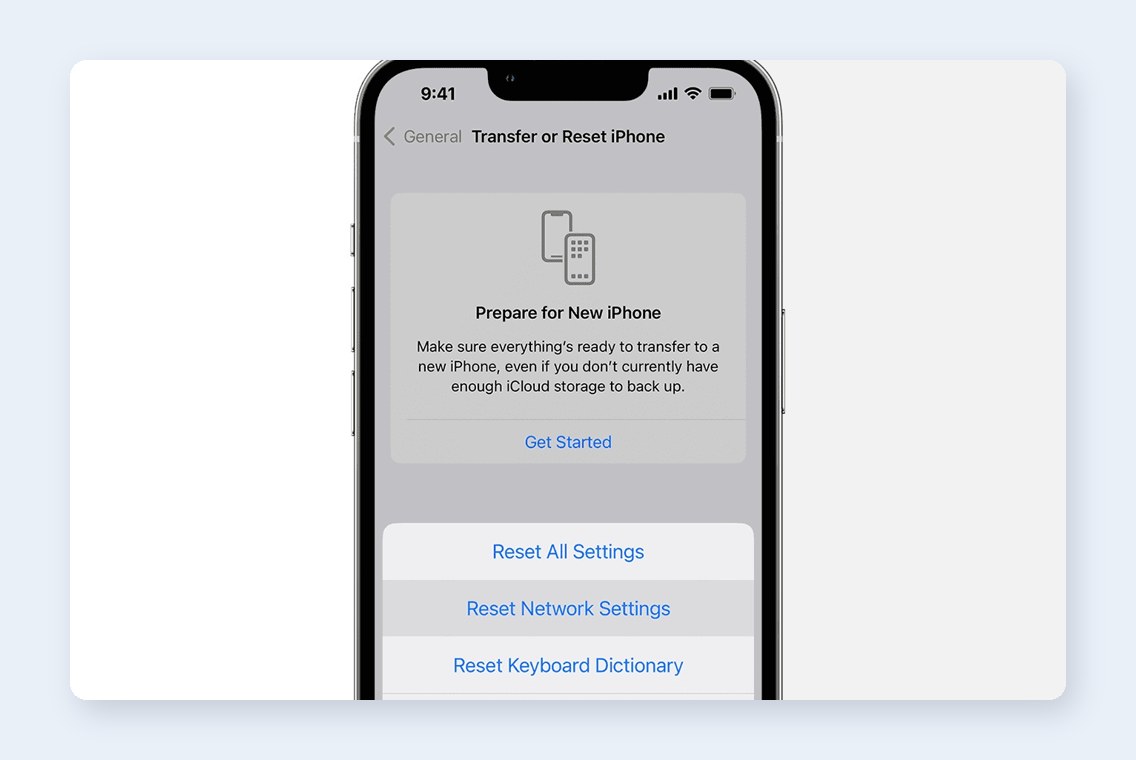
Windows vs macOS: Which Is Easier?
Windows is easier if you like clicking checkboxes. The adapter menu is old-school, but clear. You uncheck IPv6. Done.
macOS is easier if you only need Link-local only. But for a true off setting, Terminal is often the better path. That can feel annoying if you just wanted one simple switch.
| Task | Windows | macOS |
|---|---|---|
| Basic disable method | Adapter checkbox | Network settings or Terminal |
| Best power-user method | PowerShell | Terminal |
| Easy to reverse | Yes | Yes |
| Most confusing part | Finding the right adapter | No obvious Off option |
How to Check If IPv6 Is Really Off
After changing settings, test it. Do not guess.
- Visit test-ipv6.com.
- On Windows, run ipconfig /all in Command Prompt.
- On macOS, run networksetup -getinfo Wi-Fi.
- Try the site, app, or VPN that was failing before.
If nothing changes, IPv6 may not be the problem. Turn it back on. No shame. Networks are weird little goblins.
When You Should Not Turn Off IPv6
Do not disable IPv6 just because a random forum comment said so in 2014. Some networks now expect it. Some services perform better with it. Some business systems use it inside private networks.
Keep IPv6 on if:
- Your internet works fine.
- You are on a managed work device.
- Your IT team controls the settings.
- You use apps that need modern network features.
- You are not sure what problem you are fixing.
Safe Rollback Steps
If the test fails, undo the change.
On Windows, go back to adapter properties and recheck Internet Protocol Version 6 TCP/IPv6. Or use PowerShell with Enable-NetAdapterBinding.
On macOS, set IPv6 back to Automatically. Or run sudo networksetup -setv6automatic Wi-Fi.
Then restart your browser and VPN. If needed, restart the device too. Simple fixes still win.
Final Tip
Treat IPv6 like a light switch for testing, not a monster to banish forever. Turn it off. Check the issue. Write down the result. If it helps, fix the router, VPN, or DNS setup next. If it does not help, turn IPv6 back on and blame the next suspect.
