 logo
logo

Whether you’re upgrading to a newer smart speaker or simply passing your device on to a friend or family member, it’s crucial to properly reset your Google Home device before selling or gifting it. This ensures that your personal data and account settings are completely removed, allowing the new owner to set it up afresh without any hassle. Resetting your device only takes a few minutes, but skipping this step can leave your data exposed or make it harder for someone else to use the device.
TL;DR
If you’re planning to sell or gift your Google Home device, be sure to perform a factory reset first. This erases all your personal information and unlinks the device from your Google account. Each model has a slightly different reset method, so check the specific instructions for your device. Once reset, it’s ready to be connected by a new user as if it were brand new.
Why Resetting Your Google Home Device Is Important
Before diving into the reset instructions, it’s essential to understand why this step is necessary. Google Home devices store a considerable amount of personal information, from passwords to linked services like calendars, music accounts, addresses, and more. Here’s what resetting does for you:
- Protects your privacy: A reset ensures that none of your information is passed on to the next user.
- Removes personalization: From voice recognition to customized routines, resetting removes all traces of your interaction with the device.
- Unlinks your Google account: Without a reset, your Google account could stay tethered to the device, complicating things for the new owner.
Understand Which Google Device You Have
Google now offers a range of smart speakers and displays. The reset methods vary a bit depending on the model, so it’s important to know exactly which one you’re working with. Some of the most popular Google Home devices include:
- Google Home (original model)
- Google Home Mini and Nest Mini
- Google Home Max
- Google Nest Audio
- Google Nest Hub and Nest Hub Max
Identifying your device model before proceeding ensures that you follow the correct set of instructions.
How to Reset Different Google Home Devices
1. Google Home (Original Model)
To reset the original Google Home, press and hold the mute button located on the back of the device for about 15 seconds. You’ll hear the Google Assistant confirm that it’s resetting. Keep holding until you hear a sound indicating the process has begun. Voila! It will restart without any of your data.
2. Google Home Mini (1st Gen)
On the bottom of this puck-shaped device, look for a small circular button near the power port. This is the Factory Reset button—a feature not available through voice commands or the app. Follow these steps:
- Hold the button for 15 seconds until you hear Google Assistant confirming the reset.
- Continue to hold until the device reboots automatically.
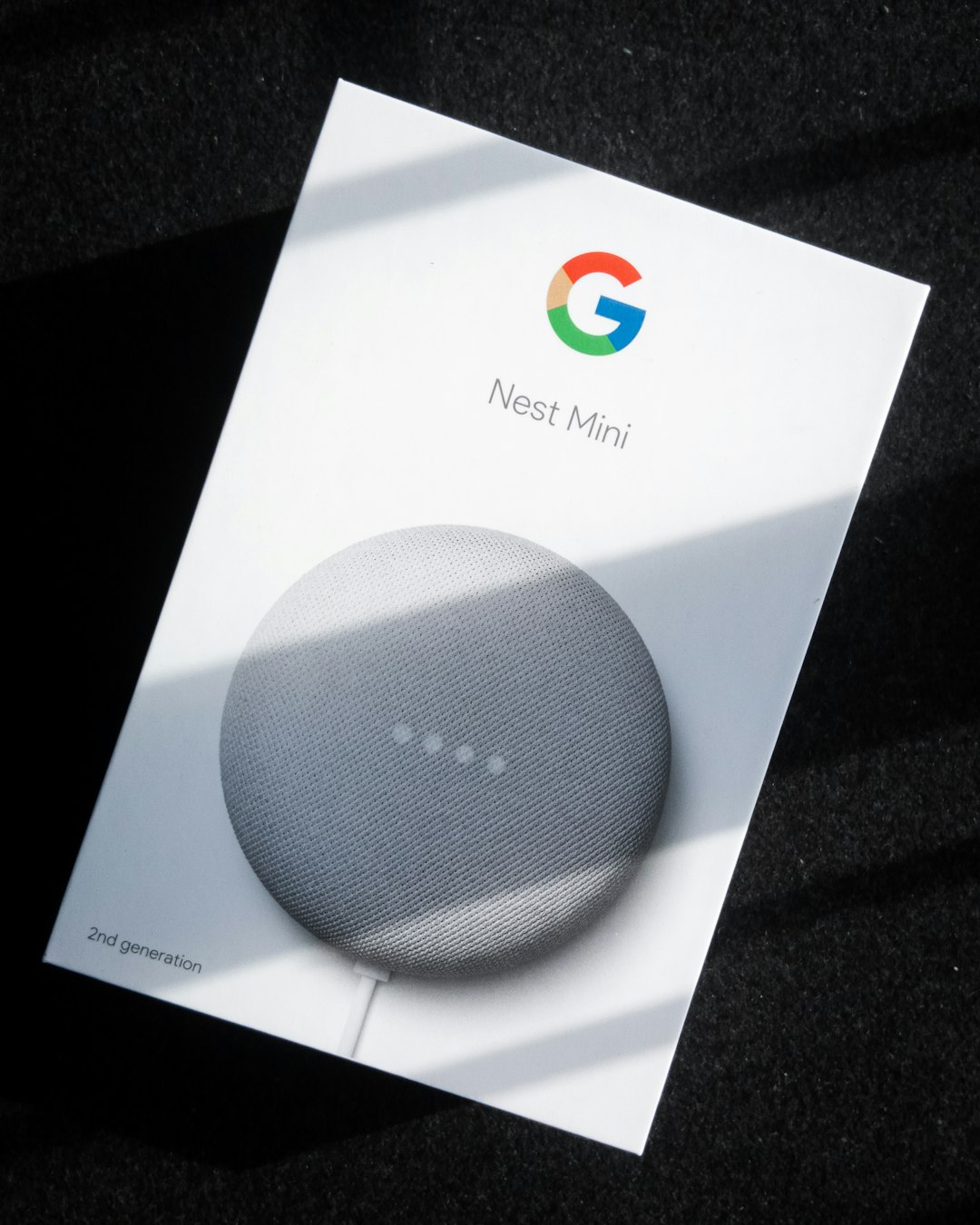
3. Google Nest Mini (2nd Gen)
The Nest Mini ditched the dedicated reset button. Instead, you’ll need to use the microphone mute switch:
- Turn off the microphone using the switch at the side.
- Press and hold the center of the speaker (top of the device) where the lights are.
- Hold it for about 15 seconds. The device will notify you it’s resetting.
4. Google Home Max
The Home Max has a small reset button positioned near the power cable. Here’s how to use it:
- Locate the factory reset button and press and hold it for at least 12 seconds.
- Listen for the Google Assistant to confirm the device is resetting.
5. Google Nest Audio
For the Nest Audio speaker, the reset process is very similar to the Nest Mini:
- First, switch off the microphone using the toggle located on the back.
- Press and hold the center (where the lights are) for around 15 seconds.
- Release once the Assistant confirms the reset.
6. Nest Hub and Nest Hub Max
Resetting Google’s smart displays requires using physical buttons:
- Press and hold both volume up and volume down buttons simultaneously.
- Hold for around 10 seconds until the screen shows a reset message.
- Keep holding until the device begins the reset process automatically.
Don’t Forget to Unlink Your Google Account
Resetting the device isn’t always enough. Before you do the factory reset, it’s best to remove the device manually from your Google Home app to ensure it completely dissociates from your account.
Here’s how:
- Open the Google Home app on your smartphone.
- Tap on the device you want to remove.
- Click the Settings icon (usually a gear symbol).
- Scroll down to choose Remove device or Unlink.
- Confirm your selection.
This extra step makes it easier for the next person to link the device to their own account without hitting any snags.
What the New Owner Needs to Know
Once the device is reset and unlinked, it will behave like a brand-new product out of the box. The new user will just need to plug it in and use the Google Home app to begin setup. Make sure to pass on any accessories—such as power adapters—and recommend downloading the latest version of the Google Home app.
What If You Already Gave It Away Without Resetting?
If you’ve already gifted or sold your device without resetting it, don’t worry—you can still remove it from your Google account remotely.
To do this:
- Open the Google Home app or visit myaccount.google.com.
- Under Devices or Security, look for any connected Google Home or Nest devices.
- Select the device and choose Remove access or Sign out.
Keep in mind that the new owner may need to perform a manual reset if the device is still showing as linked.
Tips Before Selling or Gifting
Make the process even smoother by following these tips:
- Include the original box: This adds value and helps with transport.
- Clean the device: Wipe it down with a dry cloth for hygiene and presentation.
- Provide documentation: A quick printout of setup steps can be helpful for tech newbies.
- Mention compatibility: Some smart features may only work in certain regions or with certain apps.
In Summary
Resetting your Google Home device before passing it on is a simple yet vital part of the selling or gifting process. Removing your personal information and unlinking your account ensures both your privacy and the future user’s convenience. With this guide at your fingertips, you’ll be able to cleanly part ways with your smart speaker and give it a fresh start with a happy new owner.
After all, smart homes deserve smart handovers!
