 logo
logo
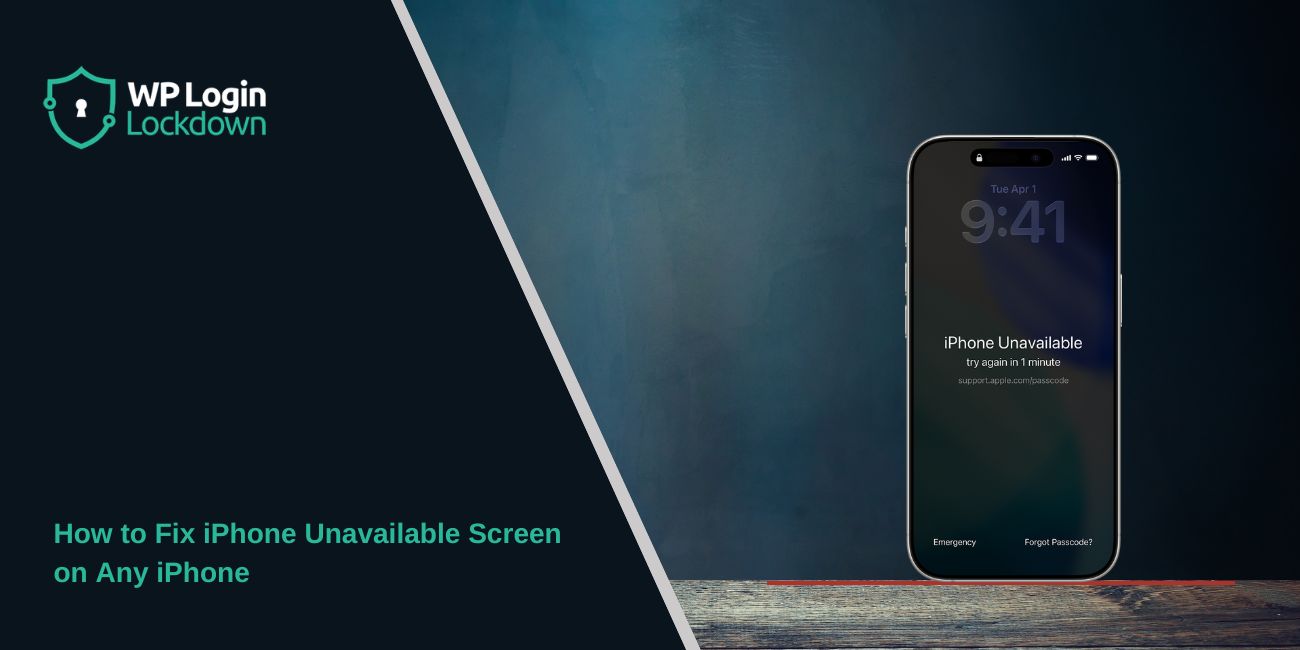
Quick Answer: How to Fix iPhone Unavailable
If your iPhone says “iPhone Unavailable,” it usually means too many wrong passcode attempts were entered. In some cases, you only need to wait and enter the correct passcode later. If the phone stays locked, you may need to erase the iPhone using the lock screen, iCloud Find My, or Recovery Mode.
Quick fixes to try first:
- Wait for the timer to end.
- Enter the correct passcode carefully.
- Do not keep guessing random passcodes.
- Use the “Erase iPhone” option if available.
- Use iCloud Find My from another device.
- Try Recovery Mode with a computer if nothing else works.
Are you stuck on the iPhone Unavailable screen and not sure what to do next? Yeah, that message can feel pretty stressful, especially when your photos, apps, notes, and important stuff are all trapped inside the phone and you suddenly realize how much you depend on it every day.
The good news is that this problem is usually fixable, and in this guide I’ll explain what iPhone Unavailable actually means and the safest ways to unlock or reset the device without making things more confusing than they need to be, and we’ll start with simple fixes first before moving into methods like Erase iPhone, iCloud Find My, and Recovery Mode. I remember seeing this message once after my nephew kept tapping random numbers on my phone and honestly it was super annoying.
What Does “iPhone Unavailable” Mean?
 The iPhone Unavailable message appears after too many incorrect passcode attempts. It is part of Apple’s security system designed to protect your personal data. But it does not mean the iPhone is damaged.
Basically, your iPhone thinks someone may be trying to guess the passcode, so instead of allowing unlimited attempts iOS temporarily locks the device, and after even more failed tries the lock period becomes longer and longer until eventually the iPhone may require a full erase before it can be used again. Apple security stuff is strict sometimes.
This can happen even by accident. A child may tap random numbers. The phone may unlock inside a pocket or bag. Sometimes Face ID fails several times, and users enter the wrong passcode without realizing it.
The important thing to remember is this: the phone is not broken. It is locked for security reasons.
Why iPhone Becomes Unavailable
Most of the time, the reason is simple — wrong passcodes entered too many times. People panic and start guessing, and that usually makes things worse pretty fast.
Here’s how Apple usually handles failed attempts:
| Wrong Attempts | What Happens | Wait Time |
|---|---|---|
| 5 attempts | iPhone temporarily locked | 1 minute |
| 6 attempts | Longer lockout | 5 minutes |
| 7 attempts | Security delay increases | 15 minutes |
| 8 or more | iPhone may fully lock | Longer or permanent lock |
| Too many attempts | Erase/reset required | No timer |
The exact timing can vary a little depending on the iPhone model and iOS version, but the main idea stays the same because more wrong attempts lead to longer lockouts and eventually the phone may demand a full reset before you can use it again. The system is kind of unforgiving honestly.
A lot of people make the mistake of panicking and trying more random passcodes. Don’t do that. It usually makes the situation worse.
Wait and Try the Correct Passcode
 If your iPhone shows a timer, the safest thing to do is wait. Seriously. Just let the timer finish completely and then slowly enter the correct passcode without rushing.
This is the best-case situation because your data stays safe, and there’s no erase, no reset, no Recovery Mode, and no extra setup afterward which saves a lot of time and stress compared to factory resetting the whole device. Sometimes the easiest fix is actually the correct one.
Once the timer ends:
- Unlock the iPhone slowly.
- Double-check the passcode before typing.
- Make sure Caps Lock or keyboard issues are not confusing you.
- Avoid repeated guessing.
If you remember the correct passcode after waiting, your iPhone should unlock normally. That is why this method should always come before factory reset steps.
A simple thing people forget is older passcodes. Sometimes users recently changed the code and keep typing the old one automatically from muscle memory without even noticing it at first. Happens more than you’d think.
Use the “Erase iPhone” Option on the Lock Screen
Some iPhones running newer iOS versions show an Erase iPhone option directly on the unavailable screen. This is one of the easiest reset methods because you do not need Finder or iTunes.
There’s a catch though. Your iPhone must be connected to the internet, and you’ll also need your Apple ID password to continue with the erase process safely.
Before using this option, understand one thing clearly: it will erase the iPhone, and that means photos, apps, messages, downloads, and other things not backed up may disappear permanently after the reset finishes. That part is a little painful honestly.
If you still want to continue, do this:
- Tap Erase iPhone at the bottom of the screen.
- Tap it again to confirm.
- Enter your Apple ID password.
- Wait while the iPhone resets itself.
- Set the iPhone up again after restart.
During setup, you may be able to restore data from iCloud Backup or a computer backup if one exists.
This method is good for people who forgot the passcode completely and just want access to the device again as quickly as possible.
Fix iPhone Unavailable With iCloud Find My
If the lock screen erase option is not showing, you can use iCloud Find My from another device. This works well if Find My iPhone was already enabled before the phone became locked.
You can do this from another iPhone, iPad, Mac, or even through a browser on a computer, and the nice part is that you do not always need cables or Recovery Mode for this method to work properly. Remote fixes feel kind of magical sometimes.
Steps are pretty simple:
- Open iCloud Find My.
- Sign in using your Apple ID.
- Choose the locked iPhone from your devices list.
- Select Erase This Device.
- Confirm the erase request.
- Wait for the iPhone to reset.
After the erase finishes, the iPhone restarts like a brand-new device. You can then set it up again and restore a backup if available.
Actually, this method is useful because it works remotely. You don’t always need cables or Recovery Mode.
Use Recovery Mode With a Computer
If the earlier methods do not work, Recovery Mode is usually the final fix. This method reinstalls iOS and removes the unavailable screen completely.
You will need:
- A Mac or Windows computer
- A Lightning or USB-C cable
- Finder on Mac or iTunes on Windows
The process sounds technical at first, but it’s manageable if you follow the steps carefully and don’t rush through the button combinations because timing matters a little here. Recovery Mode always sounds scarier than it really is.
Step 1: Connect the iPhone to the Computer
Use the cable to connect the locked iPhone to your computer.
Open Finder if you’re on a Mac. Open iTunes if you’re using Windows or an older Mac.
Step 2: Put the iPhone Into Recovery Mode
The button combination depends on your iPhone model.
For most newer iPhones:
- Press Volume Up quickly.
- Press Volume Down quickly.
- Hold the Side button.
- Keep holding until the Recovery Mode screen appears.
Do not release the button when the Apple logo appears. Keep holding until you see the recovery screen.
Step 3: Restore the iPhone
Once the computer detects the iPhone in Recovery Mode:
- Choose Restore.
- Wait while iOS downloads and installs again.
- Keep the iPhone connected during the process.
- Set the iPhone up again after restart.
If you have an iCloud or computer backup, you can restore your data during setup.
This method usually works even when the iPhone is fully locked and no erase option appears.
Can You Fix iPhone Unavailable Without Losing Data?
Sometimes yes. Sometimes no. It really depends on whether you still know the correct passcode before the lock becomes permanent.
If the iPhone only has a temporary timer and you eventually enter the correct passcode, your data stays safe and nothing gets erased from the phone which is obviously the best outcome possible.
But if the iPhone reaches the point where erase or reset is required, then recovering data depends mostly on backups, and if you have an iCloud Backup or computer backup you can restore a lot of your information after resetting the device again. Backups feel boring until you suddenly need them.
Without a backup, things become harder. Apple’s security system is designed to protect user data, so there is no official shortcut that magically unlocks the phone without the passcode.
Be careful with websites or videos promising instant unlock tools. Many are fake, risky, or unsafe.
Common Mistakes to Avoid
People often make the situation worse by rushing. A few bad decisions can turn a temporary lock into a full erase pretty quickly.
Avoid these mistakes:
- Keep entering random passcodes repeatedly.
- Use unknown third-party unlock tools.
- Forget your Apple ID password before resetting.
- Disconnect the iPhone during restore.
- Skip backups for long periods.
- Panic and factory reset too early.
One important thing people sometimes forget is Activation Lock, and after resetting the iPhone Apple may ask for the original Apple ID connected to the device, and without that password unlocking the phone becomes much more difficult later. That part catches a lot of users off guard.
So before erasing anything, make sure you remember your Apple account details.
FAQs About iPhone Unavailable
How long does iPhone unavailable last?
It depends on the number of wrong passcode attempts. Some lockouts last a few minutes. Too many failed attempts can lead to a permanent lock requiring erase or Recovery Mode.
Can I unlock iPhone unavailable without resetting?
Yes, if you still know the correct passcode and the iPhone only has a temporary timer. Wait for the timer to finish, then enter the correct passcode carefully.
What is the difference between iPhone unavailable and security lockout?
Both messages are very similar. Apple changed the wording slightly in newer iOS versions. They both mean the iPhone is locked after too many wrong passcode attempts.
Does Recovery Mode erase everything?
Usually yes. Recovery Mode restore often erases the device before reinstalling iOS. That’s why backups are important.
What if I forgot my Apple ID password?
You may need to reset your Apple ID password through Apple’s account recovery process before setting the iPhone up again after reset.
Final Thoughts
The iPhone Unavailable message looks scary at first, but in many cases the fix is actually pretty straightforward. Start simple. Wait for the timer, then carefully try the correct passcode before moving into bigger fixes like Erase iPhone, iCloud Find My, or Recovery Mode.
The main thing is not to keep guessing passcodes randomly because that usually causes longer lockouts or pushes the device toward a full reset which honestly creates more work and stress later. Slow and careful is the way to go here.
Which method helped you fix the iPhone Unavailable screen: waiting for the timer, Erase iPhone, iCloud, or Recovery Mode? Comment with the one that worked for you.
