 logo
logo
Hobby Lobby accepts Apple Pay for online orders placed through HobbyLobby.com. However, the company’s published payment policy does not list Apple Pay as an option inside its physical stores. If you’re visiting a store, bring a physical card or Hobby Lobby Gift Card.
This difference catches some shoppers by surprise. Apple Pay may appear during online checkout, but tapping an iPhone or Apple Watch at a store register is not supported under the published policy. This guide explains where Apple Pay works, how to use it online, and which payment methods you can use instead.
Does Hobby Lobby Take Apple Pay?
Hobby Lobby takes Apple Pay online only. You can use it for an eligible order on HobbyLobby.com when the Apple Pay button appears at checkout. It is not listed as an accepted payment method at physical Hobby Lobby stores.
| Question | Short Answer |
|---|---|
| Does Hobby Lobby take Apple Pay in stores? | No, not under its published policy |
| Does HobbyLobby.com take Apple Pay? | Yes |
| Can you tap an Apple Watch in stores? | No |
| Is Apple Pay the same as Apple Card? | No |
| Does Hobby Lobby accept PayPal? | Online only |
Some shoppers may report seeing newer payment terminals at individual locations. That doesn’t confirm chain-wide Apple Pay acceptance. Unless your local store directly says otherwise, plan to use a physical accepted card when shopping in person.
Hobby Lobby In-Store vs. Online Payment Methods
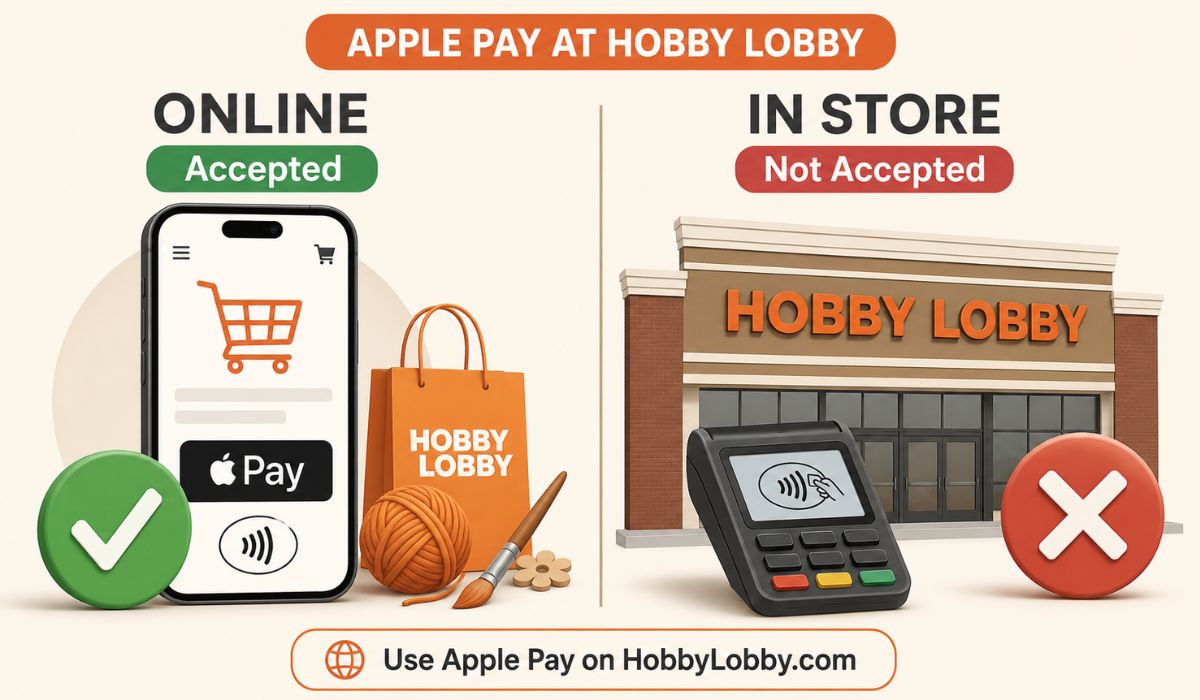 Hobby Lobby supports several major payment cards in stores and online. Apple Pay and PayPal are limited to online purchases under the current published policy.
| Payment Method | In Store | Online |
|---|---|---|
| Visa | Yes | Yes |
| Mastercard | Yes | Yes |
| Discover | Yes | Yes |
| American Express | Yes | Yes |
| Hobby Lobby Gift Card | Yes | Yes |
| Apple Pay | No | Yes |
| PayPal | No | Yes |
An online payment option doesn’t automatically work at a physical register. HobbyLobby.com uses a different checkout system, which is why it can support Apple Pay even when store terminals don’t.
Payment policies can change as checkout systems are updated. If you’re visiting without a physical wallet, call the exact Hobby Lobby location before going. That quick check can save you from reaching the register without a usable payment method.
How to Use Apple Pay on HobbyLobby.com
Apple Pay provides a quicker online checkout because you don’t need to type your card details manually. It must already be set up on a compatible Apple device before you begin.
Here’s how to use it:
- Open HobbyLobby.com on an Apple Pay-compatible device and browser.
- Add the items you want to your shopping cart.
- Continue to the checkout screen.
- Choose Apple Pay when it appears as a payment option.
- Review the card selected from Apple Wallet.
- Confirm your billing address, shipping address, and contact details.
- Approve the purchase using Face ID, Touch ID, or your device passcode.
- Wait for the Hobby Lobby order confirmation.
Review the order total before approving it. Shipping charges and taxes may be included, depending on the order and delivery address. Make sure the correct card is selected if you keep several cards in Apple Wallet.
Apple Pay handles payment authorization, but Hobby Lobby still handles the order. Questions about shipping, cancellations, product availability, or returns should be directed to Hobby Lobby rather than the card issuer.
Why Isn’t Apple Pay Showing at Online Checkout?
Apple Pay may not appear even though Hobby Lobby accepts it online. The option can depend on your device, browser, Wallet setup, region, and selected payment card.
Check these points:
- Apple Pay is set up on your device.
- An active supported card is stored in Apple Wallet.
- Your browser and operating system are updated.
- You’re using a compatible Apple device.
- Your browser supports Apple Pay on the web.
- The billing and delivery information is valid.
- Another payment option hasn’t already been selected.
- Browser privacy settings or extensions aren’t breaking checkout.
Close the checkout page and reopen it after correcting any Wallet or browser issue. Avoid submitting the order several times because you could accidentally create duplicate payment attempts.
If Apple Pay still doesn’t appear, use Visa, Mastercard, Discover, American Express, a Hobby Lobby Gift Card, or PayPal. Never enter payment information on a separate website claiming it can activate Apple Pay for Hobby Lobby.
Can You Use an Apple Card at Hobby Lobby?
Apple Card and Apple Pay are related, but they aren’t the same payment method. Apple Pay is the mobile wallet that lets you authorize a contactless or online transaction. Apple Card is a credit card that runs on the Mastercard network.
Since Hobby Lobby accepts Mastercard, a physical Apple Card should be processed like another physical Mastercard in a store. Insert or swipe it according to the instructions on the payment terminal. You don’t need the store to support Apple Pay when using the actual card.
Opening Apple Card inside the Wallet app is different. Holding the iPhone near the register still attempts an Apple Pay contactless transaction. It won’t work if that store does not support Apple Pay or tap-to-pay.
You may also use an eligible Apple Card through Apple Pay when ordering online. Check the selected card before approving the order to make sure the correct account is charged.
What Can You Use Instead of Apple Pay In Store?
Bring a physical payment method if you’re shopping at a Hobby Lobby location. A card stored only in Apple Wallet may not help when the register lacks contactless support.
Published in-store options include:
- A physical Visa card
- A physical Mastercard
- A physical Discover card
- A physical American Express card
- A Hobby Lobby Gift Card
- Another payment method confirmed by the local store
A physical debit card may work when it carries a supported card network logo. Follow the terminal prompt and enter the PIN if required.
Hobby Lobby Gift Cards can be useful when someone else is paying for your supplies or you don’t want to carry a regular credit card. Check the available balance before shopping if the card has been used previously.
Avoid online payment “workarounds” that create temporary cards or ask for your Apple ID details. The simple option is safer here: bring an accepted physical card, use a gift card, or place the order through HobbyLobby.com with Apple Pay.
How Do Hobby Lobby Apple Pay Refunds Work?
A refund for an online Apple Pay order is generally returned to the original payment method. Although Apple Pay protects your actual card number during checkout, the refund can still be routed back to the card selected for that purchase.
Keep the order confirmation, receipt, and return information until the refund appears. The time required can depend on Hobby Lobby’s processing and the card issuer. A refund may not show immediately after the return is approved.
If Hobby Lobby confirms the refund but it doesn’t appear after the stated processing period, contact customer service with the order number. You may also need to ask the card issuer to trace the credit. Don’t start a second return request for the same product unless support tells you to do so.
For purchases made with prepaid cards or Hobby Lobby Gift Cards, keep the original card. A return may be credited back to it, so throwing it away too early can create a problem.
Final Thoughts
Hobby Lobby accepts Apple Pay on HobbyLobby.com, but its published policy limits Apple Pay to online orders. Store shoppers should bring a physical Visa, Mastercard, Discover, American Express, or Hobby Lobby Gift Card.
A physical Apple Card should work as a Mastercard, but tapping an iPhone or Apple Watch is still an Apple Pay transaction. Are you trying to pay at a Hobby Lobby store or on HobbyLobby.com? Share where the payment option is missing in the comments.
