 logo
logo
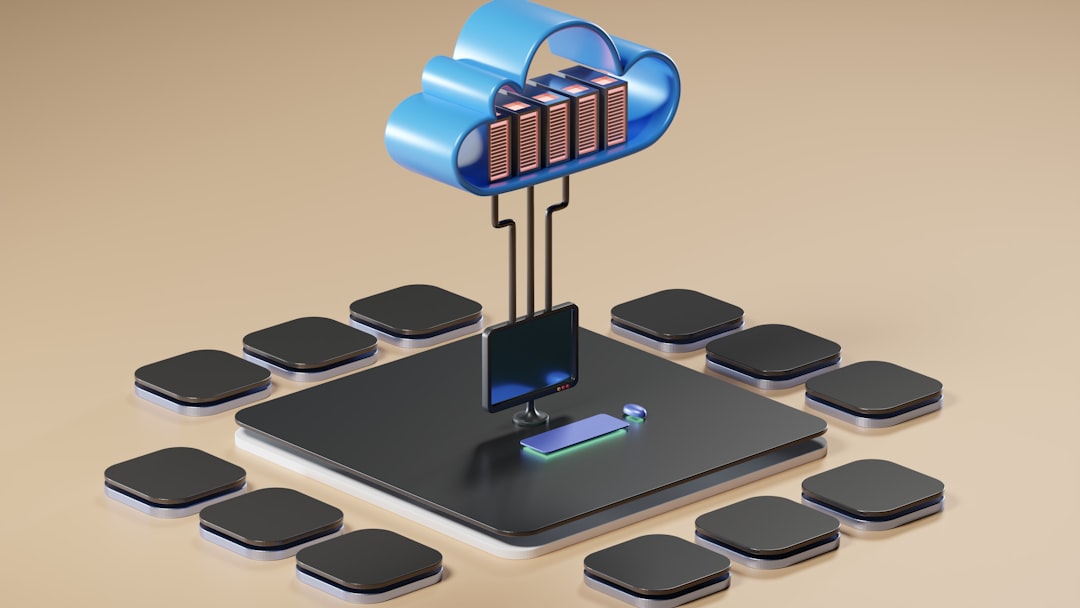
The safest default for most Synology NAS owners is Synology C2 Storage with Hyper Backup; choose Backblaze B2 if you want lower usage-based pricing and do not mind a little extra setup. Both services can protect a NAS from disk failure, theft, fire, ransomware, and accidental deletion. The better choice depends on how much control you want, how predictable your bill must be, and how comfortable you are with cloud storage settings.
TLDR: If you run a small office NAS with 2 TB of documents and photos, Synology C2 is usually easier because it is built directly into Hyper Backup and restores are straightforward. Backblaze B2 can cost less for larger or changing datasets, at about $6 per TB per month for storage, but you must configure buckets, keys, and backup settings more carefully. For a home user backing up 800 GB, C2 may feel cleaner; for a business backing up 8 TB, B2 may be worth the extra work.
Why online backup matters for a Synology NAS
A Synology NAS is not a backup by itself. RAID protects against some drive failures, but it does not protect against someone deleting a shared folder, ransomware encrypting files, or a power event damaging the whole unit. If the NAS is in your office and the building floods, local snapshots will not save you.
A serious backup plan should follow the 3-2-1 rule:
- 3 copies of important data
- 2 different storage types, such as NAS and cloud
- 1 copy off site, away from your home or office
For Synology users, the most common online backup tool is Hyper Backup. It supports versioned backups, encryption, compression, schedules, integrity checks, and restore tasks. That makes it the right starting point for both Synology C2 and Backblaze B2.

Option 1: Synology C2 Storage
Synology C2 Storage is Synology’s own cloud backup service. Its biggest strength is simple: it fits neatly into the Synology ecosystem. In Hyper Backup, you pick Synology C2 Storage, sign in, choose folders, set retention, and start the job.
That clean setup matters. Honestly, it feels like some backup tools expect you to enjoy reading storage API documentation. C2 avoids most of that. You do not need to create buckets, choose storage classes, or manage application keys in a separate dashboard.
Synology C2 is best for:
- Home users who want a simple NAS cloud backup
- Small offices without dedicated IT staff
- People who prefer one vendor for hardware, software, and backup storage
- Users who value easy restore workflows over fine control
C2 supports client-side encryption, so your data can be encrypted before it leaves the NAS. Hyper Backup can also keep multiple versions. That is useful if ransomware hits on Monday and you need last Friday’s clean copy.
The downside is flexibility. C2 pricing and storage plans are more fixed than Backblaze B2. If your backup size changes often, you may need to move between plans. Also, C2 is built mainly for Synology use. That is convenient, but it can feel limiting if you also want the same storage account for servers, apps, or non-Synology systems.
Option 2: Backblaze B2
Backblaze B2 is object storage. It is not the same as Backblaze Computer Backup, the personal backup product for PCs and Macs. This distinction matters. Backblaze Personal Backup does not directly back up a Synology NAS as a supported NAS backup target. For a NAS, you should be looking at Backblaze B2 Cloud Storage.
Synology can use B2 through Hyper Backup with S3-compatible settings in current DSM versions, or through other supported methods depending on your DSM version and package updates. You create a B2 bucket, generate an application key, enter the endpoint details, then configure the backup job.
Backblaze B2 is best for:
- Users backing up several terabytes
- Small businesses that want scalable cloud storage
- People who understand access keys, buckets, and permissions
- Users who may also connect other tools to the same cloud storage
Backblaze B2 is known for simple usage-based storage pricing, often listed at about $0.006 per GB per month, or roughly $6 per TB per month. Prices can change, so check the official pricing page before committing. Egress policies also matter if you expect frequent restores.
The catch is that setup can be slightly annoying. Not hard. Just fiddly. You may spend an extra 10 to 20 minutes checking endpoint regions, bucket permissions, and key restrictions. If one character is wrong in an access key, Hyper Backup simply fails, and that gets old fast.

Synology C2 vs Backblaze B2: key differences
| Category | Synology C2 | Backblaze B2 |
|---|---|---|
| Ease of setup | Very simple inside Hyper Backup | Requires bucket and key setup |
| Pricing style | Plan based | Usage based |
| Best fit | Home users and small teams | Larger datasets and technical users |
| Restore workflow | Smooth with Synology tools | Good, but depends on configuration |
| Flexibility | Lower | Higher |
How to back up a Synology NAS to Synology C2
- Open Package Center and install Hyper Backup.
- Open Hyper Backup and create a new backup task.
- Select Synology C2 Storage as the destination.
- Sign in with your Synology account and choose a plan.
- Select folders, applications, and system settings to back up.
- Enable client-side encryption and save the encryption key safely.
- Set a schedule, such as nightly at 2:00 a.m.
- Configure retention rules, such as keeping daily versions for 30 days and monthly versions for one year.
- Run the first backup and review the log.
Never store the encryption key only on the NAS. If the NAS dies and the key is gone, your encrypted backup is useless. Keep it in a password manager and, for business use, in a controlled offline record.
How to back up a Synology NAS to Backblaze B2
- Create a Backblaze B2 account.
- Create a private bucket for NAS backups.
- Create an application key with access only to that bucket.
- In Synology DSM, open Hyper Backup.
- Create a new backup task and select an S3-compatible destination if B2 is supported in your DSM setup.
- Enter the B2 endpoint, bucket name, key ID, and application key.
- Select your folders and applications.
- Turn on encryption and configure version retention.
- Run a small test backup first, then test a restore.
A restore test is not optional. Backups that have never been restored are just a hopeful guess. Pick a small folder, restore it to a temporary location, and verify the files open correctly.
Security and retention settings to use
For either service, use client-side encryption. This protects your files before they leave the NAS. Use a strong password and store it outside the NAS.
Retention settings should match your risk. For personal photos, weekly and monthly versions may be enough. For business files, keep more versions. A common setup is:
- Hourly versions for the last 24 hours if files change often
- Daily versions for 30 days
- Weekly versions for 8 to 12 weeks
- Monthly versions for 12 months or more
Also enable backup integrity checks. They take time, but silent corruption is worse. Schedule checks during quiet hours, not during business file access.
Which one should you choose?
Choose Synology C2 if you want the least friction. It is the better fit when the NAS owner is also the accountant, office manager, photographer, or family IT person. The restore process is clean, and the setup is hard to mess up.
Choose Backblaze B2 if cost control and flexibility matter more. It fits users who are comfortable checking logs, managing keys, and reading storage settings. For multi-terabyte backups, the pricing model can be attractive.
For many people, the practical answer is simple: use Synology C2 for convenience, use Backblaze B2 for scale. Either one is far better than relying only on RAID, USB drives, or good luck. Set it up, encrypt it, test a restore, and review the backup report once a month.
