


If you are trying to sign in to Minecraft and suddenly see an “Error 400” message, it can stop everything. The game does not load. The launcher stays stuck. Your session breaks before you even reach the main screen.
This error usually appears during sign-in with a Microsoft account. The good news is that Error 400 is common and fixable. This guide explains what the error means, why it happens, how to fix it step by step, and how to avoid it later.
What Is Error 400 When Signing In to Minecraft?
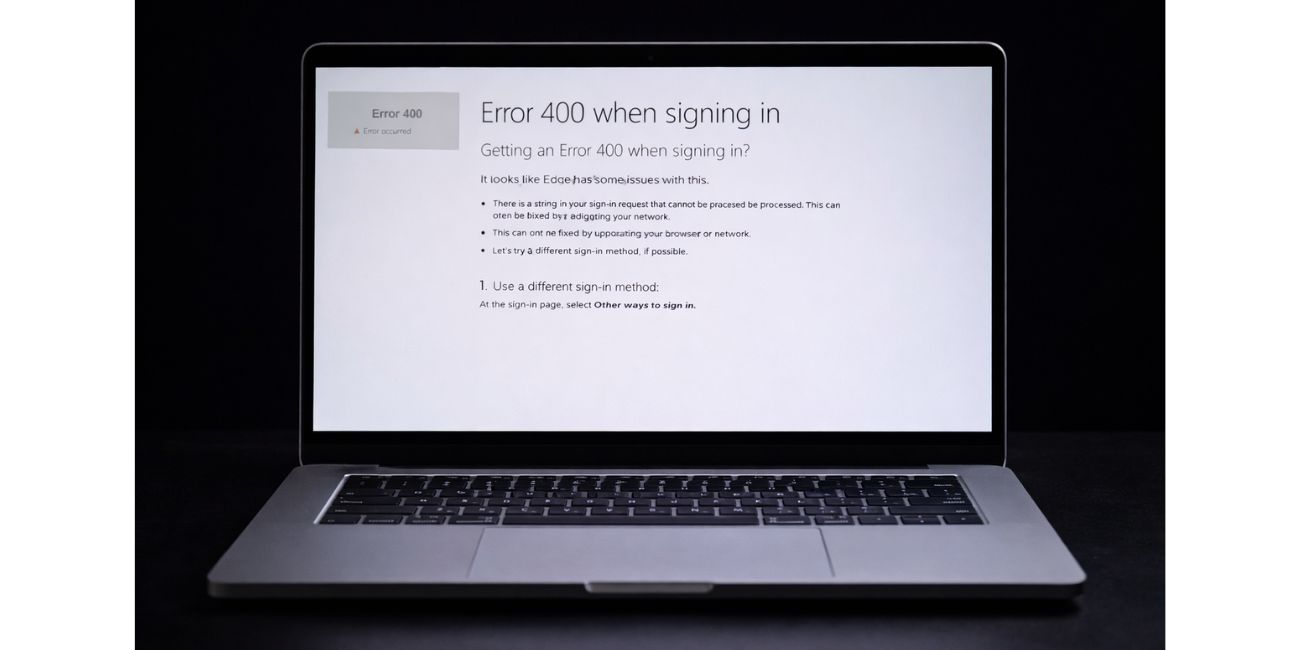 Error 400 means the sign-in request sent by Minecraft was rejected. The launcher tried to talk to Microsoft services, but something in the request was not accepted.
This usually happens when login data, system settings, or network routing does not match what the server expects.
Common reasons behind Minecraft Error 400 include:
- Corrupted Minecraft Launcher cache
- Expired Microsoft account login session
- Incorrect system date or time
- VPN or proxy blocking authentication requests
- Temporary Microsoft or Xbox Live service issues
- Network DNS or routing problems
The error does not mean your account is banned or deleted. It means the login request failed.
Why Does Minecraft Show Error 400 During Sign-In?
Minecraft now depends on Microsoft account authentication. When you sign in, the launcher connects to Microsoft servers and Xbox Live services to verify your account.
If any part of that chain breaks, the server responds with Error 400. This can happen after launcher updates, system restarts, or network changes. Switching accounts on multiple devices can also confuse active login sessions.
Sometimes the issue is local, like cached data. Other times, it comes from Microsoft services having trouble processing requests for a short period.
How to Fix Error 400 When Signing In to Minecraft
The fixes below start simple and move toward deeper system checks. Try them in order. Stop once the error is gone.
Fix #1: Restart Minecraft Launcher and Your System
Close the Minecraft Launcher completely. Make sure it is not running in the background.
Restart your computer. This clears temporary memory, resets stuck login sessions, and refreshes system services. Many users fix Error 400 with this step alone.
After reboot, open the launcher and try signing in again.
Fix #2: Check System Date and Time Settings
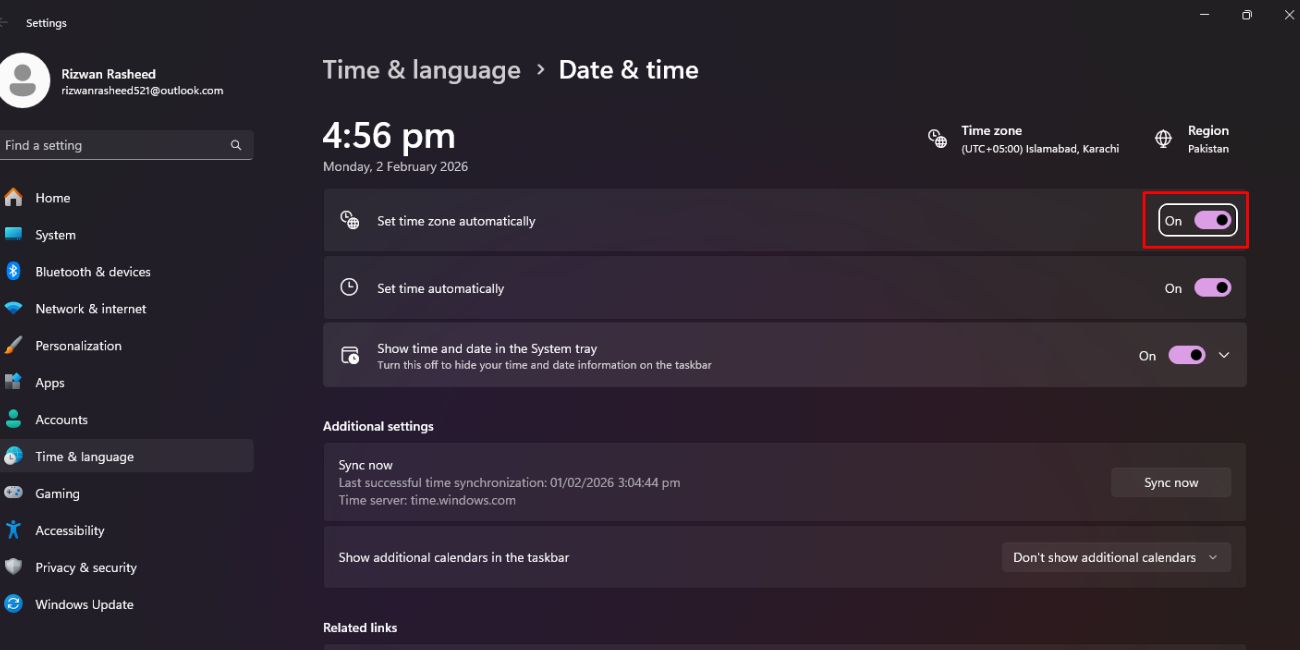 Microsoft login services rely onthe correct system time. If your clock is off, authentication can fail.
Here are the steps you can follow on Windows:
- Open Settings
- Go to Time & Language
- Select Date & Time
- Enable automatic time and time zone
- Click Sync now
- Restart the launcher
If the system time was wrong, this fix often resolves the error instantly.
Fix #3: Sign Out and Sign Back Into Your Microsoft Account
Sometimes your Microsoft login token expires or becomes invalid. Signing out refreshes the session.
Open the Minecraft Launcher and sign out of your Microsoft account. Close the launcher fully. Wait a minute, then reopen it and sign in again.
If you use the same account on other devices, make sure it is not stuck in an unfinished login elsewhere. This step resets the authentication flow and clears bad session data.
Fix #4: Disable VPN or Network Filters
VPNs, proxies, and strict firewalls can block Microsoft authentication requests. Even trusted VPNs may route traffic through servers that reject login calls.
Turn off any VPN or proxy you are using. If you are on public Wi-Fi, switch to a private or mobile network.
After changing the network, restart the launcher and try again.
Fix #5: Reset Minecraft Launcher Cache
Corrupted launcher files are a common cause of Error 400.
Here are the steps you can follow:
- Close the Minecraft Launcher
- Press Windows + R
- Type
%appdata%and press Enter - Open the
.minecraftfolder - Delete the
webcacheor launcher cache folders - Restart your system
This forces the launcher to rebuild clean login data.
Fix #6: Check Microsoft and Xbox Live Service Status
Minecraft depends on Microsoft and Xbox Live services. If these services are down, login errors can appear.
Check the official Microsoft service status page. Look for issues with account sign-in or Xbox Live authentication.
If there is an outage, wait until services return. No local fix will work during a server-side issue.
Fix #7: Reinstall Minecraft Launcher (Last Option)
If nothing else works, the launcher installation itself may be damaged.
Uninstall the Minecraft Launcher from your system. Restart your computer. Download the latest version from the official Minecraft website and install it again.
This replaces all launcher files and removes hidden corruption. Use this only if other fixes fail.
Prevention Tips to Avoid Minecraft Error 400 in the Future
A few habits can reduce the chance of seeing this error again:
- Keep the Minecraft Launcher updated
- Avoid switching Microsoft accounts often
- Keep system date and time synced
- Do not use VPNs during sign-in
- Log out properly before closing the launcher
These steps help keep login sessions clean and stable.
Conclusion
Error 400 when signing in to Minecraft means the login request failed, not that your account is broken. The error usually comes from cached data, system time issues, or network interference.
Apply the fixes one by one and test after each step. In most cases, the problem clears quickly. If the error continues for days, contact Minecraft or Microsoft support for account-level checks.
If this guide helped you get back into the game, share it with others and leave a comment about which fix worked for you.
