


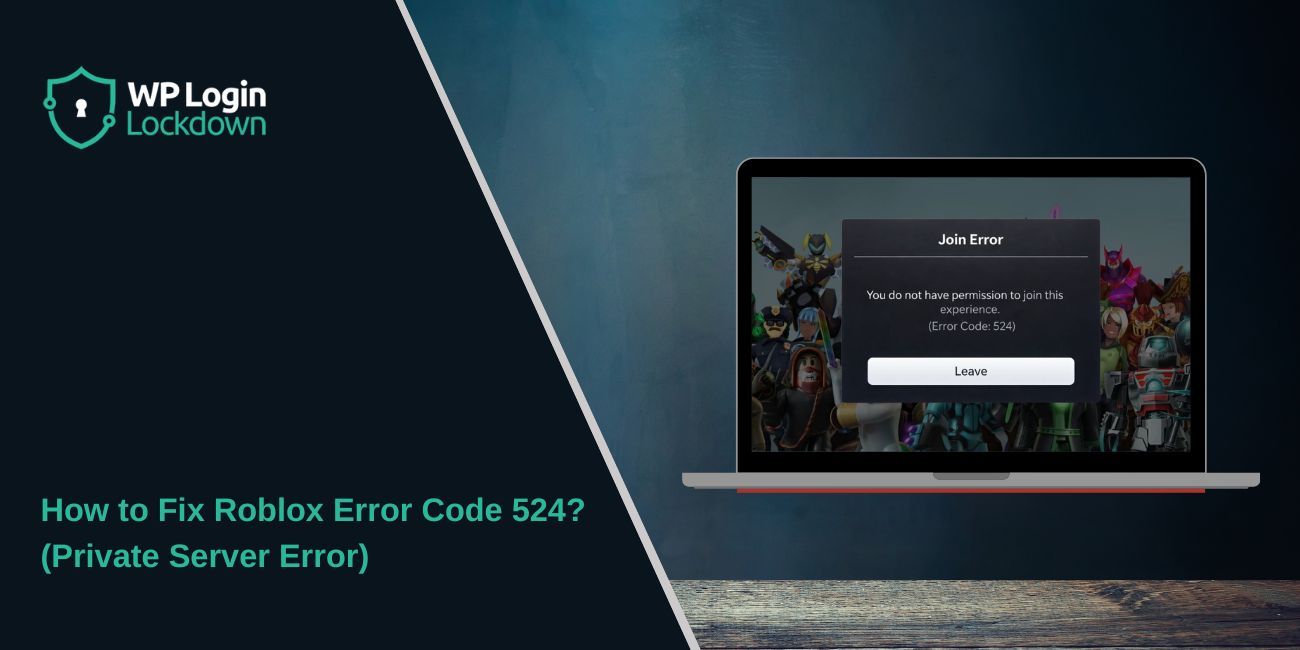
You try to join a Roblox private server, but instead of loading the game, you see Error Code 524. It feels confusing because your friends might be playing fine while you are blocked. This error usually appears when you do not have permission to enter a private or VIP server. It is not normally a device problem on Windows PC, macOS, iOS, Android, or Xbox. Most of the time, it connects to account settings, server invites, or privacy controls.
In this guide, you will learn what Roblox Error Code 524 means, why it happens, and how to fix it step by step.
What Is Roblox Error Code 524?
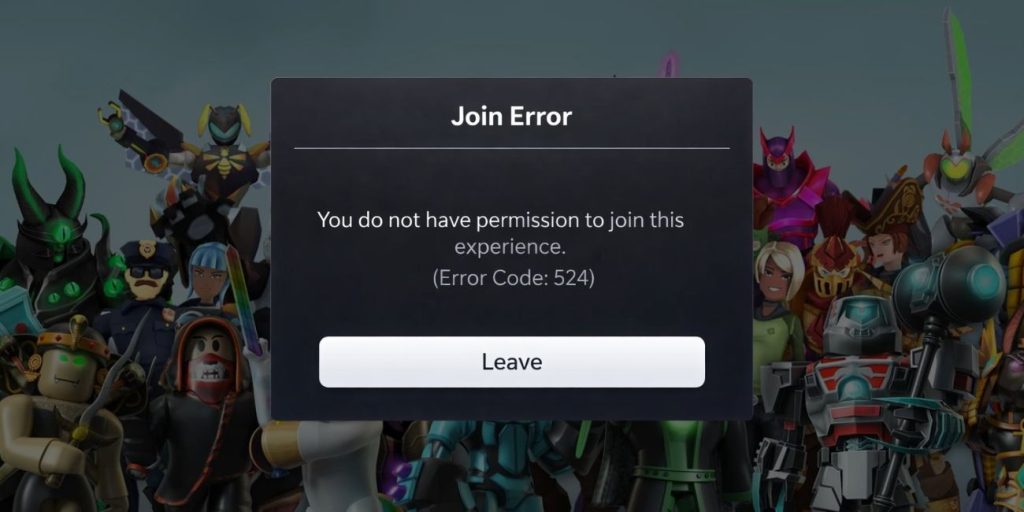 Roblox Error Code 524 is an authorization error. It appears when your Roblox account does not have access permission to join a private server or VIP server. Private servers allow only specific users to enter, depending on the server owner’s settings. If you are not invited, or your privacy settings block invitations, Roblox will stop the connection before loading the game.
This error does not usually relate to your device hardware, graphics card, or internet speed. Instead, it connects to account-level access control inside Roblox’s server system.
You normally see Error 524 when clicking a private server link or trying to join a VIP server from a friend’s profile. The message appears before entering the game world.
Common Causes of Roblox Error Code 524
Error 524 usually happens when your account does not meet the server’s access requirements. Roblox uses permission rules for private and VIP servers. If those rules block your account, the platform denies entry.
Here are the most common causes:
- You are not invited to the private server
- The server is set to Friends Only
- The server owner removed your access
- Your account privacy settings block invitations
- Your account does not meet age requirements
- The private server is full
- Temporary Roblox server issue
- VPN or network interference
How to Fix Roblox Error Code 524?
To fix this issue, you need to confirm that your account has proper access to the private server. In most cases, the problem connects to privacy settings or missing invitations.
However, temporary server glitches can also cause it. Follow each fix carefully and test the game after applying it.
Fix #1: Ask the Server Owner for an Invite
Private servers require authorization from the owner. If you are not on the allowed list, Roblox blocks access.
Contact the server owner and request an invite. Once they add your Roblox username to the server access list, try joining again.
Fix #2: Check Your Roblox Privacy Settings
If your privacy settings block private server invitations, you will see Error 524.
Follow these steps to adjust your settings:
- Log in to your Roblox account.
- Click Settings.
- Go to Privacy.
- Find the section related to private server invites.
- Set it to Everyone or Friends.
- Save changes.
After updating, rejoin the server.
Fix #3: Enable Private Server Invitations
Sometimes the invite setting is disabled by default.
Here’s how you can enable private server invites quickly:
- Open Roblox website.
- Click the gear icon.
- Select Settings.
- Go to Privacy.
- Locate “Who can invite me to private servers?”
- Set it to Friends or Everyone.
This allows the server owner to add you.
Fix #4: Confirm the Server Is Not Full
Private servers have limited slots. If the server reaches capacity, new users cannot join. Ask the server owner if the server is full. Wait until a player leaves, then try again.
Fix #5: Log Out and Log Back In
Sometimes your login session becomes outdated.
Follow these steps to refresh your session:
- Click Logout.
- Close the Roblox app or browser.
- Reopen Roblox.
- Log in again.
Then try joining the server.
Fix #6: Restart the Roblox App or Device
Temporary glitches on Windows PC, iOS, Android, or Xbox may trigger the error.
Close the Roblox app fully. Restart your device. Open Roblox again and test the private server link.
Fix #7: Disable VPN or Network Filters
VPN services can change your IP address and interfere with server authorization.
Turn off your VPN or proxy server. Then reload Roblox and attempt to join the private server again.
Fix #8: Reinstall Roblox
If Roblox app files are corrupted, reinstalling may resolve access errors.
Follow these steps carefully:
- Uninstall Roblox from your device.
- Restart your device.
- Download Roblox again from the official website or app store.
- Install and log in.
After reinstalling, try joining the server.
Prevention Tips to Avoid Roblox Error Code 524
Preventing Error 524 requires managing account settings and server permissions carefully. Since private servers rely on access rules, small account adjustments help avoid future issues.
- Keep your privacy settings updated
- Stay friends with the server owner
- Avoid using VPN while joining private servers
- Update the Roblox app regularly
- Check server capacity before joining
- Confirm account age requirements
- Maintain stable internet connection
Conclusion
Roblox Error Code 524 is an authorization error that blocks access to private or VIP servers. It usually connects to account privacy settings, missing invitations, or server permission rules. It does not normally relate to hardware or device problems. Most cases resolve after adjusting privacy settings or requesting access from the server owner.
Try each fix step by step and test the server again. If the problem continues, contact Roblox support and provide details about the private server. If this guide helped you, share it with friends and leave a comment about which fix worked for you.
