


When your Surface Pro 4 screen gets scrambled, it feels annoying right away because the display flickers, shakes, or turns into messy lines that stop everything. You can’t read your apps, open files, or even see the Windows desktop. This guide explains what the scrambled screen means, why the problem shows up, how you can fix it fast, and how to avoid it in the future.
What Is the Surface Pro 4 Screen Scrambled Issue?
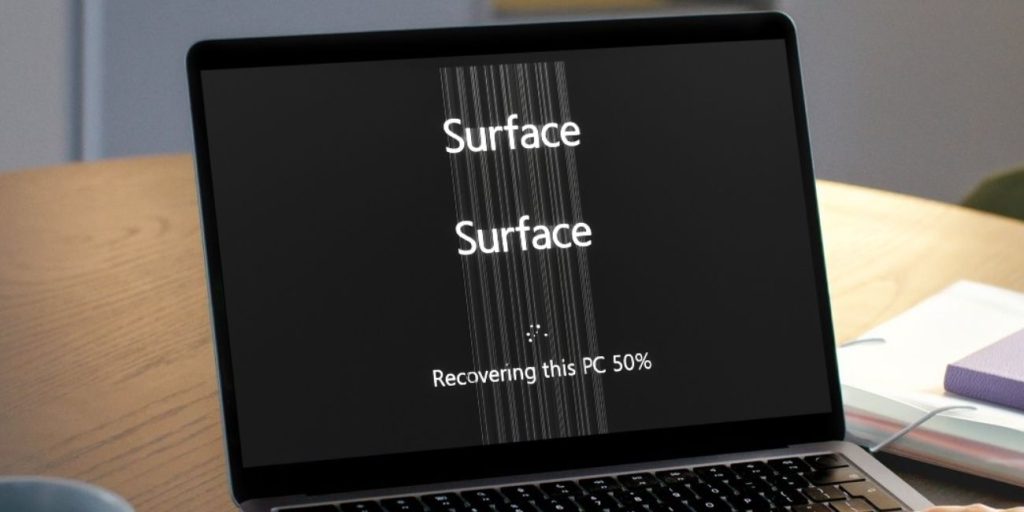 When people talk about the Surface Pro 4 screen scrambling, they mean the display starts showing broken shapes, fast flickers, or glitchy blocks. This happens when the LCD panel and the Intel HD Graphics 520 inside the device stop sending a clean image together. The GPU tries to draw the screen, but the signal gets messy and looks like shaking lines or flashing boxes.
You might notice the scrambled image on the Windows login screen, the desktop, or inside apps. Sometimes it shows up even before Windows loads, which means you may see it inside the Surface UEFI menu. Other times the problem appears only when the tablet gets warm or when you touch the screen. The scrambling looks different for each user, but it always makes the Surface hard to use.
Common Causes of the Surface Pro 4 Screen Scrambling
This issue can show up for different reasons. Here are the most common causes you should know about:
- Overheating that stresses the Intel HD Graphics 520 GPU
- Damaged or outdated display drivers in Windows 10
- A failing LCD panel or weak display ribbon connector
- Older Surface firmware that creates GPU and screen conflicts
- The known Flickergate hardware defect linked to Surface Pro 4 units
- Recent Windows updates that change graphics rendering
- Thermal throttling that slows the system and distorts the display
How to Fix the Surface Pro 4 Screen Scrambled Problem?
Fixes depend on the condition of your Surface, your temperature levels, and your driver setup. However, most users can fix the scrambling by trying the steps below.
Fix #1: Update or Roll Back the Intel Graphics Driver
A broken or outdated Intel HD Graphics 520 driver can send the wrong signals to the LCD panel and cause shaky images. Updating or rolling it back gives the GPU a stable rendering path again, so the picture looks normal.
Follow the steps below to easily change your graphics driver:
- Press Windows + X and open Device Manager.
- Open Display Adapters.
- Click Intel HD Graphics 520.
- Pick Update Driver.
- Let Windows search for updates.
- If the problem started after an update, click Roll Back Driver.
- Restart your Surface Pro 4.
Fix #2: Cool Down the Surface Pro 4
The Surface Pro 4 heats up fast, especially when running apps that stress the GPU. Heat can make the GPU and LCD lose sync, which creates the scrambled effect.
Here are the following steps which help you cool the device fast:
- Shut the Surface down for a few minutes.
- Remove the Type Cover and unplug the charger.
- Place the tablet on a hard, cool surface.
- Avoid soft areas like beds or couches.
- Let the tablet rest until the rear panel feels cooler.
Once the temperature drops, the screen often stabilizes.
Fix #3: Disable Hardware Graphics Acceleration
Apps like browsers and office tools use GPU acceleration. When the GPU struggles, the screen flickers or scrambles.
Here’s how you can disable hardware acceleration in a few seconds:
- Open Chrome settings or Edge settings.
- Go to System.
- Turn off Use hardware acceleration when available.
- Restart the browser.
Fix #4: Test an External Monitor
An external display helps you find out if the LCD panel is damaged or if the GPU output is failing. If the picture looks clean on the external monitor, the internal LCD is likely the issue. If the scrambled display appears on both screens, the GPU or driver is the problem.
Try these simple steps to quickly test the display output:
- Connect a monitor with Mini DisplayPort or a Surface Dock.
- Wait for Windows to detect it.
- Check the external monitor image.
- Compare it with the Surface screen.
Fix #5: Run the Surface Diagnostic Toolkit
Surface devices have their own diagnostic tool that checks firmware, drivers, GPU settings, and system files.
The following steps will show you how to run it properly:
- Download the Surface Diagnostic Toolkit from Microsoft’s website.
- Open the tool and pick Start scan.
- Wait for the tests to finish.
- Apply the suggested fixes.
Fix #6: Reset Display Settings and Reinstall Drivers
When Windows settings get corrupted, the screen may glitch or scramble. Resetting the display settings clears damaged files.
Below are the steps that will guide you:
- Go to Settings.
- Open System.
- Select Display.
- Reset scaling and resolution.
- Reinstall your display drivers.
- Restart the Surface.
Fix #7: Clean Boot Windows
Apps and services sometimes fight for graphics access. A clean boot removes those conflicts and helps the GPU send a stable signal.
Perform the following steps carefully to clean boot your Surface:
- Press Windows + R.
- Type msconfig.
- Go to Services.
- Hide Microsoft services.
- Disable all other services.
- Restart the system.
Fix #8: Replace the LCD or Seek Professional Repair
If none of the steps fix the scrambled screen, the LCD panel, display connector, or internal GPU may be failing. Surface Pro 4 is known for the Flickergate defect, which is a hardware problem. At that point, a Microsoft repair center or a professional technician may be your only option.
Prevention Tips to Avoid the Screen Scrambled Issue
Keeping your Surface Pro 4 healthy helps you avoid more display problems in the future. Try these simple habits to keep the system stable:
- Keep Windows, drivers, and Surface firmware updated
- Use your Surface in a cool area
- Restart your Surface once a week
- Avoid overheating and blocked vents
- Use trusted Microsoft drivers instead of third party ones
- Lower heavy GPU tasks when the tablet feels hot
- Watch for early signs of flicker or ghosting
Conclusion
In short, the Surface Pro 4 screen scrambled issue often comes from heat, broken drivers, firmware conflicts, or a failing LCD panel. The problem might start small, then get worse as the GPU or display struggles to keep up. Knowing the cause helps you choose the right fix.
Try the steps in this guide and see which one clears the screen. If nothing changes and the scrambling keeps coming back, contact Microsoft Support or a repair shop for more help. And if this guide helped you, feel free to comment or share it with someone who might need it.
