


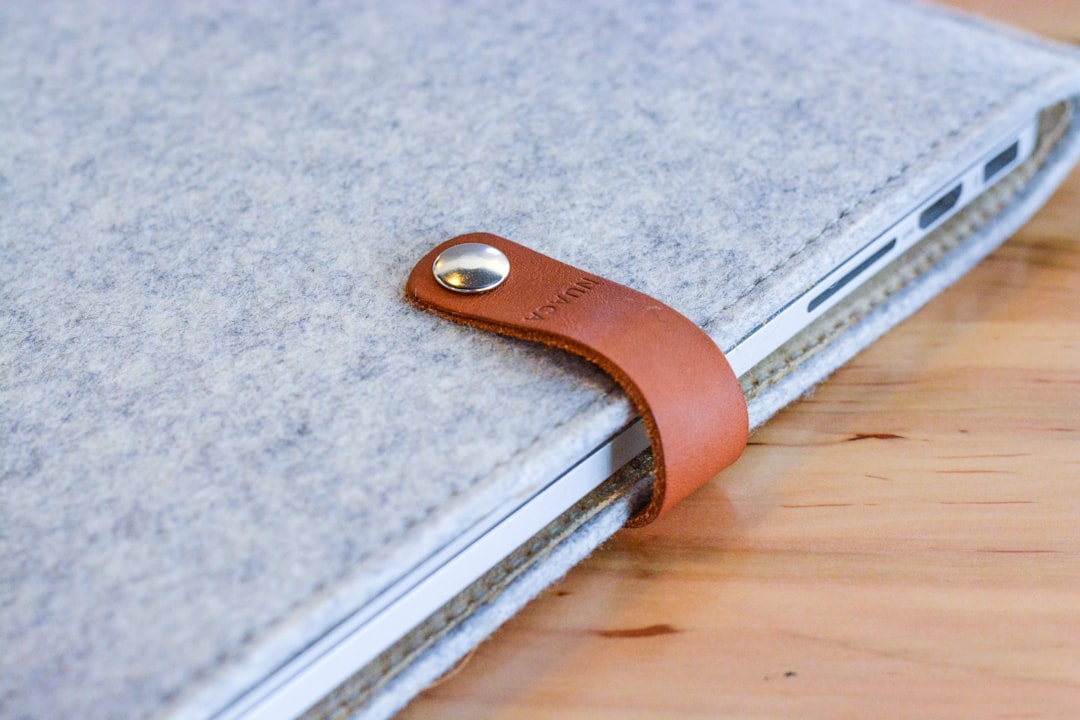
The Microsoft Surface Book is known for its innovative detachable design, allowing users to switch between laptop and tablet modes effortlessly. However, when the clipboard (screen) refuses to detach from the keyboard base, it can quickly turn from convenience to frustration. Whether caused by battery issues, system errors, or hardware malfunctions, a stuck Surface Book requires careful handling to avoid damage.
TLDR: If a Surface Book will not detach normally, users can try manual software fixes like charging both batteries, performing a two-button shutdown, or using the detach key in the taskbar. If those fail, a manual emergency detach mechanism hidden in the vents can release the screen. Extreme care must be taken to avoid hardware damage. Professional repair is recommended if the problem persists.
Understanding How the Surface Book Detach Mechanism Works
Before attempting to force detach a Surface Book, it is important to understand how the mechanism operates. Unlike traditional detachable laptops, the Surface Book uses a mechanical locking system combined with software controls.
- The keyboard base contains an additional battery and (in some models) a discrete GPU.
- The clipboard section (screen) houses the CPU, RAM, and core components.
- A locking mechanism secures the two parts together electronically.
When the detach button is pressed, Windows checks system conditions (battery level and GPU activity). If everything is safe, the system releases an internal lock, allowing the user to separate the display.
If either battery is critically low or the GPU is in use, the system will block detachment.
Image not found in postmetaCommon Reasons Why Surface Book Will Not Detach
Understanding the cause can help determine the safest solution. Common issues include:
- Low battery in either the clipboard or keyboard base
- System freeze or Windows crash
- GPU still active (apps running on dedicated graphics)
- Firmware glitches
- Hardware failure in the locking mechanism
Sometimes the detach icon in the taskbar displays a red X or shows an error message like “Please resolve before detaching.” This typically indicates a software-related cause rather than hardware damage.
Step-by-Step: Safe Methods to Detach Surface Book
1. Charge Both Batteries
The simplest solution is often overlooked. The Surface Book requires sufficient charge in both the screen and keyboard base to detach safely.
- Connect the charger and allow it to charge for at least 20–30 minutes.
- Check battery levels in the system tray.
- Try pressing the detach key again.
If the keyboard battery is completely drained, the latch will not release.
2. Close GPU-Intensive Applications
Applications using the dedicated GPU will block detachment.
- Save and close video editing software.
- Exit games or 3D applications.
- Open Task Manager and end GPU-heavy tasks.
After closing these programs, press the detach button again.
3. Use the On-Screen Detach Option
Instead of the physical key, users can:
- Click the Detach icon in the system tray.
- Wait for the green message: Ready to detach.
- Pull the screen gently from the top.
4. Perform a Two-Button Shutdown
If Windows is frozen, a forced shutdown may reset the latch system.
- Press and hold the Power button for 30 seconds.
- Then press and hold Power + Volume Up for 15 seconds.
- Release both buttons and wait 10 seconds.
- Restart the device and try detaching again.
This method resets hardware-level firmware and often resolves latch glitches.
Emergency Manual Detach Method
If all software methods fail, users may need to manually release the hardware lock. This should be done carefully to avoid permanent damage.
Warning: Manual detachment may void warranty if done improperly. Proceed gently and only if necessary.
What You Need
- A straightened paperclip
- Good lighting
- Steady hands
Where to Insert the Tool
The Surface Book has small emergency release holes within the ventilation grilles along the keyboard hinge.
Steps to Manually Detach
- Power off the Surface Book completely.
- Lay the device flat on a clean surface.
- Locate the small holes in the hinge vents (two locking points).
- Insert the paperclip gently into one hole until resistance is felt.
- Apply gentle inward pressure to release the latch.
- Repeat for the second latch.
- Carefully lift the screen away from the base.
Never forcefully pull the screen without ensuring both latches are disengaged.
Comparison Chart: Surface Book Detach Methods
| Method | Difficulty | Risk Level | Recommended First? |
|---|---|---|---|
| Charging Both Batteries | Easy | Very Low | Yes |
| Closing GPU Apps | Easy | Very Low | Yes |
| Two-Button Shutdown | Moderate | Low | Yes |
| Manual Paperclip Release | Advanced | Moderate to High | No (Last Resort) |
What to Do After Manual Detach
Once detached manually, users should take the following precautions:
- Restart both sections by reconnecting properly.
- Check Windows Update for firmware updates.
- Run Surface Diagnostic Toolkit.
- Inspect for bent connectors or debris.
If the issue repeats frequently, it may indicate:
- Failing internal battery
- Damaged locking motor
- Firmware corruption
When to Seek Professional Repair
Users should contact Microsoft Support or an authorized repair center if:
- The latch does not respond at all.
- The device makes unusual clicking sounds.
- The screen feels misaligned.
- Detachment only works intermittently.
The Surface Book has complex internal components. Improper handling can damage:
- The dynamic fulcrum hinge
- Electrical connectors
- Battery modules
Professional servicing is often safer than repeated manual attempts.
Preventing Future Detach Issues
Prevention is always better than repair. Recommended best practices include:
- Keeping firmware and Windows updated
- Maintaining both batteries above 20%
- Avoiding forced pulling when latch is engaged
- Properly shutting down before long storage periods
Regular maintenance significantly reduces unexpected detach failures.
Final Thoughts
A stuck Surface Book can be inconvenient, but most detach problems stem from software locks or battery issues rather than mechanical failure. Users should always begin with safe troubleshooting steps such as charging the device and performing a system reset. The emergency manual release method should be used only as a last resort and with caution. When in doubt, seeking professional assistance is the smartest long-term choice to preserve the device’s longevity.
Frequently Asked Questions (FAQ)
1. Why is my Surface Book not detaching even though the battery is charged?
This may be due to active GPU usage, a Windows freeze, or outdated firmware. Try closing applications and performing a two-button shutdown before attempting manual removal.
2. Can forcing detachment damage my Surface Book?
Yes. Pulling the screen without releasing the internal latches can damage connectors, hinge components, and electrical contacts.
3. Is the manual paperclip method safe?
It is generally safe when done carefully and correctly, but it carries moderate risk. It should only be used after software solutions fail.
4. How do I know if the latch is released?
You will typically hear a soft click and see a message stating the device is ready to detach. The screen should separate without resistance.
5. Will manual detachment void my warranty?
Improper handling may void warranty coverage. It is best to consult Microsoft Support if the device is still under warranty.
6. What causes recurring detach problems?
Recurring issues may result from battery degradation, latch motor failure, firmware bugs, or hardware wear over time.
7. Can I use the Surface Book as a laptop without fixing the detach issue?
Yes, as long as it remains securely attached and functional. However, persistent latch issues should still be addressed to prevent future damage.
