



In the world of competitive gaming, milliseconds matter. Whether you’re locked in a high-stakes match in Call of Duty or fighting your way to victory in Fortnite or Rocket League, input lag can mean the difference between winning and losing. On Xbox consoles, input lag—essentially the delay between when you press a button and when that action appears on your screen—can be caused by a range of hardware and software factors. Knowing how to reduce this lag is essential for anyone looking to compete at a high level.
TL;DR
Input lag on Xbox can severely impact your performance in competitive games. To reduce lag, use a wired controller, ensure your TV or monitor is set to game mode, and prioritize a wired internet connection. Adjusting console settings and using low-latency equipment also helps. This guide walks you through proven methods to optimize your setup for minimal input delay.
What Is Input Lag?
Input lag refers to the time it takes for your Xbox to register your input (like pressing a button) and display the result on your screen. In a competitive setting, even delays of fewer than 100 milliseconds can cause missed shots, mistimed jumps, or frustrating gameplay.
There are three primary sources of input lag:
- Display lag: Delay caused by your TV or monitor processing the image signal.
- Controller lag: Lag from wireless signals or suboptimal firmware in your input device.
- Network lag: Latency due to internet connection quality and server distance.
1. Use a Low-Latency Monitor or TV
Your display is one of the largest contributors to input lag. While modern 4K smart TVs come packed with features, many of these—like motion smoothing and upscaling—add significant delay to the image display process. To reduce this lag:
- Enable Game Mode: Most modern TVs and monitors have a Game Mode that disables post-processing to reduce lag.
- Use High Refresh Rate Displays: Monitors with 120Hz or 144Hz refresh rates can significantly cut display lag.
- Choose Gaming-Specific Models: Displays designed for gaming often have lower input latency. Popular models from ASUS, LG, and BenQ are great for Xbox gaming.
2. Use a Wired Controller
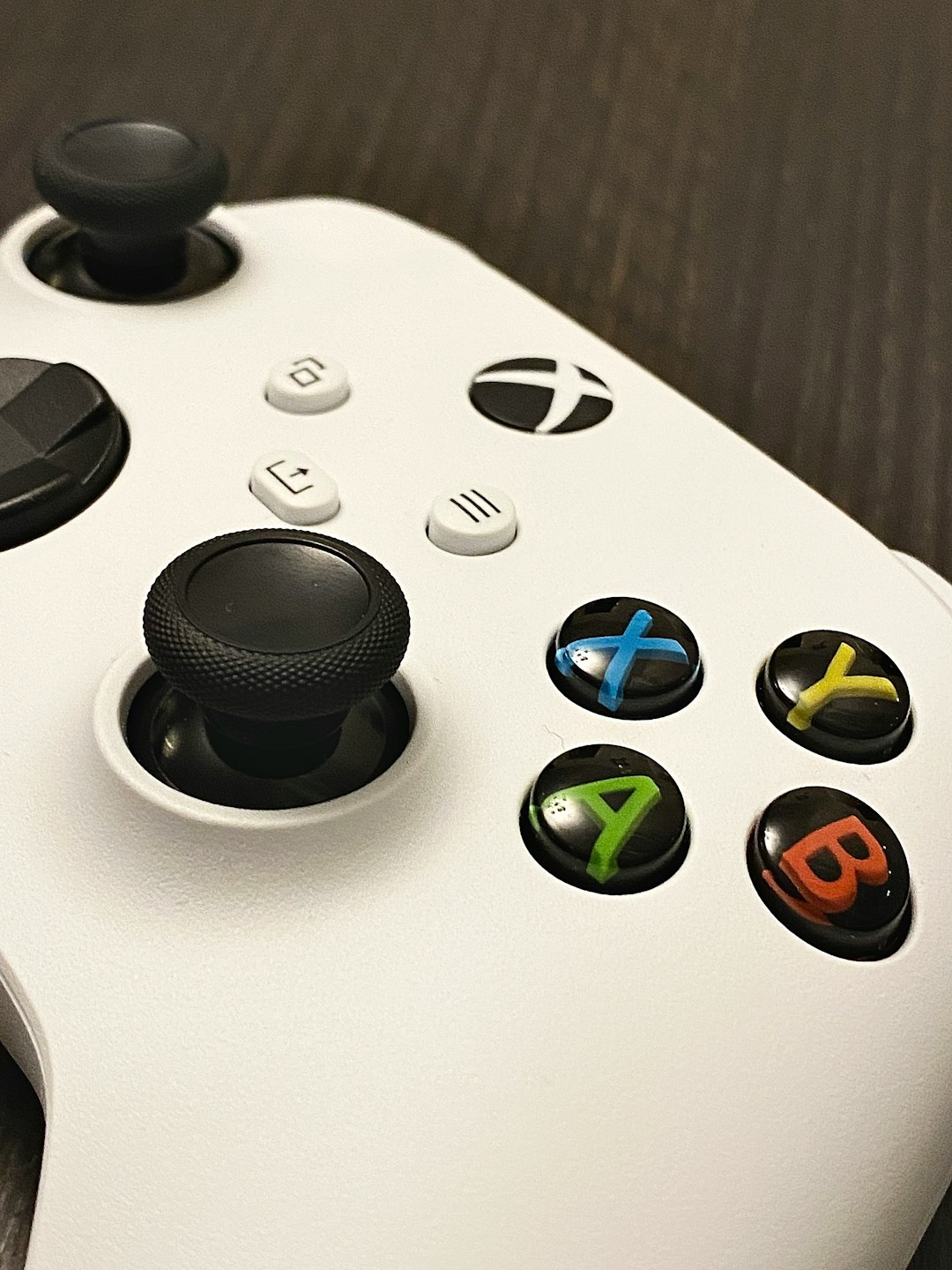
While Xbox wireless controllers are convenient, they can introduce milliseconds of delay due to Bluetooth or wireless signal interference. For competitive play, always opt for a wired controller. This eliminates the need for signal transmission and ensures a direct line of communication between your controller and Xbox.
Additionally, if you’re using a third-party controller, make sure it’s Xbox-certified and supports low-latency communication. Some budget controllers have slower response times, which could affect your gameplay.
3. Optimize Console Settings
Your Xbox Series X|S or Xbox One has several settings that can influence input responsiveness. Here’s how you can optimize them:
- Set Your Output to 120Hz: If your monitor supports it, go to Settings > General > TV & display options and select 120Hz under refresh rate.
- Disable HDR (Optional): While HDR improves visuals, it can sometimes increase input lag due to additional processing.
- Turn Off System Sounds and Visual Effects: These may not directly influence input lag but can free up system resources.
Also, make sure your Xbox firmware is up to date. Microsoft releases patches that may improve system responsiveness and compatibility with displays and accessories.
4. Upgrade HDMI Cables and Ports
Sometimes, the problem isn’t your display, but the connection to it. Using an outdated or damaged HDMI cable can limit data transfer and add to latency. For best results:
- Use HDMI 2.1 Cables: These support higher refresh rates and lower latency.
- Plug into the Right Port: Your display may have only one HDMI port that supports low-latency modes or higher refresh rates. Check the manual and plug accordingly.
Xbox Series X and Series S support HDMI 2.1 features, so taking full advantage of these capabilities is key.
5. Minimize Network Latency
For online games, input lag isn’t just about the controller and screen—your internet connection plays a huge role. Here’s how to lower network latency:
- Use a Wired Ethernet Connection: Wi-Fi introduces variability and packet loss, which can translate to lag. Ethernet ensures stable and faster data transmission.
- Enable QoS or Gaming Mode on Your Router: This prioritizes gaming traffic over other types, reducing lag during congested usage.
- Avoid Shared Networks: If possible, isolate your Xbox’s network from other heavy-use devices like streaming TVs or large downloads.
- Select the Right Data Center: Some games allow you to choose server regions. Opt for the one geographically closest to you for minimal ping.
6. Use Low-Latency Headsets (Optional but Recommended)
While not directly tied to input lag, sound plays a huge role in reaction time. A delay in sound can throw off your perception and timing. Choose a gaming headset that connects via the controller or USB directly to reduce delay and enhance spatial awareness.
Wireless headsets that use Wi-Fi direct or proprietary low-latency technology are superior to ones that rely on Bluetooth. Xbox uses its own wireless protocol for peripherals, so Xbox-certified products typically offer the least latency.
7. Test and Monitor Lag
To really understand and monitor your performance, consider using tools to measure input lag. Some monitors and TVs come with built-in diagnostics. Alternatively, semi-professional tools like the Leo Bodnar Input Lag Tester can provide accurate readings.
In-game logs and latency measurements can also help. Games like Fortnite or Call of Duty display ping and server response metrics that serve as a useful reference.
8. Keep Software Clean
Background processes, cluttered storage, and unoptimized firmware can lead to slower system response. Here’s what to do:
- Close All Unused Apps: Running multiple apps and games in the background can slow down system performance.
- Restart Your Console Regularly: This clears memory and refreshes system processes.
- Clear Persistent Storage: Go to Settings > Devices & streaming > Blu-ray > Persistent storage and clear it periodically.

Conclusion
Reducing input lag on Xbox for competitive games requires a multi-pronged approach that addresses hardware, software, and network variables. By following the steps outlined above—such as using a low-latency monitor, wired controllers, high-speed HDMI connections, and Ethernet over Wi-Fi—you can significantly improve your responsiveness and competitive edge.
Stay up to date with your Xbox system updates, monitor your game’s network performance, and invest in the right peripherals. Even if you can’t eliminate input lag entirely, reducing it as much as possible will give you the split-second advantage competitive gaming demands.
