 logo
logo
4K Video Downloader Plus usually works by copying a video link, pasting it into the app and selecting the quality you want. Sometimes the app can’t read the link, stays stuck while parsing or stops before the download finishes. It may also appear to download normally but fail to save the completed file.
These problems don’t always come from the application itself. A private video, website update, expired account session, blocked connection or unavailable output folder can cause the same result. In this blog post, you’ll learn why 4K Video Downloader stops working and how to fix link, account, network, folder and application problems.
Only download videos you own or have permission to save. You should also follow the rules of the website hosting the content.
Why Does 4K Video Downloader Stop Working?
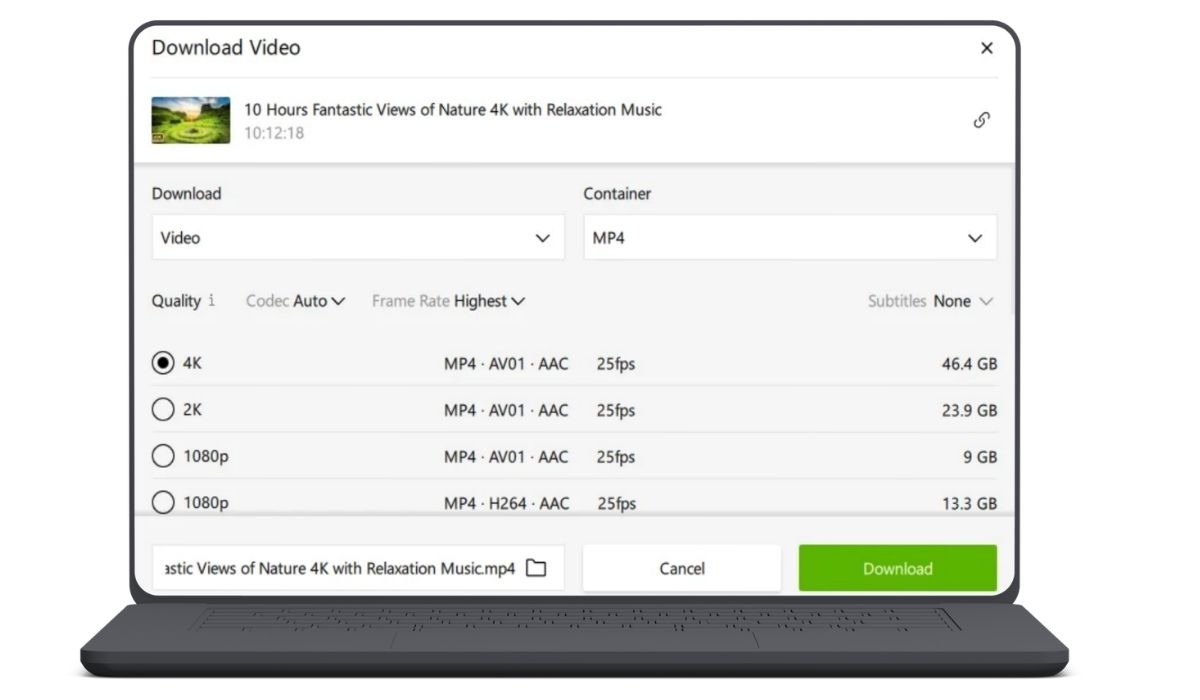 Video platforms regularly change their websites and the way they deliver media. A downloader needs updated parsing rules to understand those changes. This is why an application that worked yesterday may suddenly fail with YouTube, Facebook or another platform.
Common reasons include:
- You’re using an outdated version of 4K Video Downloader Plus.
- YouTube or another website recently changed its video delivery system.
- The copied URL points to a profile, feed or general page instead of a video.
- The video is private, age-restricted or protected by an account login.
- The content isn’t available in your region.
- The website or page type isn’t supported.
- Your YouTube session inside the app has expired.
- The internet connection is unstable.
- A VPN or proxy is interfering with the request.
- A firewall or antivirus program is blocking the app.
- The current IP address has been temporarily limited by the platform.
- The selected output folder is unavailable or protected.
- The drive doesn’t have enough free storage.
- Application settings or installation files are damaged.
- The operating system is no longer supported.
Older computers deserve a separate mention. Current versions of 4K Video Downloader Plus require Windows 10 64-bit or newer, macOS 12 or newer, or a supported modern Linux setup. Windows 7 and Windows 8 are no longer supported.
How to Fix 4K Video Downloader Not Working
Start by finding out whether one video fails or the whole application has stopped working. Test after each major change. Applying every fix together can hide the actual cause.
1. Check Whether One Link or Every Link Fails
Open a public video from the same website and paste its direct URL into the downloader. Choose something that doesn’t require an account, age check or paid membership. If that video works, the original link probably has an access or availability restriction.
Next, test a public video from another supported website. The result tells you where to look:
- If one video fails, check that video’s privacy, age and region settings.
- If every YouTube video fails but another supported platform works, YouTube compatibility or account access may be the problem.
- If links from every supported site fail, check the app version, network and security software.
- If the app closes before accepting any link, focus on the installation and operating system.
This quick test saves time. There is little value in reinstalling the whole program when only one private video is unavailable.
2. Copy the Direct Video URL Again
A copied link may contain tracking information, lead to a channel page or point to a social media feed instead of the actual video. Open the video in your browser before copying anything.
Then follow these steps:
- Open the exact video you want to save.
- Copy its full address from the browser’s address bar.
- Return to 4K Video Downloader Plus and select Paste Link.
- Wait for the app to finish parsing the video.
For a playlist, use the playlist’s full address if you want the whole list. Use the individual video address when you only need one item.
Facebook links can be a little awkward. A profile, group or general page URL won’t work as a direct video link. The video must also be public and available to people who aren’t signed in, unless the app supports an authorized account session for that content.
3. Update 4K Video Downloader Plus
Website changes are one of the most common reasons a downloader suddenly stops parsing links. An application update may include a new parser that works with the platform’s latest video system.
To check for updates:
- Open 4K Video Downloader Plus.
- Select Tools from the menu.
- Choose Check for Updates.
- Install the update if one is available.
- Restart the application and paste the link again.
If the update checker doesn’t work, download the current installer from the official 4K Download website. Avoid third-party software pages because they may host an outdated or modified installer.
Also check which application you’re using. The original 4K Video Downloader and 4K Video Downloader Plus are separate programs. Their licence keys and available features may differ, so don’t assume a key purchased for one version will activate the other.
4. Restart the App and Computer
The app can get stuck during a parsing or download process. Close it fully instead of only minimizing the window. If it remains visible in Task Manager or Activity Monitor, allow it to close before opening it again.
Restart the computer if the same problem returns. This clears temporary processes, releases files that may be locked and rebuilds the active network connection. It’s a basic fix, yes, but it can solve a download queue that stopped without a clear error.
If unfinished downloads are listed, note their links before restarting. Some interrupted items may need to be added again.
5. Check the Video’s Privacy, Age and Region Restrictions
A video opening in your browser doesn’t always mean the downloader can access it. Your browser may already be signed in, while 4K Video Downloader Plus is trying to open the same link without that account session.
| Video Status | What to Check |
|---|---|
| Public | Confirm the video also opens while signed out |
| Private | Make sure your account was given access |
| Age-restricted | Sign in through the application |
| Unlisted | Use the complete direct link |
| Region-blocked | Confirm it’s available in your location |
| Removed | The file is no longer available |
| Copyright-blocked | A normal settings change won’t restore it |
A VPN might change the region seen by a website, but it won’t make removed or copyright-blocked content available. Don’t use network changes to avoid access rules or download content you aren’t permitted to save.
If only one protected video fails, there may be nothing wrong with the program. Try another public link before changing application or network settings.
6. Sign In to YouTube Through the Application
Some YouTube videos require an account because they are private, age-restricted, part of a private playlist or available only to eligible users. In these cases, sign in through the built-in browser in 4K Video Downloader Plus.
Open the app’s account or control panel area and select the YouTube sign-in option. Complete the login inside the window provided by the application. Once the account appears as connected, paste the video link again.
Use an account that already has permission to watch the content. Signing in doesn’t grant access to someone else’s private video, paid content you don’t own or a video removed from the platform.
If you were already connected, sign out and reconnect. The saved session may have expired even though the app still shows the old account details. Don’t export browser cookies or share your password with unofficial tools.
7. Check the Output Folder, Storage and Smart Mode
If the link parses but the download cannot start or finish, check where the file is being saved. The selected folder may have been moved, deleted or stored on an external drive that is no longer connected.
Choose a simple local destination such as your Downloads or Videos folder. In Smart Mode, open the destination or output-folder setting and select the new location. Try the download again after saving the change.
Check these items as well:
- Make sure the drive has enough free storage.
- Confirm that your user account can write files to the folder.
- Avoid a disconnected network drive or removable disk.
- Check whether the completed file already exists and is open elsewhere.
- Shorten an unusually long file or folder path.
- Test a lower quality to create a smaller file.
- Confirm that Smart Mode selected a format supported by the video.
A 4K video can require much more space than expected, especially when it runs for a long time. The final file also isn’t the only storage used during downloading. The app may need temporary space while preparing or combining video and audio streams.
8. Test the VPN, Proxy and Internet Connection
A VPN can help with privacy, but it also changes the route between your computer and the video platform. An overloaded VPN server may cause slow parsing, timeouts or interrupted downloads. Some shared VPN addresses may also be limited by a website.
If a VPN or proxy is active, disconnect it briefly and retry a public video. If the download begins, reconnect through another nearby server or review the VPN’s filtering settings.
The opposite situation can happen too. If every YouTube link fails on one Wi-Fi connection but works on another legal network, your current IP address or ISP route may be having trouble. Restart the router and test again after the connection returns.
Try these checks:
- Open the video normally in your browser.
- Pause other large downloads or cloud backups.
- Test a public video with the VPN disconnected.
- Review the proxy setting inside 4K Video Downloader Plus.
- Try another trusted Wi-Fi connection if one is available.
A different connection is a diagnostic test. It should not be used to get around copyright restrictions, account controls or platform rules.
9. Allow the App Through Antivirus and Firewall
Security software may block the downloader’s internet connection or prevent it from writing files. This can happen after an application update because the executable file has changed.
On Windows, check the firewall permissions:
- Open Windows Security.
- Select Firewall & network protection.
- Choose Allow an app through firewall.
- Select Change settings.
- Find 4K Video Downloader Plus in the list.
- Allow it on the appropriate trusted network.
- Save the changes and retry the download.
If it isn’t listed, use Allow another app and select the official application file from its installation folder.
Third-party antivirus tools may have their own web shield, application control or blocked-app list. Add the genuine 4K Download app to the allowed list if it was blocked incorrectly.
You can disable security scanning briefly to confirm whether it causes the issue, but turn it back on immediately after the test. Leaving antivirus or firewall protection disabled isn’t a proper fix.
10. Perform a Clean Reinstall and Contact Support
Reinstalling is useful when the app won’t open, crashes repeatedly or fails across every supported website after an update. It should be one of the later steps, since it won’t repair a private video or blocked account.
First, save any links you still need. Your completed download folder is separate from the application, but check its location before uninstalling so you don’t remove personal files by mistake.
Then:
- Uninstall 4K Video Downloader Plus through Windows Settings, Control Panel or the macOS Applications folder.
- Restart the computer.
- Download the newest installer from the official 4K Download website.
- Install the app and open it.
- Test one simple public video before restoring custom settings.
- Sign in again only if the test video works and your target link requires an account.
Avoid deleting Windows Registry keys manually unless official support asks you to do so and you understand the risk. Removing the wrong Registry entry can affect other applications or system settings.
If the clean installation still fails, contact 4K Download support. Include:
- The exact link that fails
- A screenshot of the error
- Your 4K Video Downloader Plus version
- Your operating system and build
- Whether you’re signed in to YouTube through the app
- Whether other websites work
- The fixes you already tried
- Whether a VPN, proxy or antivirus is active
These details help support reproduce the problem. A message saying only “the downloader doesn’t work” gives them very little to check.
How to Prevent 4K Video Downloader Problems
You can’t prevent a video platform from changing its website, but you can reduce local problems. Keep the downloader updated, especially when links from a major platform suddenly stop parsing.
A few simple habits help:
- Install updates from the official 4K Download website.
- Copy direct video or playlist links.
- Check that the content is public or available to your account.
- Keep enough free space on the download drive.
- Use a stable local output folder.
- Review VPN and proxy settings after changing providers.
- Keep the firewall rule for the official application.
- Reconnect your YouTube account when its session expires.
- Test a public video before reinstalling the app.
- Use a currently supported operating system.
Most importantly, download only content you own or are allowed to keep. Software working correctly doesn’t change the rights attached to a video.
Final Thoughts
When 4K Video Downloader isn’t working, test another public video before doing anything complicated. After that, check for updates, copy the direct link again and review the video’s access rules. If parsing works but saving fails, check the output folder, storage and file permissions. Network, VPN and firewall tests come next, with a clean reinstall saved for the end. Does 4K Video Downloader fail with every video, or only with one link or website?
