 logo
logo
Quick Answer: ChatGPT may stop working because of a server issue, weak internet, browser cache, extensions, VPN, login problem or app bug. First check chatgpt status from status.openai.com, then refresh ChatGPT, clear cache, try incognito, turn off VPN and test another browser or network.
ChatGPT not working is frustrating because it usually happens when you need it. You open it to write something, fix code, study, make content or ask a quick question, and then it just keeps loading. Not a good mood.
Sometimes the issue is from OpenAI’s side. Sometimes it is your browser, phone, internet, VPN or login session. This is why ChatGPT may work fine for your friend but not for you.
This guide keeps it practical. Start with the simple checks first. Don’t change everything at once. Try one fix, test ChatGPT, then move to the next one.
Why Is ChatGPT Not Working?
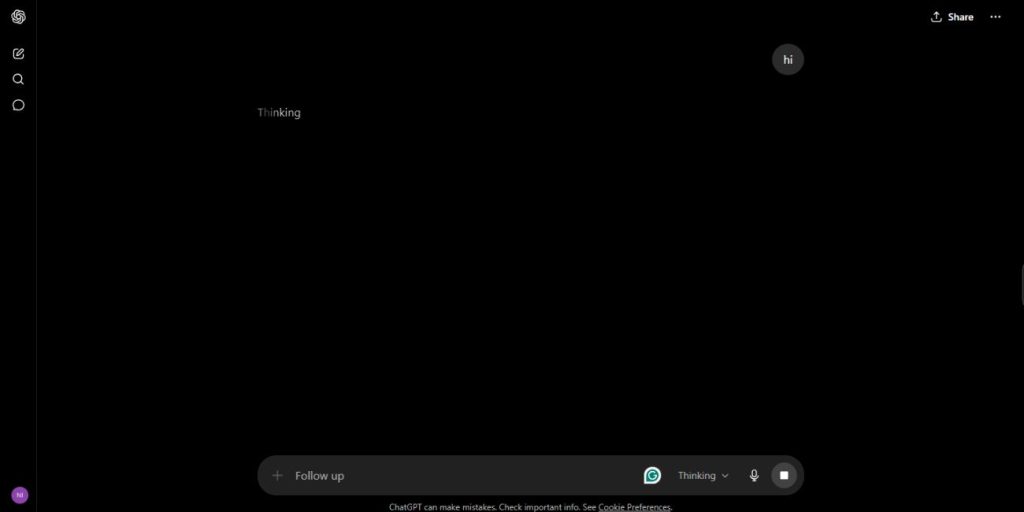
ChatGPT can stop working for many reasons. It can be a temporary outage, a bad connection, a browser issue or an account session problem. Sometimes the page loads but messages do not send. Sometimes it shows a blank screen. Sometimes it says Something went wrong and gives no useful detail.
Common reasons include:
- ChatGPT server outage
- Slow or unstable internet
- Browser cache or cookies problem
- VPN or proxy conflict
- Browser extension blocking ChatGPT
- Login session issue
- Outdated or buggy app
- School, office or public Wi-Fi blocking access
- Too many open tabs or low device memory
- File upload or tool issue
OpenAI’s own troubleshooting page also recommends checking status, refreshing the page, trying incognito, disabling extensions, VPNs, proxies or secure DNS tools, and testing another browser, device or network when ChatGPT is slow or unresponsive.
1. Check If ChatGPT Is Down
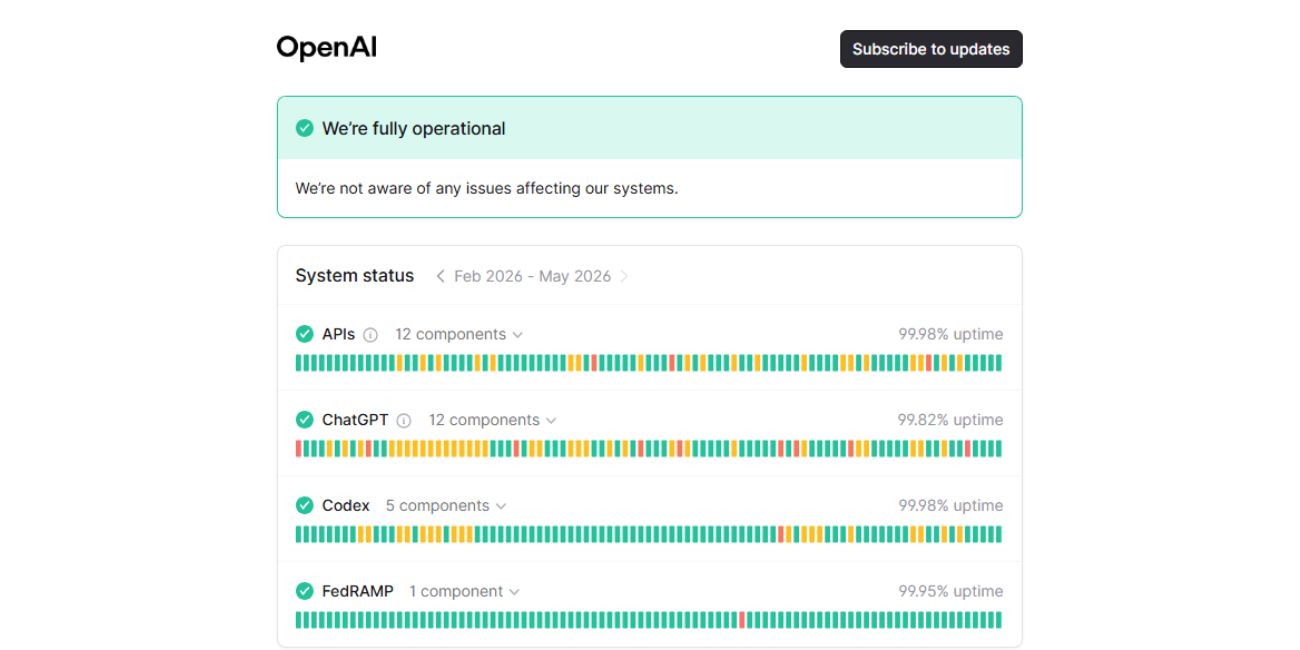 Before changing your browser or phone settings, first check the official OpenAI status page:
If ChatGPT has an active issue there, then the problem is probably from OpenAI’s side. In that case, clearing cache, reinstalling the app or changing browser may not do much. You just have to wait and try again later.
This is the first check because it saves time. If everyone is facing the same issue, your laptop is not the problem.
2. Refresh ChatGPT and Try Again
Refresh the page if ChatGPT is stuck loading or the answer is not coming. Sometimes the page session breaks and a simple refresh fixes it.
If you are using a browser, try a hard refresh. On Windows, use Ctrl + Shift + R. On Mac, use Cmd + Shift + R. If you are using the app, close it fully and open it again.
If a response is stuck, wait a little first. Then stop the response and try again. If the chat is very long, start a new chat and paste only the important part. Long chats can become heavy sometimes.
3. Check Your Internet Connection
ChatGPT needs stable internet. It does not need some crazy speed, but the connection should not keep dropping. If your Wi-Fi disconnects for one second while ChatGPT is replying, the message may fail.
Try switching networks once. If you are on Wi-Fi, test mobile data. If you are on mobile data, try Wi-Fi. If ChatGPT works on another network, your first connection is the problem.
Also check the school, office or public Wi-Fi. Some networks block AI tools, uploads or login pages. In that case, your home Wi-Fi or mobile hotspot can help you test it.
4. Clear Browser Cache and Cookies
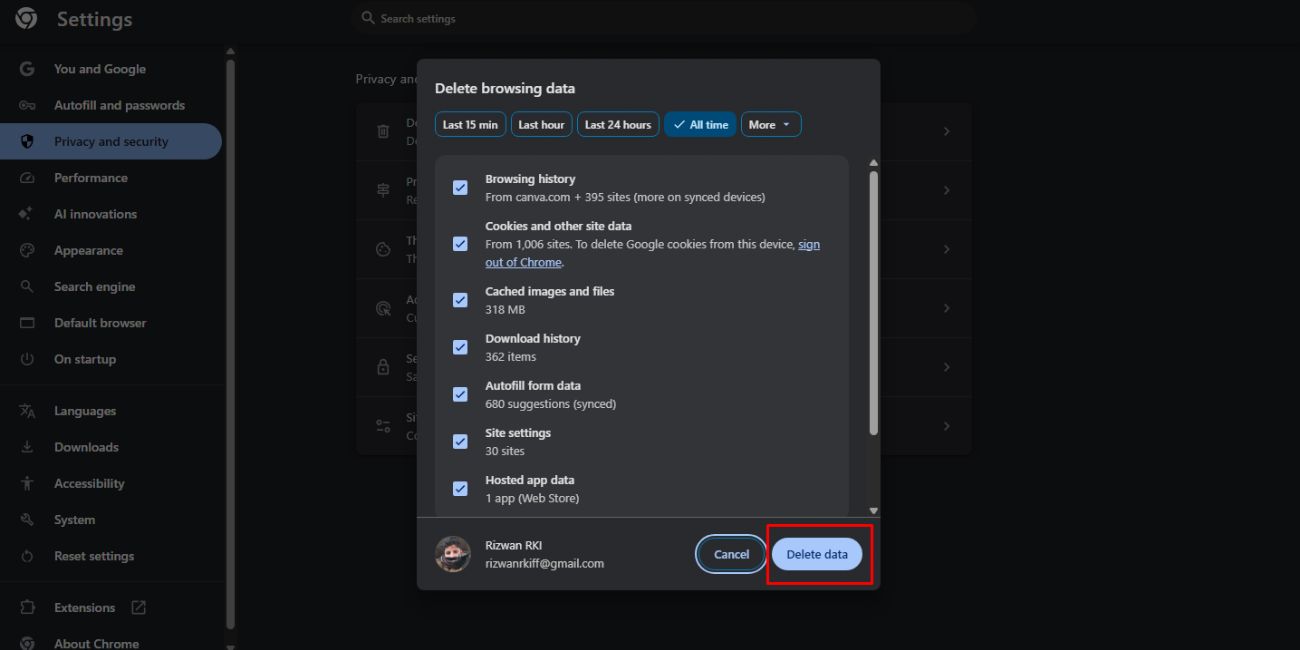 Old browser data can break ChatGPT login or loading. This can show as a blank page, login loop, slow loading, or weird “Something went wrong” error. Here is how to do it on any browser:
For Chrome or Edge:
- Click the three dots in the top-right corner.
- Open Settings.
- Go to Privacy and security.
- Click Clear browsing data.
- Select Cookies and other site data.
- Select Cached images and files.
- Click Clear data.
- Close the browser and open ChatGPT again.
For Firefox:
- Click the menu button in the top-right corner.
- Open Settings.
- Go to Privacy & Security.
- Find Cookies and Site Data.
- Click Clear Data.
- Select cookies and cached web content.
- Click Clear.
- Open ChatGPT again.
For Safari:
- Open Safari.
- Click Safari in the top menu.
- Open Settings.
- Go to Privacy.
- Click Manage Website Data.
- Search for ChatGPT or OpenAI.
- Remove the site data.
- Restart Safari and sign in again.
You may need to log in again after clearing cookies. This is normal.
5. Try Incognito or Another Browser
Incognito is a quick test. It opens ChatGPT without most saved site data and many extension problems. If ChatGPT works in incognito, then your normal browser has something wrong with cache, cookies or extensions.
Try another browser too. Chrome, Edge, Firefox or Safari. If ChatGPT works in Edge but not Chrome, then Chrome is likely the issue. Not your account. Not your internet.
Small test, but it gives a clear answer.
6. Disable Browser Extensions
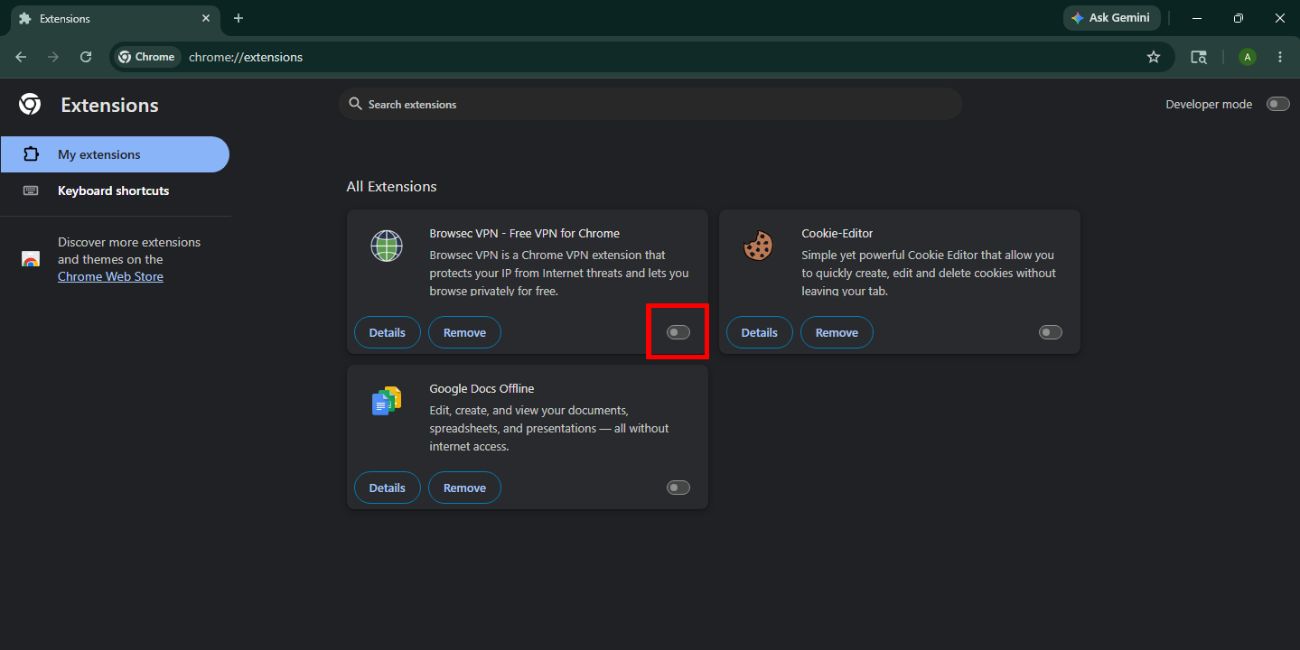 Some extensions block ChatGPT without telling you. Ad blockers, privacy tools, script blockers, VPN extensions and secure DNS tools can stop parts of the page from loading.
Instead of deleting everything, test it like this:
- Open ChatGPT in incognito mode first.
- If ChatGPT works there, then the issue is likely with an extension, cache, or browser setting.
- Open a new browser tab and type: chrome://extensions
- Disable your extensions one by one.
- After disabling each extension, reload ChatGPT and test again.
- If ChatGPT starts working, the last extension you disabled is probably the problem.
- Turn the other extensions back on one by one.
- Keep the conflicting extension off, or remove it if you do not need it.
This helps you find the exact extension causing the issue.
7. Turn Off VPN or Proxy
A VPN or proxy can cause ChatGPT login errors, slow replies or loading problems. It may work fine for other websites but still create issues with ChatGPT. Weird, but it happens.
Turn off the VPN once, reload ChatGPT and test again. If it starts working, the VPN server was probably the issue. You can try another VPN location later, but first test without it.
If you use Apple Private Relay, secure DNS tools or a browser VPN extension, turn those off for testing too. No need to remove them forever. Just test clean once.
8. Sign Out and Sign Back In
Sometimes your ChatGPT session gets stuck. The page may open, but old chats do not load. Or you can type a message, but it fails again and again.
Sign out of ChatGPT, close the browser or app, then sign back in. Use the same login method you used when you created the account. If you signed up with Google, use Google. If you signed up with Apple, Microsoft or email, use that same method.
Fix ChatGPT Not Working on Mobile App
If the ChatGPT app is not working on iPhone or Android, do not start with reinstalling right away. First close the app fully and open it again. Then switch between Wi-Fi and mobile data.
If it still fails, update the app from the App Store or Google Play. Restart your phone after update. That sounds basic, but app bugs and old versions can cause loading problems.
Try this only if the app keeps crashing or refusing to load:
- Close and reopen the app
- Update the ChatGPT app
- Restart your phone
- Switch Wi-Fi or mobile data
- Reinstall the app if nothing works
Fix ChatGPT Login Not Working
If the ChatGPT login is not working, check the login method first. This is a common mistake. If your account was created with Continue with Google, use Google again. If it was created with Apple or Microsoft, use that option.
Then clear cache and cookies, try incognito and turn off VPN. Also test a desktop browser if mobile login keeps failing.
If you see a suspicious activity or verification issue, do not keep trying again too fast. Use one normal network and wait a bit. Too many login attempts can make the whole thing more annoying.
Fix ChatGPT Blank Screen or Stuck Loading
A blank screen usually means the site did not load correctly. It can be browser cache, extensions, VPN, network issue or a temporary service issue.
Try this order:
- Check https://status.openai.com/
- Hard refresh the page
- Open ChatGPT in incognito
- Clear cache and cookies
- Disable browser extensions
- Turn off VPN or proxy
- Try another browser
If ChatGPT works in another browser, then your first browser is the problem. Fix that browser instead of wasting time on the whole device.
Fix ChatGPT “Something Went Wrong” Error
Something went wrong is one of those errors that tells you almost nothing. It can happen because of a bad connection, server issue, broken session, browser data or extension conflict.
Wait a few seconds and try again. If it comes back, refresh the page. If it still appears, sign out and sign back in. A new chat can also help if the old chat is long or stuck.
If the same error is showing for many people, check OpenAI Status. Don’t fight your browser for one hour if the service itself is having trouble.
Fix ChatGPT File Upload Not Working
File upload problems can happen because of the file, browser or network. If the file is too large, damaged or in an unsupported format, it may fail. But many times, the issue is cache, extension, VPN or school/work network filter.
Try a different browser or incognito first. Then disable extensions and upload again. If you are on office or school Wi-Fi, try another network because some networks block uploads.
OpenAI support says for file upload failures, users should make sure the file is under 20 MB, refresh the page, clear cache and cookies, disable extensions or use incognito. It also notes that VPNs, proxies and firewalls can block uploads.
What If ChatGPT Is Slow or Not Responding?
If ChatGPT is slow, it may not be fully broken. Sometimes the chat is long, the prompt is heavy, the server is busy or your internet is unstable.
To fix it start a new chat if the current conversation has too many turns. Ask one thing at a time. Shorter prompts can help when ChatGPT feels stuck.
When to Contact OpenAI Support
Contact OpenAI support if ChatGPT still does not work after the basic fixes. But collect the details first. It makes the support chat less painful.
Keep these ready:
- Exact error message
- Screenshot
- Device name
- Browser or app version
- Time the issue started
- Network type
- Steps you already tried
Do not share your password or private login codes. Support does not need those.
FAQs About ChatGPT Not Working
Why is ChatGPT not working?
ChatGPT may not work because of a server outage, internet issue, browser cache, extensions, VPN, login problem or app bug. .
Is ChatGPT down right now?
Check the official OpenAI status page at status.openai.com. If there is an active incident, wait until OpenAI fixes it.
Why is ChatGPT stuck loading?
It may be stuck because of old cache, weak internet, browser extensions, VPN or temporary server trouble.
Why can’t I log in to ChatGPT?
You may be using the wrong login method, bad browser cache, VPN, extension conflict or a temporary login issue.
Does clearing cache fix ChatGPT?
Yes, it can help if the issue is caused by old cookies, saved site data or a broken login session.
Final Thoughts
ChatGPT not working can happen for many reasons, but start with the simple checks. First check status and see if there is an outage. Then refresh, clear cache, try in incognito, disable extensions, turn off VPN and test another browser or network.
The main thing is to know where the issue is. If ChatGPT is down for everyone, wait. If it only fails on your device, fix your browser, app or network.
What error are you seeing on ChatGPT? Tell us in the comment section the exact message, because the fix may differ.
