 logo
logo
Quick Answer: ChatGPT Error in message stream means the reply was not completed properly. The answer may stop because of a weak connection, a stuck chat, a browser issue, a VPN, an extension, a long prompt, or temporary server problem. First check the OpenAI server status to verify if it is working, then retry the message.
ChatGPT Error in message stream is frustrating because it does not always look like a full ChatGPT problem. The page opens. The chat is there. You send a message and then suddenly the reply fails with a red error box. Not a good mood.
This error usually appears when ChatGPT cannot finish sending the answer to your screen. It may start generating and then stop. Or it may not generate at all and only show the error. That is why this issue is different from a simple login problem.
The fix depends on where the stream breaks. Sometimes it is your internet. Sometimes the chat is too long. Sometimes the browser is blocking something. And sometimes ChatGPT itself is having a bad moment.
What Does ChatGPT Error in Message Stream Mean?
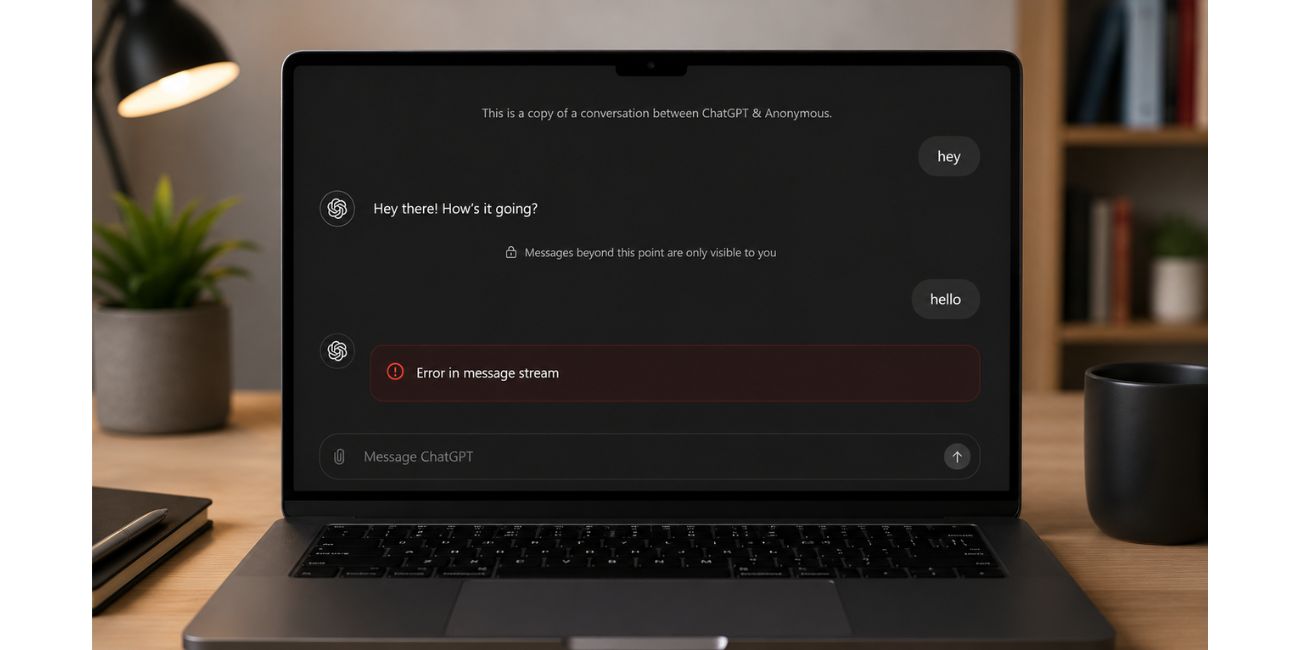 ChatGPT Error in message stream means the response was interrupted while it was being sent. Think of the message stream like the live flow of the answer from ChatGPT to your browser or app. If that flow breaks, the answer cannot finish.
This does not always mean your account is broken. It also does not mean your prompt is wrong every time. Many times, it is just a broken connection between the chat and the response.
A simple way to understand it is this. ChatGPT started sending the answer, but something stopped the delivery before it could complete. That is why the message appears instead of the full reply.
Why Does ChatGPT Show Error in Message Stream?
This error can happen because the response stream depends on a stable connection. If your browser, network, VPN, extension, or the chat itself interrupts that stream, the reply can fail.
Common reasons include:
- ChatGPT service issue
- Weak or unstable internet
- Browser cache or cookies problem
- VPN or proxy conflict
- Browser extension blocking the page
- Secure DNS or web filter issue
- Very long conversation
- Very long prompt
- Shared chat page problem
- Login session issue
- Browser or app glitch
The tricky thing is that all these problems can lead to the same message. So you should not guess too fast. Test the simple things first.
Check If ChatGPT Is Down First
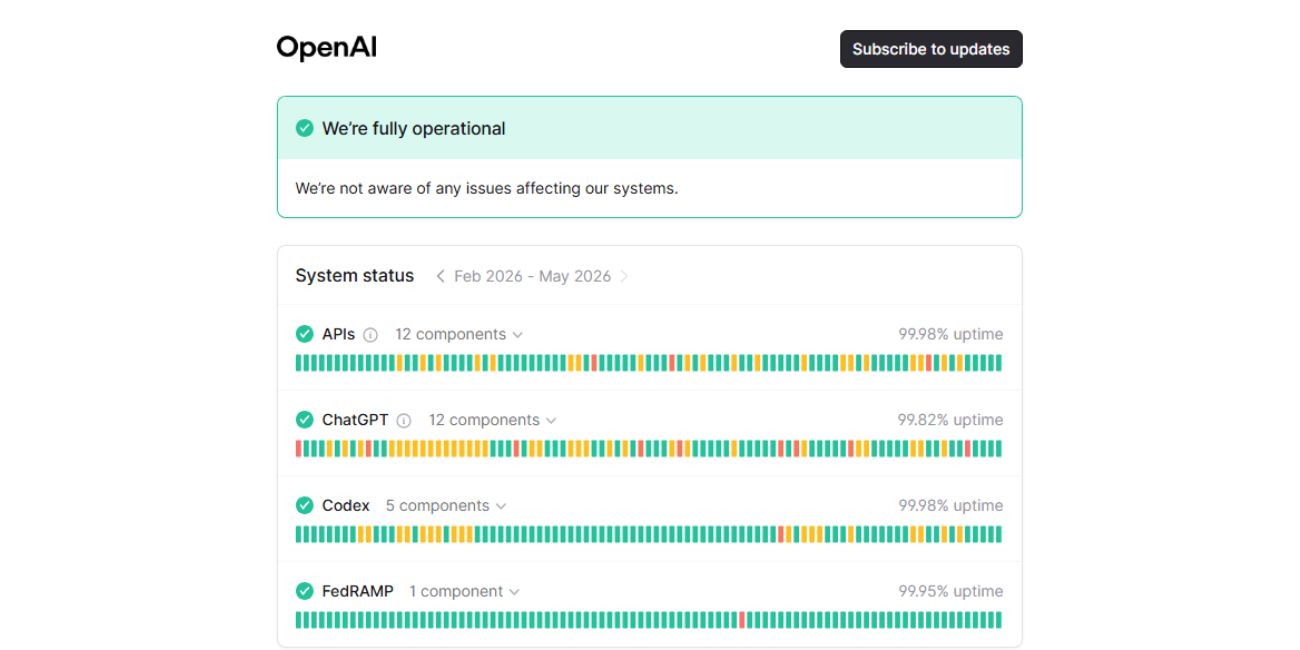 Before touching your browser settings, check this page:
If there is an active issue there, then the error may not be from your device. In that case, clearing cache, disabling extensions, or reinstalling the app may not fix anything right away. You may just need to wait and try again later.
This should be the first check. It takes a few seconds and saves you from wasting time. If ChatGPT is having a service issue, your browser is not the main problem.
Retry the Same Message Once
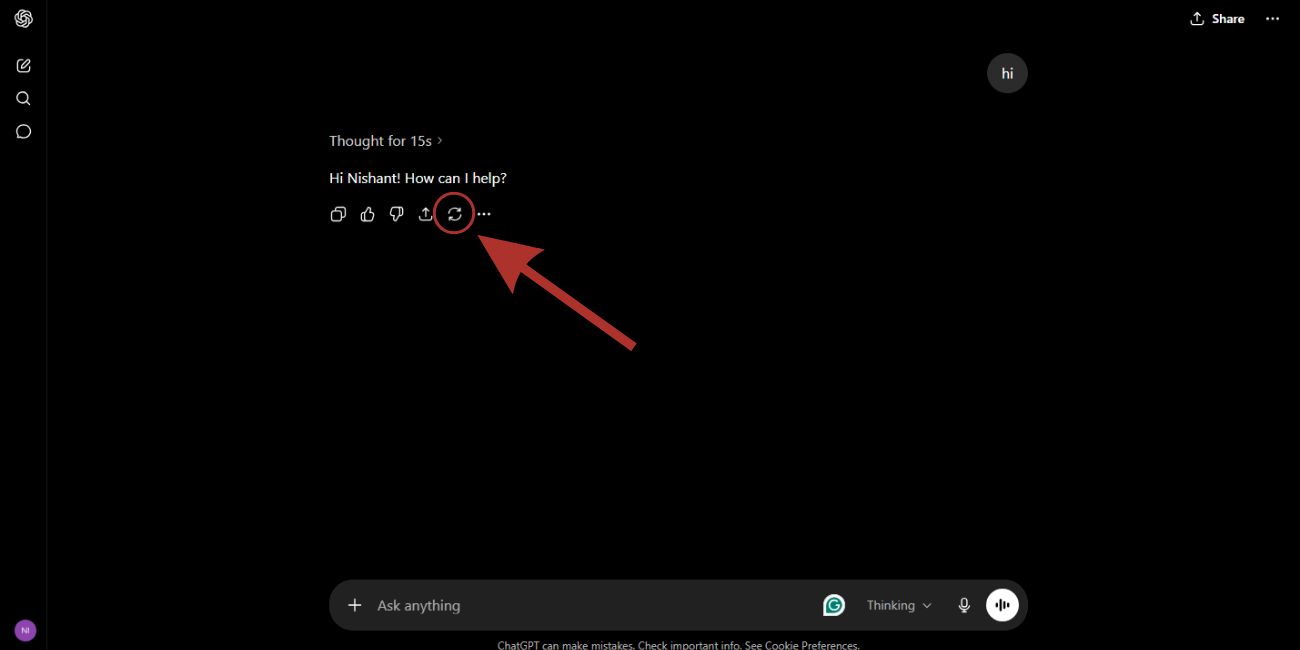 If the status page looks fine, retry the message once. Sometimes the stream breaks only one time, and the same prompt works on the next try.
Do not click “Retry” repeatedly or too quickly. Wait a few seconds, then try. If the reply starts but stops halfway, copy your prompt before refreshing so you do not lose it.
If the same message fails again, do not keep forcing it. Move to the next fix.
Refresh the Chat Page
Refresh the ChatGPT page if the chat seems stuck. A fresh page load can rebuild the connection and clear a broken response session.
On Windows, you can use Ctrl + R. For a stronger refresh, use Ctrl + Shift + R. On Mac, use Cmd + R or Cmd + Shift + R. If you are using the app, close it fully and open it again.
After refreshing, send a shorter version of the message first. Just to test. If a short message works, the old prompt or old chat may be the issue.
Start a New Chat
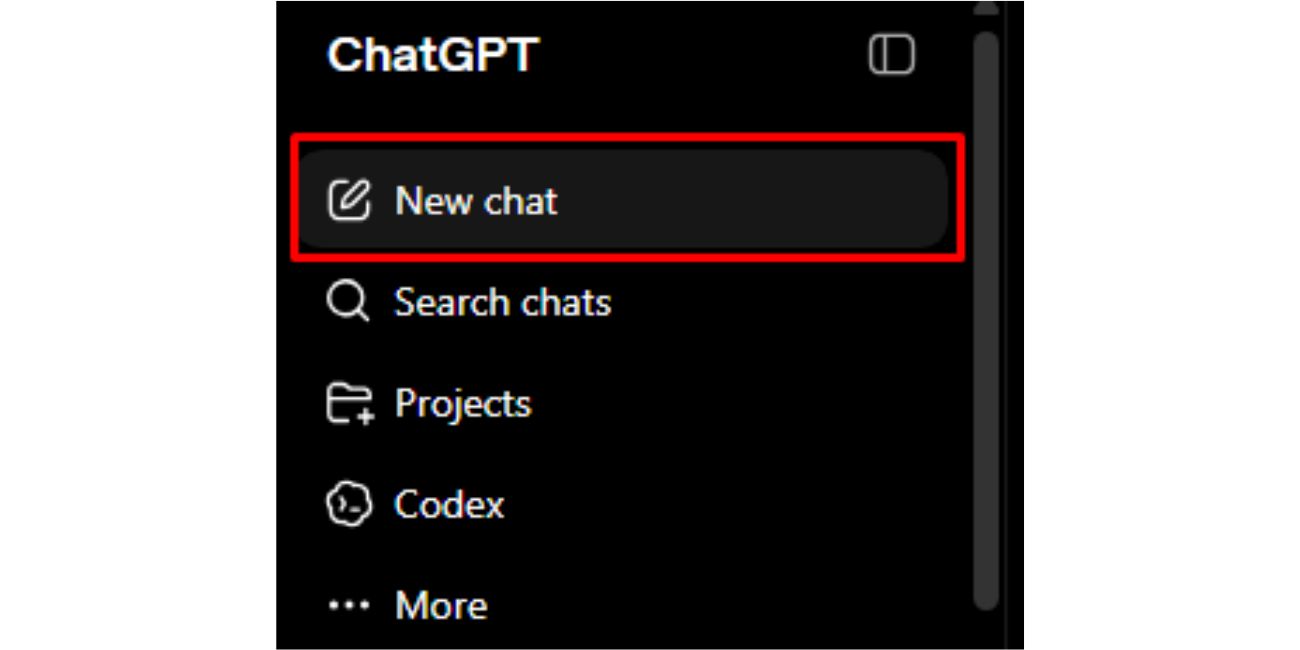 If the error happens only in one conversation, the chat itself may be stuck. This happens more often when the chat is very long or has many older instructions, files, code blocks, or repeated edits.
Open a new chat and send the same question in a shorter form. If the new chat works, then the old chat was probably too heavy or broken.
This is not a perfect fix because you may lose some context. But it is better than fighting the same broken chat over and over.
Shorten Your Prompt
A very long prompt can trigger this error, especially if you paste a full article, code, logs, or many instructions at once. The reply may start, then fail before finishing.
Break your request into smaller parts. For example, instead of asking ChatGPT to rewrite a full article, create SEO titles, fix headings, and make images in one message, do one task first. Then move to the next.
This matters more if the error appears after large pasted text. Small prompts are easier to process and easier to retry.
Check Your Internet Connection
ChatGPT streams replies, so your internet needs to stay stable while the answer is coming. It does not have to be super fast, but it should not keep dropping.
Try switching network once. If you are on Wi-Fi, test mobile data. If you are on mobile data, try Wi-Fi. If ChatGPT works on another network, then your first network was likely breaking the stream.
Also check school, office, or public Wi-Fi. These networks can block or limit streaming tools. A mobile hotspot is a quick way to test it.
Clear Browser Cache and Cookies
Old browser data can break ChatGPT loading or response streaming. This can show as a blank page, login loop, slow loading, or Error in message stream.
For Chrome or Edge:
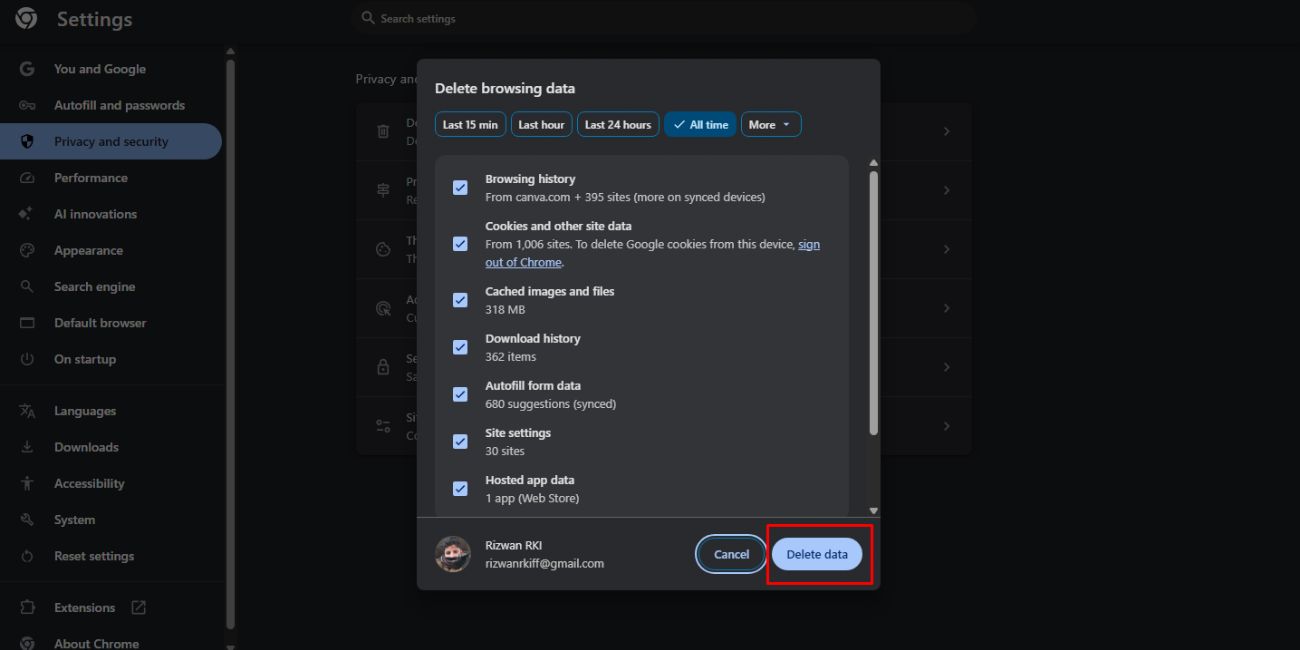
- Click the three dots in the top-right corner.
- Open Settings.
- Go to Privacy and security.
- Click Clear browsing data.
- Select Cookies and other site data.
- Select Cached images and files.
- Click Clear data.
- Close the browser and open ChatGPT again.
For Firefox:
- Click the menu button in the top-right corner.
- Open Settings.
- Go to Privacy & Security.
- Find Cookies and Site Data.
- Click Clear Data.
- Select cookies and cached web content.
- Click Clear.
- Open ChatGPT again.
For Safari:
- Open Safari.
- Click Safari in the top menu.
- Open Settings.
- Go to Privacy.
- Click Manage Website Data.
- Search for ChatGPT or OpenAI.
- Remove the site data.
- Restart Safari and sign in again.
You may need to sign in again after this. That is normal. Cookies store login data, so clearing them can log you out.
Try Incognito Mode
Incognito is a quick test, not a final fix. It helps you check whether your normal browser data or extensions are causing the stream error.
Open ChatGPT in incognito or private mode and send a short message. If it works there, your normal browser probably has a cache, cookie, extension, or site data problem.
If it still fails in incognito, then the issue may be your internet, VPN, account session, or ChatGPT service side.
Disable Browser Extensions
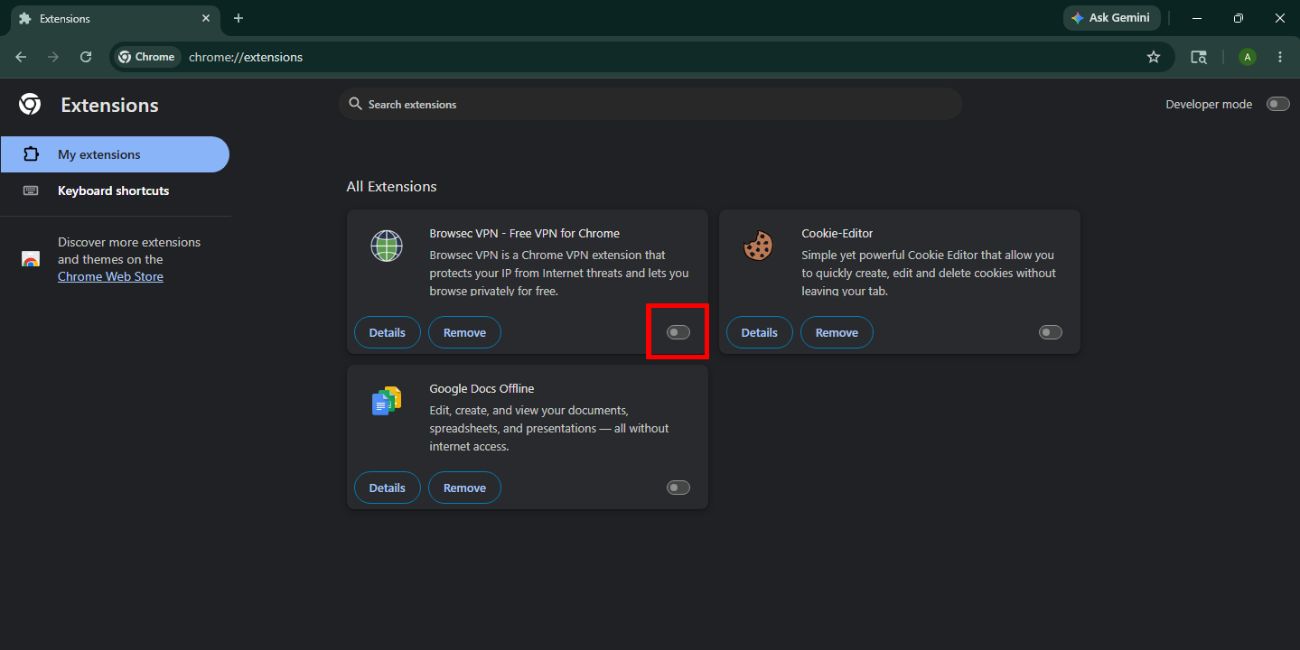 Some extensions can block ChatGPT without telling you. Ad blockers, privacy tools, script blockers, VPN extensions, and secure DNS tools can stop parts of the response stream from loading.
Instead of deleting everything, test it like this:
- Open ChatGPT in incognito mode first.
- If ChatGPT works there, the issue is likely an extension, cache, or browser setting.
- Open a new browser tab and type: chrome://extensions
- Disable extensions one by one.
- After disabling each extension, reload ChatGPT and test again.
- If ChatGPT starts working, the last extension you disabled is probably the problem.
- Turn the other extensions back on one by one.
- Keep the conflicting extension off, or remove it if you do not need it.
This is better than removing all extensions at once. You find the exact one causing the issue.
Turn Off VPN, Proxy, or Secure DNS
VPNs, proxies, and secure DNS tools can break the connection between ChatGPT and your browser. The page may open, but the reply stream can still fail.
Turn off your VPN or proxy, then reload ChatGPT and try the same prompt again. If it works, the VPN server was likely the issue.
If you use browser VPN extensions, Apple Private Relay, secure DNS apps, or web filters, test with those off too. You do not need to remove them forever. Just test clean once.
Sign Out and Sign Back In
Sometimes your login session gets stuck. ChatGPT may open, but replies fail or conversations do not behave normally.
Sign out of ChatGPT, close the browser or app, then sign back in. Use the same login method you normally use. If you use Google, use Google again. If you use Apple, Microsoft, or email, use the same one.
This fix is small, but it can refresh the session and fix strange message errors.
Fix Error in Message Stream on Mobile App
If the error appears in the ChatGPT mobile app, treat it like an app session problem first. Close the app fully and open it again. Do not just leave it running in the background.
Try this:
- Close and reopen the ChatGPT app.
- Switch from Wi-Fi to mobile data.
- Update the ChatGPT app.
- Restart your phone.
- Check ChatGPT server status.
- Reinstall the app if it keeps failing.
If ChatGPT works in a mobile browser but not in the app, the app is likely the issue. If it fails everywhere, check your network or the status page.
Fix Error in Message Stream on Shared Chat
If you see this error inside a shared ChatGPT conversation, the shared page may be the problem. Shared chats do not always behave like your normal private chat.
Open ChatGPT normally and start a new private chat. Then send the same message again. If it works there, the shared chat page was probably causing the issue.
Also, if you are viewing a copied or shared conversation, you may not be able to continue it the same way as the original user. So don’t waste too much time there.
Check If the Error Happens in All Chats
This tells you a lot. If the error appears in one chat only, the chat may be stuck or too long. If it appears in every chat, the issue is more likely browser, network, login session, or service side.
Test with a small message like:
- “Hi, can you reply with one sentence?”
If that works, then ChatGPT itself is responding. Your longer prompt or older conversation may be the problem.
If even that fails, check status, browser, network, VPN, and login session.
What If It Keeps Happening?
If the error keeps coming back, stop repeating the same fix. Try to locate the pattern.
Ask yourself:
- Does it happen only in one chat?
- Does it happen only with long prompts?
- Does it happen only on Wi-Fi?
- Does it happen only in Chrome?
- Does it happen in the app too?
- Does it happen after file upload?
Once you know where it happens, the fix becomes easier. Random guessing wastes time.
When to ChatGpt Contact Support?
Contact support if the error keeps happening after you test browser, network, VPN, extensions, and a new chat. But collect details first.
Keep these ready:
- Screenshot of the error
- Browser or app version
- Device name
- Time the issue started
- Whether it happens in all chats or one chat
- Whether it happens on app or browser
- Whether it happens on another network
- Steps you already tried
Do not share your password or login codes. Support does not need those.
FAQs About ChatGPT Error in Message Stream
What does Error in message stream mean on ChatGPT?
It means ChatGPT could not finish sending the response. The reply stream was interrupted before the answer completed.
Is Error in message stream my account problem?
Usually, no. Most of the time it is a temporary browser, network, VPN, extension, server, or chat-session issue.
Why does the reply stop in the middle?
The response stream may break because of unstable internet, browser data, VPN, extensions, or a long stuck conversation.
Does clearing the cache fix the error in the message stream?
Yes, it can help if old cookies, cached files, or broken site data are causing ChatGPT to load or stream badly.
Can VPN cause ChatGPT Error in message stream?
Yes, VPNs, proxies, secure DNS tools, and web filters can interrupt ChatGPT’s connection and cause stream errors.
Why does ChatGPT work in incognito but not normal browser?
That usually means your normal browser has a cache, cookie, extension, or site data problem.
Final Thoughts
ChatGPT Error in message stream usually means the reply could not finish. First, check and verify the server status. Then retry once, refresh the page, start a new chat, shorten your prompt, clear cache, test incognito, disable extensions, and turn off VPN.
The main thing is to find where the stream is breaking. If it happens only in one chat, start fresh. If it happens everywhere, check network, browser, app, and status.
Are you seeing this error in a normal chat, shared chat, or mobile app? Comment where it appears, because the fix can be different.
