 logo
logo
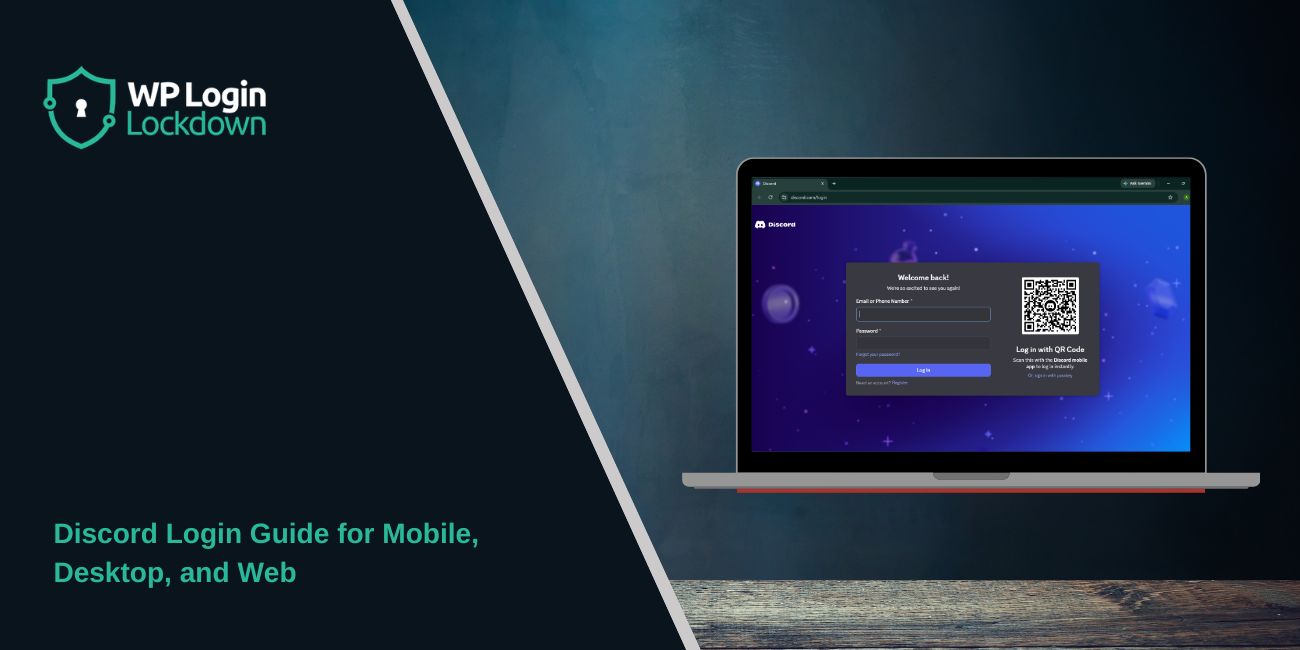
Quick Answer: You can log into Discord on almost any device using your email address or phone number and password. This works on mobile, desktop, tablet, and browser. If you are already logged into Discord on your phone, you can also use QR code login on a PC or browser. It is faster because you do not need to type your password again.
Discord is available on many devices, so you are not stuck with only one phone or one computer. You can use it on Android, iPhone, Windows, Mac, tablet, or even directly from a browser. The login method is mostly the same, but each device feels a little different.
Sometimes Discord login is quick. You enter your details, maybe add a code, and your account opens. But sometimes it does not work that smoothly. You may forget your password, lose your 2FA code, scan a QR code that does not load or get stuck on the login screen.
This guide is for anyone who wants to log into Discord on any device without getting confused. I’ll explain the normal login method, QR code login, and what to check if Discord does not let you sign in.
Discord Login Methods You Can Use
Discord gives you more than one way to sign into your account. Most people use the standard email and password method, but phone number and QR code logins are also useful in some cases.
| Login Method | Best For | What You Need |
|---|---|---|
| Email and password | Most devices | Discord email and password |
| Phone number and password | Mobile or desktop login | Linked phone number and password |
| QR code login | PC or browser login | Discord mobile app already logged in |
| 2FA code | Extra security | Authenticator app, SMS code, or backup code |
The normal login method is the easiest to understand. You open Discord, enter your email or phone number then type your password. If two-factor authentication is turned on, Discord will ask for a code after that.
QR code login is a little different. It is mostly used when you want to sign in on a computer and you already have Discord open on your phone. You just scan the QR code from your phone and approve the login. Pretty simple, but you should only scan codes from the real Discord login screen.
How to Log Into Discord on a Phone or Tablet
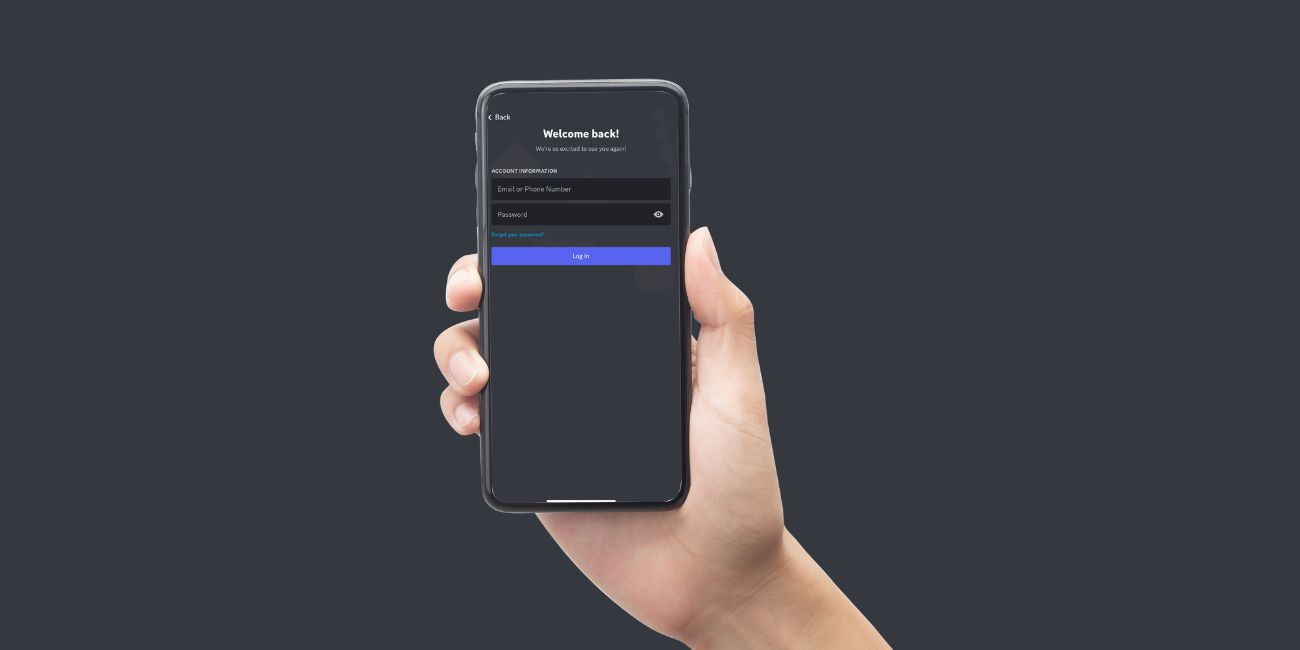 Logging into Discord on a phone or tablet is usually the simplest option. You only need the Discord app and your account details. If the app is already installed, open it and tap the login button.
Enter your email address or phone number first. Use the same one linked with your Discord account. After that, enter your password carefully. Passwords are case-sensitive, so one wrong capital letter can stop the login.
If your account has two-factor authentication turned on, Discord will ask for a code. This code may come from your authenticator app, SMS or your saved backup codes. Do not guess random codes because that will not help. Use the latest code shown in your app.
If Discord keeps loading or does not open the login screen, update the app first. Also check your internet connection. Sometimes the app is fine, but your connection is weak or stuck. Switching from Wi-Fi to mobile data or vice versa, can fix it.
How to Log Into Discord on PC or Laptop
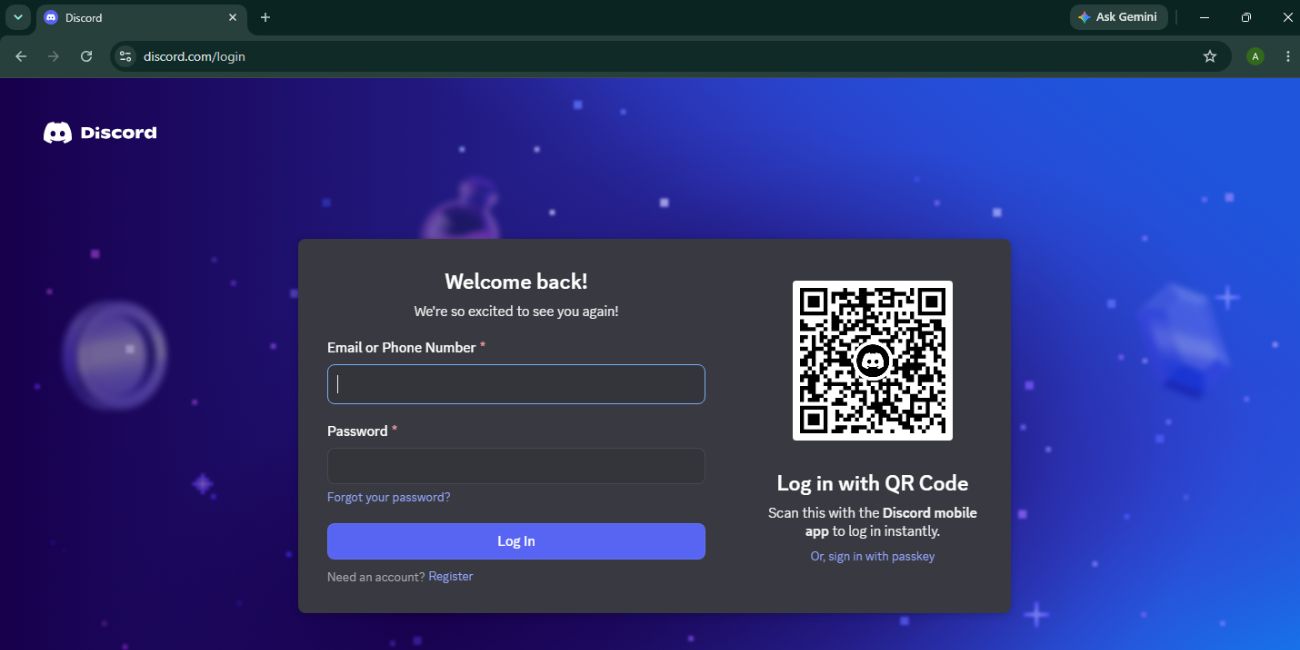 On a PC or laptop, you can use Discord in two ways. You can install the Discord desktop app or you can open Discord in your browser. Both methods let you use the same account.
Open the Discord app or browser version, then enter your email or phone number. Type your password after that. If you use a password manager, make sure it has not filled the wrong account. This happens more often than people think, especially if you have more than one Discord account.
If Discord asks for a 2FA code, open your authenticator app and enter the current code. These codes change quickly, so use the fresh one. If you are using SMS verification, wait for the code and enter it as shown.
On a personal computer, staying logged in is usually fine. But on a school computer, office laptop, or someone else’s PC, do not save your password. Also, log out when you are done. Discord may contain private messages, server access, and personal account details so it is better to be careful.
How Discord QR Code Login Works
QR code login is helpful when you want to open Discord on a desktop or browser, but you do not want to type your password. It only works if you are already signed into Discord on your mobile app.
Open Discord on your computer and look at the login screen. You should see a QR code there. Then open Discord on your phone and use the QR scanner option from the app. Scan the code on your computer screen and approve the login from your phone.
After approval, Discord should open your account on the computer. This is useful when you are in a hurry or have forgotten your password but still have Discord working on your phone.
One thing is important here. Do not scan Discord QR codes from random websites, messages or strangers. Fake QR codes can be used to trick people into giving account access. Only scan the QR code shown on the real Discord login page or official desktop app.
What to Do If Discord Login Is Not Working
There are many reasons Discord login can fail. The most common one is a wrong password. If you are not sure about your password, use the password reset option on the login screen. Discord will send reset instructions to the email linked with your account.
If you do not see the reset email, check spam, junk and promotions folders. Also make sure you entered the correct email. If you have two Discord accounts, you may be checking the wrong inbox.
If the issue is 2FA, open your authenticator app and use the newest code. Old codes expire, so they will not work. If you saved backup codes before, you can use one of them. This is why it’s important to save backup codes when you turn on 2FA.
If QR code login fails, refresh the Discord login page and scan the new code. QR codes can expire after some time. Also clean your phone camera lens or move closer to the screen if the scan is not working.
For browser login problems, clear cache and cookies then try again. You can also test another browser. For app login problems, update Discord, restart the app or restart your device. Small things like this can fix a stuck login screen.
Safe Login Tips for Any Device
Discord login is not only about getting inside your account. You should also make sure nobody else gets in. This matters more if you use Discord on shared or public devices.
Use a strong password that you do not use on other websites. If another site gets hacked and you use the same password everywhere, your Discord account can also be at risk. It sounds basic, but it is still one of the most common mistakes.
Keep 2FA turned on if you can. Yes, it adds one extra step when logging in but it also protects your account better. Just make sure you save backup codes somewhere safe.
Here are a few simple safety habits:
- Log out after using Discord on a shared computer.
- Do not save your password on public devices.
- Do not share your 2FA code with anyone.
- Do not scan QR codes from unknown links or messages.
- Keep your email account secure too.
- Update Discord when a new version is available.
Your email account is also important because password reset links go there. If someone controls your email, they may be able to reset your Discord password too. So protect both not only Discord.
Final Thoughts
Logging in to Discord on any device is easy once you know which method to use. On phones and tablets, the app is usually the best option. On a PC or a laptop, you can use the desktop app or the browser. And if your phone is already logged in, QR code login can save time.
If login fails, do not panic right away. Check your password, internet connection, 2FA code, app version, email inbox and browser cache. Most Discord login problems come from one of these small things.
Which device are you trying to log into Discord from – phone, PC, browser or tablet?
