 logo
logo
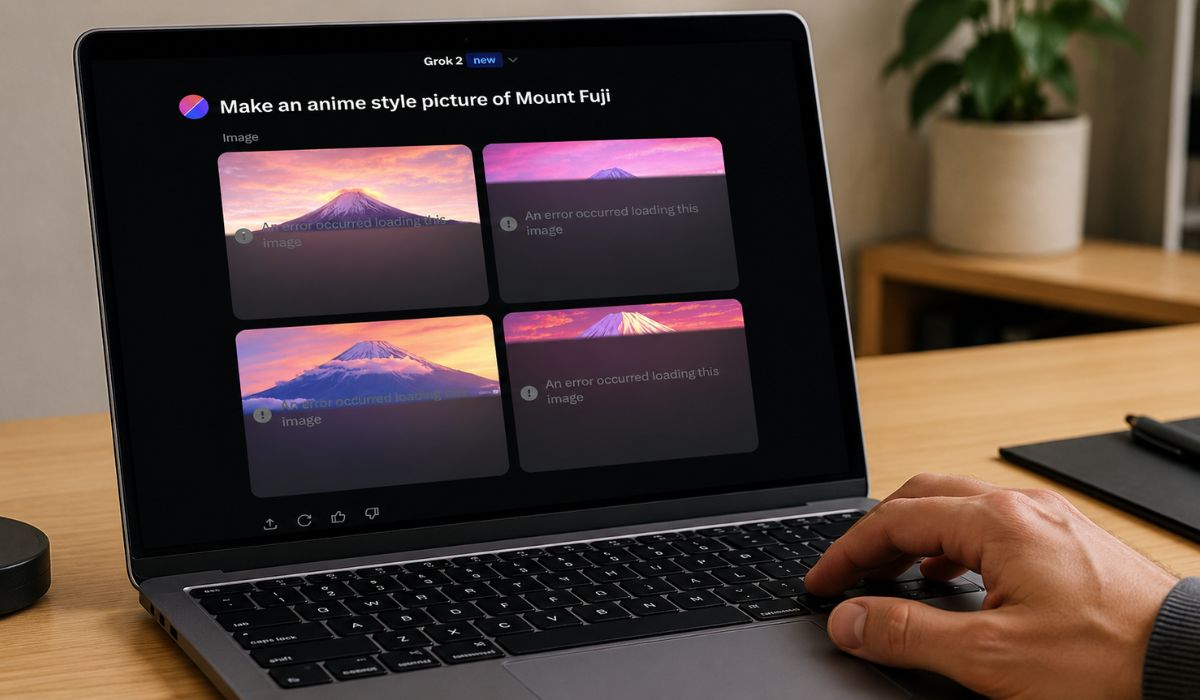
If Grok shows “An error occurred loading this image,” it usually means the image failed to load somewhere between Grok, your account, your device or your internet connection. This can happen when Grok is loading a generated image, opening an uploaded image or showing an image inside Grok Imagine.
The error does not always mean your prompt is wrong. Sometimes Grok is slow. Sometimes the app needs a restart. Other times, cache, cookies, VPN, file type, browser extensions or account limits can cause the problem. Grok supports image and video generation features, so image loading errors can happen on the Grok app, Grok website or inside the X app. (play.google.com)
What Causes Grok “An Error Occurred Loading This Image”?
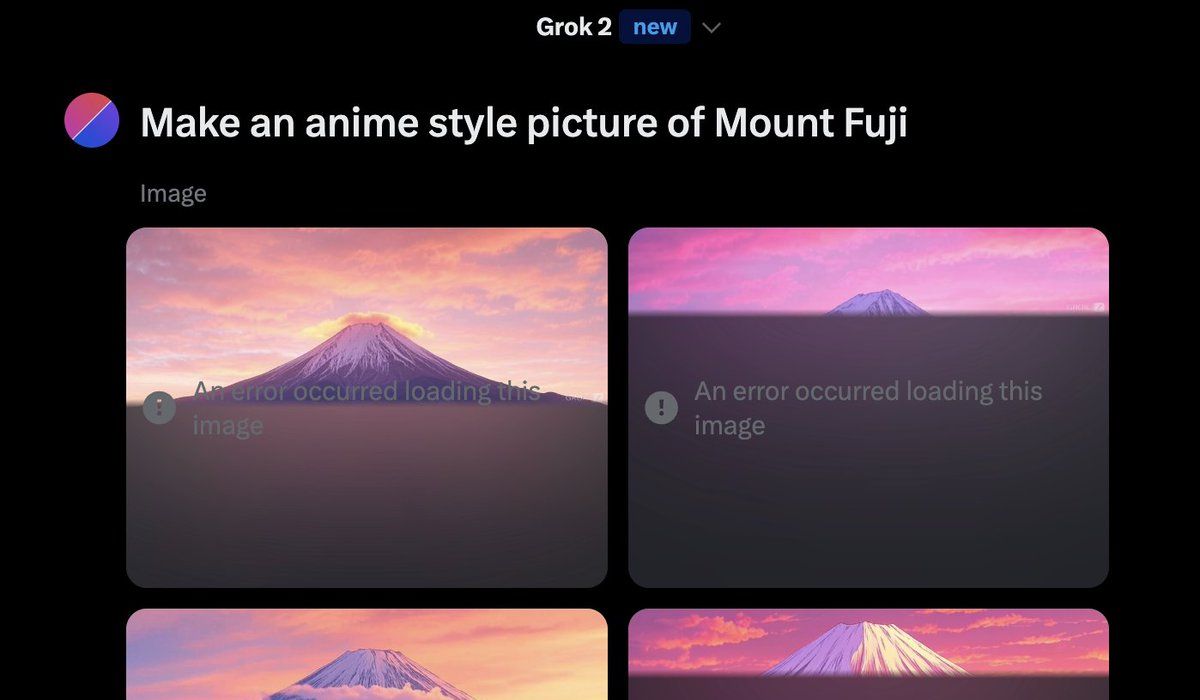 Here are the main causes of the Grok image-loading error. The issue can come from Grok’s side, but it can also come from your browser, phone, app version, network or account access.
| Cause | What It Usually Means |
|---|---|
| Grok server is slow or busy | The image may not load because the service is delayed |
| App cache or browser cookies are broken | Old data may stop the image preview from opening |
| Weak internet connection | The image request fails before it loads fully |
| VPN or proxy issue | Grok may fail to load media through that route |
| Browser extension or ad blocker | An extension may block image previews or scripts |
| Prompt or content restriction | Grok may block or fail some image requests |
| Account or usage limit | Your account may have limited access to image tools |
| Uploaded image file issue | File size, format or permission may stop the upload |
A simple way to check the cause is this: if normal Grok chat works but images fail, the problem is probably tied to image loading, image generation, upload access or account limits. If the whole app is slow, then it may be a wider Grok or X issue.
Quick Fixes First
Try these quick fixes before going into deeper steps:
- Refresh Grok or reload the page
- Close and reopen the Grok app or X app
- Wait 1-2 minutes and try again
- Switch from Wi-Fi to mobile data, or mobile data to Wi-Fi
- Turn off the VPN or proxy
- Update the Grok app or the X app
- Try Grok in another browser
- Clear the app cache or browser cookies if the issue continues
These small fixes resolve many image-loading errors. Start here before reinstalling the app or changing account settings.
How to Fix Grok “An Error Occurred Loading This Image”
Try these fixes in order. Start with the easiest ones first because many Grok image errors are temporary. If the image still does not load, move to cache, network, browser, file upload and account checks.
1. Refresh Grok and Try Loading the Image Again
Sometimes the image is already created, but the preview does not load properly. This can happen when the chat session gets stuck or the image response takes longer than normal.
Try these steps:
- Refresh the Grok page if you are using a browser.
- If you are using the app, go back and reopen the same chat.
- Tap the image again and wait a few seconds.
- If it still does not load, wait 1-2 minutes.
- Try the same request again only once.
Do not keep sending the same prompt again and again. If Grok is already slow or your account has usage limits, repeated requests can worsen the issue.
2. Check If Grok or X Is Having a Temporary Issue
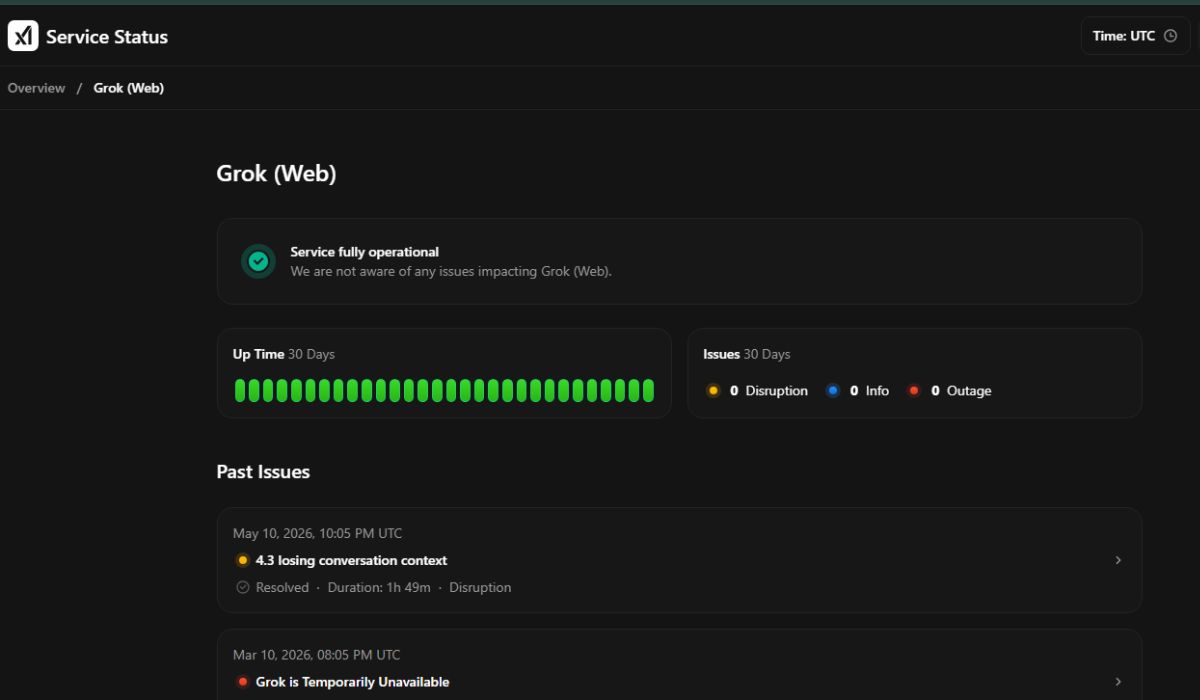 Sometimes nothing is wrong with your phone or browser. Grok’s image service may be slow, busy or temporarily failing. This is common with AI image tools when many people are using them at the same time.
Check it this way:
- Send a normal text message to Grok.
- If text works but images fail, the issue may be only with image loading.
- Try opening Grok on another device if possible.
- Check X/Grok Server status on the official page or other social platforms to see if many users are reporting the same issue.
- Wait and try again later if the same problem is happening to many users.
If Grok image loading is failing for everyone, changing your browser settings will not help much. In that case, waiting is usually the better move.
3. Restart the Grok App or X App
The Grok app or X app can sometimes hold a broken image session in the background. The app may look normal, but image previews may stop loading until you restart it.
Follow these steps:
- Close the Grok app or X app fully.
- Remove it from recent apps.
- Wait a few seconds.
- Open the app again.
- Go back to Grok and try loading the image.
This applies whether you use the standalone Grok app or Grok inside X. If the error was caused by a stuck app session, this quick restart can fix it. (x.ai)
4. Clear App Cache or Browser Cookies
Cache and cookies help apps load faster, but old or broken data can also cause strange image errors. Grok may open normally while image previews keep failing.
If you are on Android:
- Open your phone settings.
- Go to Apps.
- Find Grok or X.
- Open Storage.
- Tap Clear Cache.
- Restart the app and try again.
If you are using Grok in a browser:
- Open browser settings.
- Find site data or cookies.
- Clear data for Grok or X.
- Restart the browser.
- Log in again and test the image.
If you are on iPhone, there may not be a simple cache button for every app. In that case, try updating the app, logging out and back in or reinstalling the app if the problem continues.
5. Switch Network and Turn Off VPN
A weak network can make Grok chat feel normal but still break image loading. Images are heavier than text, so they can fail first when your connection is unstable.
Switch from Wi-Fi to mobile data and try again. If you’re already using mobile data, try a stable Wi-Fi network. Also, turn off VPN, proxy or custom DNS for a quick test.
This matters more in school, office or public Wi-Fi. Some networks block media tools, AI services, or image-delivery links. If Grok works on mobile data but not on office Wi-Fi, the network is probably the issue.
6. Update Grok, X App or Your Browser
Old app versions can break newer features. Grok image and video tools change often, so updates matter more than people think. The Grok app listing includes image and video generation features, which means app version problems can affect image loading. (play.google.com)
Update everything like this:
- Open the Play Store or App Store.
- Search for Grok.
- Update the app if an update is available.
- If you use Grok inside X, update the X app too.
- Restart your phone.
- Try Grok image loading again.
If you use Grok on desktop, update your browser. Chrome, Edge, Safari and Firefox updates can fix media loading and script issues that affect web apps.
7. Disable Ad Blockers, Script Blockers or Browser Extensions
This fix is mostly for desktop users. Some ad blockers, privacy extensions or script blockers can stop Grok images from loading correctly. The chat may still work, but image previews can fail.
Test it this way:
- Open Grok in a private or incognito window.
- Make sure extensions are disabled in that window.
- Try loading the same image again.
- If it works, one of your extensions may be causing the problem.
- Disable extensions one by one to find the issue.
You can also try another browser. If Grok images work in one browser but not another, the issue is likely browser settings, cookies or extensions.
8. Check Image File Type, Size and Permissions
If the error appears after you upload an image to Grok, the uploaded file may be the problem. Some files may be too large, corrupted or in a format that does not work well in that app path.
Try these steps:
- Upload a simple JPG or PNG image.
- If your image is HEIC, convert it to JPG.
- Reduce the file size if the image is very large.
- Make sure Grok or X has permission to access photos and files.
- Try uploading the image from another device.
- Test with a simple screenshot to see if uploads work at all.
If a normal screenshot uploads but your original image does not, the original file is probably the issue.
9. Simplify the Prompt or Try a Safe Image Request
Sometimes Grok fails because the image request is blocked or restricted. This can happen with unsafe prompts, sensitive edits, explicit content, real-person manipulation or requests that hit current safety rules.
Try a neutral test prompt like: “a red apple on a wooden table.” If that works, your original prompt may be the issue. Rewrite it in a cleaner and safer way.
Don’t try to bypass Grok’s content rules. Image generation tools have faced restrictions and access changes after misuse concerns, especially around non-consensual or sexualized image creation. Treat blocked prompts as a signal to change the request, not as something to work around.
10. Check Account Access, Subscription and Usage Limits
Some Grok image features may depend on your account type, plan, region or current usage. If images worked before but suddenly stopped, you may have hit a limit or lost access to a feature.
Check these things:
- Look for any usage limit message.
- Check if the image button is missing.
- See if Grok asks you to upgrade.
- Test whether image generation works on Grok web, app or X.
- Try a simple prompt to confirm whether image generation works at all.
- Check if the feature is available in your region.
Grok Imagine is presented as an AI image and video generator, but access can vary by platform and account setup. (grok.com)
If only one account has the issue but another account works, the problem may be account-side, not device-side.
11. Try Another Platform: Grok Web, Grok App or X App
The error may happen only on one platform. For example, Grok may fail inside X but work on Grok web. Or the mobile app may fail while desktop works fine.
Use this table:
| If an error happens on… | Try This |
|---|---|
| X app | Open the Grok app or the Grok web |
| Grok app | Update the app or try a web browser |
| Desktop browser | Try another browser or disable extensions |
| Mobile browser | Try the app or desktop mode |
| One device only | Test from another device |
This step helps you find where the problem is. If Grok fails everywhere, it may be account-side or server-side. If it fails only in one app or browser, the issue is probably local.
12. Contact Support or Wait If Nothing Works
If you’ve tried everything and Grok still shows “An error occurred loading this image,” the issue may be on Grok’s end or related to your account. At that point, waiting and retrying later is reasonable.
If you contact support, include useful details. Don’t just say “Grok image not working.” Share the device, app version, browser, network type, whether it happened with an upload or generated image and the exact time it failed. A screenshot of the error can help too.
You can also mention whether the issue happens on Grok web, Grok app or X app. That detail matters because it helps separate browser issues from app or account issues.
How to Prevent Grok Image Loading Errors
You cannot prevent every Grok image-loading error, but you can reduce how often it occurs. Most prevention is about keeping the app updated, using a stable connection and avoiding settings that block media.
Use these tips:
- Keep Grok, X and your browser updated
- Use stable Wi-Fi or mobile data before generating images
- Turn off the VPN if Grok images often fail
- Use JPG or PNG for image uploads
- Keep prompts clear and safe
- Do not repeat the same image request too fast
- Check account limits if you generate many images
- Clear the cache if image previews keep breaking
Also remember that Grok chat and Grok images are not the same thing. Text may work fine while images fail to load because images use different loading and generation systems.
Common FAQs
Why does Grok say “An error occurred loading this image”?
Grok usually shows this error when a generated image, uploaded image or image preview fails to load. Common causes include weak internet, cache problems, VPN, app bugs, prompt restrictions or account limits.
Is Grok down when images do not load?
Not always. If only images fail but chat works, the issue may be limited to Grok image loading or image generation. If chat, images and login all fail, then the problem may be wider.
Can VPN cause Grok image loading errors?
Yes. VPNs and proxies can sometimes block or slow the route Grok uses to load images. Turn off VPN, restart Grok and try loading the image again.
Why is Grok not generating images?
Grok may fail to generate images because of server load, account limits, restricted prompts, app bugs or network issues. Test with a simple safe prompt first.
Why won’t Grok open my uploaded image?
The uploaded image may be too large, corrupted or unsupported. Try a JPG or PNG file, reduce the file size and make sure the app has photo or file permission.
Does Grok image generation require a paid account?
Access can vary by platform, region and account type. Some Grok image features may depend on your plan, account limits or current availability. (grok.com)
Final Thoughts
Grok “An error occurred loading this image” is usually caused by a temporary image loading glitch, weak connection, cache issue, VPN, browser extension, file upload problem, prompt restriction or account limit. Start with refresh, restart, network switch and VPN checks before moving to deeper fixes.
If the error still appears, clear cache, update the app, test another browser and try a simple safe prompt. If nothing works on any platform, the issue may be on Grok’s side or tied to your account. Is the error happening for you on Grok web, the Grok app or inside the X app?
