 logo
logo
Your modem has a tiny port with a big job. It is often labeled WAN. It may look like any other Ethernet port, but it is special. Think of it as the front door to your home internet. If your router, modem, or gateway feels confusing, do not worry. We will make it simple, friendly, and even a little fun.
TLDR: The WAN port connects your home network to the wider internet. On many modems, it is used to connect to a router, fiber box, or internet service line. To configure it, you usually plug in the correct cable, log in to the router or modem settings, and choose the right internet connection type. Most people only need automatic settings, but some connections need PPPoE, static IP, VLAN, or bridge mode.
What Does WAN Mean?
WAN stands for Wide Area Network. That sounds fancy. But the idea is simple.
A WAN is a big network that covers a large area. The internet is the biggest WAN most people use. Your home network is small. It is called a LAN, or Local Area Network. Your laptop, phone, smart TV, and game console all live on your LAN.
The WAN port is the bridge between the two worlds.
- LAN: Your home devices.
- WAN: The outside internet.
- WAN port: The doorway between them.
Imagine your home network as a cozy house. Your Wi Fi is the living room. Your devices are the guests. The WAN port is the front door. Without it, nobody gets to the big city outside.
What Is the WAN Port on a Modem?
The WAN port on a modem is the port that connects the modem or router to the internet source. It may be labeled WAN, Internet, or may have a globe icon. It usually looks like a normal Ethernet port.
But not every modem has a WAN port. Some have a coaxial cable port. Some have a DSL phone line port. Some fiber setups use an Ethernet WAN port. Some devices combine modem and router features into one box. These are often called gateways.
Here is where things can get a bit silly. Brands use names in different ways. One device may call the port WAN. Another may call it Internet. Another may color it blue. Another may make it yellow. It is like trying to find the cheese in a fridge organized by a raccoon.
Still, the job is the same. The WAN port brings the internet connection into your network.

WAN Port vs LAN Port
A WAN port and a LAN port can look almost identical. So how do you tell them apart?
The WAN port faces the internet. The LAN ports face your home devices.
| Port Type | Connects To | Main Purpose |
|---|---|---|
| WAN | Modem, fiber ONT, ISP line, or internet source | Brings internet into the network |
| LAN | Computer, TV, console, switch, or access point | Connects local devices |
If you plug your computer into the WAN port by mistake, it may not work. If you plug the internet cable into a LAN port by mistake, your router may not get online. The network will stare at you in silence. Very rude.
Why Is the WAN Port Important?
The WAN port gives your network access to the internet. Without it, your router can still create Wi Fi. Your devices may still connect to that Wi Fi. But they will not reach websites, apps, games, or streaming services.
This is why you may see a message like Connected, no internet. Your phone is connected to the router. But the router is not connected to the outside world.
The WAN port also helps your router do important jobs.
- Gets an IP address from your internet provider.
- Routes traffic between your home and the internet.
- Uses NAT so many devices can share one internet connection.
- Works with firewall rules to protect your network.
- Supports special ISP settings like PPPoE or VLAN tagging.
In short, the WAN port is small, but mighty. Like a tiny superhero wearing an Ethernet cape.
Where Is the WAN Port Located?
Look at the back of your modem, router, or gateway. You may see several ports. The WAN port is often separate from the LAN ports. It may be a different color. It may say WAN or Internet.
Here are common clues:
- It has a globe icon.
- It is labeled WAN.
- It is labeled Internet.
- It sits apart from the numbered LAN ports.
- It may be blue, red, or yellow.
If you are unsure, check the sticker on the device. Many devices have little diagrams printed near the ports. If not, check the quick start guide. Yes, the folded paper you tossed in the drawer of mystery.
Common WAN Port Setups
There are several ways a WAN port may be used. Your setup depends on your internet type and your equipment.
1. Separate Modem and Router
This is common for cable internet. The modem connects to the coaxial cable from the wall. Then an Ethernet cable runs from the modem to the router’s WAN port.
The path looks like this:
- Wall cable goes to modem.
- Modem goes to router WAN port.
- Router sends internet to Wi Fi and LAN devices.
2. Fiber ONT and Router
Fiber internet often uses a box called an ONT. That means Optical Network Terminal. Fun name, right? It changes fiber light signals into Ethernet data.
The ONT connects to your router’s WAN port with an Ethernet cable.
3. Modem Router Gateway
A gateway combines a modem and router in one device. In this case, you may not need to use the WAN port at all. The internet may come in through coax, DSL, or fiber. The gateway handles everything inside the box.
Some gateways still have a WAN port. It may be used for fiber, failover, or bridge mode. The manual will help here.
How to Connect the WAN Port
Connecting the WAN port is usually easy. It is mostly a cable game. Like plugging in a toaster, but with more blinking lights.
- Turn off the modem and router.
- Find the WAN or Internet port on the router.
- Plug one end of an Ethernet cable into the modem or ONT.
- Plug the other end into the router’s WAN port.
- Turn on the modem or ONT first.
- Wait two to five minutes.
- Turn on the router.
- Wait for the internet light to become solid.
Now test it. Open a website on your phone or laptop. If it loads, do a tiny victory dance. If it does not, keep reading.
How to Configure the WAN Port
Most modern routers configure the WAN port automatically. This is called DHCP or Dynamic IP. The router asks the internet provider for an address. The provider says, “Here you go.” Then the internet works.
But some internet services need extra settings. You can usually find these in your router menu.
Step 1: Log In to Your Router
Open a browser. Type your router address into the address bar. Common addresses include:
- 192.168.0.1
- 192.168.1.1
- 10.0.0.1
Log in with the admin username and password. This may be printed on the router label. If you changed it and forgot it, you may need to reset the router.
Step 2: Find Internet or WAN Settings
Look for a menu called:
- Internet
- WAN
- Network
- Broadband
- Advanced Settings
Every router is different. Some menus are clean. Some feel like they were designed during a thunderstorm. Take your time.
Step 3: Choose the Connection Type
This is the important part. Your WAN connection type tells the router how to talk to your provider.
- Dynamic IP or DHCP: The most common. Use this if you are not sure.
- Static IP: Your provider gives you fixed IP details.
- PPPoE: Uses a username and password from your provider.
- PPTP or L2TP: Less common. Used by some providers.
- Bridge Mode: Turns off routing on one device, often to avoid double NAT.
If you do not know which one to use, check your provider’s setup guide. Or call support and ask, “What WAN connection type should I use?” That one question can save a lot of forehead tapping.
Step 4: Enter ISP Details
If your connection uses DHCP, you may not need to enter anything. Nice and easy.
If your connection uses PPPoE, enter the username and password from your ISP. If it uses static IP, enter:
- IP address
- Subnet mask
- Gateway
- DNS servers
Some fiber providers also require a VLAN ID. This is a little tag that helps your provider sort internet traffic. You only need it if your provider says so.
Step 5: Save and Reboot
Click Save or Apply. Then restart the router. Give it a few minutes. Routers are not fast thinkers. They like to blink, pause, and think about life.
After rebooting, check the WAN status page. It should show an IP address. If it says 0.0.0.0, disconnected, or no link, something is still wrong.
What Is Bridge Mode?
Bridge mode is a common WAN topic. It sounds like something from a castle. But it is just a network setting.
Bridge mode turns a modem router combo into a simpler modem. It disables router features like Wi Fi, NAT, and firewall on that device. Then your own router handles the network.
You may want bridge mode if:
- You use your own powerful router.
- You want better Wi Fi coverage.
- You want to avoid double NAT.
- You need better gaming or port forwarding performance.
Double NAT happens when two routers are both trying to route traffic. It can cause problems with gaming, VPNs, cameras, and remote access. Bridge mode can fix it.
Troubleshooting WAN Port Problems
If the WAN port is not working, do not panic. Most issues are simple.
Check the Cable
Use a known good Ethernet cable. A damaged cable can ruin your day. It may look fine and still be sneaky.
Check the Port
Make sure the cable is in the WAN port, not a LAN port. Listen for the click. The click is your friend.
Restart in the Right Order
Turn off both devices. Start the modem or ONT first. Wait. Then start the router. This helps your provider assign the correct IP address.
Look at the Lights
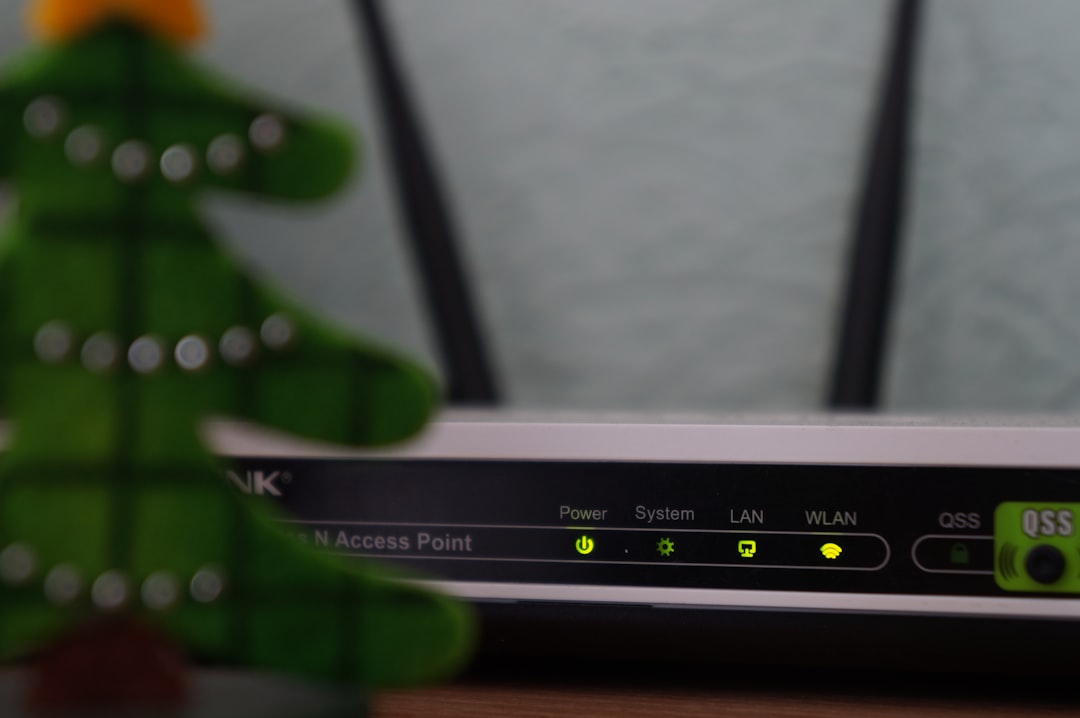
Most WAN ports have small lights. A light means there is a physical connection. A blinking light means data is moving. No light may mean a cable, port, or power issue.
Clone the MAC Address
Some internet providers lock service to one device. If you replaced your router, the provider may not recognize it. Many routers have a MAC Clone option. You can also call your provider and ask them to refresh the connection.
Check WAN IP Address
In the router settings, find the WAN status. If it has a normal public IP address, the WAN connection is working. If it shows no address, check the connection type and ISP settings.
WAN Port Security Tips
The WAN port faces the internet. So security matters. Do not make your router an open snack bowl for internet goblins.
- Change the default admin password.
- Keep router firmware updated.
- Disable remote admin access unless needed.
- Use strong Wi Fi security like WPA2 or WPA3.
- Do not open ports unless you understand why.
- Use a guest network for visitors and smart gadgets.
These steps are simple. They help keep your network safer.
Do You Always Need to Configure the WAN Port?
No. In many homes, you just plug it in and it works. That is the dream. Cable internet and many fiber services use DHCP. Your router handles it automatically.
You need manual setup only when your provider requires special settings. This is more common with business internet, some fiber providers, and some DSL services.
If you are setting up internet for the first time, keep your provider’s welcome email nearby. It may include usernames, passwords, VLAN IDs, and static IP details.
Final Thoughts
The WAN port may look small, but it has a huge role. It connects your home network to the internet. It helps your router receive an IP address. It lets your devices browse, stream, game, chat, and work.
For most people, WAN setup is simple. Plug the modem or ONT into the router’s WAN port. Use DHCP. Save the settings. Restart the devices. Enjoy the internet.
If it does not work, check the cable, port, lights, connection type, and ISP details. Go step by step. No need to wrestle the router. It is plastic. You will win, but nobody will be happy.
Once you understand the WAN port, your home network feels less mysterious. It is just a doorway. A very important doorway. And now, you know exactly what it does.
