 logo
logo
If your Logitech Plus app is not working, you’re probably talking about Logi Options+. Many people call it Logitech Plus, Logitech Options Plus, or Logitech Options+, but the current app name is Logi Options+. It is the app Logitech uses for customizing supported mice, keyboards, lights, webcams, touchpads, presentation remotes and some other devices. Logitech lists it for Windows 10 or later and macOS 13 or later.
When this app breaks, the device may still move the cursor or type normally, but the custom buttons stop working. Sometimes the app gets stuck loading. Sometimes it opens but does not detect your Logitech mouse or keyboard. And yes, it can be annoying because the device looks fine, but the settings are gone.
If you’re facing the Logitech Plus app not working issue, try the fixes below one by one. Start with the easy checks first. A lot of Logi Options+ problems come from permissions, Bluetooth pairing, receiver connection, app cache, or a bad update.
Why Does the Logitech Plus App Stop Working?
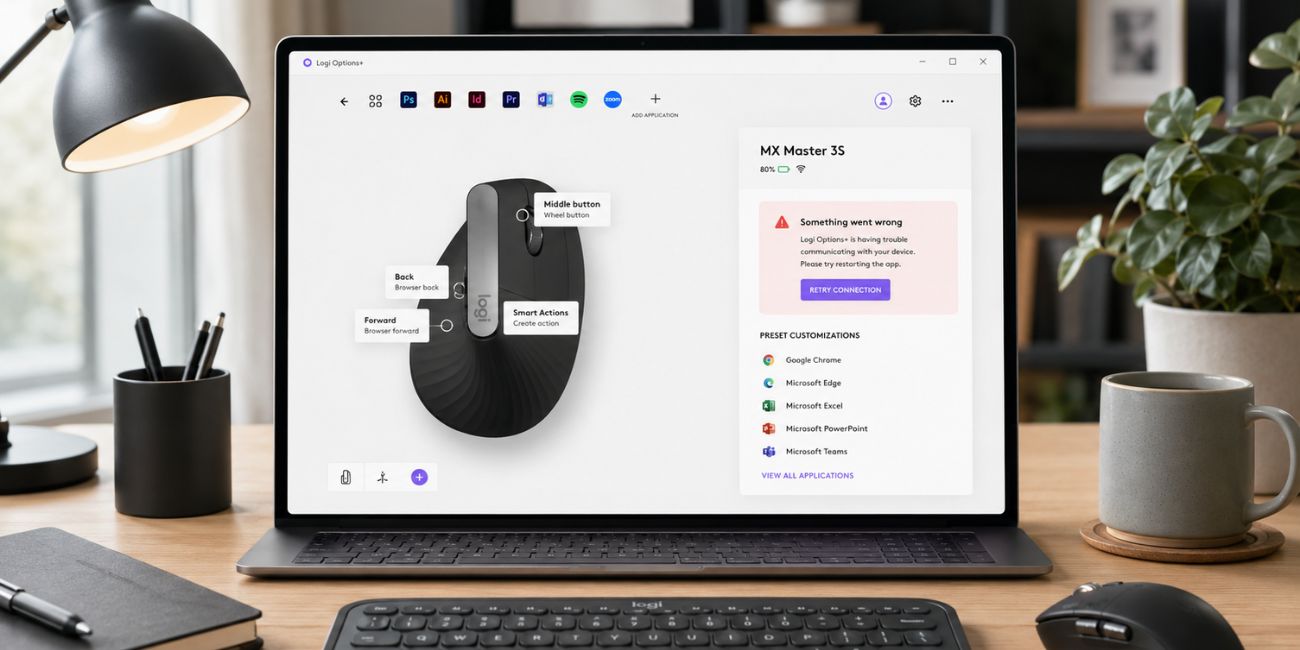 Here are some main causes that can make Logi Options+ stop working on Windows or Mac. The problem can come from the app itself, but it can also come from your Logitech mouse, keyboard, Bluetooth connection, receiver, system permissions, or another Logitech app running on the same computer.
Common reasons include:
- Logi Options+ is stuck after an update.
- The Logitech device is not supported by Logi Options+.
- Bluetooth pairing is broken or old.
- Logi Bolt or Unifying receiver is not detected.
- The mouse or keyboard battery is low.
- macOS permissions are missing.
- Windows firewall or antivirus is blocking the app.
- The Logi Options+ background service is not running.
- Old Logitech Options is conflicting with Logi Options+.
- Logitech G HUB is controlling a different device.
- App cache or local settings are damaged.
- A work or school laptop is blocking install or updates.
The important thing is this. Your mouse or keyboard can still work without the app, but the extra features may fail. Custom buttons, gestures, scroll settings, app profiles, Flow and Smart Actions depend more on the software side.
Quick Check: Is It the App, the Device, or the Computer?
Before you reinstall anything, check where the issue is coming from. This simple check can save you time because not every Logitech Options+ problem is an app problem. Sometimes the device is not paired correctly. Sometimes Windows or macOS is blocking the app in the background.
| What You See | Likely Cause | What to Check |
|---|---|---|
| App will not open | App update, cache, or install problem | Restart, update, reinstall, or reset app |
| Device works but not in app | Detection or compatibility problem | Supported device list, Bluetooth, receiver |
| Device does not work anywhere | Hardware or connection problem | Battery, power, pairing, receiver |
| Buttons do not follow settings | Permission or profile problem | Mac permissions, app profiles, background service |
| Works on another computer | Local computer problem | Windows or Mac settings, app install, security tools |
A simple way to test it is to use the device outside Logi Options+. Move the mouse, click, scroll, or type. If basic movement and typing also fail, fix the device connection first. If the device works normally but Logi Options+ does not see it, focus on the app, permissions and receiver checks.
How to Fix Logitech Plus App Not Working?
Try these fixes in order. Do the simple checks before reinstalling the app. Also, if you have custom button settings or app profiles, note them down before resetting or removing anything.
1. Restart Logi Options+ and Your Computer
Start with a full restart because Logi Options+ can freeze while your mouse or keyboard still works. Close the app completely, not just the visible window. On Windows, check if it is still running in the system tray. On Mac, quit it from the menu bar if it is still open there. Then restart your computer and open Logi Options+ again.
After the reboot, test one simple setting. For example, change a button action or check whether the device appears in the app. Do not test ten things at once. If the app starts working again, the issue was likely a stuck background process or a temporary app freeze.
2. Check Whether Your Logitech Device Is Supported
Not every Logitech product appears in Logi Options+. This is a common mistake. Some older devices may need older Logitech software, and many Logitech G gaming devices use G HUB instead. Logitech also keeps a supported devices page for Logi Options+, so checking support is worth doing before deeper fixes.
If your device is an MX Master, MX Keys, Lift, Signature, Pebble, Ergo, or another common productivity device, it may support Logi Options+. But do not guess only from the brand name. Two Logitech devices can look similar and still use different software. If the device is not supported, the app may open fine but never show your mouse or keyboard.
3. Check Battery, Power and Basic Device Connection
Low battery can create strange problems. The device may still work for a short time, but Logi Options+ may lose it or fail to apply settings. This is especially true with wireless mice and keyboards that use Bluetooth or a USB receiver.
Check these basics first:
- Charge the mouse or keyboard.
- Turn the device off and on.
- Try another USB cable if it is rechargeable.
- Test cursor movement or typing outside the app.
- Move the device closer to your computer or receiver.
- Move other wireless devices away if possible.
This sounds too simple, but it matters. If the device connection is unstable, Logi Options+ may look broken even when the app itself is okay.
4. Reconnect Bluetooth or Re-Pair the Device
Bluetooth pairing can get stale. Your computer may show the Logitech device as connected, but Logi Options+ still does not detect it properly. This happens more often after system updates, app updates, or when the same device is paired with multiple computers.
Try this order:
- Open Bluetooth settings on Windows or macOS.
- Remove or forget the Logitech mouse or keyboard.
- Turn Bluetooth off and on again.
- Put the Logitech device into pairing mode.
- Choose the correct device name from the Bluetooth list.
- Open Logi Options+ and check if the device appears.
If your device has an Easy-Switch button, make sure you are using the right channel. A mouse or keyboard can be paired to another computer on a different Easy-Switch slot. That one little button can make the app look like it has lost your device.
5. Check Logi Bolt or Unifying Receiver Connection
If you use a USB receiver, treat it as a separate connection path. Logi Bolt and Logitech Unifying receivers are not the same thing. A device that works with one receiver type may not work with the other, so make sure you are using the correct receiver for your model.
Plug the receiver directly into your computer instead of a USB hub. Try another USB port too. If the receiver is behind a desktop tower or far away from the mouse, use a front USB port or a short extension cable to bring it closer. Wireless interference can also cause random detection problems.
Also check whether the device is paired to that receiver. A receiver can be plugged in and still not paired to the mouse or keyboard you are using. If Logi Options+ can see the receiver but not the device, pairing may be the real issue.
6. Update Logi Options+ to the Latest Version
An outdated Logi Options+ install can cause loading problems, missing devices, or settings that do not apply. Updates can also add support for newer Logitech devices. Logitech’s official Logi Options+ page says the app is used to customize supported devices like mice, keyboards, lights, webcams, touchpads and presentation remotes.
If the app opens, check for updates inside the app. If it does not open at all, download a fresh installer from Logitech’s official site. Avoid random download sites because software installers can be modified. That is not worth the risk just to fix a mouse setting.
7. Allow macOS Permissions for Logi Options+
Mac users should check permissions early. Logi Options+ may open but fail to control shortcuts, buttons, gestures, scroll features, or app-specific actions if macOS blocks it. Logitech support pages mention permissions like Accessibility and Input Monitoring for Logi Options+ on macOS.
On macOS, check these areas:
- System Settings > Privacy & Security > Accessibility
- System Settings > Privacy & Security > Input Monitoring
- Bluetooth permission if macOS asks for it
- Login Items or background items for Logi Options+
- Any permission prompt that appeared after an update
After changing permissions, quit Logi Options+ and open it again. If it still does not work, restart the Mac. Permissions sometimes do not apply cleanly until the app or system restarts. It is a boring fix, but it solves a lot of Mac button and gesture issues.
8. Check Windows Permissions, Startup Apps and Security Blocks
On Windows 10 or Windows 11, Logi Options+ may fail because it cannot start properly in the background. This can happen if the app was installed without admin permission, blocked by antivirus, or stopped from running at startup. A company laptop can also block background apps or software updates.
Check Windows Security, firewall settings and startup apps. You do not need to turn protection off forever. Just make sure Logi Options+ is not being blocked. If your device is managed by a workplace or school, you may need admin approval to install or update the app.
If the app opens only sometimes, pay attention to startup behavior. Custom buttons and app profiles may depend on the app or its helper process running in the background. When that background part is blocked, the mouse still moves but your custom actions do not work.
9. Make Sure Logi Options+ Background Service Is Running
Logi Options+ is not only the window you see on screen. It also depends on background processes that help apply custom buttons, gestures, shortcuts, app profiles and device settings. If those background parts stop, the app may open but your settings may not follow.
Restarting the computer is the easiest way to refresh this. On Windows, you can also check Task Manager and startup apps in a general way. On Mac, check Login Items and background items. Avoid deleting random processes unless you know what they are. The goal is to let the Logitech app run normally again.
10. Remove Old Logitech Options or App Conflicts
Old Logitech Options and Logi Options+ can sometimes create confusion. If both apps are installed, one may control a device while the other fails to detect it. This is not always a problem, but it can become one when you have older devices, newer devices and different receivers on the same computer.
Do not remove everything blindly. First check which app your device is supposed to use. If your current device works with Logi Options+, remove or disable the older Logitech Options app only if it is not needed. If you have an older mouse or keyboard that still depends on old software, be more careful.
G HUB is another thing to keep in mind. Logitech G gaming devices often use G HUB, while productivity devices often use Logi Options+. If you are trying to make a gaming mouse appear in Logi Options+, the app may not be the right one. Use the software made for that device.
11. Fix App-Specific Settings Not Working
Sometimes Logi Options+ opens and detects your mouse, but app-specific settings do not work. For example, your browser shortcuts work, but your video editing shortcuts do not. Or a custom button works on the desktop but stops working inside one app.
Open Logi Options+ and check the profile for that exact app. Make sure the app is selected correctly and that the button action is assigned to the right profile. Then quit and reopen both Logi Options+ and the target app. If you are on Mac, permissions can also affect app-specific shortcuts, so check Accessibility and Input Monitoring again if needed.
The small detail here is profile switching. If Logi Options+ does not recognize the active app, it may keep using the default profile. That makes it feel like the button setting disappeared, when really the wrong profile is active.
12. Clear Logi Options+ Cache or Reset App Settings
If Logi Options+ is stuck loading or keeps acting weird after updates, the app data may be damaged. Clearing cache or resetting settings can help, but be careful. This may remove saved profiles, button mappings, Smart Actions, or app-specific settings.
Use a safe order:
- Close Logi Options+ fully.
- Note your important button settings and profiles.
- Use any built-in reset option if available.
- Clear app cache only if you know the safe method for your system.
- Reopen the app and sign in again if needed.
- Connect one device and test one simple setting.
Do not delete random folders from your system because a forum comment said so. Windows and macOS store app data in different places. If you are not sure, a clean reinstall may be safer than manual file deleting.
13. Reinstall Logi Options+ Cleanly
A clean reinstall can help when the install is damaged or an update did not finish correctly. But keep this as a later fix. If the real problem is Bluetooth, battery, permissions, or receiver pairing, reinstalling the app will not solve much.
Before reinstalling, note your custom button settings and profiles. Then uninstall Logi Options+, restart your computer and install the latest official version again. Open the app and connect one device first. Test a basic setting before rebuilding all your profiles.
On a work computer, the reinstall may need admin rights. If the installer fails or closes without warning, do not keep clicking it again and again. Check whether your company’s security settings are blocking it.
14. Install the Official Mac Patch if Options+ Is Stuck Loading
There have been cases where Logitech’s macOS apps had an app-side certificate problem that caused Logi Options+ and G HUB to fail or get stuck. Reports from early 2026 said Logitech released manual patches because the in-app updater could not work properly during that issue.
This fix is mainly for Mac users whose app will not open, keeps looping, or suddenly loses custom mouse and keyboard settings after a known app-side issue. If that sounds like your problem, check Logitech’s official support page for the current patch or installer. Do not uninstall too fast if Logitech says a patch can keep your settings. Sometimes patching is better than wiping everything.
15. Check If Your Device Needs Firmware Update
Firmware is the small software inside your mouse, keyboard, or receiver. If it is old or stuck after an update, some features may not work correctly. Logi Options+ may offer firmware updates when the device is detected.
If your device appears inside the app, check for firmware updates there. Let the update finish and do not unplug the receiver or turn off the device during the process. If your device does not appear at all, fix the connection first. You usually cannot update firmware for a device the app cannot see.
16. Try Another Computer or Another Connection Method
Testing on another computer is a good final check because it tells you whether the problem is the device or your system. If the same mouse works on another computer with Logi Options+, then your first computer has a local app, permission, Bluetooth, or security issue.
| Test Result | What It Means |
|---|---|
| Works on another computer | Problem is likely on the first computer |
| Fails on every computer | Device, receiver, battery, or firmware may be the issue |
| Works on Bluetooth but not receiver | Receiver or USB port may be the issue |
| Works on receiver but not Bluetooth | Bluetooth pairing may be the issue |
If your device supports both Bluetooth and receiver connection, test both. This gives you a clearer answer. Do not keep changing random app settings if the receiver itself is the weak point.
What If Logi Options+ Opens But Does Not Detect the Mouse?
If Logi Options+ opens but does not detect your mouse, focus on support, battery, Bluetooth and receiver connection. The app may be fine, but it cannot manage a device it cannot properly see.
Try this quick list:
- Confirm the mouse supports Logi Options+.
- Charge the mouse fully.
- Re-pair it through Bluetooth.
- Try the correct Logi Bolt or Unifying receiver.
- Plug the receiver directly into the computer.
- Test the mouse on another computer.
- Update Logi Options+ if the app is old.
If the mouse works normally but never appears in the app, compatibility is worth checking again. A Logitech logo on the device does not always mean it belongs in Logi Options+.
What If Logi Options+ Opens But Buttons Do Not Work?
When normal clicking and typing work but custom buttons do not, the issue is usually software control. On Mac, check Accessibility and Input Monitoring first. Without those permissions, shortcuts, gestures and button actions may fail even though the mouse moves fine.
On Windows, check whether Logi Options+ is allowed to run in the background. Also check app-specific profiles. A button may look broken when it is only assigned to another app profile. Test the same button on the desktop, in a browser and inside the app where it fails. That helps you see if the issue is global or only profile-based.
What If Logi Options+ Is Stuck on Loading?
If Logi Options+ is stuck on loading, start with restart and update checks. Then look at app cache, background service and reinstall. Mac users should also check for any official patch if the issue started suddenly after a known app-side problem.
Do not keep opening the app twenty times. That usually does nothing. Close it fully, restart the computer and try a fresh installer or official fix. If it still hangs, the install or local app data may need repair.
How to Avoid Logitech Plus App Problems Again?
Once Logi Options+ is working again, keep the setup simple. The app depends on your device connection, receiver, Bluetooth, permissions and background services. If one of those breaks, the custom controls can stop even when the mouse or keyboard still works.
Good habits help:
- Keep Logi Options+ updated.
- Update device firmware when offered.
- Keep the receiver in a stable USB port.
- Avoid cheap USB hubs for the receiver if you can.
- Do not pair the same device to too many computers at once.
- Check Mac permissions after major macOS updates.
- Keep notes of important button mappings.
- Use G HUB only for devices that need it.
- Restart after major Logitech app updates.
Also, keep your custom settings simple if the device is used for work every day. It is fine to use advanced profiles, but know what your main buttons do. If the app resets later, you can rebuild the important settings faster.
Final Thoughts
The Logitech Plus app not working problem usually means Logi Options+ is failing to open, detect your device, or apply custom settings. Most of the time, the cause is simple: Bluetooth pairing, low battery, wrong receiver, missing Mac permissions, Windows security blocks, app conflict, bad cache, or a failed update.
Start with restart, battery and connection checks. Then move to permissions, receiver pairing, app update, cache reset and reinstall. If you are on Mac and the app is stuck loading after a known Logitech issue, look for the official patch before deleting everything.
Did Logi Options+ stop opening, or does it open but fail to detect your mouse or keyboard? Comment with that detail because it makes the real fix much easier to find.
