 logo
logo
If your OpenClaw Telegram bot stopped working after 2026.3.8, the issue may not be Telegram itself. It can happen because the OpenClaw gateway did not restart properly, the Telegram bot token is wrong, group permissions changed, or the AI model connection is failing in the background.
OpenClaw is made to work across chat apps like Telegram, WhatsApp and other interfaces, but the Telegram side still depends on a few moving parts. The bot needs a valid BotFather token, the OpenClaw gateway must be running, the config must be correct and the model provider must answer when OpenClaw sends a request. OpenClaw’s own Telegram docs also note that Telegram privacy mode can limit what a bot receives inside groups.
If you’re facing the OpenClaw Telegram bot not working after 2026.3.8 issue, try the fixes below one by one. Start with the simple checks first, because many bot problems are not big bugs. They are often small setup issues that look serious at first.
Why Does OpenClaw Telegram Bot Stop Working After 2026.3.8?
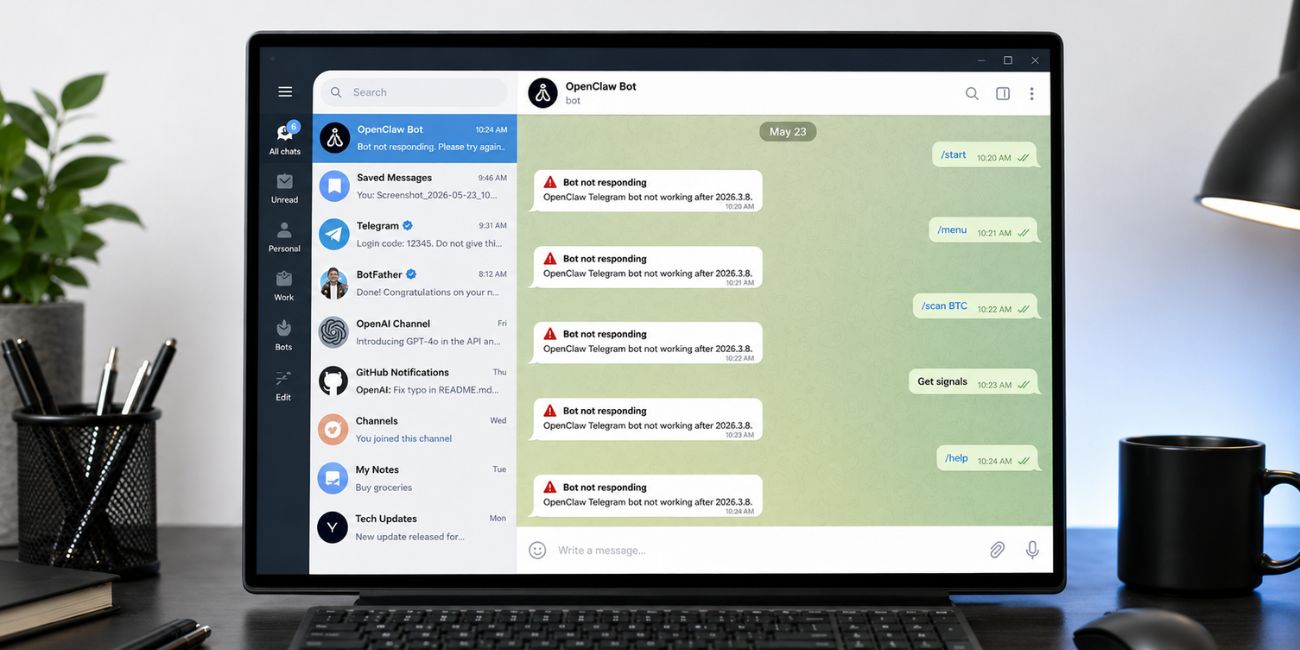 Here are some main causes that can make the OpenClaw Telegram bot stop replying after an update. The update may have changed how your local setup starts, how the Telegram channel reads config, or how permissions are handled. It may also expose an older problem that was already sitting there, like an old token, a broken skill, or a model API key that no longer works.
Common causes include:
- The OpenClaw gateway did not restart after the update.
- The Telegram bot token is wrong, old, or regenerated in BotFather.
- The Telegram channel config has an old value or missing setting.
- The bot is not paired with your Telegram account anymore.
- DM policy or group policy is blocking your message.
- Telegram privacy mode is stopping group messages.
- The bot works in private chat but not in a group or topic group.
- VPN, firewall, proxy, or DNS is blocking the connection.
- The AI model provider is failing because of API key, billing, or rate limits.
- A third-party skill is hanging or asking for a permission prompt.
- Telegram cache or an old Telegram app is showing delayed messages.
- OpenClaw 2026.3.8 may have a version-specific issue on your setup.
The main thing to remember is simple. A Telegram bot can look “online” but still fail to answer. Online only means the bot exists in Telegram. It does not prove that OpenClaw, the gateway, the token, the model provider and the permissions are all working together.
Quick Diagnosis Before You Start Fixing
Before changing a lot of settings, test where the problem is happening. This saves time. For example, if the bot works in a private Telegram chat but not inside a group, you probably have a group permission or privacy mode issue. If it does not answer anywhere, the problem is more likely token, gateway, config, API, or network related.
| What You See | Likely Cause | What to Check |
|---|---|---|
| Bot works in DM but not group | Group permission or Telegram privacy mode | Bot admin rights, group policy, require mention |
| Bot does not reply anywhere | Gateway, token, config, or network issue | OpenClaw gateway, BotFather token, logs |
| Bot sees message but gives no answer | AI provider or model issue | API key, billing, rate limits, model name |
| Bot hangs after a tool request | Skill or permission issue | Recently added skills and prompts |
| Bot works on one device only | Local Telegram app issue | Telegram cache, app update, device test |
A simple way to test this is to send a normal message in private chat first. Then test the same thing inside a Telegram group. Do not start with the hardest fix, because you may only need to restart the gateway or approve the bot again.
How to Fix OpenClaw Telegram Bot Not Working After 2026.3.8?
Try these fixes in order. The first few checks are fast and safe. The later fixes are more technical, like checking logs, updating dependencies, rolling back, or reinstalling OpenClaw.
Do not delete your config files too early. Also do not share your Telegram bot token or API keys in public chats, screenshots, forums, or issue reports. Bot tokens and API keys can give other people access to your setup.
1. Restart Telegram, OpenClaw and the Host Device
Start with a full restart because update issues often leave one part of the setup half-running. Close Telegram on your phone or desktop, restart the OpenClaw gateway and then restart the device that runs OpenClaw. This could be your PC, Mac, server, Raspberry Pi, Docker container, or another local machine.
After the restart, open Telegram again and send a simple test message to the bot. Do not test with a complex task first. Use something simple like a normal hello message or a status command if your setup supports it. If the bot replies now, the problem was probably a stuck gateway session or a bad restart after the 2026.3.8 update.
2. Test the Bot in a Private Telegram Chat First
Testing in private chat is cleaner than testing inside a group. Groups add extra rules, admin permissions, topic settings and privacy mode. A private chat tells you if the bot can talk to your OpenClaw setup at the basic level.
Open the bot directly in Telegram and try these simple checks:
- Send /start if the bot accepts it.
- Send a normal text message.
- Try the pairing command if your setup needs pairing.
- Wait a few seconds and check if any reply comes back.
- Test from Telegram mobile and Telegram desktop if possible.
If the bot answers in private chat, your token and gateway may be okay. In that case, focus more on group permissions, allowlist, privacy mode, or mention settings. If the bot does not answer even in private chat, move to token, config, gateway and logs.
3. Check the Telegram Bot Token in BotFather
A wrong Telegram bot token can break the whole connection. This often happens when someone regenerates the token in BotFather but forgets to update it inside OpenClaw. It can also happen after moving the setup to another device or restoring an older config file.
Open BotFather in Telegram and check the token for the exact bot you are using. Then compare it with the token saved in your OpenClaw Telegram config. If the token was changed, update it in OpenClaw and restart the gateway. Do not paste the token into public places or support threads. Treat it like a password.
This matters because OpenClaw uses that token to talk to Telegram. If the token is wrong, Telegram may reject the connection even though the bot still appears in your chat list. That feels confusing, but it is a common bot setup problem.
4. Verify the OpenClaw Telegram Channel Config
After an update, old config values can cause strange behavior. Your OpenClaw Telegram channel may be disabled, pointing to the wrong token, blocking DMs, or using group rules that no longer match how you use the bot. So check the config before you reinstall anything.
Look for the Telegram channel section in your OpenClaw config and review the main values. The exact names can vary by setup, so use your installed version’s current docs or sample config if you are not sure. Check things like:
- Telegram channel is enabled.
- Bot token is present and correct.
- DM policy allows your account.
- Group policy allows the target group.
- Allowlist includes the right user or group if used.
- Mention rules match how you talk to the bot.
- The config file was saved after editing.
This is where it gets tricky. A tiny config mistake can look like a full bot failure. After every config change, restart the OpenClaw gateway before testing again. If you do not restart it, OpenClaw may still be using the old settings.
5. Restart the OpenClaw Gateway Properly
The OpenClaw gateway is the bridge between Telegram and your assistant. If it is stopped, stuck, or running with old config, your Telegram bot may not reply at all. The bot can still exist in Telegram, but nothing useful happens behind it.
Restart the gateway using the same method you used to install or run OpenClaw. If you run it in a terminal, stop it and start it again. If you run it as a service, restart that service. If you use Docker, restart the container. Do not guess random commands from old comments unless they match your setup.
After restarting, watch the terminal or logs for errors. A clean restart usually shows that the Telegram channel loaded, the gateway is listening and the AI provider is ready. If the gateway crashes right away, the problem is not Telegram cache. It is OpenClaw startup, config, dependency, or permission related.
6. Recheck Pairing and DM Policy
Some OpenClaw Telegram setups need pairing or approval before the bot responds to a user. If the 2026.3.8 update changed how your setup reads users or sessions, the bot may ignore your messages until you pair again. This can feel like the bot is dead, but it is only refusing the message.
Try the pairing flow again if your setup uses one. Also check your DM policy in the OpenClaw config. If the setting allows only approved users, make sure your Telegram account is still approved. If you changed Telegram accounts, usernames, phone numbers, or bot chats, the old pairing may not match anymore.
Do not skip this if the bot worked before and stopped after the update. Permission rules are easy to forget because they are not visible inside the normal Telegram chat screen.
7. Fix Group Chat, Supergroup and Topic Permissions
If OpenClaw works in DM but not inside a Telegram group, the group setup is the likely problem. Telegram groups, supergroups and topic-based groups can all behave a little differently. The bot may need admin rights, privacy mode changes, or a direct mention before it can read and reply.
Check these points:
- Make sure the bot is still a member of the group.
- Give the bot permission to read and send messages.
- If needed, make the bot an admin with limited safe permissions.
- Check whether Telegram privacy mode is enabled in BotFather.
- Use @botusername when sending a message if mention is required.
- Check OpenClaw group policy and allowlist settings.
- Test in a normal group if a topic group keeps failing.
- Remove and re-add the bot only if permission checks do not work.
Telegram bots do not always receive every group message by default. That is normal behavior in many bot setups. So if private chat works, do not waste time regenerating the token again and again. Fix the group side first.
8. Check OpenClaw Logs for Real Error Messages
Logs are not fun, I know. But they can quickly show what is really broken. Instead of guessing, open the OpenClaw gateway logs or terminal output and send one message to the bot. Then look at what happens at that exact time.
| Log Message or Symptom | What It May Mean |
|---|---|
| Unauthorized or 401 | Telegram token or API key may be wrong |
| Timeout | Network, VPN, firewall, DNS, or provider issue |
| Permission denied | Local file, folder, or service permission issue |
| Rate limit | AI model provider limit or billing issue |
| No Telegram event appears | Telegram channel, token, webhook, or polling issue |
| Skill error | A tool or skill may be broken |
| Model not found | Wrong model name or missing access |
Do not share full logs without checking them first. Logs may include private paths, account names, tokens, or API details. If you need help from a community or GitHub issue, remove secrets before posting anything.
9. Check API Key, Model Provider and Billing
Sometimes Telegram is working fine, but the AI side is not. In that case, OpenClaw may receive your message but fail when it tries to get an answer from the model provider. This can happen with OpenAI, Claude, Gemini, DeepSeek, or any other provider your setup uses.
Check your API key, model name, account access, billing status and rate limits. Also make sure the provider you selected is still available in your OpenClaw config. If the logs show model errors, do not keep changing Telegram settings. The issue is likely on the AI provider side, not inside the Telegram app.
A good test is to run the same prompt from another OpenClaw interface if you have one. If the web dashboard or terminal also fails, Telegram is probably not the main problem.
10. Disable or Review Recently Added Skills
OpenClaw can use skills to do tasks, and that is one reason people like it. But a broken skill can also make the bot hang, crash, or wait for a permission prompt. This is more likely after an update because the skill may not match the newer OpenClaw version.
Review any skill you added or updated before the issue started. Disable suspicious or unused skills, then restart the gateway and test Telegram again. If the bot starts replying after that, re-enable skills one at a time until you find the one causing trouble.
Be careful with third-party skills. Recent reports have warned about malicious OpenClaw skills being found online, so it is better to install skills only from sources you trust and check what they can access before running them.
11. Turn Off VPN, Proxy or Firewall Temporarily for Testing
VPNs, proxies, strict DNS tools and firewalls can block Telegram or the OpenClaw gateway. This does not mean you should leave security off. The goal is only to test whether the network is causing the bot problem.
Try these checks for a short test:
- Turn off VPN and send a message to the bot.
- Disable proxy settings if Telegram is using one.
- Try another DNS service or another network.
- Check Windows Defender Firewall or macOS firewall.
- Make sure your antivirus is not blocking OpenClaw.
- If using a server, check outbound connection rules.
If the bot works after turning off VPN or changing networks, you found the direction. Add a safe firewall rule or VPN exception instead of leaving your system wide open. Small thing, but it matters.
12. Clear Telegram Cache and Update Telegram App
Telegram cache will not usually break the OpenClaw gateway, but it can make messages look delayed or stuck on one device. This is more likely when the bot works on your phone but not on desktop, or the other way around.
Update Telegram on your device and clear the app cache. Then close and reopen the app. Test the bot from another device too. If the bot replies on mobile but not desktop, the issue is probably local to that Telegram app. If it fails everywhere, go back to gateway, config, token and logs.
13. Update OpenClaw Dependencies
If OpenClaw 2026.3.8 installed but some old packages stayed behind, the Telegram channel may fail in a strange way. This can happen with local installs, old Node.js versions, package manager issues, or Docker images that were not rebuilt properly.
Check the required runtime version for your OpenClaw install. Then update dependencies using the method that matches your setup. If you use Docker, pull or rebuild the correct image. If you installed with npm or another package manager, make sure the installed package version matches the version you think you are running.
Before doing this, back up your config file. Also keep a safe copy of your Telegram token and API settings. Dependency fixes are useful, but rushing them can create a second problem on top of the first one.
14. Roll Back or Wait for a Patch if It Is a Version Bug
If the bot stopped working right after 2026.3.8 and all normal checks look clean, you may be dealing with a version-specific bug. That does not mean the update is broken for everyone. It means your setup, channel config, operating system, dependency version, or skill mix may be hitting a bug in that release.
Check whether other users are reporting the same Telegram issue for the same version. Also review the changelog or release notes if available. If there is a known bug, waiting for a patch may be safer than changing every part of your setup.
Rollback is another option, but do it carefully. Back up your config, note your current version and keep a copy of working settings. Only roll back after checking gateway restart, token, pairing, group settings, API keys and logs. Otherwise you may roll back and still have the same issue.
15. Reinstall OpenClaw Only After Backing Up Config
Reinstalling should be the last step. It can fix a damaged install, but it can also waste time if the real issue is a token, group permission, or API key. So only reinstall when the setup seems broken and the logs point to deeper install trouble.
Before reinstalling, save these items:
- OpenClaw config file.
- Telegram bot token.
- AI provider API keys.
- List of installed skills.
- Any custom scripts or local changes.
- Current OpenClaw version.
- Notes about what still works and what fails.
After reinstalling, connect Telegram again and test in private chat first. Do not add all skills and group settings at the same time. Get the basic bot reply working, then add the rest slowly. It feels slower, but it is cleaner.
What If OpenClaw Works in DM But Not in Telegram Groups?
If OpenClaw replies in private chat but ignores group messages, the problem is probably group permission, privacy mode, mention rules, or group allowlist. Telegram bots often have limits inside groups unless you change the right settings. OpenClaw may also be set to reply only in approved groups or only when mentioned.
Start with the group admin settings. Then check BotFather privacy mode and OpenClaw group policy. If the group uses topics, test the bot in a normal group too. Topic groups can add one more layer of weird behavior, especially after updates.
What If the Bot Receives Messages But Does Not Answer?
If logs show that OpenClaw receives the Telegram message but no answer comes back, look away from Telegram for a moment. The issue may be the model provider, API key, billing, model name, rate limit, or a skill that is hanging during the task.
Check the provider settings first. Then test a simple prompt without tools or skills. If a plain message works but a task fails, the issue is more likely a skill or permission prompt. If even plain messages fail, check your API account and model access.
What If Nothing Changed After All Fixes?
If nothing works, collect clean details before asking for help. This makes support much easier and avoids the usual back-and-forth. You do not need to post private information. In fact, you should not.
Prepare these details:
- OpenClaw version, including 2026.3.8 if that is the installed version.
- Operating system and install method.
- Whether Telegram DM works.
- Whether Telegram group chat works.
- A short log sample with secrets removed.
- Whether API/model replies work outside Telegram.
- Any recent skills you added.
- What changed right before the bot stopped working.
Do not share your bot token, full API key, private chat IDs, or personal file paths. If someone asks for those, be careful. A short, clean error message is usually enough.
How to Avoid OpenClaw Telegram Bot Issues After Future Updates?
The best way to avoid this problem next time is to update with a small safety routine. OpenClaw connects Telegram, local services, model providers, skills and permissions, so one update can touch more than one thing. A few minutes of backup and testing can save a lot of headache later.
Use these habits before and after future updates:
- Back up your OpenClaw config before updating.
- Save your Telegram token in a secure place.
- Keep a note of working DM and group settings.
- Test private chat before testing group chat.
- Update one major part at a time.
- Check gateway logs right after updating.
- Avoid installing random skills without checking them.
- Keep a rollback plan if the bot is used for daily work.
Also, do not ignore small warnings in logs. A warning today can become a full bot failure after the next update. Better to fix it while the bot still works.
Final Thoughts
The OpenClaw Telegram bot not working after 2026.3.8 can come from many places, but most fixes follow a simple path. Start with restart and private chat testing. Then check the Telegram token, OpenClaw config, pairing, group permissions, gateway logs and model API settings.
If the bot works in DM but not in groups, focus on Telegram group rules. If Telegram receives the message but OpenClaw does not answer, check the AI provider or skills. And if everything looks correct, then rollback or waiting for a patch may make sense.
Did your OpenClaw Telegram bot stop replying in private chat, group chat, or both after 2026.3.8? Comment with that detail because it helps narrow down the real cause fast.
