 logo
logo

There’s nothing more annoying than seeing “Connected” on your WiFi but still getting that spinning circle in your browser. The WiFi says it’s fine. Your phone or laptop could literally be touching the router. And yet, nothing loads. Happens constantly. And yeah, most people are back online in under ten minutes.
That yellow triangle on the WiFi icon in Windows? That’s Windows telling you it can talk to the router but can’t reach the internet. And those are separate things. Your device can be happily connected to your router while the router itself has lost its connection to your ISP, or something in your network settings has gone sideways. So where the actual breakdown is happening matters a lot for figuring out the fix.
This guide goes from the simple stuff to the more technical. No idea what’s wrong? Just start at Step 1 and go down. If you already know it’s one device playing up, the Windows-specific steps are from Step 3 onwards.
Quick Reference: Basic Details
Basic details about this error at a glance:
| Detail | Info |
|---|---|
| Symptom | WiFi shows “Connected,” yellow triangle, no browsing |
| Affects | Windows 10, Windows 11, Android, iPhone |
| Common Causes | Router fault, IP conflict, bad DNS, driver issue, VPN/proxy |
| Difficulty | Beginner to Intermediate |
| Time to Fix | 5-30 minutes |
| Tools Needed | PC or phone, router access, Command Prompt (admin) |
What the “WiFi Connected No Internet” Error Actually Means
Joining a WiFi network and actually reaching the internet are two different things. Your device connects to the router fine. But then Windows runs a background check to see if real internet traffic can get through. Fail that check and you get the yellow triangle on the WiFi icon. The exclamation mark one.
So the signal itself might be perfect. The router could have dropped its upstream connection to the ISP, or DNS is acting up, or it’s something specific to just that one device. Quick way to narrow it down: load a page on a different phone or laptop on the same WiFi (Step 2 walks you through this). Does it work there but not on your main device? Device problem. Broken on everything? Network problem. Get that answer first. Everything after gets way simpler.
Step 1: Restarting Your Router and Modem
Look, this fixes things way more often than you’d think. Routers get themselves into weird states, especially after a power blip or if they’ve been running for weeks without a break. And a quick on-off is not the same as doing it properly:
- Unplug the modem power cable from the wall outlet.
- Unplug the router power cable too, if it’s a separate box from the modem.
- Wait a full 30 seconds. Not five seconds. Thirty.
- Plug the modem in first. Give it about 60 seconds for the lights to settle.
- Now plug the router back in. Another 30-60 seconds.
- Try connecting your device and loading a page.
Do it in that order. The modem has to re-authenticate with your ISP first, and only then can the router grab an IP address and actually pass traffic along. If you plug them both in at the same time, that whole handshake sometimes just doesn’t happen. And then nothing changes and you’re sitting there confused.
Step 2: Try a Different Device First
Before you start messing with settings on your computer, grab a phone or a second laptop. Connect it to the same WiFi and try loading something. This one check can save a lot of wasted time:
- Connect the second device to the same WiFi network.
- Open a browser and try loading a website like Google or any news site.
- If that device works fine, the problem is with your original device only. Keep going from Step 3.
- If nothing can connect on any device, the issue is the router or your ISP. Jump to Step 10.
Device problem vs. network problem. Completely different fixes.
Step 3: Forget and Reconnect the WiFi Network
WiFi profiles saved on your device can go bad sometimes. Everything looks connected on the surface, but the authentication is broken underneath. Clearing the saved network and connecting again from scratch fixes this more often than you’d expect.
On Windows: 1. Open the WiFi icon down in the taskbar. Find your network name in the list. 2. Click Forget. 3. Now click the network, put your password back in, and reconnect.
On Android or iPhone: 1. Open Settings, find WiFi, then tap on your network name. 2. Hit Forget. On iPhone it’ll say Forget This Network instead. 3. Find the network in the list again, type your password, and connect.
Step 4: Run the Windows Network Troubleshooter
There’s a built-in Windows tool that checks for stuff like DNS failures and adapter problems. It can sometimes fix them automatically too. It won’t catch everything, but it picks up more than you’d think:
- Press Windows + I to open Settings.
- On Windows 11 go to System, then Troubleshoot, then Other troubleshooters. On Windows 10 go to Update and Security, then Troubleshoot.
- Look for Internet Connections in the list. Click Run beside it.
- Go through the prompts. Let it apply any fixes it comes up with.
- Restart your PC when it’s done. Then test.
Step 5: Releasing, Renewing, and Flushing DNS
So your PC holds onto an IP address it got from the router. It also stores DNS lookups locally in a cache. When either of those goes stale or gets corrupted, you end up with WiFi showing “connected” while absolutely nothing loads. Classic. Here’s how to clear all of that out:
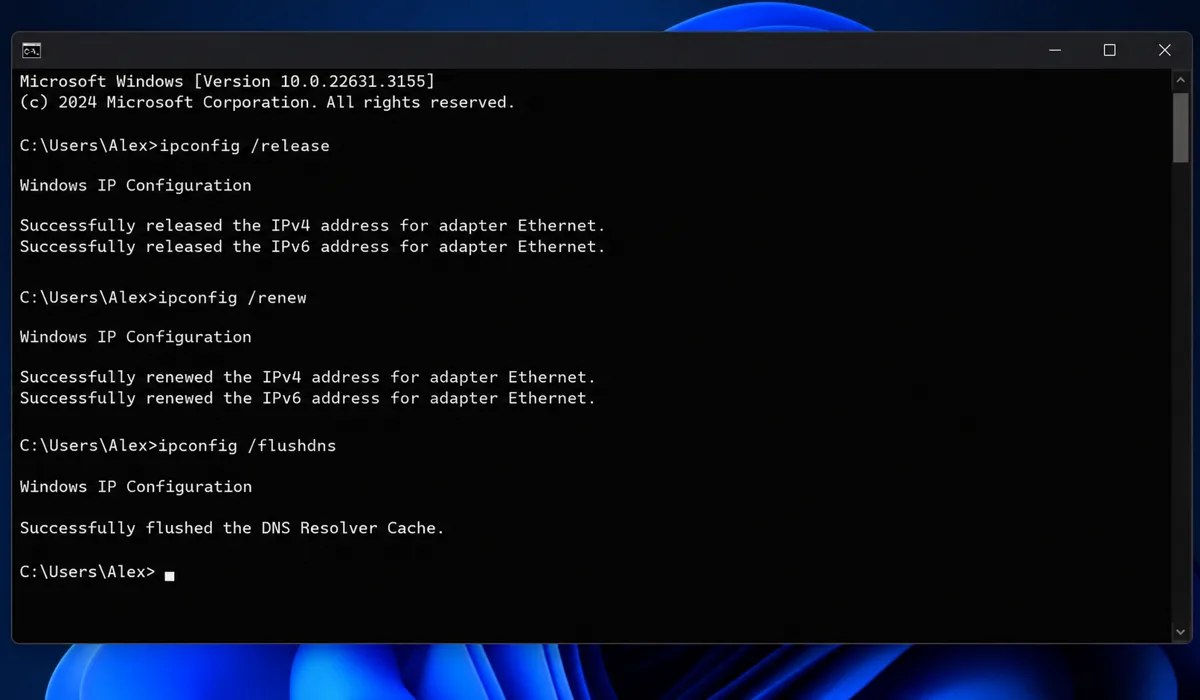
- Press Windows + S, type cmd, then right-click Command Prompt and choose Run as administrator. (Has to be admin. Regular mode won’t cut it.)
- Type each of these lines, pressing Enter after each one:
ipconfig /release
ipconfig /renew
ipconfig /flushdns
- Close the Command Prompt window. Restart your PC after that, reconnect to your WiFi, and see if pages come up.
So what do these actually do? /release drops the IP address your PC is currently using. /renew asks the router for a brand new one. And /flushdns wipes all the saved website lookups so your PC has to fetch them fresh. All three are safe to run.
Step 6: Resetting the Winsock Catalog
Winsock is basically the layer that sits between Windows programs and the network. A bad software install can mess it up. Same with malware cleanup or even a Windows update that went slightly wrong. The ipconfig commands from Step 5 don’t touch this at all, so it needs its own fix:
- Open Command Prompt as administrator (same as Step 5).
- Type this and press Enter:
netsh winsock reset
- When that finishes, type this and press Enter:
netsh int ip reset
- Now restart your computer. You have to reboot here. If you skip the reboot, nothing actually changes because the reset only kicks in when Windows starts up again.
- After it boots back up, connect to your WiFi again and try loading a page.
Step 7: Switching Your DNS Server to Google or Cloudflare
By default your ISP gives you whatever DNS server it wants. That server can be slow, overloaded, or sometimes just completely down. And that alone can cause the “no internet” situation even when everything else in your connection is technically fine. Switching to a public DNS takes about two minutes:
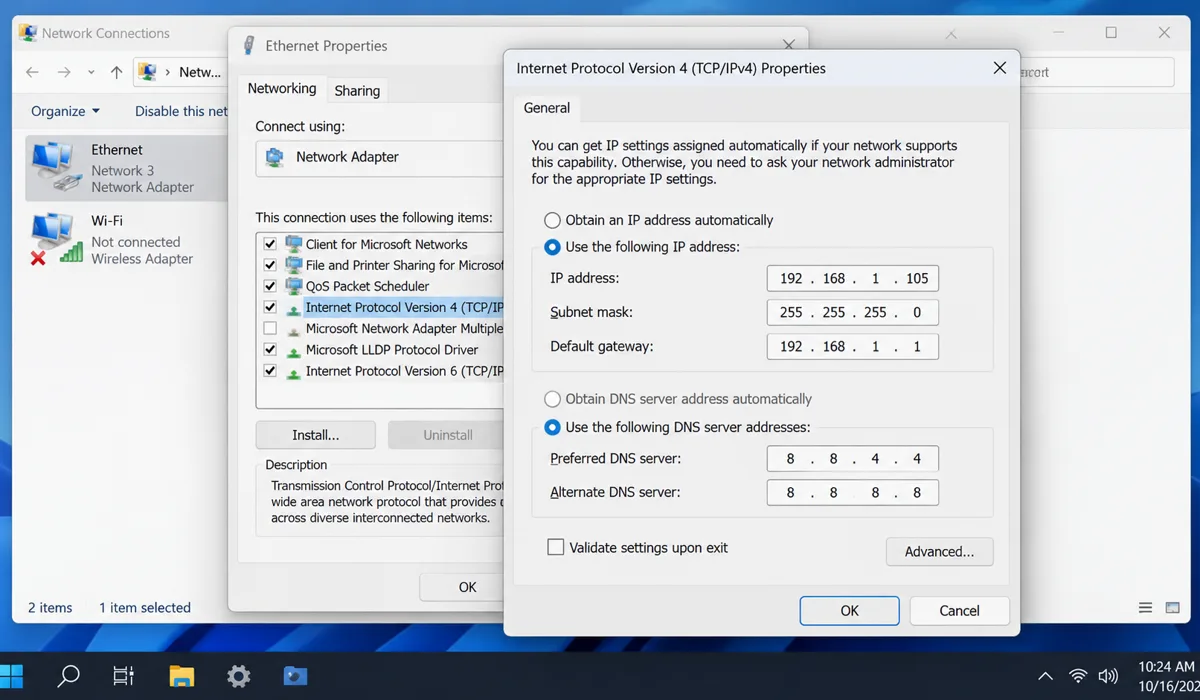
On Windows: 1. Press Windows + R, type ncpa.cpl, hit Enter. 2. Right-click the WiFi adapter you’re actually using and choose Properties. 3. Look for Internet Protocol Version 4 (TCP/IPv4) in the list, then double-click it. 4. Select Use the following DNS server addresses. 5. Enter one of these pairs: – Google DNS: Preferred 8.8.8.8 / Alternate 8.8.4.4 – Cloudflare DNS: Preferred 1.1.1.1 / Alternate 1.0.0.1 6. Hit OK, close all the windows, and try loading a page.
Google DNS vs. Cloudflare DNS: Quick Comparison
Honestly either one is solid. Here’s a quick breakdown:
| Feature | Google DNS (8.8.8.8) | Cloudflare DNS (1.1.1.1) |
|---|---|---|
| Speed | Fast, globally distributed | Generally fastest worldwide |
| Privacy | Logs some query data | Stronger privacy policy |
| Reliability | Extremely high uptime | Extremely high uptime |
| Best For | General use | Privacy-focused users |
| Setup Difficulty | Easy | Easy |
If you care about your DNS queries not being logged, go Cloudflare.
Step 8: Disabling VPN or Proxy Settings
A VPN or proxy that’s misconfigured can quietly break your whole connection. Windows still reports WiFi as connected (because technically it is), but all your traffic gets routed somewhere that doesn’t respond. Nothing loads:
- Open Settings, go to Network and Internet, then Proxy.
- Toggle off Use a proxy server if it’s on.
- Got a VPN app running? Open it, disconnect.
- Test your connection straight after.
- If pages suddenly work again, the VPN was causing it. Go check the setup instructions on your VPN provider’s website for your specific device.
Step 9: Updating Your Network Adapter Driver
Bad or outdated WiFi drivers cause this way more than people realize. Sometimes a Windows update pushes a driver version that just doesn’t play nice with your specific WiFi card. Here’s how to check for that:
- Press Windows + X and choose Device Manager.
- Expand Network Adapters and right-click your WiFi adapter.
- Select Update driver, then Search automatically for drivers.
- Windows doesn’t always get this right though. It might say the driver is up to date when it’s actually the one causing problems. If you suspect that’s the case, go to your laptop manufacturer’s website (Dell, HP, Lenovo, etc.) and download the latest WiFi driver from their support page.
- Install it, restart your PC, then check the connection again.
Step 10: Updating Router Firmware and Contacting Your ISP
If you’ve worked through every step above and you’re still stuck, the problem is probably the router or something on your ISP’s side.
Update the router firmware: 1. Open a browser and type 192.168.1.1 or 192.168.0.1 in the address bar. That’s your router’s admin panel. (Check the sticker on the bottom of the router if neither of those works.) 2. Put in the admin username and password. Usually there’s a sticker on the bottom or back of the router with these. 3. Poke around in the settings until you find a Firmware Update or Software Update section. If there’s an update available, install it. 4. The router reboots on its own after.
Contact your ISP: 1. Before calling, check your ISP’s website or app. See if there are any outage reports in your area. 2. Call their support line. Tell them that multiple devices can’t get online even though WiFi shows as connected. 3. Ask them to run a line test from their side. If that doesn’t sort it, get them to send a technician out.
Common Mistakes That Make This Worse
These are the same mistakes that trip people up again and again:
- Restarting only the router and leaving the modem plugged in – both need to be fully power-cycled separately
- Running ipconfig commands without administrator rights – they’ll either fail silently or throw an error
- Skipping the restart after a Winsock reset – the reset literally does nothing until the PC reboots
- Changing DNS but forgetting to flush the cache – old cached entries keep overriding the new DNS settings
- Disabling the network adapter instead of updating it – that just cuts off all network access entirely
- Assuming it’s your device when all devices are affected – skipping the “test other devices” step wastes a lot of time on the wrong fix
Final Thoughts
Just go from Step 1 downward. Restarting the router the right way fixes it for most people, honestly. If only one device is acting up, go through the Windows stuff: run the troubleshooter, do the ipconfig commands, reset Winsock, swap your DNS. After that, look at VPN and proxy settings. Then the WiFi driver.
Still nothing after all that? And every device on the network is affected? Then it’s almost certainly your ISP or the router hardware giving out (they don’t last forever). Call your ISP’s support line. And if the router has been running for a few years, it might just be reaching the end of its life. But most people sort it out well before getting to that point.
