 logo
logo
You pick up your phone and see three missed calls. The ringer volume looks fine. You didn’t touch anything. So why did your iPhone just sit there silent like nothing happened? Genuinely maddening, especially if you were sitting right there waiting for a callback from du or a delivery driver who won’t try twice.
Here’s the thing though. Nine times out of ten it’s a setting, not a broken phone. There are roughly a dozen things that can quietly kill your ringer. Most take under two minutes to sort out. And some are so stupidly easy to miss that even the techie friend everyone calls for help gets caught by them.
Go through these fixes in order, starting from the top. The most common causes are at the top. Chances are you’ll find the culprit before you even get to fix number five.
Quick-Reference: iPhone Not Ringing – Basic Details
Here’s a fast overview of what this guide covers:
| Detail | Info |
|---|---|
| Affected devices | iPhone 8 through iPhone 16 series |
| iOS versions | iOS 15, 16, 17, 18 |
| Common symptom | Phone vibrates but no sound, or calls go straight to voicemail |
| Top cause | Ring/Silent switch flipped to silent, or Focus/DND active |
| Time to fix | 2-15 minutes |
| Requires Apple ID? | Only for iOS update steps |
| Difficulty | Beginner-Intermediate |
1. Check the Ring/Silent Switch First – It’s Usually This
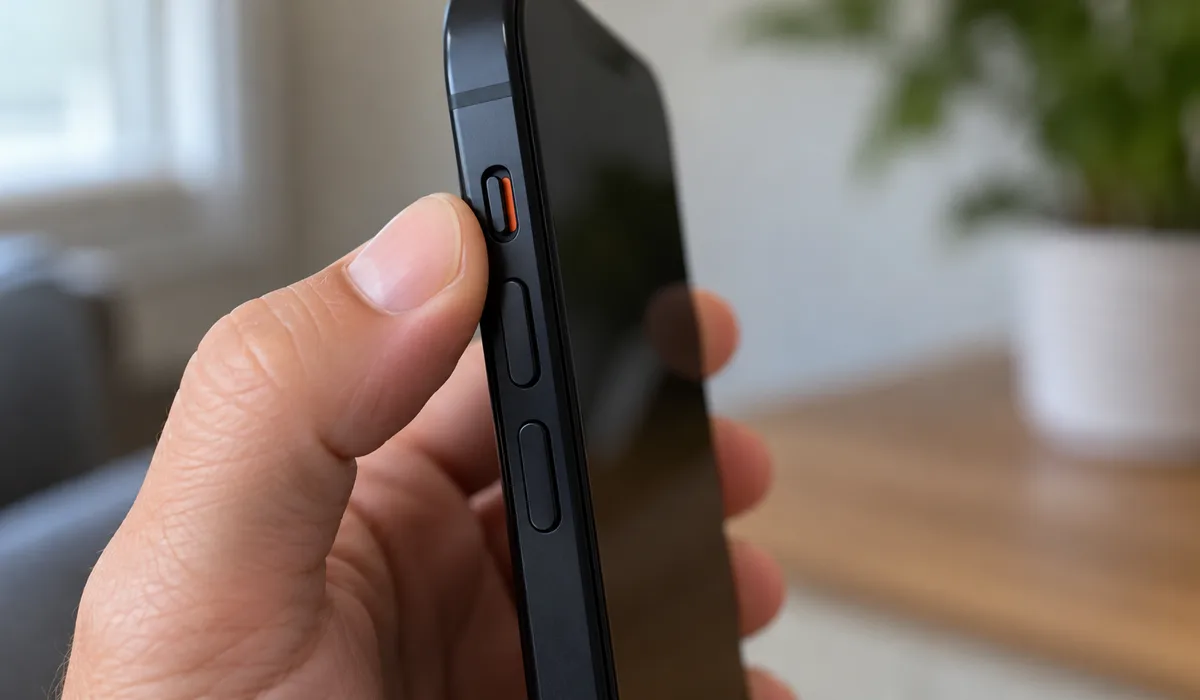
This tiny switch on the upper-left edge of your iPhone is responsible for more missed calls than anything else. It’s easy to flip by accident when you pull your phone out of a bag or pocket. If there’s an orange stripe showing, you’re in silent mode. That’s it. That’s the whole problem.
Here’s what to do:
- Check the small switch on the upper-left edge of your iPhone (it’s tiny, right above the volume buttons).
- Orange stripe visible? That means silent mode is on. Flip it toward the screen.
- You’ll feel a click and hear a short chime. That means ring mode is back.
- Make a test call from another device to confirm sound returns.
2. Turn the Ringer Volume Up in Sounds and Haptics Settings
Here’s something a lot of people don’t know. The volume buttons on the side of your iPhone control media volume (music, videos, games) separately from your ringer volume. So you could have your side volume cranked all the way up and still have a ringer that’s basically silent.
To sort this out:
- Open Settings then tap Sounds and Haptics.
- Under Ringer and Alerts, drag the slider to the right to raise the volume.
- Toggle Change with Buttons ON if you want the side volume buttons to also control the ringer.
- Press a volume button – you should hear the ringtone preview play right away.
If Change with Buttons is turned off, pressing the side buttons does absolutely nothing to your ringtone. That catches people off guard all the time.
3. Disable Do Not Disturb and Check All Focus Modes
Focus modes are genuinely useful, but they’re also one of the sneakiest reasons your iPhone goes quiet. Do Not Disturb, Sleep mode, and custom Focus profiles can all block incoming calls without any obvious warning on screen. And they can be set on a schedule, so your phone goes silent automatically at certain times of day.
To switch them off:
- Swipe down from the top-right corner of your screen to pull up Control Center.
- See a highlighted Focus icon? Could be the crescent moon, the bed, or the little person silhouette. Tap whichever one is lit up to disable it.
- Go to Settings then Focus and check each mode’s schedule – turn off any automated schedules that might be silencing calls.
- Inside each Focus mode, tap People to make sure the right callers are set as allowed contacts.
4. Turn Off Silence Unknown Callers So You Don’t Miss Calls
This one is huge, especially if unknown numbers are going straight to voicemail. Silence Unknown Callers is a built-in iOS feature that sends any number not saved in your contacts (or not in your recent call history) directly to voicemail, with zero ring, zero notification. Great for blocking spam. Not great when you’re expecting a call from a doctor’s office or a new client.
Quick fix:
- Go to Settings then Phone then Silence Unknown Callers.
- Switch it OFF (the toggle should turn grey).
- Try calling yourself from a number that’s not in your contacts. If it rings, you’re sorted.
5. Check Call Forwarding Isn’t Sending Your Calls Somewhere Else
Call Forwarding is supposed to send your calls to another number when you’re unavailable. But if it gets switched on accidentally, every call just disappears to somewhere else and your iPhone never rings at all. The phone can look completely normal and you’d have no idea.
Check this setting quickly:
- Open Settings then Phone then Call Forwarding.
- If the toggle is ON, tap it to disable it.
- Restart your iPhone and make a test call to confirm calls are coming through.
6. Disconnect Bluetooth Devices Ringing Your Audio Elsewhere
Connected AirPods, Apple Watch, or Bluetooth car speakers can quietly take over your audio. When your phone rings, the sound goes to whichever Bluetooth device is active, not your iPhone’s speaker. So your phone just sits there, completely silent on the table, while your AirPods in the other room are going off and nobody can hear them.
To check this:
- Open Control Center and tap the Bluetooth icon to kill it temporarily.
- You can also go to Settings then Bluetooth then tap the info button next to whatever device is connected and hit Disconnect.
- Now call your iPhone and see if the sound comes through the built-in speaker.
- If it turns out your Apple Watch was grabbing the audio, open the Watch app on your iPhone, go to My Watch then Phone, and look through the call settings there.
7. Fix the Announce Calls Setting That Can Suppress Ringing
Announce Calls is a feature that reads out caller names through your headphones or car audio. But if it’s set to Headphones and Car and no headphones are connected, calls can behave strangely – sometimes not ringing aloud at all. It’s a weird edge case but it does happen.
Fix it like this:
- Go to Settings then Phone then Announce Calls.
- Set it to Always or Never – avoid the Headphones and Car option if you frequently use your iPhone without headphones.
8. Make Sure the Caller Isn’t Blocked on Your iPhone
A blocked number goes straight to voicemail every single time, with no ring, no notification, nothing. You won’t even see a missed call from them. If there’s one specific person you keep missing calls from, this is worth checking.
Here’s how to see your blocked list:
- Go to Settings then Phone then Blocked Contacts.
- Scroll through the list for any number you didn’t mean to block.
- Swipe left on a contact and tap Unblock.
9. Check That the Ringtone Isn’t Set to “None”
You can assign ringtones to individual contacts in iOS. And one of the available options is literally “None” – which means that contact will never make your phone ring, ever. This is easy to set by accident when browsing ringtone options.
Check it like this:
- Open Contacts and select the person whose calls you keep missing.
- Tap Edit then tap Ringtone.
- If it’s set to None, pick any ringtone from the list.
- Tap Done to save.
Worth checking the Text Tone setting on that same screen too if you’re also missing message alerts from them.
10. Restart Your iPhone to Clear a Software Glitch
The audio system can just freeze up for no obvious reason. A restart shakes out those temporary bugs that toggling settings won’t touch. Honestly it fixes things way more often than people expect.
Here’s how to restart based on your model:
- Face ID models: Press and hold the Side button plus Volume Down together until the power slider shows up. Slide it off. Give it 30 seconds, then hold the Side button again to boot back up.
- Touch ID models (SE and older): Press and hold the Side or Top button until you see the slider. Slide to power off, wait a bit, then turn it back on.
- Once it’s back up, call yourself from another phone and check if the ringer works.
11. Update iOS – Ringer Bugs Are Often Patched in New Releases
iOS bugs that affect audio routing do happen. Apple usually patches them in the next update. If your ringer problem started after an iOS update, a newer update might already have the fix sitting there waiting.
To update your iPhone:
- Get on Wi-Fi and plug in your charger (you don’t want it dying mid-update).
- Go to Settings then General then Software Update.
- See an update listed? Tap Download and Install.
- Once the update finishes, retest your ringer.
12. Reset All Settings as a Last Resort Before Apple Support
Reset All Settings clears out corrupted preferences, broken audio routing configs, and any Focus schedules causing trouble, without wiping your photos, apps, or data. It sounds dramatic but it really isn’t. You will have to reconnect to Wi-Fi and re-pair Bluetooth stuff afterward though.
Do this carefully:
- Go to Settings then General then Transfer or Reset iPhone then Reset.
- Tap Reset All Settings. Do NOT tap “Erase All Content and Settings” (that one wipes your entire phone).
- Enter your passcode if asked.
- Your phone will restart on its own. After that, set up Wi-Fi, Bluetooth, and any Focus profiles again.
- Call yourself from another phone. Did it ring? Good.
Fix Comparison: iPhone Not Ringing – Which Cause Matches Your Symptom?
Use this table to match what you’re experiencing to the most likely fix:
| Symptom | Most Likely Cause | Fix |
|---|---|---|
| No ring at all, only vibrates | Ring/Silent switch on silent | Fix 1 |
| Ring volume extremely low | Ringer volume at minimum | Fix 2 |
| All calls go to voicemail | DND or Focus active | Fix 3 |
| Unknown numbers go to voicemail | Silence Unknown Callers ON | Fix 4 |
| All calls go to voicemail, no DND | Call Forwarding enabled | Fix 5 |
| Rings through AirPods, not speaker | Bluetooth audio connected | Fix 6 |
| Only one contact doesn’t ring | Ringtone set to None | Fix 9 |
| Rings sometimes but not always | Software glitch | Fix 10 |
Common Mistakes People Make When iPhone Isn’t Ringing
A few things people try that either don’t work or make diagnosing the real issue harder. Worth knowing before you go too deep:
- Cranking the side volume buttons without checking Sounds and Haptics – those buttons might be controlling media volume, not the ringer at all.
- Turning off Focus but leaving automated schedules running – the mode will switch itself back on a few minutes later and you’ll be stuck in the same loop.
- Skipping the Bluetooth check – AirPods left in the case can still show as connected and quietly redirect audio.
- Choosing “Erase All Content and Settings” instead of “Reset All Settings” – that erases your whole phone, which is not what you want here.
- Testing with FaceTime instead of a regular call – FaceTime uses a different audio path and won’t always confirm whether cellular calls are working properly.
- Assuming a missed contact is a network problem – if that person is blocked, there’s no notification at all and it looks exactly like a network issue.
What If None of This Worked?
Almost every time, one of the fixes above sorts it out. Start with the Ring/Silent switch, then ringer volume, then Focus modes. Those three alone cover most cases. But if you’ve gone through all 12 and calls still aren’t ringing, your speaker might actually be damaged. Older phones or ones that have been dropped (even once onto tile) are especially prone to this. Best bet at that point is to contact Apple Support or book a slot at an Apple Store. They’ll run a quick speaker diagnostic and tell you straight away if the hardware is the problem. But honestly, most people find their fix somewhere in the first five steps on this list.
