 logo
logo
Getting locked out because the authenticator went wrong is a genuinely awful situation. You type the password correctly, the app spits out a code, and the site just rejects it. Or the approval notification goes nowhere. Dead end.
Most authenticator problems trace back to a small set of causes. And almost all of them have a real fix. This covers Google Authenticator and Microsoft Authenticator on Android and iPhone. No shady workarounds. Just the actual steps.
The table below shows everything this page covers:
| Detail | Info |
|---|---|
| Apps Covered | Google Authenticator, Microsoft Authenticator |
| Platforms | Android, iPhone (iOS) |
| Common Root Causes | Time out of sync, wrong account, outdated app, new phone |
| Emergency Option | Backup codes or account recovery |
| Fix Difficulty | Beginner to Intermediate |
| Time to Fix | 2 to 15 minutes depending on the cause |
Why Your Authenticator App Stops Working (The Real Reasons)
Look up the actual cause before touching any settings. Skipping this step wastes time. These apps run on something called TOTP (Time-based One-Time Password). Sounds complex, but it just means each code is calculated from whatever time your phone shows at that exact second. Even a small clock drift produces the wrong code. Not by much. Enough to matter.
Your Phone’s Clock Is Out of Sync
This is the number one cause of “invalid code” errors. Each code is only good for about 30 seconds and depends entirely on your phone showing the correct time. A drift of 60 seconds is enough to make every single code fail. It looks like a broken app. It is almost always just the clock.
You’re Looking at the Wrong Account in the App
Duplicate entries crop up more than most people expect. Usually after switching between accounts or scanning a setup QR code twice by accident. End result: two Gmail entries in the app, only one of which actually works. Very easy to tap the wrong one without realising.
The App Hasn’t Been Updated
Apps go stale after major phone OS updates. Push notifications can cut out. Things start behaving oddly for no obvious reason. Updating the app fixes more of these than you’d expect.
You Switched to a New Phone Without Transferring
Authenticator apps store their secret keys locally on your device. That is the default behaviour. A new phone starts with none of your old codes, and they do not follow you across automatically. If the transfer step got skipped, those accounts simply are not on the new device.
Fix 1 – Correct the Time Sync on Your Phone (Most Common Fix)
Since clock drift causes most invalid code errors, this is always the first thing to try. Both apps have ways to deal with this.
How to Fix Time Sync in Google Authenticator on Android
Google Authenticator has a built-in time correction tool that re-syncs it without touching your phone’s system clock. Here’s how to use it:
- Open Google Authenticator on your Android phone.
- Tap the three-dot menu in the top-right corner.
- Select Settings.
- Tap Time correction for codes.
- Tap Sync now.
- Give it a moment to confirm the correction.
- Go back to your login screen and try a fresh code.
How to Fix the Clock on an iPhone (Google & Microsoft Authenticator)
iPhone doesn’t have that same in-app tool, so you fix it at the system level instead:
- Open the Settings app on your iPhone.
- Tap General.
- Tap Date & Time.
- Check that Set Automatically is switched ON.
- Already on? Switch it OFF, count about 10 seconds, then switch it back ON.
- Restart your iPhone.
- Open your authenticator app and test a code on your next login.
Fix 2 – Make Sure You’re Using the Right Account Entry
This fix takes about two minutes and is embarrassingly easy to overlook. Open the app and go through this:
- Open your authenticator app and look at every account listed.
- Look for duplicate entries with the same service name.
- Check the account label or email address under each entry to match it with the account you’re trying to log into.
- Try the code from each matching entry one at a time. Submit it before the 30-second timer runs out, not after it resets.
- If you spot old or unrecognised duplicates, remove them by long-pressing (Android) or swiping left (iPhone) and tapping Remove.
- Only remove entries you are completely sure are outdated.
Fix 3 – Update or Reinstall Your Authenticator App
A stale or broken app version can cause all kinds of weird behaviour. Steps to sort it:
- Open the Google Play Store (Android) or App Store (iPhone).
- Search for Google Authenticator or Microsoft Authenticator.
- If an Update button appears, tap it and let the install finish.
- Restart the app and try your codes.
- If the app is crashing or badly corrupted, you can uninstall it, but only after you have backup codes saved (see Fix 5 below first).
- Uninstall the app, then reinstall it from the store.
- Re-add your accounts through each service’s 2FA setup page (see Fix 6).
Fix 4 – Moved to a New Phone? Here’s How to Recover Your Codes
Getting a new phone is a super common reason authenticator codes stop working. Here’s how to sort it out for each app.
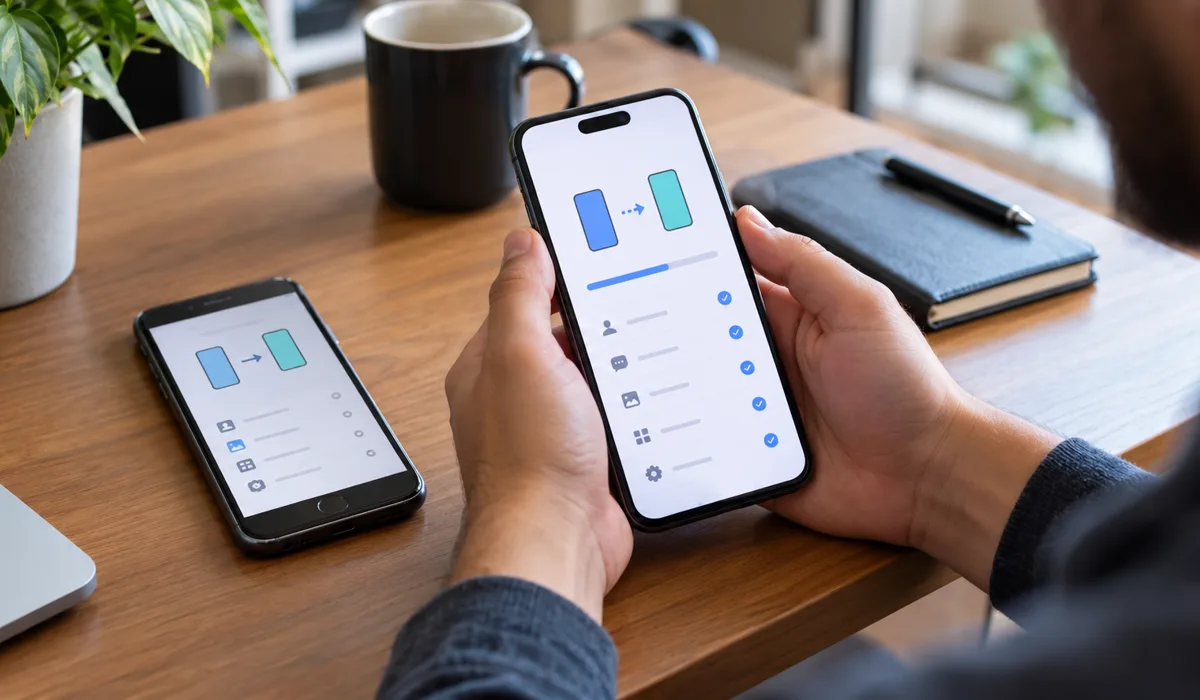
Transferring Google Authenticator to a New Phone
If your old phone is still accessible, this is straightforward:
- On your old phone, open Google Authenticator.
- Tap the three-dot menu and select Transfer accounts.
- Tap Export accounts.
- Pick the accounts to move and tap Next. A QR code appears on the old phone.
- On your new phone, open Google Authenticator, tap Transfer accounts, then Import accounts.
- Scan the QR code showing on your old phone.
- Check that all accounts show up correctly on the new device.
Restoring Microsoft Authenticator from Cloud Backup
Microsoft Authenticator backs up to the cloud, which makes switching phones much less painful. Here’s the recovery process:
- On your new phone, install Microsoft Authenticator from the store.
- Open the app and tap Begin recovery.
- Sign in with the Microsoft personal account tied to your backup.
- Your accounts should restore on their own.
- For work or school accounts, you may need to re-verify with your IT department or scan a new QR code from your account settings.
Fix 5 – Use Your Backup Codes to Get Back In Right Now
If you’re locked out right now and can’t wait, backup codes are the legitimate way through. Most services hand out a set of these the first time 2FA gets turned on. To use them:
- Track down the backup codes you saved when 2FA was first set up. They might be in a password manager, a saved document, or a printed sheet somewhere.
- Go to the login page for the account you’re locked out of.
- Enter your username and password normally.
- When the authenticator prompt appears, look for a link like “Try another way,” “Use a backup code,” or “Can’t access your authenticator?”
- Click that link and type in one of your backup codes exactly as it appears.
- Once you’re in, go straight to the Security settings for that account.
- Turn off 2FA completely, then set it up again fresh to get a new set of backup codes and re-link your authenticator.
Fix 6 – Remove and Re-Add Two-Factor Authentication Entirely
Sometimes there is no shortcut. The cleanest fix is to pull the whole thing out and start again. Doing so clears any mismatch between the app and the account. Here is how:
- Log in using a backup code (Fix 5) or the account’s recovery option.
- Go to Security Settings or Two-Factor Authentication settings.
- Select Disable or Remove the current authenticator app setup.
- Confirm the removal when prompted.
- Look for the option to add an authenticator app or set up 2FA again.
- Open Google Authenticator or Microsoft Authenticator on your phone.
- Tap the + button and choose Scan a QR code.
- Scan the QR code shown on the account’s setup page.
- Enter the 6-digit code the app generates to confirm everything is working.
- Save the new backup codes the service provides. Store them somewhere safe.
Fix 7 – Microsoft Authenticator Not Sending Push Notifications
Microsoft Authenticator sometimes uses push notifications instead of codes, where you tap Approve on your phone. When those notifications go missing, run through this list:
- Check that your phone has a working internet connection. Wi-Fi or mobile data both work fine for this.
- On iPhone, go to Settings > Notifications > Microsoft Authenticator and confirm notifications are on. On Android, go to Settings > Apps > Microsoft Authenticator > Notifications and check the same.
- Open Microsoft Authenticator, tap Settings, and check that notifications are switched on inside the app too.
- Also check inside the app for an approval prompt. The banner notification sometimes stays silent even when the request is actually sitting there waiting.
- A number-matching screen might appear asking you to type in a number from your computer’s login page. Enter it exactly. That’s a security feature, not a glitch.
- Still nothing after about 60 seconds? Tap “I can’t use my Microsoft Authenticator app right now” on the sign-in page and switch to a code or another method.
Authenticator App Fixes at a Glance
Here’s a quick-reference table so you can match your exact problem to the right fix:
| Symptom | Most Likely Cause | Fix to Try |
|---|---|---|
| Code says “invalid” or “incorrect” | Phone clock out of sync | Fix 1 |
| Code invalid on one specific account | Wrong account entry | Fix 2 |
| App crashing or freezing | Outdated or corrupted app | Fix 3 |
| No codes after new phone setup | Accounts not transferred | Fix 4 |
| Completely locked out right now | Need backup codes | Fix 5 |
| App and account totally mismatched | Re-enroll 2FA from scratch | Fix 6 |
| No push notification from Microsoft Authenticator | Notification or network issue | Fix 7 |
Common Mistakes That Make Authenticator Problems Worse
A few habits can turn a solvable problem into a real mess. Watch out for these:
- Deleting the authenticator app before pulling up your backup codes is a fast way to get permanently locked out. No shortcut around that one.
- Got a code with under 5 seconds left on the timer? Just wait for the next one. Less chance of it expiring mid-submit.
- The time sync fix gets skipped too often. Most people go straight to reinstalling the app and burn ten minutes on something that wasn’t even the problem. Clock drift is behind the majority of invalid code complaints. Start there.
- No backup codes saved when 2FA was first set up means nothing to fall back on. The second those codes appear on screen, get them into a password manager or an offline document. Not later. Right then.
- Swapping to a new phone without enabling cloud backup in Microsoft Authenticator first means the accounts won’t come back on their own. Go into the app’s Settings and turn backup on before you actually need it.
For official help, both Google Support and Microsoft Support have account recovery options if you’re stuck beyond what these fixes can solve.
Final Thoughts
Most authenticator app problems come down to a handful of very fixable things: a clock that drifted, the wrong account entry, a skipped update, or a new phone that didn’t get the transfer it needed. Start with the time sync fix, since it solves the majority of “invalid code” complaints in under two minutes.
And do the boring prep now. The second 2FA is set up, get those backup codes somewhere real. Turn on cloud backup in Microsoft Authenticator before the phone swap happens. And just keep the apps updated. Do those things and the frantic late-night searching probably never comes up. But if it does, this is exactly where to start.
