 logo
logo

You open Google Antigravity, give an agent a task, and everything freezes. The window stops reacting, the agent stays stuck on the same step, or Windows shows that dreaded “Not Responding” label in the title bar. When Antigravity is not responding, it’s hard to tell whether the agent is still working or the whole app has locked up.
I’ve been testing Antigravity on a mid-range Windows laptop, and I’ve seen it hang a few times, mostly on bigger projects. Sometimes it came back after a minute. Other times I had to restart it. Below I’ll explain why Antigravity stops responding and walk through the fixes that help most, from quick checks to a clean reinstall.
Why Antigravity Stops Responding
Google Antigravity is an agent-first development platform. The Antigravity IDE is built on a fork of Visual Studio Code, and Google also offers Antigravity 2.0, a separate desktop app for managing agents. Since agents run tasks, use AI models and sometimes control a browser, there are several places where things can get stuck.
Here are the most common causes:
| Cause | What you’ll notice | How common |
|---|---|---|
| Agent still running a long task | UI looks frozen while it plans or works | Very common |
| Usage quota reached | Agent stops partway or won’t continue | Common |
| Large project or too many files open | App slows down and freezes | Common |
| Outdated Antigravity version | Random hangs and crashes | Common |
| Extension conflict | Freezes after installing an extension | Sometimes |
| Google server issues or overload | Agents fail or stall for everyone | Sometimes |
| Low RAM or high CPU usage | Whole computer slows down | Sometimes |
Let’s go through the fixes, starting with the easiest.
Fix 1: Give the Agent a Minute
Before you force close anything, check whether the agent is actually still working. Antigravity agents can take a few minutes to create a plan, especially on bigger tasks. Reviews and early users have mentioned that planning can feel slow.
Look at the agent panel or the Agent Manager for any progress updates. If the task list or artifacts are still changing, wait a bit longer. If nothing has changed for several minutes and the window won’t react at all, move on to the next fix.
Fix 2: Check Your Quota and Google’s Status
Antigravity has usage limits, and agents can stop in the middle of a task when you hit them. Google’s troubleshooting info notes that quotas refresh after a set period, so the agent might just be waiting.
Here’s what to check:
- Look for a quota or rate limit message in the agent panel.
- Check Google’s official Antigravity site and social accounts for outage news.
- Search online to see if other users are reporting problems right now.
If you’ve reached your quota, wait for it to reset. If Google’s servers are overloaded, try again later.
Fix 3: Force Close and Restart Antigravity
If the window is completely frozen, you’ll need to close it and start again.
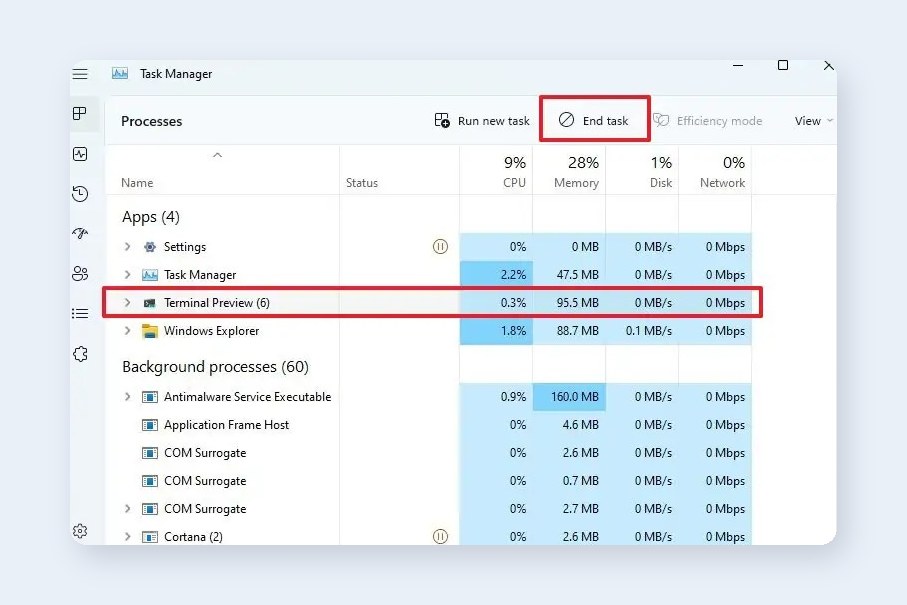
To force close it on Windows, follow these steps:
- Press Ctrl + Shift + Esc to open Task Manager.
- Find Antigravity in the list of apps.
- Click it and select End task.
- Wait a few seconds, then open Antigravity again.
On a Mac, press Cmd + Option + Esc, select Antigravity, and click Force Quit. On Linux, you can close it from your system monitor or run pkill with the app name in a terminal.
Fix 4: Update Antigravity
Google updates Antigravity often, and many updates improve speed and fix freezes. If you’re on an older build, updating is one of the best things you can do.
Check for updates from the app’s menu or download the latest version from the official site at antigravity.google. Google has also recommended that users on some older versions install the latest update manually. When Antigravity 2.0 rolls out, the IDE may update automatically and ask whether you want to keep the IDE as well. Keep both if you still use the editor.
Fix 5: Disable Extensions
Since the Antigravity IDE is based on VS Code, it supports extensions. A buggy or heavy extension can make the whole editor freeze, especially right after you install it.
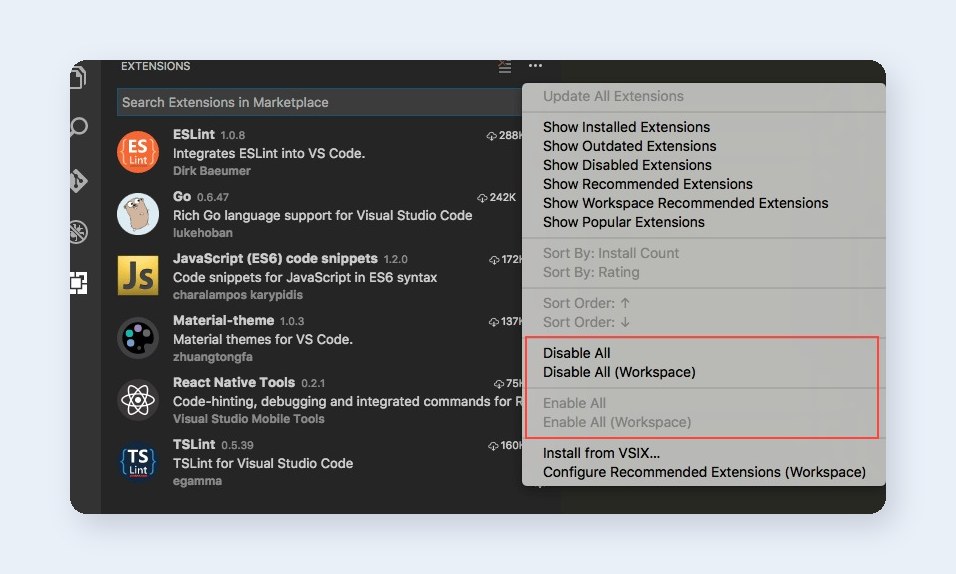
To check for a bad extension, follow these steps:
- Open the Extensions panel in Antigravity.
- Disable all extensions you installed recently.
- Restart Antigravity.
- If it’s stable now, turn extensions back on one at a time.
- When the freezing returns, remove or update the last extension you enabled.
You can also open the command palette and run Developer: Show Running Extensions to see which ones use the most resources.
Fix 6: Make the Workspace Smaller
Big projects with lots of files can slow Antigravity down and make agents struggle. Reviewers have noted that it can have a harder time with large or complex codebases.
Try these changes:
- Open only the folder you’re working on instead of a huge parent folder.
- Close tabs and files you don’t need.
- Exclude large folders like node_modules, build output and logs from search and file watching.
- Break big agent tasks into smaller, more specific steps.
Smaller workspaces load faster and give agents less to process, which makes freezes less likely.
Fix 7: Free Up Memory and CPU
Antigravity, its agents and the browser it controls can use a lot of memory. If your computer is low on RAM, everything slows down and the app can stop responding.
Open Task Manager on Windows or Activity Monitor on a Mac and check your memory and CPU use. Close other heavy apps like games, video editors or extra browser windows. If you work on big projects often, 16GB of RAM or more makes a noticeable difference.
Fix 8: Check the Browser Agent Setup
Antigravity’s browser features work with Google Chrome. If Chrome isn’t installed, is outdated or the browser extension isn’t set up correctly, agent tasks that use the browser can stall.
Make sure Chrome is installed and up to date. If Antigravity asks you to install its browser extension, follow the prompt. If you’re having trouble with the browser side specifically, our guide on how to fix the Antigravity browser not working covers that in more detail.
Fix 9: Clear Cache or Reinstall Antigravity
If nothing else helps, corrupted cache files or a broken install could be the cause. Uninstall Antigravity, restart your computer, and download a fresh copy from the official site.
Before reinstalling, make sure your projects are saved and pushed to Git. Reinstalling the app won’t delete your project folders, but it’s always good to have a backup. After reinstalling, sign in again and test with a small project first.
Final Thoughts
When Antigravity is not responding, it’s often an agent working on a long task, a quota limit or a project that’s too large. Give it a minute first, then check your quota and update the app. If it’s still frozen, force close it, disable extensions and work in a smaller workspace. Those steps fix the problem for most people.
Which fix worked for you? Share it in the comments, since Antigravity is still new and other developers are probably running into the same thing.
