 logo
logo
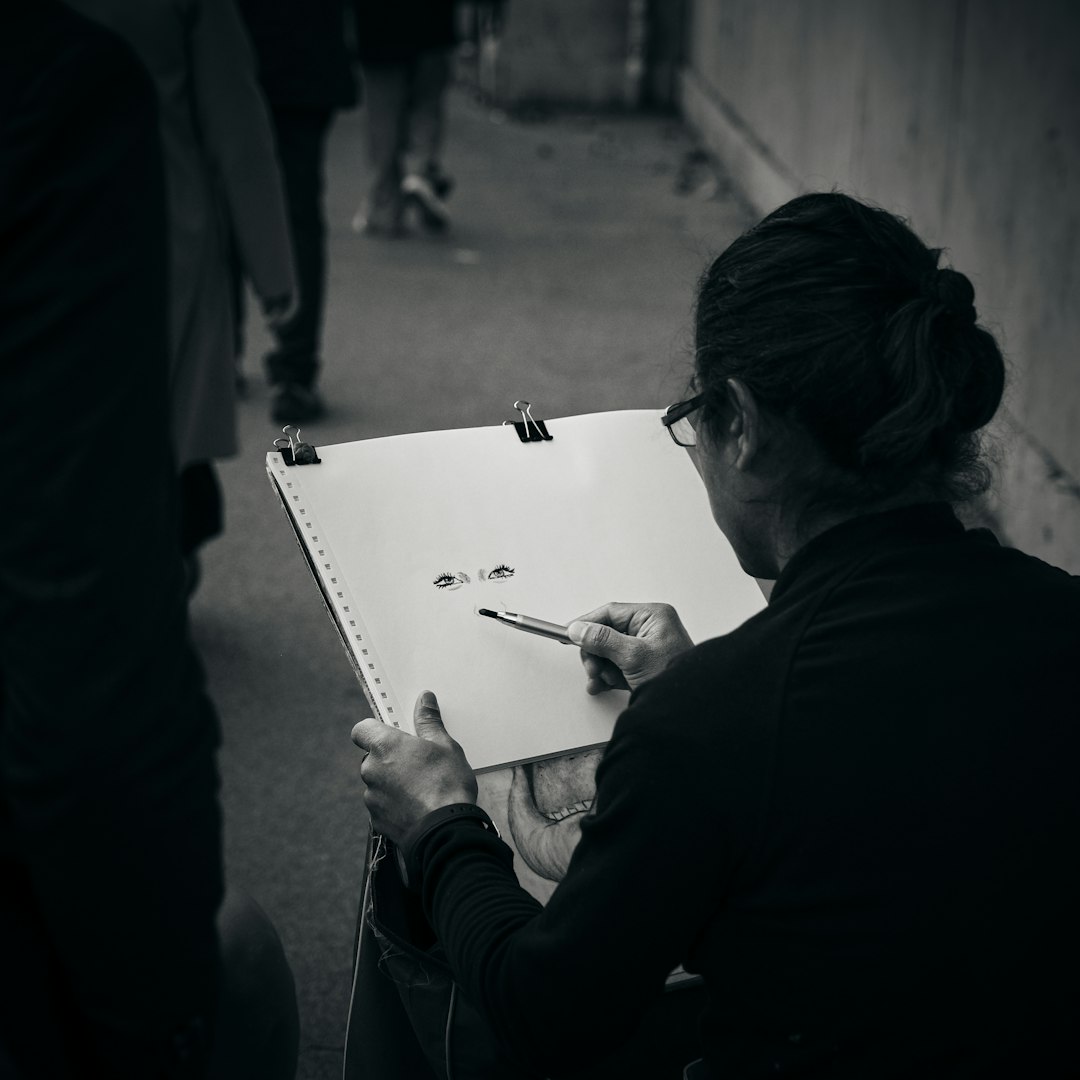
For a digital artist, the canvas is more than a workspace; it is the place where sketches, color studies, refinements, and final illustrations come together. Keyboard shortcuts help artists move across that space quickly, reducing interruptions and keeping the creative rhythm intact. While every drawing program has its own shortcut set, many canvas-related commands are similar across popular apps, making them worth learning early.
TLDR: Canvas keyboard shortcuts help digital artists work faster, zoom and rotate with precision, and avoid breaking concentration. The most important shortcuts involve zooming, panning, rotating, undoing, selecting, transforming, and managing layers. Artists who practice these commands regularly can spend less time searching menus and more time drawing. Customizing shortcuts for personal workflow can make the creative process even smoother.
Why Canvas Shortcuts Matter
Digital art often involves constant movement: zooming in to refine eyelashes, panning across a wide environment painting, rotating the canvas for a cleaner stroke, or flipping the artwork to check composition. Without shortcuts, each of these actions requires a menu search or toolbar click. That small delay adds up over hours of drawing.
Canvas shortcuts improve both speed and focus. They allow artists to keep one hand on the keyboard and the other on a stylus, mouse, or drawing tablet. This creates a more natural rhythm, similar to turning a sketchbook or shifting paper by hand.
Essential Navigation Shortcuts
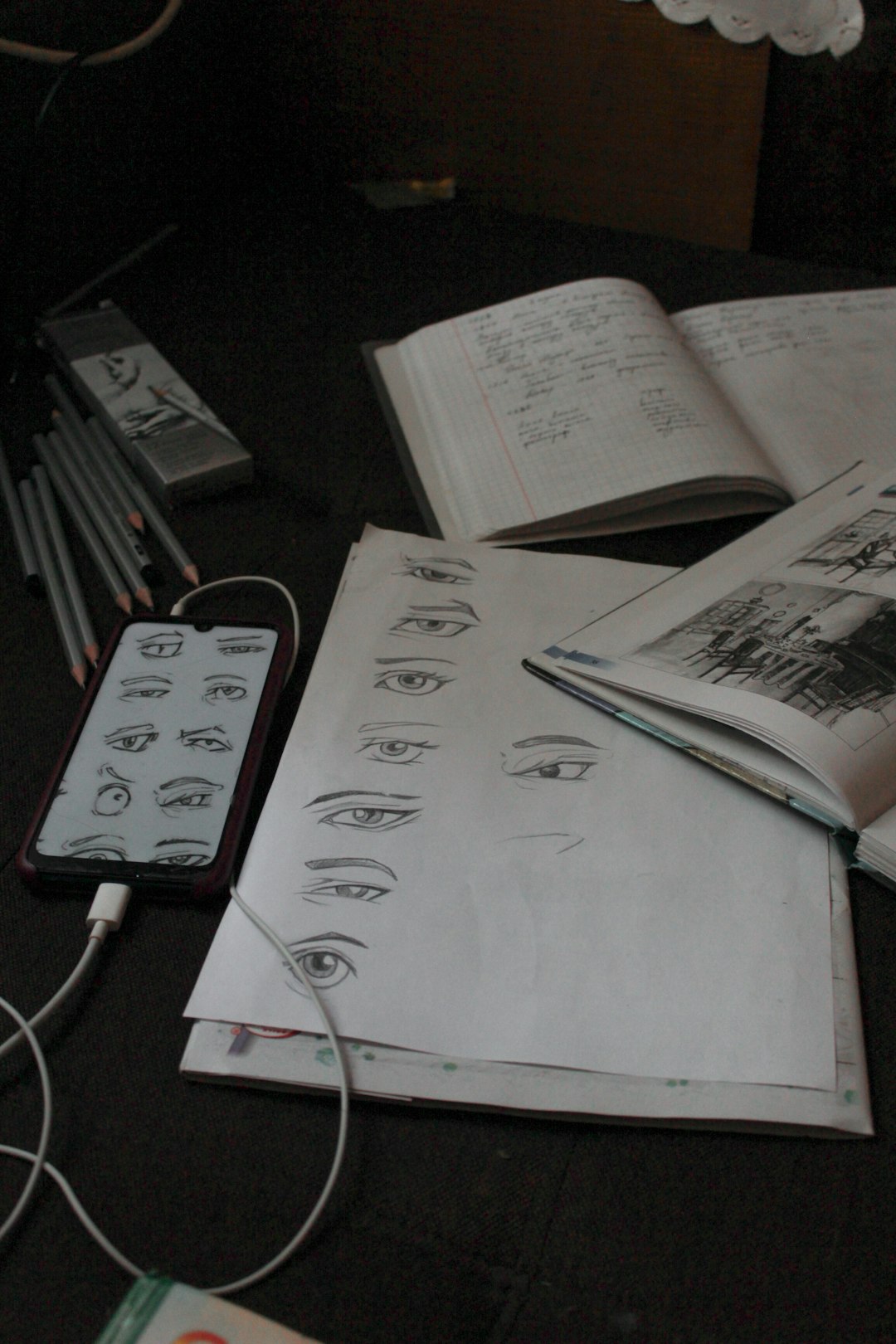
The first group every digital artist should know involves moving around the canvas. These shortcuts are useful at every stage, from rough sketching to final rendering.
- Zoom In: Usually Ctrl + Plus on Windows or Cmd + Plus on Mac. This helps artists inspect small details.
- Zoom Out: Usually Ctrl + Minus or Cmd + Minus. This allows an artist to check the full composition.
- Fit Canvas to Screen: Often Ctrl + 0 or Cmd + 0. This quickly brings the full artwork back into view.
- Actual Size: Commonly Ctrl + 1 or Cmd + 1. This is helpful for reviewing detail at normal scale.
- Pan Canvas: Frequently activated by holding the Spacebar and dragging. This is one of the most used shortcuts in digital painting.
Navigation shortcuts are especially important for artists working on large canvases. A character illustrator may need to jump from face details to clothing folds, while a concept artist may need to inspect buildings, skies, and foreground elements without losing momentum.
Rotate and Flip Canvas Shortcuts
Traditional artists often rotate paper to create smoother lines. Digital artists can do the same with canvas rotation shortcuts. This is particularly useful for curved strokes, hair strands, calligraphy-like linework, and gesture drawing.
- Rotate Canvas Left: Many programs use a bracket key, custom shortcut, or tablet ring control.
- Rotate Canvas Right: Often paired with the opposite bracket key or another adjacent command.
- Reset Rotation: Often available as a shortcut or quick menu command to return the canvas to its normal upright position.
- Flip Canvas Horizontally: Usually assigned manually in some programs, but essential for checking balance and proportion.
Flipping the canvas is one of the fastest ways to spot mistakes. A face that looked balanced may suddenly reveal uneven eyes, a tilted jaw, or an awkward pose. Many professional artists use this shortcut repeatedly throughout the drawing process.
Undo, Redo, and History Controls
No shortcut is more famous than Undo. Digital art encourages experimentation because mistakes can be reversed instantly. However, artists should also know how to redo actions and move through history states.
- Undo: Ctrl + Z on Windows or Cmd + Z on Mac.
- Redo: Often Ctrl + Shift + Z or Cmd + Shift + Z.
- Step Backward: Some programs use Alt + Ctrl + Z or a similar command.
These commands are not only for correcting errors. They also allow artists to compare choices, test brush strokes, and explore different directions without fear. A painter can try stronger shadows, undo them, redo them, and decide which version supports the mood better.
Selection and Transform Shortcuts
Selections are powerful because they isolate parts of the canvas. An artist may select a character’s arm, adjust the angle, resize a prop, or move a background element without repainting everything.
- Select All: Ctrl + A or Cmd + A.
- Deselect: Commonly Ctrl + D or Cmd + D.
- Transform: Often Ctrl + T or Cmd + T.
- Free Transform or Distort: Usually found through transform controls and often customizable.
- Move Tool: Frequently assigned to V in many applications.
Transform shortcuts are especially useful during the sketch and layout stage. Instead of redrawing an entire figure, the artist can resize the head, shift the pose, or adjust the perspective. This makes the early creative process more flexible.
Image not found in postmetaBrush and Eraser Shortcuts Near the Canvas
Although brush shortcuts are not strictly canvas navigation commands, they affect how artists work on the canvas. Switching between tools quickly is essential when building lines, values, textures, and highlights.
- Brush Tool: Often B.
- Eraser Tool: Often E.
- Increase Brush Size: Commonly the Right Bracket key.
- Decrease Brush Size: Commonly the Left Bracket key.
- Eyedropper: Often I, or temporarily activated with an alternate key in painting apps.
Brush size shortcuts help maintain flow. For example, a painter may use a broad brush for blocking in shadows, then quickly reduce the size for wrinkles, edges, and texture. The less time spent opening brush panels, the more natural the painting process feels.
Layer Shortcuts Artists Should Remember
Layers are a core part of digital art. They help separate sketches, line art, colors, lighting, effects, and background elements. Keyboard shortcuts make layer management much faster.
- New Layer: Often Ctrl + Shift + N or Cmd + Shift + N.
- Duplicate Layer: Commonly Ctrl + J or Cmd + J.
- Merge Layer Down: Often Ctrl + E or Cmd + E.
- Group Layers: Frequently Ctrl + G or Cmd + G.
- Toggle Layer Visibility: Often done through a shortcut, tablet button, or panel command depending on the software.
A clean layer workflow prevents confusion during complex projects. For instance, an illustrator working on a fantasy portrait may keep skin, armor, hair, background, and lighting effects separate until the final stages.
Saving and Canvas Safety Shortcuts
Every digital artist should build the habit of saving frequently. Software crashes, battery failures, and accidental file issues can destroy hours of progress. The most important safety shortcut is simple but essential.
- Save: Ctrl + S or Cmd + S.
- Save As: Often Ctrl + Shift + S or Cmd + Shift + S.
- Export: Varies by program, but it is worth assigning if used often.
Some artists save a new version at major milestones, such as after finishing the sketch, colors, lighting, and final polish. This makes it easier to return to an earlier stage if needed.
Customizing Shortcuts for Personal Workflow
Not every default shortcut fits every artist. A left-handed artist, tablet user, animator, comic artist, or painter may need a different setup. Most professional art programs allow shortcut customization, and many drawing tablets include programmable buttons.
The best shortcut layout places the most-used commands within easy reach. For many artists, that means grouping undo, brush size, pan, zoom, rotate, eyedropper, and save near the non-drawing hand. Over time, these commands become automatic.
How to Practice Canvas Shortcuts
Learning too many shortcuts at once can feel overwhelming. A better approach is to start with five: zoom, pan, undo, brush size, and save. Once those feel natural, the artist can add rotate, flip, transform, and layer commands.
Short practice sessions are effective. An artist can open a blank canvas and spend ten minutes sketching while intentionally using shortcuts instead of menus. After a few sessions, the commands begin to feel like part of the drawing process rather than separate technical steps.
FAQ
- What are the most important canvas shortcuts for beginners?
- The most important shortcuts are zoom in, zoom out, pan, undo, save, brush size adjustment, and fit canvas to screen. These are used constantly in nearly every digital art workflow.
- Are keyboard shortcuts the same in every art program?
- No. Many shortcuts are similar across programs, but each app has its own defaults. Artists should check the shortcut settings in their chosen software.
- Should a digital artist customize shortcuts?
- Yes. Custom shortcuts can make the workflow more comfortable, especially for artists using tablets, stylus buttons, or a left-handed setup.
- Why is flipping the canvas useful?
- Flipping the canvas helps reveal proportion, symmetry, and composition issues that may be hard to notice after staring at the artwork for a long time.
- How long does it take to learn canvas shortcuts?
- Basic shortcuts can become familiar within a few drawing sessions. More advanced shortcut habits develop gradually through regular use.
