 logo
logo
You install a few mods to make Warhammer 40,000: Darktide better, everything works for a while, and then one day the game crashes on launch. Or it loads to the main menu and dies the second you start a mission. If Darktide is crashing with the mod loader installed, you’re dealing with one of the most common problems in the modding community.
I play Darktide with a handful of quality-of-life mods, and this happens to me almost every time Fatshark pushes a big patch. The first time, I thought my whole install was broken. Now I can usually fix it in about ten minutes. Below I’ll explain why the Darktide Mod Loader causes crashes and walk you through the fixes, in the order I’d try them.
Why Darktide Crashes With the Mod Loader
The Darktide Mod Loader works by patching the game’s bundle database so it can load mods from the mods folder. When Fatshark updates the game, files change, and the old patch or older mods may no longer match. That mismatch is usually what triggers the crash.
Here are the most common causes:
| Cause | What you’ll notice | How common |
|---|---|---|
| Game update broke the mod patch | Crash on launch right after a patch | Very common |
| Outdated Darktide Mod Framework (DMF) | Crash at startup or main menu | Very common |
| One outdated or broken mod | Crash when loading in or using a feature | Common |
| Mods in the wrong load order | Errors or crashes on startup | Sometimes |
| Corrupted game files | Crash even after removing mods | Sometimes |
| GPU driver or overlay conflict | Random crashes in missions | Sometimes |
The good news is that most of these are easy to fix once you know where to look.
Fix 1: Re-Run toggle_darktide_mods.bat After an Update
Game updates automatically disable mods. Many players don’t realize this and launch the game with a half-patched setup, which leads to crashes. Re-running the toggle script fixes this.
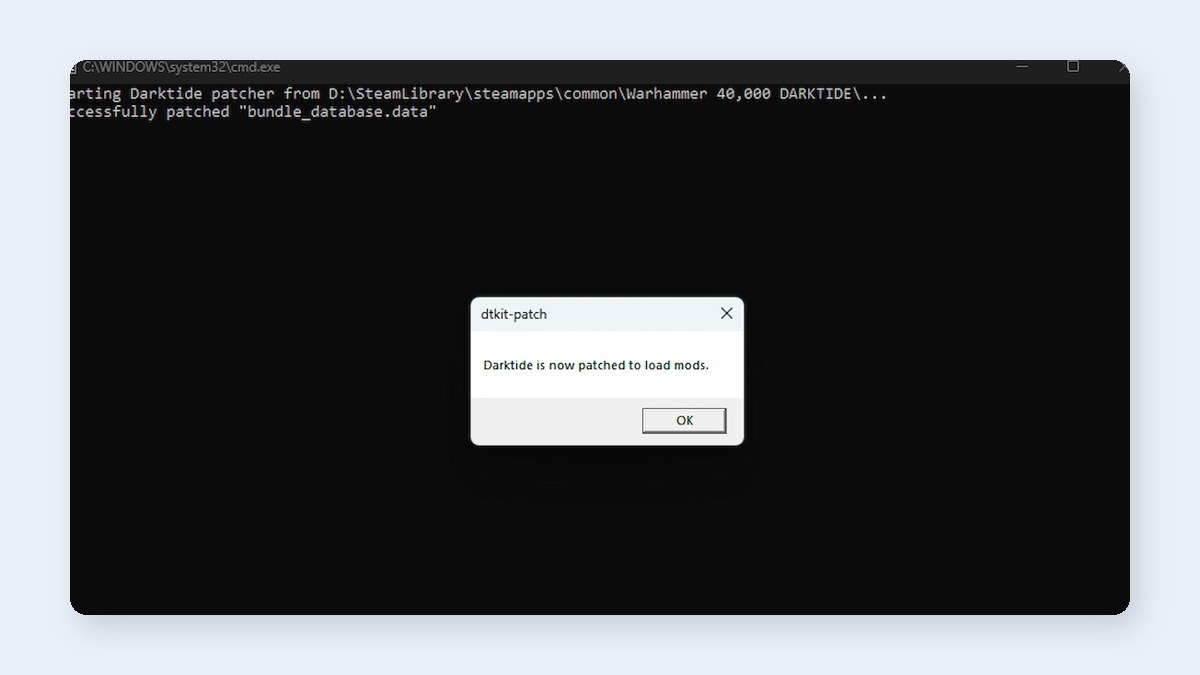
To re-enable mods properly, follow these steps:
- Open Steam, right-click Warhammer 40,000: Darktide, and choose Manage, then Browse local files.
- Find toggle_darktide_mods.bat in the main game folder.
- Double-click it and follow the prompt to patch the bundle database.
- Launch Darktide again.
If you’re not sure whether mods are currently on or off, run the script once and read what it says. It tells you whether it’s patching or unpatching.
Fix 2: Test the Game Without Mods
Before you update anything, check whether mods are actually the cause. This saves time if the crash turns out to be something else.
Here’s how to test it:
- Run toggle_darktide_mods.bat and choose to unpatch the bundle database.
- Launch Darktide through Steam.
- Play for a few minutes or start a mission.
If the game runs fine without mods, the mod loader or one of your mods is the problem. If it still crashes, skip ahead to the fixes for game files, drivers and overlays.
Fix 3: Update the Darktide Mod Loader
An outdated mod loader is one of the biggest reasons for crashes after a patch. The mod loader gets updated to match new versions of the game, so you’ll need the latest one.
To update the mod loader, follow these steps:
- Run toggle_darktide_mods.bat and unpatch the bundle database first.
- Download the latest Darktide Mod Loader from its official Nexus Mods or GitHub page.
- Copy the files into your main Darktide game folder and overwrite the old ones.
- Keep your existing mod_load_order.txt if you want to save your mod list.
- Run toggle_darktide_mods.bat again to re-enable mods.
The mod loader goes in the main game folder, not inside the mods folder. Putting it in the wrong place is a common mistake that causes it to fail.
Fix 4: Update the Darktide Mod Framework
Most Darktide mods need the Darktide Mod Framework, often called DMF. If DMF is outdated, almost every mod that depends on it can break, and the game may crash on startup.
Download the latest DMF from Nexus Mods and replace the old dmf folder inside your mods folder. Make sure dmf stays at the top of your mod_load_order.txt file, since other mods need it to load first. After updating, launch the game and check if the crash is gone.
Fix 5: Find the Broken Mod
If the mod loader and DMF are both up to date but Darktide still crashes, one specific mod is probably the problem. The easiest way to find it is to turn mods off in groups.
Here’s how to track it down:
- Open mod_load_order.txt in your mods folder with Notepad.
- Put two dashes (—) in front of half your mods to disable them. Leave dmf enabled.
- Save the file and launch the game.
- If it works, the broken mod is in the disabled half. If it crashes, it’s in the enabled half.
- Keep splitting the group in half until you find the single mod causing the crash.
Once you find it, check its Nexus Mods page for an update or a note about compatibility. Many mod authors post updates within a day or two of a big patch. If there’s no fix yet, leave that mod disabled for now.
Fix 6: Check the Crash Log
Darktide’s console log often tells you exactly which mod caused the crash. It’s worth checking before you start disabling mods one by one.
Press Windows + R, type %appdata%\Fatshark\Darktide\console_logs, and press Enter. Open the newest log file and scroll to the bottom. Look for mod names or lines mentioning errors. If you see the same mod name again and again near the crash, that’s very likely your culprit.
Fix 7: Verify Darktide Game Files
If Darktide crashes even with mods turned off, some game files may be corrupted. Steam can scan and repair them.
To verify the files, follow these steps:
- Unpatch mods with toggle_darktide_mods.bat first.
- Open Steam and go to your Library.
- Right-click Warhammer 40,000: Darktide and select Properties.
- Open Installed Files and click Verify integrity of game files.
- When it finishes, launch the game without mods to test it.
After the game runs fine on its own, reinstall or re-enable your mods using the toggle script.
Fix 8: Update GPU Drivers and Disable Overlays
Sometimes the crash isn’t caused by mods at all, and it just happens to show up at the same time. Outdated graphics drivers and overlays like Discord, MSI Afterburner or the Steam overlay can cause crashes in Darktide.
Try these quick checks:
- Update your graphics driver from NVIDIA, AMD or Intel.
- Turn off the Discord and Steam overlays for Darktide.
- Close tools like MSI Afterburner or RivaTuner while playing.
- In the Darktide launcher settings, try lowering Worker Threads if the game is unstable.
How to Keep Mods From Crashing After Future Updates
Darktide gets updated regularly, so mod crashes will probably happen again. A few habits make it much easier to deal with.
Here’s what I do after every patch:
- Don’t launch the game with mods right after a big update. Wait a day for mod updates.
- Check Nexus Mods for new versions of the mod loader, DMF and your favorite mods.
- Keep a backup copy of your mod_load_order.txt file.
- Use a mod manager like Vortex if you have a lot of mods, so updates are easier.
- Remove mods you don’t use anymore, since every extra mod is one more thing that can break.
Final Thoughts
When Darktide is crashing with the mod loader, it’s almost always because a game update broke the mod setup. Start by running toggle_darktide_mods.bat, then update the mod loader and DMF. If it still crashes, find the broken mod by disabling them in groups or checking the console log. Those steps fix the problem for most players.
Which fix got your modded Darktide running again? Share it in the comments, especially if a specific mod was causing the crash, since that helps other players.
