


You run your Claude command in Terminal or VS Code, and instead of a result, you see “process exited with code 1.” That message feels vague and frustrating. It does not explain what failed, only that the program stopped. In most cases, exit code 1 means the Claude process hit an error during execution and terminated early. This can relate to a missing API key, broken environment variables, dependency issues in Node.js or Python, or a configuration mistake.
The good part is that exit code 1 usually points to something fixable. In this guide, you will learn what this error means, why it happens, and how to fix it step by step.
What Is Claude Code Process Exited With Error Code 1?
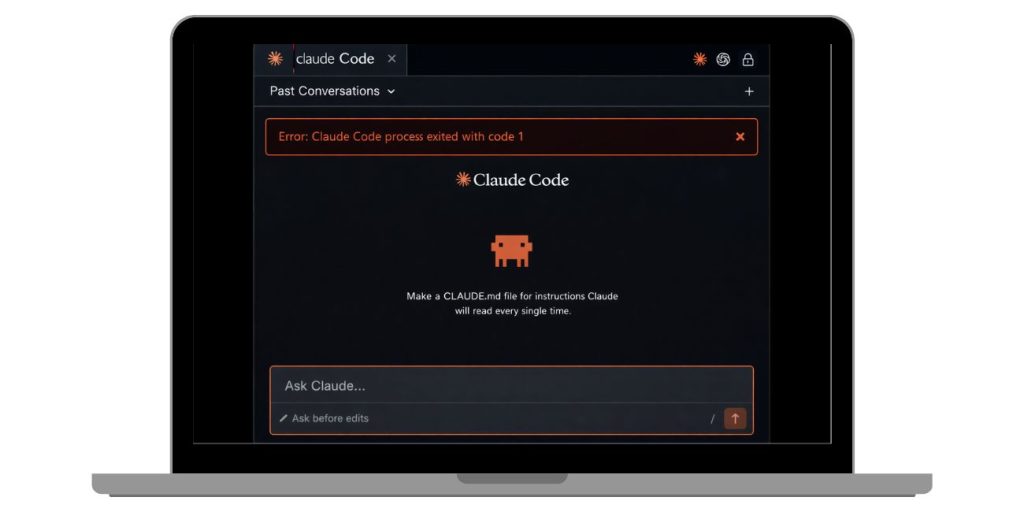 Exit code 1 is a generic runtime error. When a program runs in a Command Line Interface such as Bash, PowerShell, or VS Code Terminal, it returns an exit status when it finishes. A return value of 0 usually means success. A return value of 1 means the process failed. In the case of Claude Code, this often happens when the Claude API request fails, authentication does not pass, or the runtime environment is misconfigured.
Node.js scripts, Python scripts, or CLI tools may stop because of missing dependencies, invalid configuration, or an unhandled exception. The system ends the process and reports exit code 1 to signal failure.
You will normally see this message in Terminal, PowerShell, or the VS Code output panel right after running a Claude command or executing a script.
Common Causes of Claude Code Process Exited With Code 1
Exit code 1 does not give full details by itself. It only signals that something went wrong. Most of the time, the root cause connects to configuration, environment variables, authentication tokens, or dependency problems in your project setup.
Here are the most common causes:
- Missing or incorrect Claude API key
- Incorrect environment variable setup
- Node.js or Python version incompatibility
- Missing npm or pip dependencies
- Invalid JSON configuration file
- Network, firewall, or proxy blocking API requests
- Corrupted Claude CLI or SDK installation
How to Fix Claude Code Process Exited With Code 1?
To fix exit code 1, you need to identify what failed during execution. Start by checking logs, then verify your environment configuration and dependencies. In many cases, the problem links to an API key or runtime mismatch.
However, corrupted project files can also cause sudden termination. Follow each fix carefully and test your command again.
Fix #1: Check the Full Error Log
Exit code 1 is only a summary. The real cause appears in the log above it.
Follow the steps below to easily review logs:
- Scroll up in your Terminal or VS Code output panel.
- Look for stack trace messages or error lines.
- Identify keywords like “authentication failed” or “module not found.”
- Copy the full error message.
- Focus on the first error, not the last line.
Logs often reveal the exact problem.
Fix #2: Verify Your Claude API Key
If the API key is missing or invalid, Claude API requests will fail immediately.
Here’s how you can verify your API key in just a few seconds:
- Open your project folder.
- Check your .env file or environment variable settings.
- Confirm that CLAUDE_API_KEY is set correctly.
- Make sure there are no extra spaces or quotes.
- Restart your Terminal session.
A valid authentication token is required for successful API calls.
Fix #3: Confirm Node.js or Python Version
Older runtime versions may not support the current Claude SDK.
You can perform the following steps to check your runtime version:
- Open Terminal.
- Type node -v or python –version.
- Compare your version with official Claude SDK requirements.
- If outdated, download the latest stable version from the official Node.js or Python website.
- Restart your development environment.
Version compatibility matters.
Fix #4: Reinstall Project Dependencies
Missing packages can cause module loading failures.
The following steps will show you how to reinstall dependencies properly:
For Node.js projects:
- Delete the node_modules folder.
- Delete package-lock.json if present.
- Run npm install.
For Python projects:
- Activate your virtual environment.
- Run pip install -r requirements.txt.
After reinstalling, test the command again.
Fix #5: Validate Configuration Files
Invalid JSON or incorrect config structure can break the process.
Perform the following steps carefully to validate configuration:
- Open your config.json or project settings file.
- Check for missing commas or brackets.
- Use an online JSON validator if needed.
- Confirm API endpoints are correct.
- Save changes and rerun the script.
Even a small syntax mistake can stop execution.
Fix #6: Reset Environment Variables
Incorrect PATH or environment variables may prevent the CLI from running properly.
Follow these easy instructions to reset environment variables without confusion:
- Open System Properties on Windows or use export command on macOS/Linux.
- Review your PATH variable.
- Ensure Node.js or Python directories exist.
- Confirm your API key variable is defined.
- Restart your machine.
Fresh environment variables reduce runtime errors.
Fix #7: Reinstall Claude CLI or SDK
Corrupted installation files can trigger exit code 1 repeatedly.
These are the exact steps you need to follow to reinstall successfully:
For Node.js:
- Run npm uninstall -g your-claude-package.
- Run npm install -g your-claude-package.
For Python:
- Run pip uninstall your-claude-package.
- Reinstall using pip install your-claude-package.
A clean installation restores missing components.
Prevention Tips to Avoid Exit Code 1 in Future
Preventing this error keeps your development workflow smooth. Claude API calls depend on stable configuration, updated runtime, and clean dependencies. Small setup habits reduce future crashes.
- Keep Node.js or Python updated
- Store API keys securely in .env files
- Validate JSON configuration before saving
- Run npm install or pip install after dependency changes
- Monitor terminal logs regularly
- Avoid editing environment variables carelessly
- Keep VS Code and CLI tools updated
Conclusion
Claude code process exited with code 1 usually means the program failed during execution because of authentication issues, environment variable problems, missing dependencies, or configuration errors. It is a generic runtime signal, not a specific bug. Most problems connect to API keys, Node.js or Python versions, or project setup mistakes.
Check the logs carefully and apply the fixes step by step. In most cases, correcting the API key or reinstalling dependencies resolves the issue quickly. If the error continues, contact Anthropic support and provide full log output.
If this guide helped you, share it with other developers and leave a comment explaining which fix solved your problem.
