 logo
logo
Use Chrome first to identify the error code, then confirm the same site in Firefox to separate browser problems from site, DNS, network, or certificate failures. Chrome is usually the first stop because its “This site can’t be reached” message is common and widely searched. Chrome also holds about 65% of global browser market share, so many support teams see Chrome reports before anything else [source: StatCounter]. Firefox is better as a second opinion because it often explains privacy, certificate, and proxy problems in a different way.
TLDR: If Chrome says “This site can’t be reached”, copy the error code first, then test the same URL in Firefox. If Firefox loads it, the issue is probably Chrome cache, extensions, DNS settings, or a Chrome profile problem. If both browsers fail, suspect DNS, the website server, your router, VPN, firewall, or ISP. For example, in a 50 person office, if 38 users on Chrome get DNS_PROBE_FINISHED_NXDOMAIN but Firefox works for most of them, IT should check Chrome DNS or extension settings before blaming the website.
What Chrome’s “This Site Can’t Be Reached” Really Means
Chrome’s error page sounds simple, but it covers several different failures. It can mean the domain does not resolve. It can mean the server refused the connection. It can mean your internet connection dropped for three seconds at the worst possible time. Annoyingly, the same plain white page can hide very different causes.
The real clue is not the headline. It is the small error code under it. Common Chrome codes include:
DNS_PROBE_FINISHED_NXDOMAIN— the domain could not be found through DNS.ERR_CONNECTION_TIMED_OUT— the server did not respond fast enough.ERR_CONNECTION_REFUSED— the server rejected the connection.ERR_NAME_NOT_RESOLVED— Chrome could not translate the domain into an IP address.ERR_SSL_PROTOCOL_ERROR— the HTTPS handshake failed.
That tiny code saves time. Without it, people restart routers, clear cookies, disable antivirus tools, and waste 20 minutes chasing the wrong fix. It drives me crazy that Chrome puts the most useful information in smaller type than the friendly headline.

How Firefox Describes the Same Failure
Firefox usually does not say “This site can’t be reached.” It may show messages like “Hmm. We’re having trouble finding that site,” “The connection has timed out,” or “Secure Connection Failed.” These messages can feel less familiar, but they are often more direct.
Firefox is especially helpful with certificate and privacy errors. It may show the certificate issuer, mismatch details, or a clearer reason why HTTPS failed. Chrome is fast and polished, but Firefox can be blunt in a useful way.
That makes Firefox a strong comparison tool. You are not switching browsers forever. You are using Firefox like a diagnostic meter. If one browser fails and the other works, the site is probably alive. The problem sits closer to browser settings, extensions, cached data, DNS over HTTPS, proxy rules, or security software.
Chrome vs Firefox: Which Browser Helps More?
Chrome is better for speed and recognizable codes. Its error codes appear in thousands of help articles, support tickets, and forum posts. If you paste ERR_CONNECTION_RESET into Google, you will find answers quickly. That matters when a client is waiting or a checkout page is broken.
Firefox is better for cross checking. It uses a different engine, different cache, and different extension system. If Firefox loads the page while Chrome fails, you have already cut the problem in half. That one test can save more time than five random fixes.
Here is the practical split:
- Use Chrome first when you need the exact error code fast.
- Use Firefox second when you want to confirm whether the website itself is down.
- Use both when HTTPS, DNS, VPN, or office firewall rules are involved.
A Fast Troubleshooting Workflow
Start with the boring checks. They work more often than people want to admit.
- Reload the page. Use
Ctrl + RorCmd + R. Then try a hard refresh withCtrl + Shift + RorCmd + Shift + R. - Check the URL. A missing letter can trigger a DNS error. So can an old bookmark pointing to a retired subdomain.
- Open the same URL in Firefox. Do not search for it again. Copy and paste the exact address.
- Try private mode. Use Incognito in Chrome and Private Window in Firefox. This bypasses many extension and cookie issues.
- Disable extensions. Ad blockers, coupon extensions, VPN plugins, and privacy tools can block scripts or domains.
- Test another network. Use mobile hotspot for one quick check. If it works there, your WiFi, router, ISP, or office firewall may be the problem.
Expect to waste time on extensions if you skip private mode. I have seen a price tracker extension add 8 to 12 seconds of delay before a page finally failed. The user blamed the website. The website was fine.
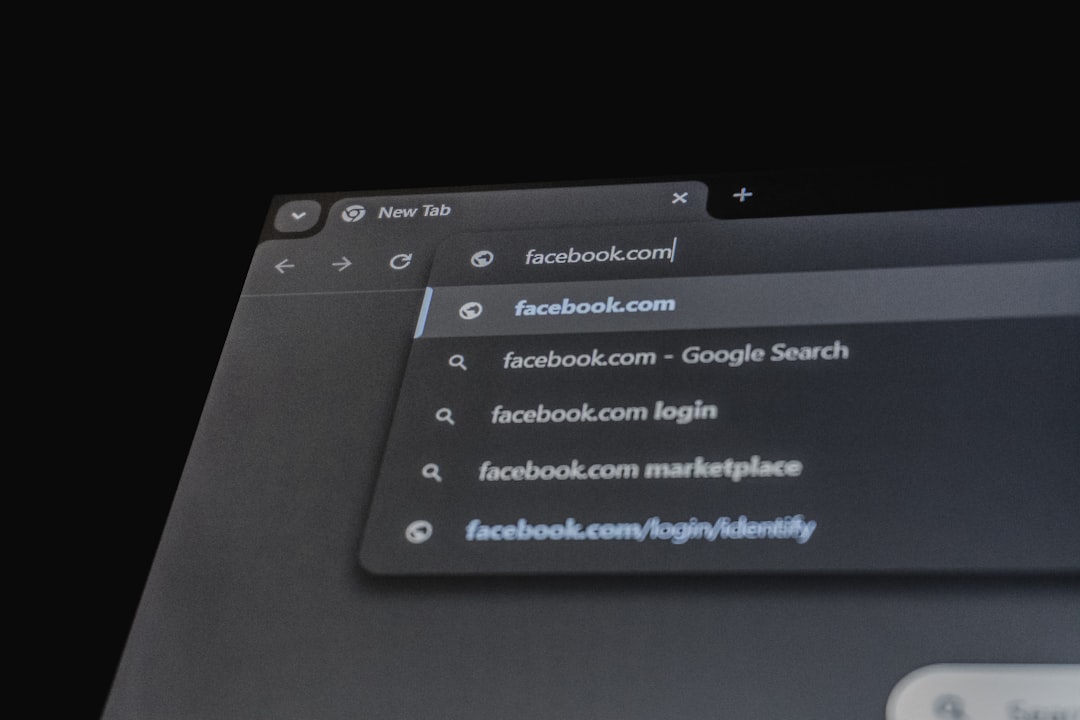
When Chrome Fails but Firefox Works
This is the best kind of failure because it gives you direction. The site is probably not down. Focus on Chrome.
Try these fixes in order:
- Clear Chrome DNS cache: enter
chrome://net-internals/#dnsif available in your version, or restart Chrome fully. - Clear cached files: go to Chrome settings, then privacy controls, then clear cached images and files.
- Turn off Chrome extensions: test with all extensions disabled, then re enable them one by one.
- Check Secure DNS: Chrome’s DNS over HTTPS setting can conflict with some networks.
- Create a fresh Chrome profile: a damaged profile can cause weird errors that survive normal cache clearing.
If the fresh profile works, do not overthink it. Move bookmarks and passwords carefully, then retire the broken profile. Honestly, it feels like a clumsy fix, but it is often faster than hunting one corrupt setting for an hour.
When Firefox Fails but Chrome Works
This points toward Firefox specific settings. Start with extensions again. Then check enhanced tracking protection, proxy settings, and DNS over HTTPS.
Firefox can block some third party content more aggressively, depending on settings. That is useful for privacy, but it can break login forms, payment widgets, dashboards, and older business apps. If the site loads in Firefox private mode, compare add ons and privacy settings.
Also check whether Firefox is using a manual proxy. A stale proxy entry can make only Firefox fail while every other app works. That problem is easy to miss because the internet appears “fine” everywhere else.
When Both Browsers Fail
If Chrome and Firefox both fail, stop blaming the browser. Look wider.
- DNS issue: try a different DNS provider, such as Google Public DNS or Cloudflare DNS.
- Website outage: test from a phone on mobile data or ask someone outside your network.
- Router problem: restart the router and modem, then wait two minutes before testing.
- VPN conflict: disconnect the VPN and try again.
- Firewall block: corporate filters may block categories, regions, or unknown domains.
- Certificate problem: check the computer clock. Wrong date and time can break HTTPS.

Best Browser for Website Owners and Support Teams
For support teams, Chrome should be the first capture point. Ask users for the Chrome error code, screenshot, time of failure, URL, network type, and whether VPN was active. That gives enough detail to spot patterns.
Then ask for a Firefox test. This single extra step can separate “our website is down” from “one browser setup is broken.” If 90% of failed reports come from Chrome and Firefox works, review Chrome related caching, redirects, mixed content, and extension conflicts. If both fail across different networks, check DNS records, hosting status, SSL certificates, and server logs.
Website owners should test critical pages in both browsers after DNS changes, SSL renewals, CDN updates, and firewall rule changes. Pay special attention to login pages, checkout flows, admin dashboards, and forms. These are the pages where a vague browser error turns into lost revenue or angry users.
Final Recommendation
Chrome and Firefox are not rivals when troubleshooting. They are two lenses. Chrome gives the familiar “This site can’t be reached” message and searchable error codes. Firefox gives a clean second opinion and often clearer security clues.
The smartest method is simple: read Chrome’s code, test Firefox, compare results, then fix the layer that both results point to. If only Chrome fails, fix Chrome. If only Firefox fails, fix Firefox settings. If both fail, move to DNS, network, server, VPN, firewall, or SSL checks. That approach is faster, calmer, and far less annoying than smashing refresh and hoping the site suddenly behaves.
