 logo
logo
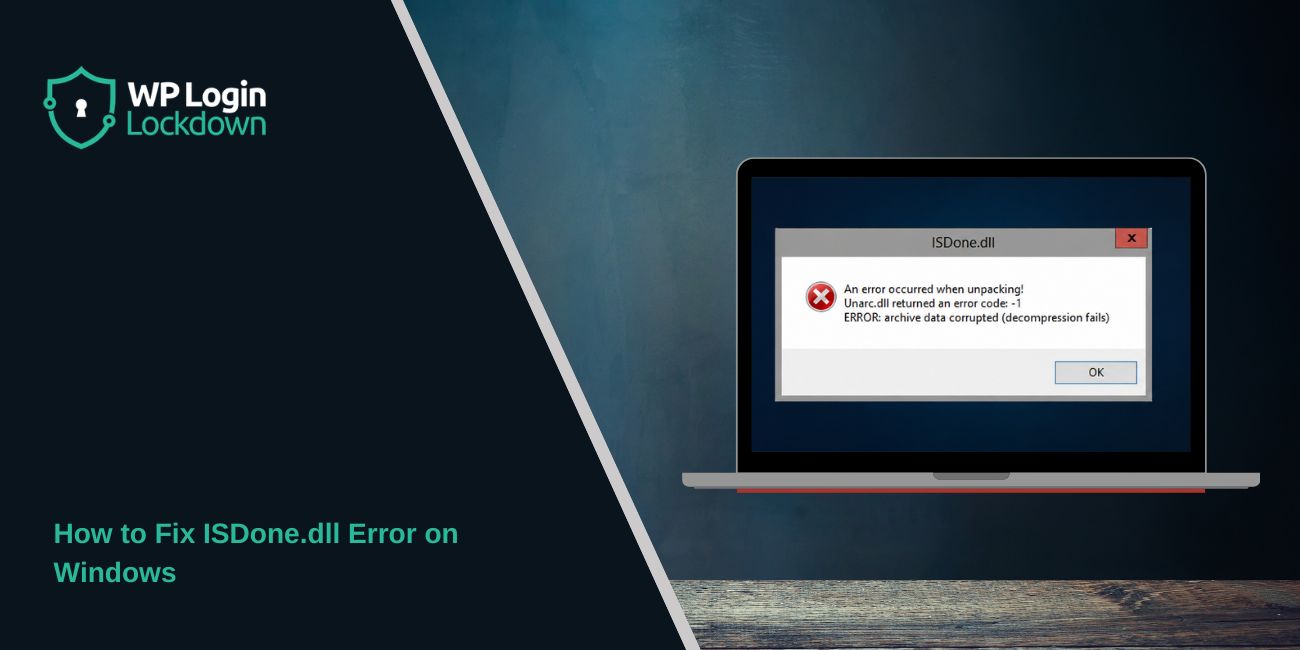
ISDone.dll error usually appears when you are installing a PC game or a large program on Windows. The popup may say something like “An error occurred when unpacking”, “Unarc.dll returned an error code”, or “archive data corrupted – decompression fails.”
It looks like a DLL problem at first. Many people see ISDone.dll and quickly search for a DLL file to download. But that is not always the real fix. In most cases, the installer is failing while unpacking compressed files. That can happen because of damaged setup files, low disk space, low virtual memory, antivirus blocking files, or even a bad hard drive.
So don’t rush to download random ISDone.dll files from the internet. Start with the safe fixes first. Most of the time, the problem is inside the installer files or your Windows setup, not just one missing DLL.
Quick Answer: To fix ISDone.dll error, restart your PC, run the installer as administrator, check if the setup files are corrupted, free up disk space, increase virtual memory, and temporarily check antivirus blocking. Also avoid downloading random DLL files because the real issue is often unpacking, not the DLL file itself.
What Does ISDone.dll Error Mean?
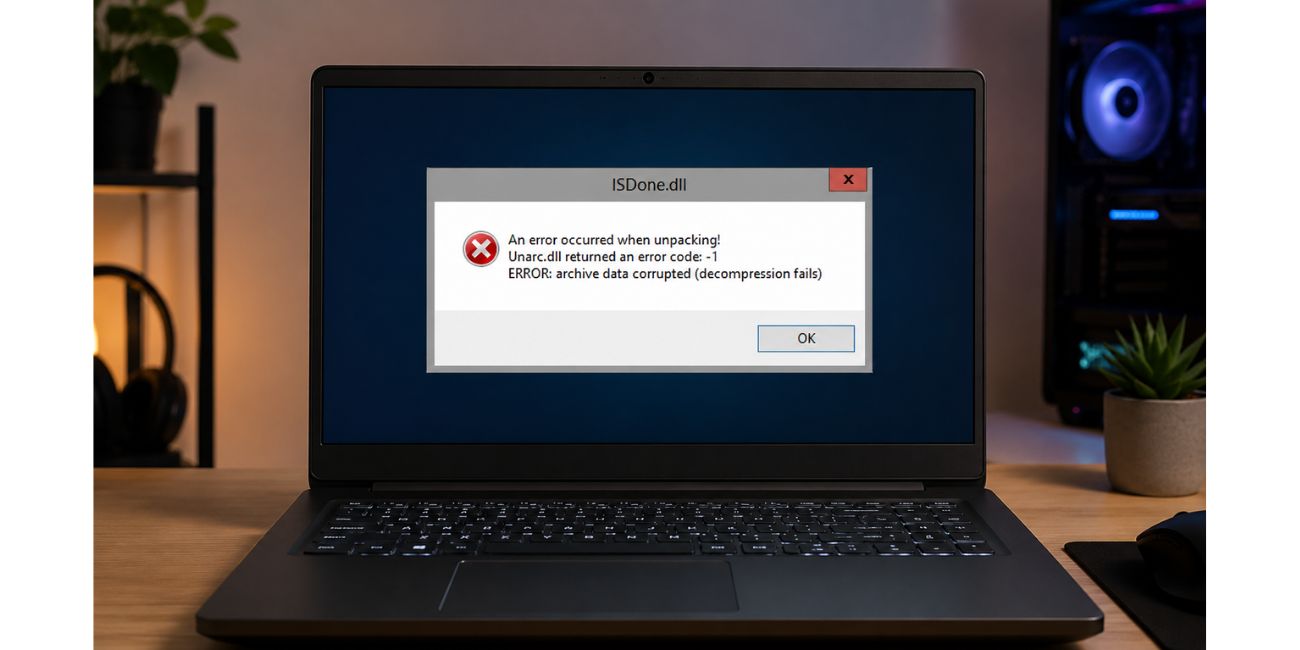 ISDone.dll error means Windows or the installer failed while unpacking compressed installation files. The error is often linked with Unarc.dll, because Unarc.dll handles the decompression part in many installers. So when you see “Unarc.dll returned an error code,” it usually means the setup could not extract or verify the archive data properly.
This does not always mean ISDone.dll is missing. It can also mean the downloaded setup is damaged, your PC does not have enough memory to unpack it, the antivirus blocked a file, or the installer cannot write files to the selected folder. That is why replacing the DLL file is not the first thing you should do.
Common Causes of ISDone.dll Error
ISDone.dll error can come from two sides. Sometimes the installer file is damaged. Sometimes your Windows system is stopping the installer from unpacking files correctly. In game setups, this is common because the files are often large and heavily compressed.
Common causes include:
- Corrupted or incomplete setup files
- Broken archive or ISO file
- Low free space on the C drive or target drive
- Low virtual memory or page file size
- Antivirus blocking setup files
- Windows Defender quarantine
- Long folder path or special characters in folder name
- Running setup without admin permission
- Damaged hard drive or SSD sectors
- Faulty RAM in rare cases
- Missing Microsoft Visual C++ or DirectX files
- Running setup directly from a compressed archive
The most important thing is to check the simple stuff first. Don’t jump into risky fixes.
How to Fix ISDone.dll Error
Follow the fixes in order. Start with restart, admin permission, folder path, and file integrity. Then move to virtual memory, antivirus, Windows repair, and hardware checks if the error keeps coming back.
Also, don’t keep running the same broken setup again and again without checking the files. If the archive is corrupted, no Windows tweak will fix that installer.
Fix #01. Restart Your PC and Run Setup Again
Start with a restart. It sounds basic, but large installers can fail when old setup processes, temporary files, or memory-heavy apps are still running in the background. A restart clears temporary memory and gives the installer a cleaner start.
Close the installer fully, restart your PC, then run the setup again. Before starting the installation, close browsers, game launchers, video editors, and other heavy apps. If the error was caused by a temporary memory or process issue, this may fix it without changing any deeper settings.
Fix #02. Run the Installer as Administrator
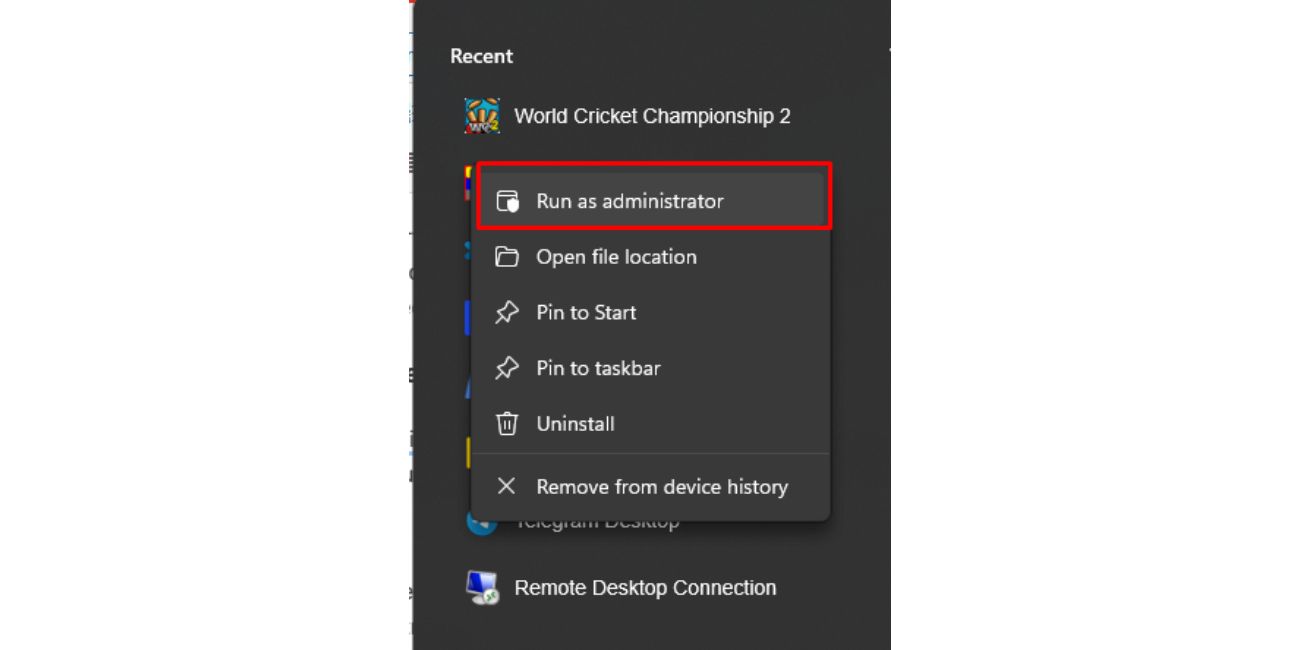 Some installers need permission to create folders, extract files, and write data into system or program folders. If Windows blocks those actions, the setup may fail and show ISDone.dll or Unarc.dll error.
Try this:
- Right-click the setup file.
- Choose Run as administrator.
- Click Yes if Windows asks for permission.
- Choose a simple install location.
- Start the installation again.
If you are using a standard Windows account, switch to an admin account if possible. This is more important when installing games into protected folders or when the installer needs to add runtime files.
Fix #03. Move the Setup Files to a Simple Folder Path
Some installers do not work well with very long folder paths, special characters, or non-English characters in the folder name. It sounds strange, but it can happen with older or heavily compressed installers. If the setup is inside a long Downloads folder path, moving it can help.
Create a simple folder like:
C:\Games\Setup
Then move all setup files into that folder. Make sure every part of the installer is moved together. If the setup has files like part1, part2, part3, or.bin files, keep them in the same folder. After moving, right-click the setup and run it as administrator.
Also avoid folder names with symbols, emojis, or very long text. Keep it boring and simple. Boring works here.
Fix #04. Check If the Setup Archive Is Corrupted
If your error says “archive data corrupted” or “decompression fails,” this is a big clue. It often means the downloaded installer or archive is damaged. Even one broken part can stop the whole installation.
If your installer came as a compressed file, test it before installing:
- Right-click the archive file.
- Open it with WinRAR or 7-Zip.
- Choose Test archive if the option is available.
- Wait for the test to finish.
- If errors appear, the archive is damaged.
If you are using an ISO file, try mounting it again. You can also copy the setup files from the ISO into a normal folder and run setup from there. If the error still appears during archive testing, then your installer file is likely broken and needs to be downloaded again.
Do not ignore archive test errors. If the archive itself is damaged, increasing RAM or changing Windows settings will not repair the setup.
Fix #05. Redownload the Installer or Missing Parts
Large installers can break during download. This can happen because of unstable internet, paused downloads, browser crashes, missing parts, or an interrupted file transfer. If the installer has many parts, one missing or damaged file can trigger ISDone.dll error.
Before downloading again, check these things:
- Make sure all setup parts are in one folder.
- Compare file sizes if the source shows them.
- Check that no.bin or data file is missing.
- Avoid renaming setup parts.
- Use a stable internet connection.
- Do not run setup while files are still downloading.
- If possible, download from the original or trusted source.
If the same installer fails on different PCs too, the installer itself may be bad. In that case, your Windows is probably not the problem.
Fix #06. Free Up Enough Disk Space
Game installers often need more space than the final installed game size. Why? Because the setup may need room for compressed files, extracted temporary files, and final installation files. If your drive is almost full, unpacking can fail halfway and show ISDone.dll error.
Check both drives. The C drive is important because Windows may use it for temporary files, even if you install the game on another drive. Also check the target drive where you are installing the game. If either one is too full, clear space first.
You can delete temporary files, empty Recycle Bin, uninstall unused programs, or move large videos and downloads to another drive. After freeing space, restart your PC and run the installer again.
Fix #07. Increase Virtual Memory or Page File
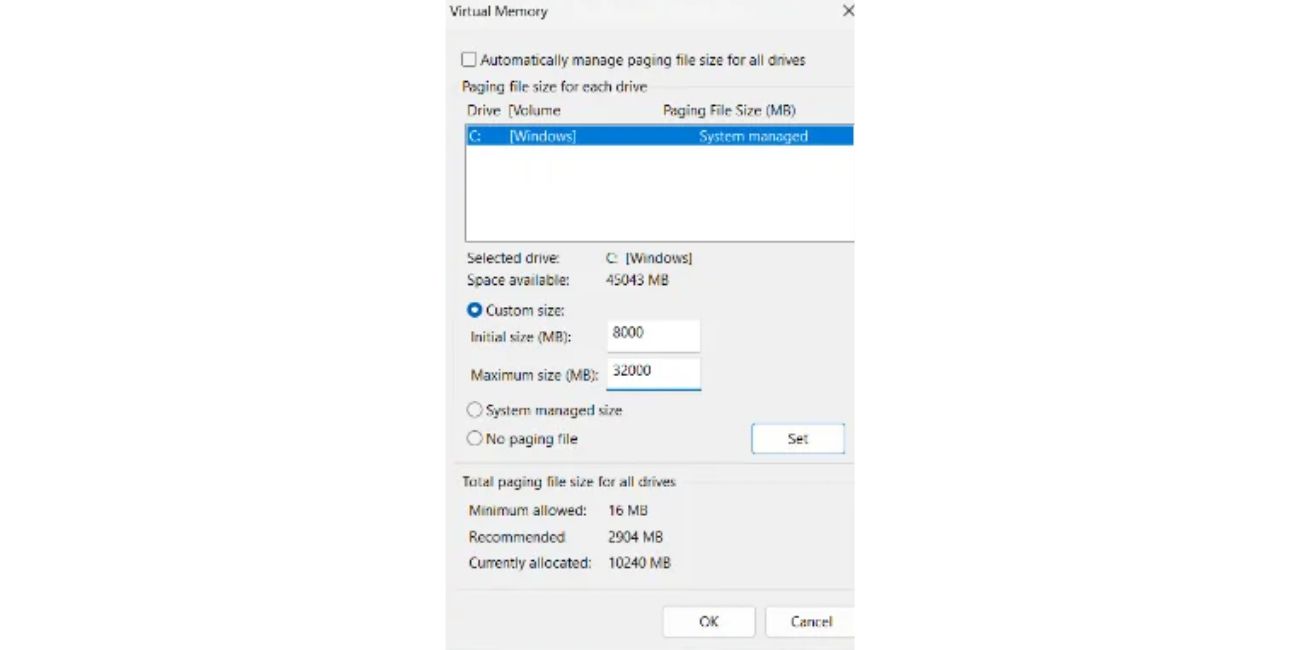 Virtual memory is extra memory Windows uses from your storage drive when RAM is not enough. Large compressed installers may need more memory while unpacking files. If your page file is too small or disabled, ISDone.dll error can appear during installation.
Try setting virtual memory to system managed size:
- Press Windows + R.
- Type sysdm.cpl and press Enter.
- Go to the Advanced tab.
- Under Performance, click Settings.
- Open the Advanced tab again.
- Under Virtual memory, click Change.
- Check Automatically manage paging file size for all drives.
- Click OK and restart your PC.
If automatic page file was disabled before, this fix can help a lot. Do not use random page file values from comments or forums unless you understand your RAM and storage setup. System managed size is safer for most users.
Fix #08. Temporarily Disable Antivirus or Add an Exclusion
Antivirus software can sometimes block installer files during unpacking. This happens more with compressed installers because antivirus tools may scan extracted files while the setup is still working. If the antivirus quarantines one file, the installer may fail and show ISDone.dll or Unarc.dll error.
Only try this if you trust the installer source. If the file came from an unknown or suspicious place, do not disable protection just to force it to run.
A safer option is to add the setup folder as an exclusion in Windows Defender or your antivirus. Then run the setup again. After installation, remove the exclusion if you do not need it anymore. You can also check the antivirus quarantine area to see if it blocked any setup file.
This is one of those fixes where you need common sense. Don’t run unknown files. Not worth it.
Fix #09. Install Microsoft Visual C++ Redistributable and DirectX
Some games and installers need common Windows runtime components. Missing Microsoft Visual C++ Redistributable, DirectX runtime, or.NET components can sometimes cause setup or launch errors. This may not be the main cause of every ISDone.dll error, but it is still worth checking.
Install the official Microsoft Visual C++ Redistributable packages and DirectX runtime from Microsoft. Avoid random “all DLL fix pack” downloads from unknown websites. After installing the runtimes, restart your PC and try the setup again.
This fix is more useful when the installer starts but fails at a certain stage, or when the game installs but does not launch later.
Fix #10. Run SFC and DISM System File Repair
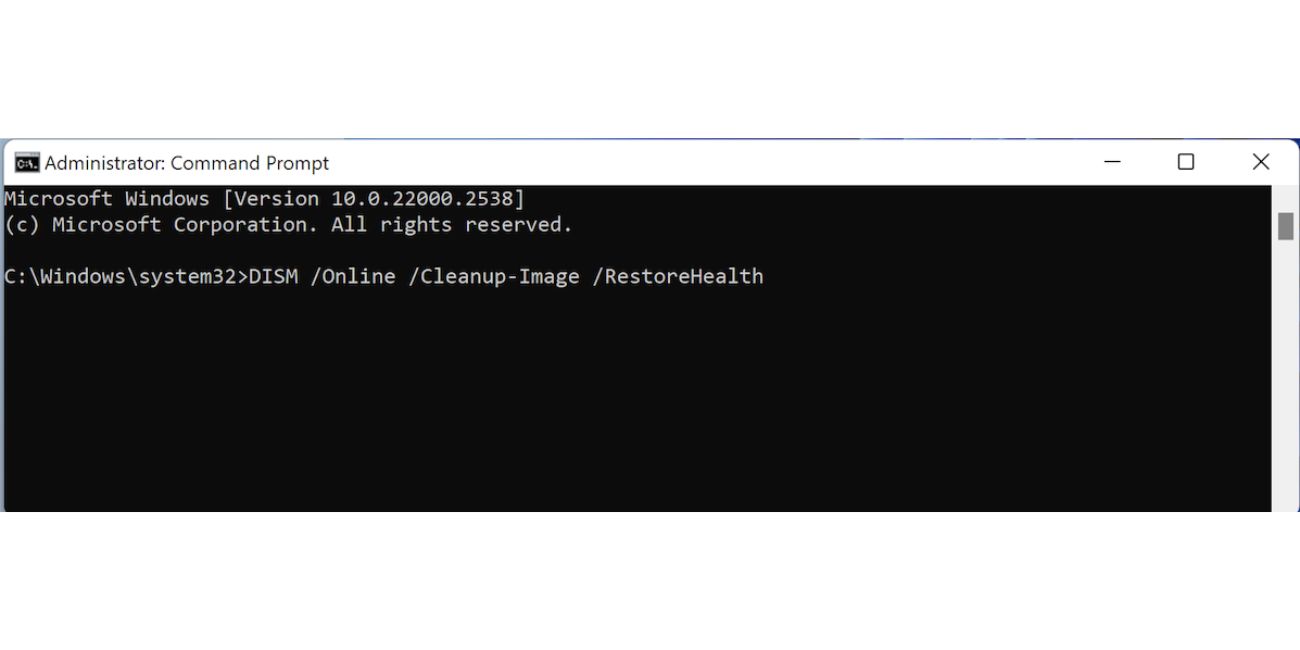 If Windows system files are damaged, some installers may fail during extraction or file writing. This is not the most common cause, but it is a good advanced check if many installers fail on your PC.
Open Command Prompt as administrator and run this command first:
sfc /scannow
Wait for it to finish. Then run this command:
DISM /Online /Cleanup-Image /RestoreHealth
DISM can take some time, so don’t close the window early. After both scans finish, restart your computer and try installing again. If Windows repairs damaged files, the setup may work normally after that.
Fix #11. Check Your Hard Drive or SSD for Errors
A damaged drive can corrupt files during extraction. If your hard drive has bad sectors or your SSD has file system errors, large installers may fail more often. This is more likely if many different installers fail, files become corrupted often, or Windows feels slow and unstable.
You can run a disk check from Command Prompt as administrator:
chkdsk C: /f
If you are installing on another drive, replace C with that drive letter. For example:
chkdsk D: /f
Windows may ask to schedule the scan after restart. Allow it, then restart your PC. If the scan finds serious disk issues, back up your important files. Don’t ignore drive problems because they can get worse over time.
Fix #12. Test Your RAM If the Error Keeps Returning
Faulty RAM can also cause decompression errors. This is not the first thing to blame, but if ISDone.dll error appears with many different installers, and you also get random crashes or blue screens, memory testing makes sense.
Use Windows Memory Diagnostic for a basic check. Search for it in the Start menu, open it, and choose the restart option to test memory. Your PC will reboot and check for memory problems.
If the test shows errors, your RAM may need reseating or replacing. If you are not comfortable opening the PC, ask someone technical to help. For laptops, it is better to be careful.
Fix #13. Avoid Downloading Random ISDone.dll Files
Many websites will tell you to download ISDone.dll and paste it into a Windows folder. Be careful with that advice. The error message shows ISDone.dll, but the real issue is often the installer, archive, memory, antivirus, or storage.
Downloading DLL files from random websites can create more problems. The file may be unsafe, outdated, wrong for your system, or not compatible with your installer. It can also hide malware. So before replacing DLL files, try the safer fixes in this guide.
If a DLL is really missing because of a damaged program installation, reinstalling the program or repairing Windows is usually safer than downloading one random DLL file.
Prevention: How to Avoid ISDone.dll Error Later
You can reduce ISDone.dll errors by keeping your setup files clean and your system ready before installing large games or programs. Most problems happen because the installer is damaged, the drive is too full, or Windows blocks files during unpacking.
Follow these simple tips:
- Download installers from trusted sources.
- Do not interrupt large downloads.
- Keep enough free space on C drive and install drive.
- Use simple folder paths like C:\Games\Setup.
- Test large archives before running setup.
- Keep Windows Defender quarantine in mind.
- Keep Visual C++ and DirectX runtimes updated.
- Use system managed virtual memory.
- Avoid running setup directly from inside compressed files.
- Restart your PC before installing very large games.
These steps are not hard. They just make the installation cleaner and less likely to fail.
Final Thoughts
ISDone.dll error usually means the installer failed while unpacking compressed files. It can be caused by corrupted setup files, low disk space, low virtual memory, antivirus blocking, bad folder paths, or storage and RAM problems. So the smart way is to check the installer first, then move to Windows settings.
Don’t start by downloading random ISDone.dll files. That can be risky and often does not fix the real cause. Start with safer steps like running setup as administrator, testing the archive, freeing space, increasing virtual memory, and checking antivirus quarantine.
Which message do you see with your ISDone.dll error – error code -1, -11, -12, -14, or “archive data corrupted”? Share the exact code in the comments because it can help find the right fix faster.
