 logo
logo
If your iPhone screen is completely white, try a force restart first, then use Recovery Mode only if the phone still will not boot normally. A white screen can come from a frozen iOS process, a failed update, low-level software corruption, screen damage, or a loose display connection. The trick is knowing when a two-minute reset is enough and when you are about to erase data, waste an hour, or pay for parts you may not need.
TLDR: Start with a force restart because it does not erase data and often fixes an iPhone stuck on a white screen after a crash or update. If that fails, try Recovery Mode with a computer, but choose Update before Restore to protect your data. For example, if an iPhone 13 turns white after installing iOS and stays that way for 15 minutes, a force restart may fix it in under 60 seconds; if not, Recovery Mode is the next step. If the white screen appears after a drop, repair is more likely than software recovery.
What the white screen usually means
An iPhone white screen looks simple, but the cause can be annoying. The display lights up, yet it shows no icons, no Apple logo, no lock screen, and no response. Sometimes the phone still rings. Sometimes Siri works. Sometimes it is dead silent, which makes the whole thing feel worse.
The most common causes include:
- iOS freeze: The system is running, but the interface has crashed.
- Failed update: The phone gets stuck after an iOS install or interrupted download.
- App conflict: A buggy app triggers a system hang, though this is less common now.
- Low storage: iPhones with nearly full storage can behave badly during updates.
- Display fault: The screen, flex cable, or connector may be damaged.
- Logic board issue: Less common, but possible after liquid damage or impact.
Force restart: the first move
A force restart cuts power to the current software session and forces the iPhone to boot again. It sounds basic, but it is the safest first fix because it does not delete photos, apps, messages, or settings.
Use this when the white screen appears suddenly, especially if the phone was working moments ago. It is also the right first step if the device got stuck during app use, charging, or a minor iOS glitch.
How to force restart newer iPhones
For iPhone 8 and later, including iPhone SE 2nd generation and newer:
- Press and quickly release Volume Up.
- Press and quickly release Volume Down.
- Press and hold the Side button.
- Keep holding until the Apple logo appears.
Do not stop when the screen goes black. Keep holding until you see the Apple logo. That part matters.
For iPhone 7 and 7 Plus
- Press and hold Volume Down and the Side button together.
- Release both buttons when the Apple logo appears.
For iPhone 6s, iPhone SE 1st generation, and older
- Press and hold the Home button and Power button together.
- Release when the Apple logo appears.
Give the phone a few minutes after the restart. If it boots normally, check storage right away. Go to Settings > General > iPhone Storage. If you have less than 5 GB free, remove large videos, old downloads, or unused apps. A nearly full iPhone is more likely to freeze again.
When force restart is not enough
If the white screen returns, or the Apple logo appears and disappears in a loop, the issue may be deeper. Honestly, it feels like the phone is teasing you at this point: one logo, one black screen, then back to white. That usually points to iOS corruption or a failed update.
This is when Recovery Mode makes sense. It lets a Mac or PC reinstall iOS. The safer option is Update, because it tries to keep your data. The risky option is Restore, because it erases the device.

Recovery Mode: stronger, but riskier
Recovery Mode is useful when the iPhone cannot boot on its own. You need a computer, a USB cable, and either Finder or Apple Devices/iTunes, depending on your system.
- On macOS Catalina or later, use Finder.
- On Windows, use the Apple Devices app or iTunes.
- On older macOS versions, use iTunes.
How to enter Recovery Mode
- Connect the iPhone to your computer with a cable.
- Open Finder, Apple Devices, or iTunes.
- Use the same button sequence as a force restart.
- Keep holding the final button after the Apple logo appears.
- Release when you see the recovery screen, usually a cable and computer icon.
Your computer should offer two choices: Update or Restore. Pick Update first. This downloads and reinstalls iOS without trying to erase your data. Expect to waste time on the download if your connection is slow; a 7 GB iOS file can take 20 to 45 minutes on an average home network.
If the download takes more than 15 minutes, the iPhone may exit Recovery Mode. That is normal, but irritating. Let the download finish, then put the iPhone into Recovery Mode again and repeat the update step.
Force restart vs Recovery Mode: which should you choose?
| Situation | Best first choice | Why |
|---|---|---|
| White screen appeared during normal use | Force restart | Fast, safe, no data loss |
| White screen after iOS update | Force restart, then Recovery Mode | The update may have stalled |
| Apple logo loop | Recovery Mode | iOS may need reinstalling |
| White screen after a drop | Repair check | Hardware damage is likely |
| Phone rings but screen stays white | Repair check | The display may be failing |
What about third-party iOS repair tools?
Some desktop programs claim to fix white screen issues without data loss. A few can reinstall firmware in a cleaner way than standard Recovery Mode. Still, be careful. Use well-known tools, read current reviews, and avoid anything that asks for your Apple ID password inside the app.
These tools may help when Recovery Mode fails but the iPhone is still detected by the computer. They are not magic. If a screen connector is loose, no software tool will fix it. If the NAND storage chip is failing, software may only work for a short time.
When repair is the smarter option
Choose repair sooner if the white screen started after physical damage. A drop can loosen the display cable or crack the OLED/LCD panel internally, even if the glass looks fine. Liquid exposure is even worse because corrosion can spread over time.
Signs of a hardware problem include:
- The iPhone vibrates, rings, or receives calls while the screen stays white.
- The screen changes brightness but never shows an image.
- There are faint lines, flashing, or a white glow around the edges.
- The problem started right after a drop or pressure in a bag or pocket.
- The phone gets hot while stuck on the white screen.
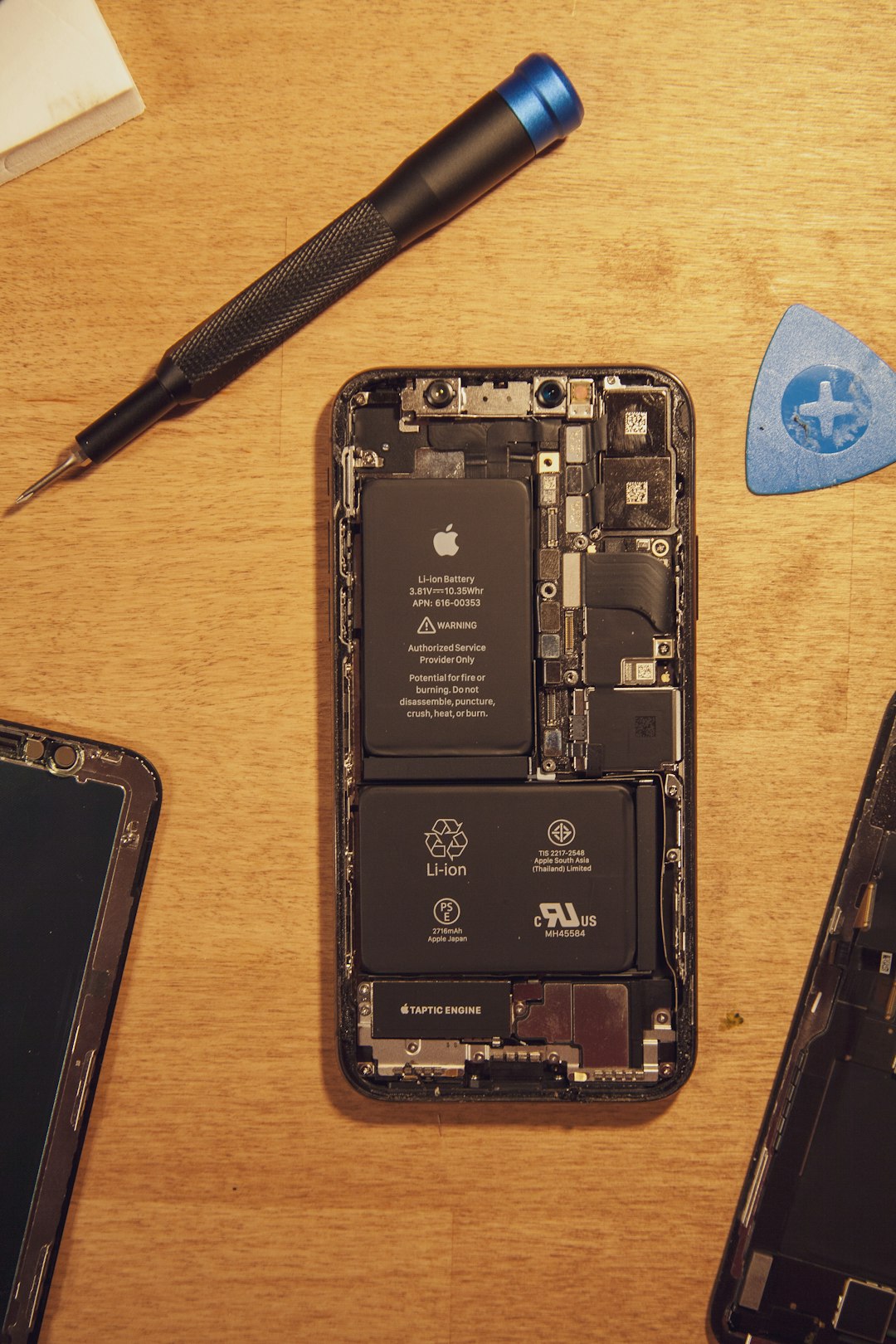
Apple or an authorized repair provider can run diagnostics. Independent repair shops can often test the screen by connecting a known-good display. That test is useful because it separates a bad screen from a board-level issue. Ask for that before approving a full repair.
Protect your data before trying anything risky
If the iPhone becomes usable again, back it up immediately. Use iCloud Backup or connect it to a computer and make an encrypted backup. An encrypted backup saves more data, including Wi-Fi passwords and Health data.
If Recovery Mode offers only Restore, stop and think. Restore wipes the iPhone. If you have no backup, you may lose photos, chats, notes, and app data. In that case, a repair shop that handles data recovery may be a better call before erasing anything.
Final recommendation
Use this order: force restart, then Recovery Mode Update, then professional diagnosis. Save Restore for last unless you already have a backup. A white iPhone screen can be a tiny software hiccup or a real hardware failure. The fastest fix is not always the most aggressive one, and that one simple choice can save your data.
