 logo
logo
You download a file and then it seems to vanish. This happens to a lot of people. The file is usually there, just saved in a place you did not expect. Each device and each app handles downloads a little differently, which causes most of the confusion.
This guide explains where downloads go on common devices and how to find them fast. The steps are simple and focus on what people actually use every day.
What Is the Downloads Folder?
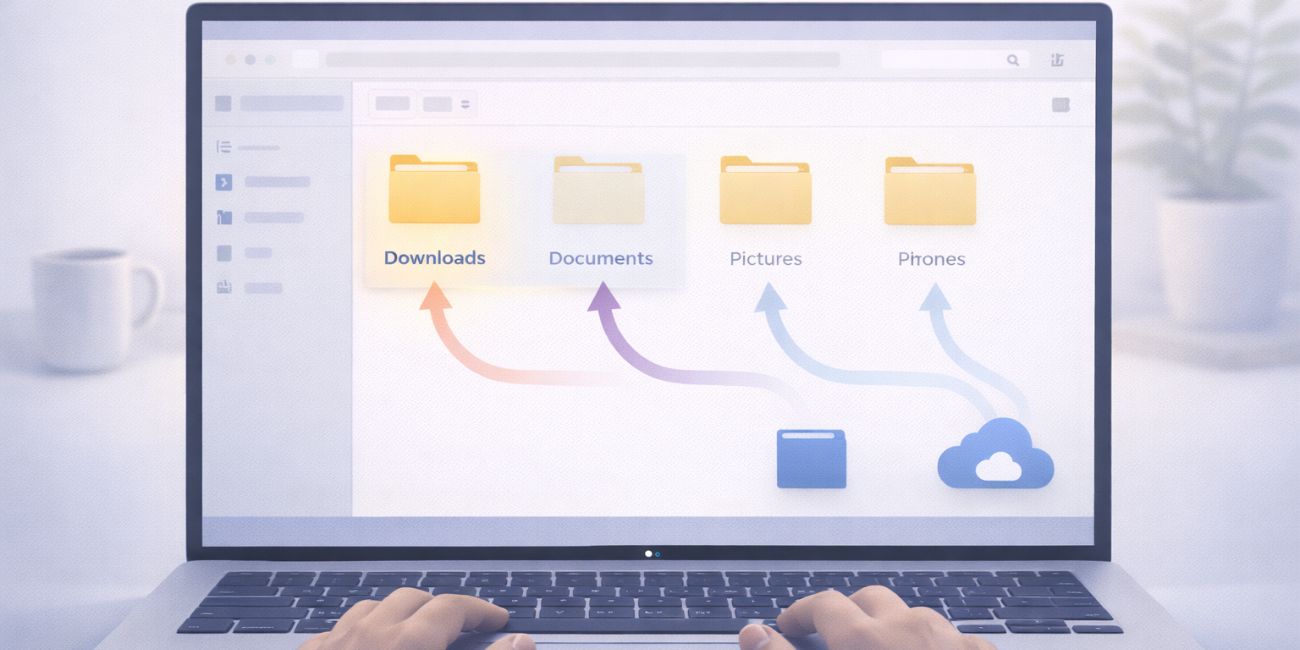 A downloads folder is the default place where your device saves files from the internet. Browsers and many apps use this folder, so files do not mix with system files or personal documents.
Most systems create this folder automatically. You usually do not need to set it up. The folder stays the same unless you change settings or an app chooses a different location.
Why Downloads Go to Different Places
Downloads do not always land in one folder. The location depends on how and where the file was downloaded.
Common reasons include:
- The browser has a custom download location
- An app saves files inside its own folder
- Cloud storage is enabled
- Storage permission settings limit access
- The file type controls where it is saved
Knowing which app you used helps narrow the search.
Where Are Downloads on Windows?
On Windows, downloads usually go to the Downloads folder inside your user account. This is the default location for most browsers and apps.
To find it, open File Explorer and click Downloads in the left sidebar. You can also press Windows + E and look for the Downloads folder.
Browsers like Google Chrome may show recent downloads at the bottom of the window. Clicking a file there often opens its exact location.
Where Are Downloads on Mac?
On macOS, downloads usually go to the Downloads folder linked to your account. You can open it using Finder or by clicking Downloads in the Dock.
Most browsers, including Safari, save files there by default. If you changed browser settings, files may go to another folder you selected earlier.
You can sort the folder by date to find the most recent file quickly.
Where Are Downloads on Android?
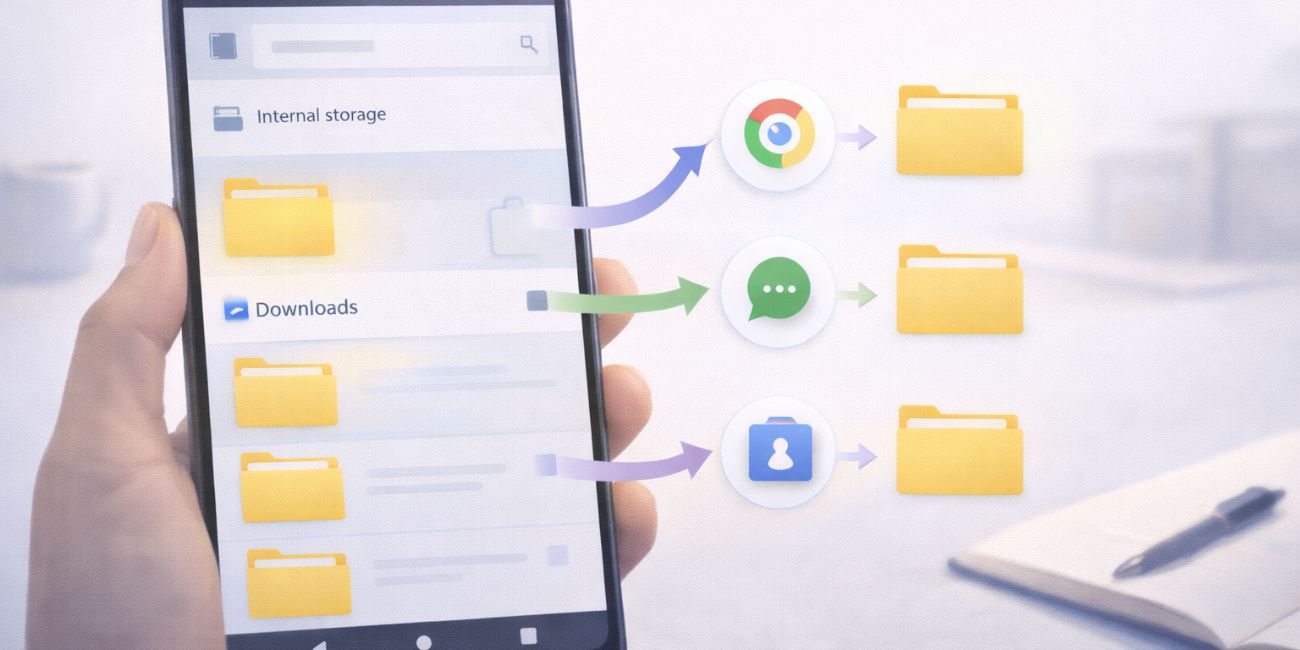 On Android, downloads usually go to internal storage. The most common place is a folder called Download.
To find it:
- Open the Files app on your phone
- Tap Internal storage
- Open the Download folder
Some apps save files inside their own folders instead. Messaging apps, browsers, and social apps often do this. Checking the app that downloaded the file helps locate it faster.
Where Are Downloads on iPhone and iPad?
On iOS, downloads are handled through the Files app. Files do not appear freely like on a computer.
Open the Files app and check:
- On My iPhone or On My iPad
- Downloads folder
- iCloud Drive if cloud saving is enabled
Downloads from Safari usually appear here. App downloads may stay inside the app until you export or save them manually.
Why You Can’t Find a Downloaded File
Sometimes the file is saved, but you are looking in the wrong place.
Common causes include:
- Using a different app than expected
- File saved to cloud storage
- Storage permission blocked
- Download failed or was canceled
- File type opened directly instead of saved
Checking the app’s download history often solves this.
How to Find Downloads Faster
If searching folders feels slow, try these shortcuts.
Helpful tips:
- Use the search bar and type part of the file name
- Sort folders by date
- Check browser download history
- Look inside the app used to download the file
- Check cloud storage folders
Files are rarely gone. They are just hidden in plain sight.
Final Thoughts
Downloads usually go to a default folder, but apps and settings can change that behavior. Knowing your device and the app you used makes finding files much easier. Once you know where to look, downloads stop feeling lost.
If this guide helped you find a missing file, share it with someone else who is stuck. You can also leave a comment about which device gave you the most trouble.
