 logo
logo

WebP has become one of the most common image formats on the modern web, especially because it offers strong compression and good visual quality in relatively small file sizes. If you use ChatGPT for visual analysis, image descriptions, troubleshooting, or content creation, you may naturally wonder: can ChatGPT read WebP image files? The short answer is usually yes, but there are a few important details worth understanding before you upload one.
TLDR: ChatGPT can often analyze WebP images when you use a version of ChatGPT that supports image input. However, support can depend on the app, platform, browser, and specific model you are using. Static WebP images are generally easier to process than animated WebP files. If a WebP image does not upload or display correctly, converting it to PNG or JPEG is usually the simplest fix.
What Is a WebP Image?
WebP is an image format developed by Google to make images smaller without sacrificing too much quality. It was designed as an alternative to older formats like JPEG, PNG, and GIF. You have probably encountered WebP files while saving images from websites, even if you did not realize it at first.
WebP can support several useful features, including:
- Lossy compression, similar to JPEG, for small file sizes.
- Lossless compression, similar to PNG, for preserving detail.
- Transparency, which is useful for logos, icons, and graphics.
- Animation, making it a possible replacement for GIFs.
- Metadata, depending on how the file was created and saved.
Because WebP files are compact, websites often use them to load pages faster. That is great for performance, but it can occasionally create compatibility questions when using editing software, older browsers, or AI tools.
Can ChatGPT Read WebP Files?
In many cases, yes, ChatGPT can read WebP image files, provided you are using a ChatGPT version that accepts image uploads. When image input is available, you can upload a picture and ask ChatGPT to describe it, extract visible text, identify objects, analyze layout, explain a chart, or help troubleshoot a visual issue.
However, the key phrase is when image input is available. ChatGPT is not just one single experience everywhere. It may be accessed through different apps, web browsers, subscriptions, enterprise environments, or API configurations. Some versions support image uploads, while others may only accept text. If your interface has an upload, attachment, or image button, then it is more likely that WebP images can be submitted.
If a WebP file uploads successfully and displays as an image in the chat, ChatGPT can usually analyze its visible contents. For example, you might ask:
- “What is shown in this image?”
- “Can you read the text in this screenshot?”
- “Describe this product photo for an online listing.”
- “What could be improved in this website design?”
- “Turn this infographic into a short summary.”
That said, ChatGPT’s ability to “read” an image means it analyzes the visual content. It does not necessarily inspect every technical property of the file unless tools or file-reading capabilities are available in your specific environment.
Static WebP vs Animated WebP
One important distinction is whether your WebP file is static or animated. A static WebP is simply a single still image. This is the most common type and is generally the easiest for AI image models to process.
An animated WebP is more like a GIF: it contains multiple frames that play in sequence. ChatGPT may not always interpret the full animation. Depending on the platform, it might process only the first frame, a preview frame, or a limited representation of the file. If you need analysis of an animated WebP, it is often better to extract key frames and upload them as separate images.
For example, if you have an animated WebP showing a software bug, a user interaction, or a design transition, ChatGPT may miss the main issue if it only sees one frame. In that case, you can convert the animation into several PNG screenshots and label them in order: “frame 1,” “frame 2,” and “frame 3.” This gives the model clearer visual context.
What ChatGPT Can Do With a WebP Image
When a WebP image is accepted, ChatGPT can help with many practical tasks. Its usefulness depends on image clarity, resolution, and the type of question you ask. A sharp screenshot with readable text will usually produce better results than a blurry, low-resolution image.
Common uses include:
- Image description: ChatGPT can describe the people, objects, colors, setting, and general composition of an image.
- Text recognition: It can often read visible text in screenshots, posters, labels, menus, and diagrams, although it may make mistakes with small or distorted text.
- Design feedback: It can comment on layout, spacing, contrast, branding consistency, and visual hierarchy.
- Data interpretation: It can explain charts, graphs, tables, and infographics if the visual information is legible.
- Accessibility support: It can generate alt text, captions, and image summaries for web content.
- Troubleshooting: It can look at error screenshots, interface problems, or visual glitches and suggest possible causes.
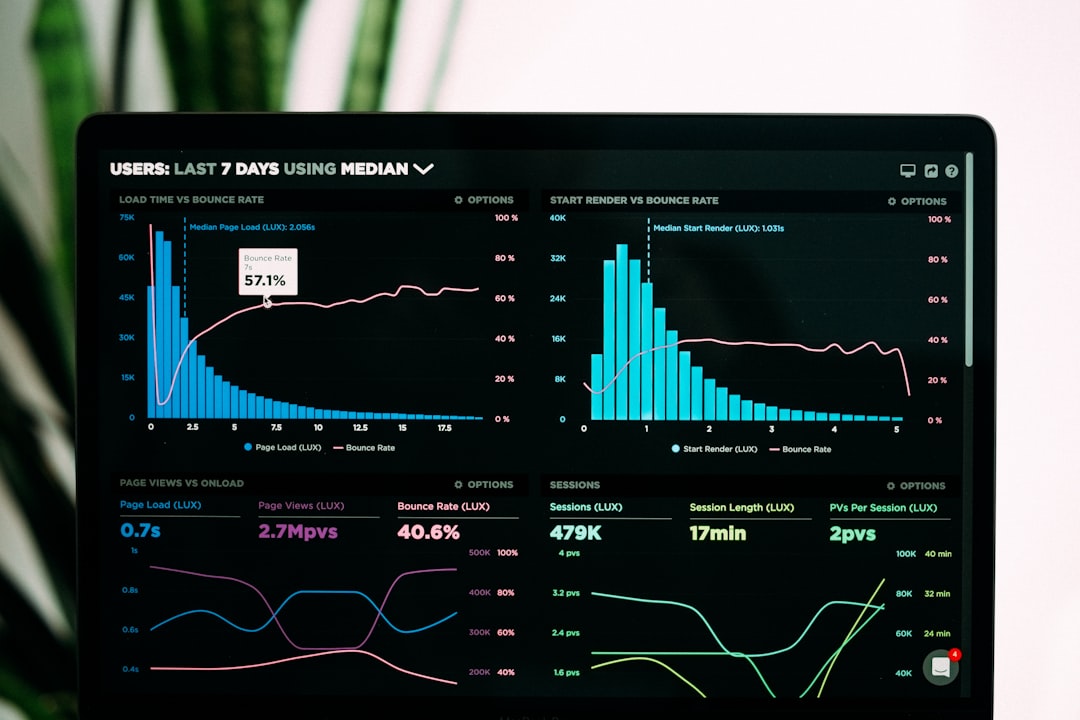
For best results, be specific. Instead of asking, “What is this?” try asking, “Please describe the image and identify any visible text,” or “Can you explain the chart and summarize the main trend?” Clear instructions help ChatGPT focus on the details that matter most to you.
What ChatGPT May Not Be Able to Do
While ChatGPT can be very helpful with images, it is important to understand its limits. It does not “see” images in exactly the same way a human does, and it may sometimes misread fine details. It can also infer things that seem likely but are not guaranteed.
Possible limitations include:
- Small text may be misread: Tiny, blurry, stylized, or low-contrast text can be difficult to interpret accurately.
- Hidden file data may not be accessible: EXIF metadata, color profiles, layers, and technical encoding details may not be analyzed unless your setup specifically supports file inspection.
- Animated WebP may be incomplete: The model may not evaluate all frames of an animated image.
- Visual ambiguity can cause errors: Similar objects, unusual angles, or heavily edited images may lead to incorrect descriptions.
- Platform restrictions may apply: Some environments may block certain file types or impose upload size limits.
In other words, ChatGPT is useful for visual understanding, but it is not always a replacement for dedicated forensic, image editing, or file inspection tools.
Why a WebP File Might Not Upload
If ChatGPT does not accept your WebP file, the problem may not be the format itself. A few common issues can prevent a successful upload.
First, the file may be too large. Although WebP is normally compact, high-resolution or animated WebP files can still exceed upload limits. Second, the file may be corrupted or saved with an unusual encoding. Third, your browser or app may not handle that specific file correctly. Fourth, the platform you are using may allow common formats like PNG and JPEG while rejecting WebP.
A quick test is to open the WebP file in your browser or image viewer. If it does not open there, the file itself may be damaged. If it opens normally but ChatGPT will not accept it, then converting it is usually the fastest solution.
How to Convert WebP to PNG or JPEG
If you run into compatibility problems, convert the WebP image to another format. PNG is best when you need sharp text, transparency, screenshots, or graphics. JPEG is best for photos where a smaller file size matters and transparency is not needed.
Common conversion options include:
- Use your operating system: Many modern image preview apps let you open a WebP file and export it as PNG or JPEG.
- Use a browser: You can sometimes open the image in a browser, take a screenshot, and save it as PNG.
- Use image editing software: Programs such as general photo editors often support opening and exporting WebP files.
- Use command line tools: Advanced users can convert images in batches with utilities such as ImageMagick.

When converting screenshots or images with text, PNG is usually the safer choice because it preserves crisp edges better. JPEG compression can introduce artifacts, especially around letters and interface elements.
Best Practices for Uploading WebP Images to ChatGPT
To get better results from ChatGPT, treat image upload as a communication task. The more context you provide, the better the response is likely to be.
- Upload the clearest version available. Avoid heavily compressed copies if you need accurate text or detail recognition.
- Crop unnecessary areas. If the important information is in one part of the image, crop around it before uploading.
- Ask a focused question. Tell ChatGPT whether you want a description, critique, transcription, summary, or diagnosis.
- Use multiple images when needed. For step-by-step processes or animations, upload separate frames or screenshots.
- Verify important details. If the image contains legal, medical, financial, or technical information, double-check the output.
For example, instead of uploading a full-page screenshot and asking “What do you think?”, you could say: “Please review the pricing table in this screenshot. Is the layout clear, and can you identify any confusing wording?” That type of prompt gives ChatGPT a specific target.
Can ChatGPT Read Text Inside WebP Images?
ChatGPT can often read text inside WebP images, especially if the text is large, clear, and high contrast. This can be useful for screenshots, signs, labels, memes, documents, slides, and UI mockups. However, it should not be treated as perfect optical character recognition.
If accuracy matters, ask ChatGPT to transcribe the text and then review the transcription yourself. You can also ask it to mark uncertain words. For example: “Transcribe all visible text. If any words are unclear, label them as uncertain.” This encourages a more careful response.
For dense documents, a text-based source file is usually better than an image. A WebP screenshot of a long article, contract, or spreadsheet may be difficult to read completely, particularly if the resolution is low.
Privacy and Safety Considerations
Before uploading any image, consider what it contains. WebP files can show personal data, faces, addresses, account details, private messages, passwords, business information, or confidential documents. If you do not need ChatGPT to analyze sensitive details, blur or crop them out first.
This is especially important for screenshots. People often forget that browser tabs, bookmarks, usernames, email addresses, notifications, and background windows may be visible. A quick review before uploading can prevent accidental sharing of information you did not intend to include.
The Bottom Line
ChatGPT can often read WebP image files when image upload is supported, particularly if the file is a normal static WebP. It can describe images, read visible text, interpret diagrams, critique designs, and help with visual troubleshooting. However, support may vary depending on the version of ChatGPT, the platform, file size, and whether the WebP is static or animated.
If your WebP file does not work, do not overthink it: convert it to PNG or JPEG and try again. PNG is usually best for screenshots, text, and graphics, while JPEG is fine for standard photos. With a clear image and a specific prompt, ChatGPT can be a powerful assistant for understanding and working with WebP images.
