 logo
logo
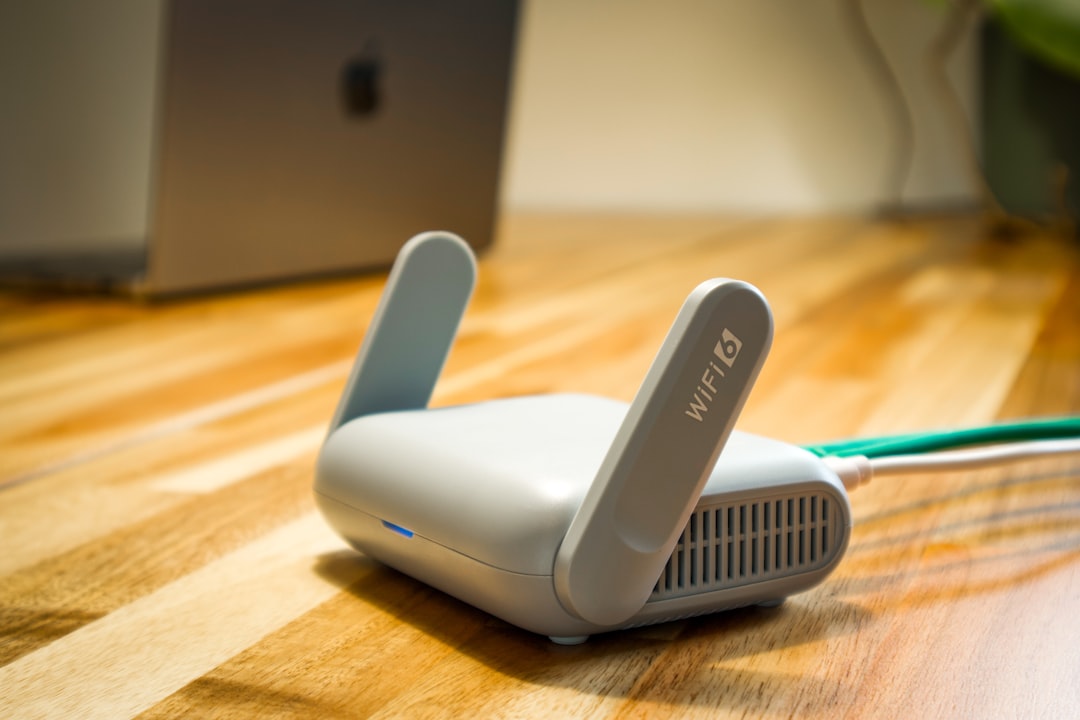
Connecting a printer to WiFi is usually a simple process, but the exact steps depend on the printer brand, router settings, and whether the device has a touchscreen, buttons, or only basic status lights. Most modern HP, Canon, Epson, and Brother printers support wireless setup through a mobile app, a control panel wizard, WPS, or a temporary USB connection. With the right method, a printer can be connected to a home or office network in just a few minutes.
TLDR: Most wireless printers can be connected to WiFi through the manufacturer’s mobile app, the printer’s control panel, or the router’s WPS button. HP uses the HP Smart app, Canon uses Canon PRINT, Epson uses Epson Smart Panel or WiFi Setup Wizard, and Brother uses Brother Mobile Connect or the printer menu. The printer should be near the router during setup, connected to the correct 2.4 GHz or 5 GHz network, and updated with the latest software. If the connection fails, restarting the router, printer, and setup device often resolves the issue.
Before Starting the Wireless Printer Setup
Before any WiFi setup begins, the printer should be powered on, loaded with paper, and placed close to the wireless router. A strong signal helps prevent setup errors, especially during the first connection. The person setting up the printer should also know the WiFi network name and WiFi password. These details are usually printed on the router label or available through the router’s app.
Many printers connect more reliably to a 2.4 GHz network, especially older models. Newer printers may support both 2.4 GHz and 5 GHz bands, but compatibility varies. If a router uses one combined network name for both bands, most printers will automatically choose the compatible band. If setup repeatedly fails, separating the 2.4 GHz and 5 GHz network names in the router settings may help.
- Printer power cable: The printer should be plugged in and turned on.
- WiFi password: The exact password is required, including capital letters and symbols.
- Phone or computer: A setup device should be connected to the same WiFi network.
- Printer app or driver: The latest software should be installed from the official manufacturer source.
Common Ways to Connect a Printer to WiFi
Most printer brands use similar wireless connection methods. The easiest option is often the manufacturer’s mobile app, because it detects nearby printers, sends the WiFi password securely, and completes registration. Printers with a screen can usually connect through a built-in Wireless Setup Wizard. Some routers and printers also support WPS, which connects devices without typing a password.
1. Setup Through a Mobile App
Mobile app setup is recommended for most users because it guides the process step by step. The phone or tablet should already be connected to the target WiFi network. The app then searches for the printer, asks for the WiFi password if needed, and connects the printer to the same network.
2. Setup Through the Printer Control Panel
Printers with touchscreens or menu buttons often include a wireless setup menu. The user selects the WiFi network from a list, enters the password, and waits for the printer to confirm the connection. This method is useful when a computer or phone app is not available.
3. WPS Push Button Setup
WPS setup works when both the printer and router support it. The printer is placed in WPS mode, then the WPS button on the router is pressed within a short time. The two devices exchange credentials automatically. However, some newer routers disable WPS by default for security reasons.
4. Temporary USB Setup
Some printers can be connected to a computer with a USB cable during setup. The software transfers WiFi settings to the printer, then the cable is removed once the wireless connection is complete. This approach is common for older printers without touchscreens.
How to Connect an HP Printer to WiFi
For most HP printers, the easiest method is the HP Smart app. The printer should be powered on and placed near the router. If it is new or recently reset, it may enter setup mode automatically. HP printers in setup mode often show a blinking wireless light or a prompt on the touchscreen.
- Install and open the HP Smart app on a phone, tablet, or computer.
- Make sure the setup device is connected to the desired WiFi network.
- Select Add Printer or the plus icon.
- Choose the detected HP printer from the list.
- Follow the prompts to connect the printer to WiFi.
- Print a test page to confirm the connection.
If the printer is not found, the wireless setup mode may need to be restored. On many HP printers, pressing and holding the Wireless and Cancel buttons together resets network setup. On touchscreen models, this option is usually found under Network Settings or Restore Network Defaults. After the reset, HP Smart can search again.
How to Connect a Canon Printer to WiFi
Canon printers generally connect through the Canon PRINT app, a touchscreen setup menu, or WPS. The Canon PRINT app is especially useful for PIXMA and MAXIFY models. During setup, the app detects the printer and transfers the wireless network information.
- Install the Canon PRINT app on a mobile device.
- Turn on the printer and confirm that WiFi setup mode is active.
- Open the app and select Add Printer.
- Choose the Canon printer when it appears.
- Select the preferred WiFi network and enter the password if prompted.
- Wait for the confirmation message, then print a test page.
On Canon printers with a screen, the setup may be completed from the printer itself. The user opens LAN Settings, selects Wireless LAN Setup, chooses the router name, and enters the WiFi password. For models without a screen, the app or WPS method is usually easier.
How to Connect an Epson Printer to WiFi
Epson printers commonly use the Epson Smart Panel app or the built-in WiFi Setup Wizard. Many Epson EcoTank, Expression, and WorkForce models include wireless setup menus that make network selection straightforward. The printer should be close to the router and not already connected to a different network.
- Install Epson Smart Panel on a phone or tablet.
- Open the app and select the option to set up a new product.
- Allow the app to search for nearby Epson printers.
- Select the printer and follow the WiFi setup instructions.
- Enter the WiFi password when requested.
- Complete the setup and run a test print or nozzle check.
For touchscreen Epson models, the control panel method may be faster. The person setting up the printer can open WiFi Setup, choose WiFi Setup Wizard, select the network name, and type the password. If the printer displays a connection error, restarting the router and repeating the wizard often solves the problem.
How to Connect a Brother Printer to WiFi
Brother printers can be connected using the Brother Mobile Connect app, the printer’s control panel, WPS, or a computer-based setup program. Laser and inkjet Brother models often include a menu path such as Network, WLAN, and Setup Wizard.
- Turn on the Brother printer and wait until it is ready.
- Open the printer menu and go to Network.
- Select WLAN, then choose Setup Wizard.
- Pick the correct WiFi network from the list.
- Enter the WiFi password using the keypad or touchscreen.
- Confirm the settings and wait for the connection report.
If using the mobile app, Brother Mobile Connect can locate supported printers and guide the setup. After connection, the app may also manage scanning, firmware updates, ink or toner information, and cloud printing options. If the printer prints a failed wireless report, the password, signal strength, and router security mode should be checked.
Troubleshooting WiFi Printer Connection Problems
Wireless printer issues are often caused by incorrect passwords, weak signal strength, outdated software, or network conflicts. A printer may appear offline even when connected if the computer is on a different network, such as a guest WiFi network. The printer and the printing device should always be on the same local network unless cloud printing is being used.
- Restart all devices: Power off the printer, router, phone, and computer, then restart them.
- Check the password: WiFi passwords are case-sensitive and must be entered exactly.
- Move the printer closer: Weak signal strength can interrupt setup or cause offline errors.
- Disable VPN temporarily: A VPN may block local printer discovery.
- Update printer firmware: Firmware updates can fix wireless stability problems.
- Use the correct driver: Full-feature drivers are often better than generic operating system drivers.
- Avoid guest networks: Guest WiFi may isolate devices and prevent printing.

Adding the Wireless Printer to a Computer or Phone
After the printer connects to WiFi, each device that will print needs to add it. On Windows, the printer can usually be added through Settings, Bluetooth and devices, and Printers and scanners. On macOS, it can be added through System Settings, Printers and Scanners. Phones and tablets usually detect compatible printers automatically through AirPrint, Mopria, or the manufacturer’s app.
If a device cannot find the printer, both devices should be checked for the same WiFi network. The printer’s network status page can also display its IP address, connection status, and signal strength. Entering the IP address manually during setup can help when automatic discovery fails.
Security Tips for Wireless Printers
A WiFi printer is part of the local network, so basic security matters. The router should use WPA2 or WPA3 encryption rather than outdated WEP security. Default administrator passwords should be changed when the printer offers a web settings page. Firmware updates should also be installed periodically to protect against known vulnerabilities.
In an office environment, printer access may need to be limited to approved users. Features such as secure print release, user codes, and separate staff networks can reduce accidental or unauthorized printing. For home use, keeping the printer off a guest network and using a strong WiFi password is usually enough.
FAQ
Why will the printer not connect to WiFi?
The most common causes are an incorrect WiFi password, weak signal, unsupported router band, disabled WPS, or outdated printer software. Restarting the printer and router, then repeating setup close to the router, usually helps.
Does every wireless printer support 5 GHz WiFi?
No. Many printers only support 2.4 GHz WiFi. If the printer cannot see the network, the router may need a separate 2.4 GHz network name for setup.
Can a printer be connected to WiFi without a computer?
Yes. Most modern printers can be connected using a mobile app, touchscreen menu, or WPS button. A computer is only required for some older models or advanced driver installation.
What is WPS, and should it be used?
WPS is a router feature that connects devices without entering a WiFi password. It is convenient, but some routers disable it for security. App or control panel setup is often more reliable.
Why does the printer show offline after connecting to WiFi?
The printer may be on a different network, the router may have changed its IP address, or the computer may be using an old printer driver. Removing and re-adding the printer often fixes offline status.
Can multiple devices print to the same WiFi printer?
Yes. Once the printer is connected to the network, multiple computers, phones, and tablets can use it, as long as they are on the same network and have compatible print software.
Is a USB cable still needed after WiFi setup?
Usually no. A USB cable may be used temporarily for setup on some models, but it can normally be disconnected once the printer joins the wireless network.
