 logo
logo

When a phone displays “Emergency Calls Only”, it means the device cannot connect properly to its mobile carrier for normal calls, texts, or mobile data, but it can still attempt to reach emergency services through any available compatible network. This problem can appear suddenly, even on a phone that worked moments earlier. It may be caused by a loose SIM card, an unpaid or inactive plan, a carrier outage, weak signal, incorrect network settings, or even device software issues.
TLDR: The “Emergency Calls Only” message usually points to a SIM, carrier, signal, or network registration problem. A person should first restart the phone, reseat the SIM card, check signal coverage, and confirm that the mobile plan is active. If basic fixes fail, resetting network settings, updating software, or contacting the carrier is often the best next step.
What “Emergency Calls Only” Means
The message does not usually mean the phone is completely broken. Instead, it means the device cannot authenticate with its normal mobile network. In many regions, phones are designed to allow emergency calls even when a SIM card is missing, inactive, or unable to register normally. This is why emergency access may still be available while regular calling and texting are blocked.
On Android devices, the message may appear in the status bar, lock screen, or notification area. On iPhones, a similar issue may appear as “No Service,” “SOS,” or “SOS Only.” The wording varies by device, carrier, country, and software version, but the underlying issue is similar: the phone is not connected to its usual carrier network.
Common Causes of the Problem
Several different faults can make a phone show Emergency Calls Only. Understanding the likely cause helps narrow down the fix.
- SIM card problems: The SIM may be loose, damaged, dirty, expired, or not properly activated.
- Carrier account issues: The service plan may be suspended, unpaid, cancelled, or not provisioned correctly.
- Poor signal: The phone may be outside coverage, inside a building with thick walls, underground, or in a rural area.
- Network outage: The carrier may be experiencing temporary service disruption.
- Incorrect settings: Network mode, roaming, APN, or carrier selection settings may be misconfigured.
- Software bugs: A recent update, glitch, or corrupted setting may prevent proper network registration.
- Hardware damage: The SIM tray, antenna, modem, or internal board may be damaged, especially after a drop or water exposure.
Start with a Simple Restart
The quickest first step is a full restart. A restart forces the phone to disconnect from the tower, reload carrier settings, and attempt registration again. Many temporary network glitches disappear after the device reboots.
If a standard restart does not help, the user can turn on Airplane Mode for about 20 to 30 seconds, then turn it off again. This refreshes the cellular modem without fully rebooting the device. If the issue is caused by a weak handoff between towers or a temporary registration error, this may restore service.
Check the SIM Card
A physical SIM card can shift slightly inside the tray, particularly if the phone has been dropped or the tray was recently opened. The user should power off the phone, remove the SIM tray, inspect the SIM, and reinsert it carefully. The gold contacts should be clean, dry, and free of scratches or debris.
If there is visible dust or residue, the SIM card can be gently wiped with a clean, dry microfiber cloth. Liquid cleaners should be avoided. The SIM tray should also be checked for bending or damage. A tray that does not sit flush may prevent proper contact with the phone’s internal reader.
For phones using eSIM, there is no physical SIM to reseat. In that case, the user should check whether the eSIM profile is enabled in the cellular settings. If it appears missing, inactive, or corrupted, the carrier may need to reissue the eSIM activation code.
Test the SIM in Another Phone
One of the best ways to identify the source of the problem is to place the SIM card into another unlocked compatible phone. If the same Emergency Calls Only message appears on the second device, the issue is likely with the SIM card, phone number, carrier account, or network coverage. If the SIM works normally in another phone, the original device may have a setting, software, or hardware problem.
Similarly, placing a known working SIM into the affected phone can reveal whether the phone itself is at fault. If no SIM works in the phone, the device may need a network reset, software repair, or professional inspection.
Confirm the Carrier Plan Is Active
A phone may show emergency-only service when the mobile account has been suspended, expired, or incorrectly provisioned. This can happen after missed payments, plan changes, number transfers, SIM swaps, or prepaid balance expiration.
The user should check the carrier’s app, website, or support line to confirm that:
- The account is active and in good standing.
- The correct phone number is assigned to the SIM or eSIM.
- The plan includes voice, text, and data service.
- There are no fraud locks, unpaid balances, or porting delays.
- The device is allowed on the carrier network.
Some carriers also block devices reported as lost, stolen, unpaid, or incompatible. If the phone was purchased used, the carrier may need to verify whether it is blacklisted or locked to another network.
Move to a Better Signal Area
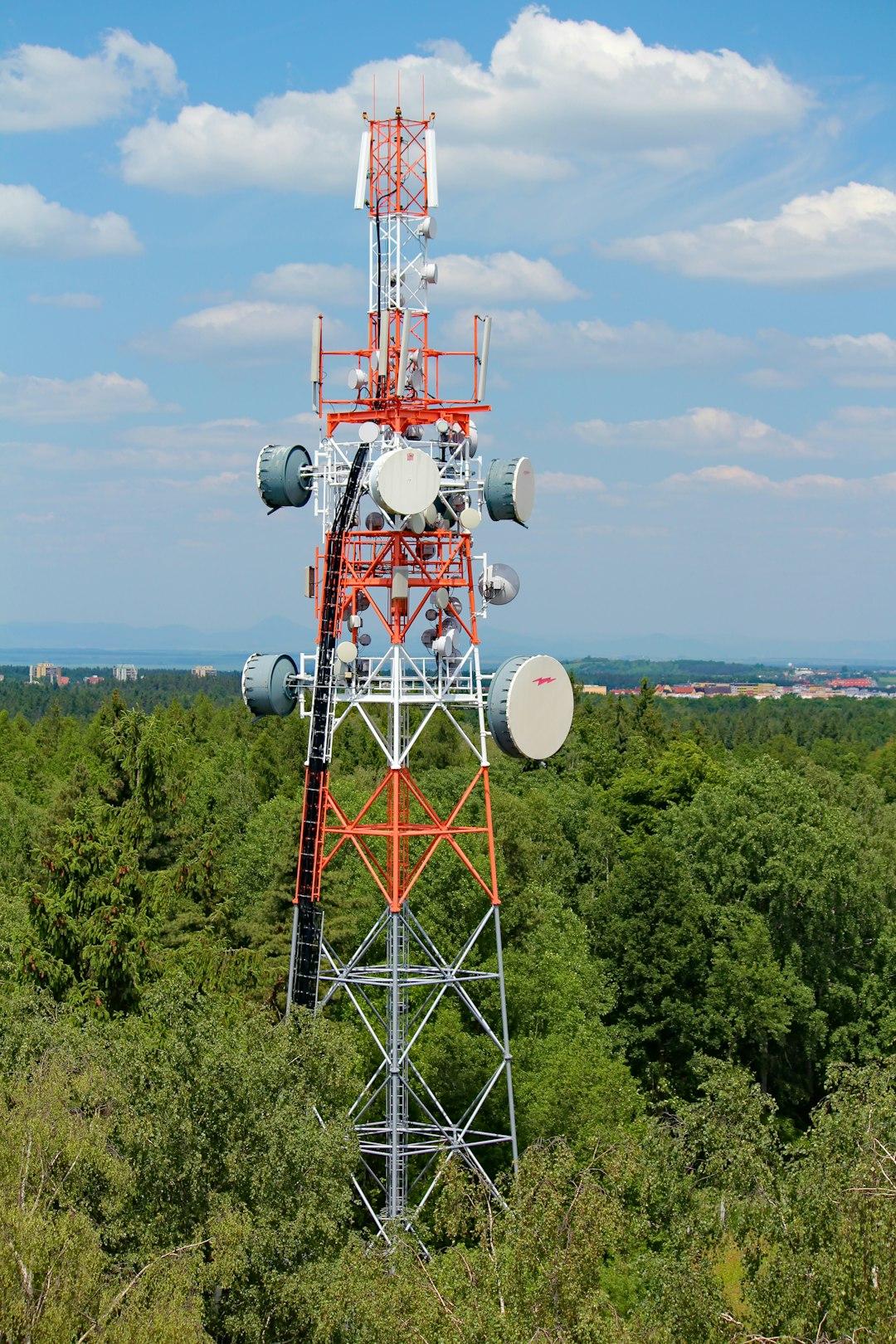
Signal strength matters. A phone may display Emergency Calls Only if it can detect a network but cannot connect strongly enough for regular service. This often happens in basements, elevators, parking garages, remote areas, dense buildings, or places surrounded by hills.
The user should move outdoors or near a window and wait a few minutes. If service returns, the issue is probably coverage-related rather than a SIM failure. In such cases, a signal booster, Wi-Fi calling, or a different carrier with stronger local coverage may be the long-term solution.
Weather, congestion, and maintenance can also affect reception. A major event with many people using the same tower may overload the network, while storms can damage infrastructure temporarily.
Check for Carrier Outages
If multiple people using the same carrier are having problems in the same area, there may be a network outage. The user can check the carrier’s outage map, social media updates, support page, or community reports. If an outage is confirmed, troubleshooting the phone is unlikely to help. The practical solution is to wait until the carrier restores service.
During an outage, Wi-Fi calling may still work if it was previously enabled and the phone can connect to a stable Wi-Fi network. Messaging apps that use the internet may also continue working over Wi-Fi.
Review Network Mode and Carrier Selection
Incorrect network settings can prevent the phone from joining the carrier network. On many devices, the network mode should be set to automatic or to the carrier’s recommended option, such as 5G Auto, LTE, or 4G/3G/2G Auto. If a phone is forced to use a network type that is unavailable in the area, it may fail to register.
Manual carrier selection can also cause problems. If the phone is locked to the wrong network or set to a carrier that is unavailable, it may show emergency-only service. Setting carrier selection back to Automatic usually allows the device to choose the correct network.
Reset Network Settings
If the problem continues, resetting network settings can clear corrupted cellular, Wi-Fi, Bluetooth, VPN, and APN configurations. This does not usually erase photos, apps, or personal files, but it does remove saved Wi-Fi passwords and paired Bluetooth devices.
On Android, the option is often found under Settings > System > Reset Options > Reset Wi-Fi, Mobile & Bluetooth, although the wording varies by brand. On iPhone, it is usually under Settings > General > Transfer or Reset iPhone > Reset > Reset Network Settings.
After the reset, the phone should restart and attempt to reconnect to the carrier. If the SIM and account are valid, service may return within a few minutes.
Update the Phone and Carrier Settings
Outdated software can cause compatibility problems with mobile networks, especially after carriers upgrade towers or retire older technologies. Installing the latest system update may include modem improvements, security patches, and carrier compatibility fixes.
Some phones also receive separate carrier settings updates. These updates adjust network configuration, calling features, roaming support, and data settings. If a prompt appears to update carrier settings, accepting it is usually recommended.
Check Roaming and Travel Issues
When traveling internationally or near a border, the phone may lose access to its home network and fail to roam properly. The user should confirm that roaming is enabled on the plan and in the phone settings. Without roaming service, the phone may see foreign networks but allow only emergency calls.
For dual SIM phones, the correct SIM should be selected for calls, texts, and data. If the active line is disabled or the wrong line is chosen, the phone may appear disconnected even though another SIM is available.
When Hardware May Be the Cause
If the phone has been dropped, exposed to water, repaired poorly, or showing intermittent signal for weeks, hardware may be responsible. A damaged SIM reader, antenna cable, baseband chip, or motherboard component can prevent normal network registration.
Warning signs include frequent signal loss, the phone not detecting any SIM card, overheating near the SIM area, or service returning only when the device is pressed or positioned a certain way. In these cases, a professional repair technician or manufacturer service center should inspect the device.

When to Contact the Carrier
The carrier should be contacted if the SIM works nowhere, the account status is uncertain, the phone was recently activated, or the issue started after a plan change. Carrier support can refresh the line, reprovision the SIM, check tower registration, replace a damaged SIM, or confirm whether the device is blocked.
If the phone uses eSIM, the carrier may remove and reissue the profile. The user should avoid deleting an eSIM unless the carrier confirms that it can be restored, because some providers require a new QR code or activation process.
Practical Troubleshooting Order
- Restart the phone.
- Toggle Airplane Mode on and off.
- Move to an area with stronger signal.
- Remove, inspect, and reinsert the SIM card.
- Check whether the carrier account and plan are active.
- Set network selection and network mode to automatic.
- Check for outages in the area.
- Reset network settings.
- Install software and carrier settings updates.
- Test the SIM in another phone or test another SIM in the affected phone.
- Contact the carrier or a repair professional if the problem remains.
FAQ
Why does a phone say “Emergency Calls Only” with a SIM card inserted?
It usually means the phone detects a SIM but cannot register it on the carrier network. The cause may be a damaged SIM, inactive plan, weak signal, carrier outage, incorrect settings, or device fault.
Can a bad SIM card cause emergency calls only?
Yes. A scratched, old, dirty, or deactivated SIM card can stop normal service. Replacing the SIM through the carrier is often a fast fix when the SIM fails in multiple phones.
Will resetting network settings delete personal data?
No, it typically does not delete photos, apps, contacts, or messages. However, it usually removes saved Wi-Fi passwords, Bluetooth pairings, VPN settings, and custom network configurations.
Why does service return after moving outside?
This suggests a weak signal or coverage problem. Buildings, basements, rural locations, and network congestion can prevent the phone from maintaining a normal carrier connection.
Should the user replace the phone immediately?
Not usually. Most emergency-only issues are caused by SIM, account, coverage, or settings problems. A phone replacement should be considered only after testing the SIM, checking the carrier account, resetting settings, and ruling out network outages.
What should be done if the phone shows “SOS Only” instead?
“SOS Only” is similar. It means emergency calling may still be available, but the phone is not connected to the regular carrier network. The same SIM, carrier, signal, and network troubleshooting steps apply.
