 logo
logo

You give Codex a task, and then it just sits there. The spinner keeps going, the “thinking” message never changes, or nothing happens at all when you send a prompt. When Codex is not responding, it can stop your whole coding session, especially if you’re in the middle of a bigger task.
I use OpenAI’s Codex in the terminal most days, and I’ve hit this more than once. One time it was an OpenAI outage. Another time it was an old CLI version that kept freezing on long tasks. Below I’ll go through the most common reasons Codex stops responding and the fixes for the desktop app, the Codex CLI and the IDE extension.
Why Codex Stops Responding
Codex is OpenAI’s coding agent. You can use it through the ChatGPT app, the Codex desktop app, the Codex CLI in your terminal, or as an extension in editors like VS Code. Since it depends on OpenAI’s servers, problems can come from either your setup or OpenAI’s side.
Here are the most common causes:
| Cause | What you’ll notice | How common |
|---|---|---|
| OpenAI or Codex outage | Nothing responds for anyone | Common |
| Usage limit reached | Codex stops partway or won’t start new tasks | Common |
| Outdated CLI, app or extension | Freezes, crashes or stuck tasks | Common |
| Login or token expired | Requests fail or hang | Common |
| Large repo or very long task | Codex stays on “thinking” a long time | Common |
| Network, VPN or proxy problem | Requests time out | Sometimes |
| Sandbox or approval waiting | Codex is paused waiting for you | Sometimes |
Let’s start with the quickest checks.
Fix 1: Check if Codex Is Down
If OpenAI is having problems, Codex won’t respond no matter what you do on your end. Checking takes ten seconds.
Here’s how to check:
- Visit status.openai.com and look for any issues with Codex, ChatGPT or the API.
- Check OpenAI’s official social accounts for outage updates.
- Ask a coworker if Codex is working for them.
Codex can be down even when ChatGPT works fine, so look at the Codex component specifically. If there’s an outage, wait for it to be fixed before trying anything else.
Fix 2: Check for a Pending Approval
This one is easy to miss. Depending on your settings, Codex may stop and wait for you to approve a command or a file change. It can look like it’s frozen when it’s really waiting for your answer.
Scroll through the Codex window or terminal and look for a prompt asking you to approve, allow or deny something. In the CLI, the approval prompt can sometimes get pushed up by other output. Answer it, and Codex should continue right away.
Fix 3: Check Your Usage Limits
Codex has usage limits that depend on your ChatGPT plan. When you hit the limit, Codex might stop in the middle of a task or refuse to start new ones. Sometimes it shows a message, and sometimes it just seems to hang.
Check your plan’s usage in your ChatGPT account settings or in the Codex app. If you’ve reached your limit, you’ll need to wait for it to reset or upgrade your plan. Breaking big tasks into smaller ones also helps you use your limit more efficiently.
Fix 4: Restart Codex
A simple restart fixes a lot of freezes, especially after a long session. How you do it depends on which version you use.
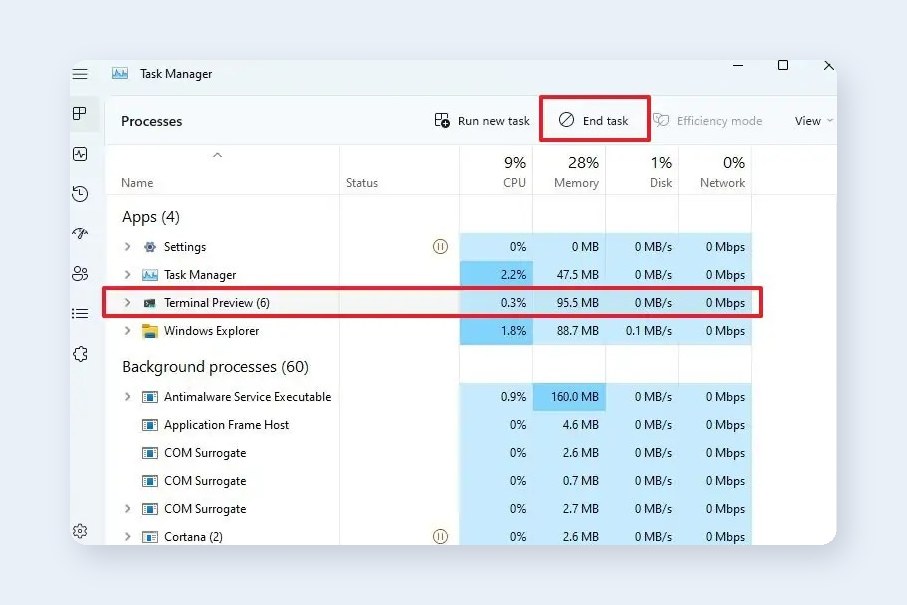
Here’s how to restart each one:
- Codex CLI: Press Ctrl + C to stop the current task. If that doesn’t work, close the terminal window and open a new one, then run codex again.
- Desktop app: Quit the app completely, not just close the window, then reopen it.
- IDE extension: Run Developer: Reload Window from the VS Code command palette.
- ChatGPT web: Refresh the page or open Codex in a new tab.
Fix 5: Update Codex to the Latest Version
OpenAI updates Codex often, and many updates fix freezes, stuck tasks and crashes. If you’re on an older version, updating can make the problem disappear.
To update the Codex CLI, follow these steps:
- Open your terminal.
- Run npm install -g @openai/codex@latest if you installed it with npm.
- Or run brew upgrade codex if you installed it with Homebrew.
- Run codex –version to confirm the new version.
- Start Codex again and try your task.
For the desktop app, check for updates in the app menu. For the VS Code extension, open the Extensions panel and click Update next to the Codex extension.
Fix 6: Sign Out and Sign Back In
An expired login or token can make Codex hang without a clear error. Signing out and back in refreshes your session.
In the CLI, you can run codex logout and then codex login to sign in again. In the desktop app or extension, sign out from the account menu and sign back in with your ChatGPT account. If you use an API key, make sure it’s still valid and hasn’t been revoked.
Fix 7: Make the Task Smaller
Codex can take a long time on big tasks, especially in large repositories. If it’s been “thinking” for several minutes, it may still be working, or it may be stuck trying to process too much.
Try these changes:
- Break the task into smaller, specific steps.
- Point Codex at the exact files or folders it should work on.
- Add an AGENTS.md file to your repo with notes about the project, so Codex doesn’t have to figure everything out each time.
- Start a fresh session instead of continuing a very long one.
Smaller tasks usually finish faster and are easier to review anyway.
Fix 8: Check Your Network, VPN and Proxy
Codex needs a stable connection to OpenAI’s servers. A weak connection, VPN or corporate proxy can make requests time out, which looks like Codex isn’t responding.
Turn off your VPN and try again. If you’re on a work network, a firewall or proxy might be blocking or slowing requests, so test on a different network if you can. Also check that your internet is working by loading another website.
Fix 9: Clear Settings or Reinstall
If nothing else works, a broken config file or install could be the cause. For the CLI, Codex stores its settings in a .codex folder in your home directory. Rename that folder to back it up, then start Codex again so it creates fresh settings.
You can also uninstall and reinstall Codex. For the CLI, run npm uninstall -g @openai/codex and then install it again. For the extension or app, remove it and install the latest version from the official source. If you’re still stuck, OpenAI’s help center and the Codex GitHub issues page are good places to report the problem.
Final Thoughts
When Codex is not responding, start by checking whether OpenAI is having an outage and whether Codex is waiting for an approval. Then restart it, update to the latest version and check your usage limits. Most freezes go away after one of those steps.
If you want to get more out of Codex once it’s working again, check out our guide on how to integrate ChatGPT Codex into your coding workflow. Which fix worked for you? Let me know in the comments so other developers can try it first.
