 logo
logo
You need to share your phone’s internet with your laptop, so you open Settings and tap Personal Hotspot. But the switch is grey, and you can’t turn it on. Or maybe the Personal Hotspot option has disappeared completely. When Personal Hotspot is greyed out, it’s usually not a broken phone. It’s almost always a setting, a carrier issue or a quick glitch.
This happened to me on a work trip when I really needed my laptop online. The fix was turning cellular data off and back on, which took about thirty seconds. Below I’ll explain why Personal Hotspot gets greyed out on iPhone and walk you through the fixes, from the quickest to the most thorough.
Why Personal Hotspot Is Greyed Out
Personal Hotspot depends on your cellular data connection and your carrier plan. If either of those has a problem, iOS disables the option.
Here are the most common causes:
| Cause | What you’ll notice | How common |
|---|---|---|
| Cellular data is off | Hotspot option greyed out | Very common |
| Carrier plan doesn’t include hotspot | Option missing or asks you to contact carrier | Common |
| Network glitch after an update | Hotspot suddenly unavailable | Common |
| Wrong or missing APN settings | Hotspot missing from Settings | Sometimes |
| Screen Time restrictions | Can’t change hotspot settings | Sometimes |
| Outdated carrier settings or iOS | Random hotspot problems | Sometimes |
Let’s go through the fixes, starting with the easiest.
Fix 1: Turn On Cellular Data
Personal Hotspot shares your cellular data. If cellular data is turned off, there’s nothing to share, so iOS greys out the hotspot option.
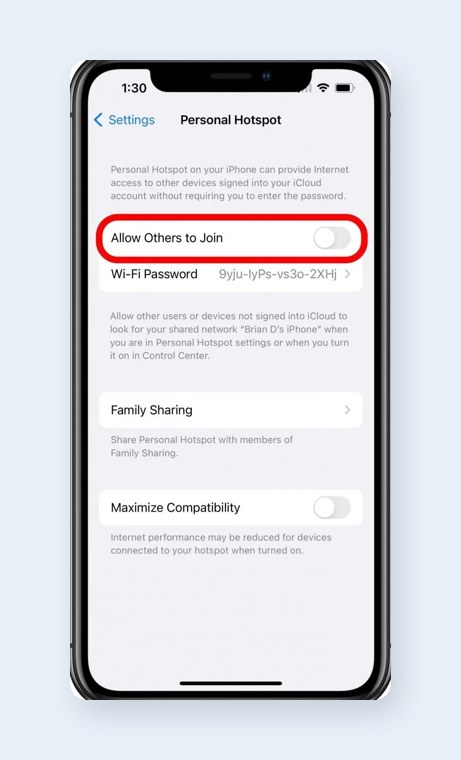
To turn cellular data on, follow these steps:
- Open Settings.
- Tap Cellular (or Mobile Data in some countries).
- Turn on Cellular Data.
- Go back and open Personal Hotspot.
If cellular data was already on, turn it off, wait about ten seconds, and turn it back on. That simple reset was the fix for me.
Fix 2: Check Your Carrier Plan
Not every phone plan includes hotspot. Some carriers block it, charge extra for it, or limit how much hotspot data you can use. If your plan doesn’t support it, the option may be greyed out or show a message telling you to contact your carrier.
Check your plan in your carrier’s app or website, or call them to ask. If you’ve used up your monthly hotspot data, you might need to wait for the next billing cycle or add more data. Prepaid plans in particular often don’t include hotspot.
Fix 3: Turn Airplane Mode On and Off
Airplane mode resets all your wireless connections, which can clear a glitch that’s blocking Personal Hotspot.
Swipe down from the top right corner of your screen to open Control Center and tap the airplane icon. Wait about 15 seconds, then tap it again to turn airplane mode off. Give your phone a moment to reconnect to the cellular network, then check Personal Hotspot again.
Fix 4: Restart Your iPhone
A restart clears temporary problems that can affect cellular features. It’s simple, but it fixes a lot of issues.
Here’s how to restart most iPhones:
- Press and hold the side button and either volume button until the power slider appears.
- Drag the slider to turn off your iPhone.
- Wait about 30 seconds.
- Press and hold the side button until you see the Apple logo.
Once your phone is back on and connected to your carrier, open Settings and check Personal Hotspot.
Fix 5: Check Your APN Settings
On some carriers, Personal Hotspot needs the right APN (Access Point Name) settings. If they’re missing or wrong, the hotspot option might be greyed out or not appear at all.
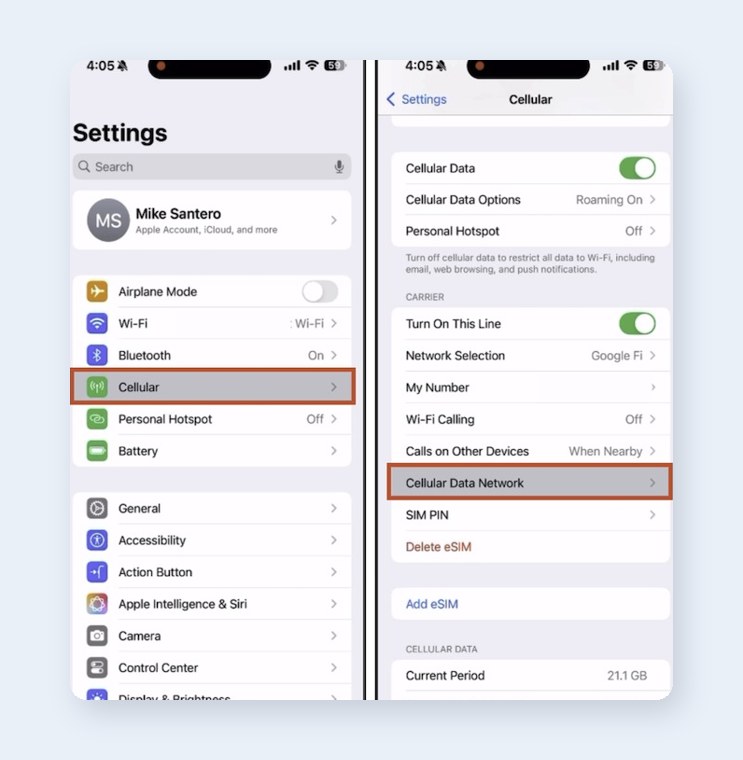
To check them, follow these steps:
- Open Settings and tap Cellular.
- Tap Cellular Data Network or Mobile Data Network.
- Scroll down to the Personal Hotspot section.
- Make sure the APN field has your carrier’s correct value.
Not every carrier shows this menu. If you don’t see it, your carrier handles these settings automatically. If you do see it and aren’t sure what to enter, check your carrier’s support site or call them for the correct APN.
Fix 6: Update Carrier Settings and iOS
Carriers sometimes release settings updates that fix problems with features like hotspot. Updating iOS can also fix bugs that cause hotspot to stop working.
To check for a carrier settings update, go to Settings, then General, then About. If an update is available, you’ll see a pop-up asking if you want to install it. Tap Update.
To update iOS, go to Settings, then General, then Software Update, and install any available update.
Fix 7: Check Screen Time Restrictions
If Screen Time is set up on your iPhone, it can block changes to cellular settings, including Personal Hotspot. This is common on phones set up for kids or managed by a parent.
Go to Settings, then Screen Time, then Content & Privacy Restrictions. Scroll down and look for Cellular Data Changes under Allow Changes. Make sure it’s set to Allow. If your phone is managed by a school or work, the IT team may have locked this setting, and you’ll need to ask them.
Fix 8: Reset Network Settings
If nothing else works, resetting your network settings often fixes stubborn hotspot problems. This won’t delete your photos or apps, but it will erase saved Wi-Fi networks and passwords, Bluetooth pairings and VPN settings.
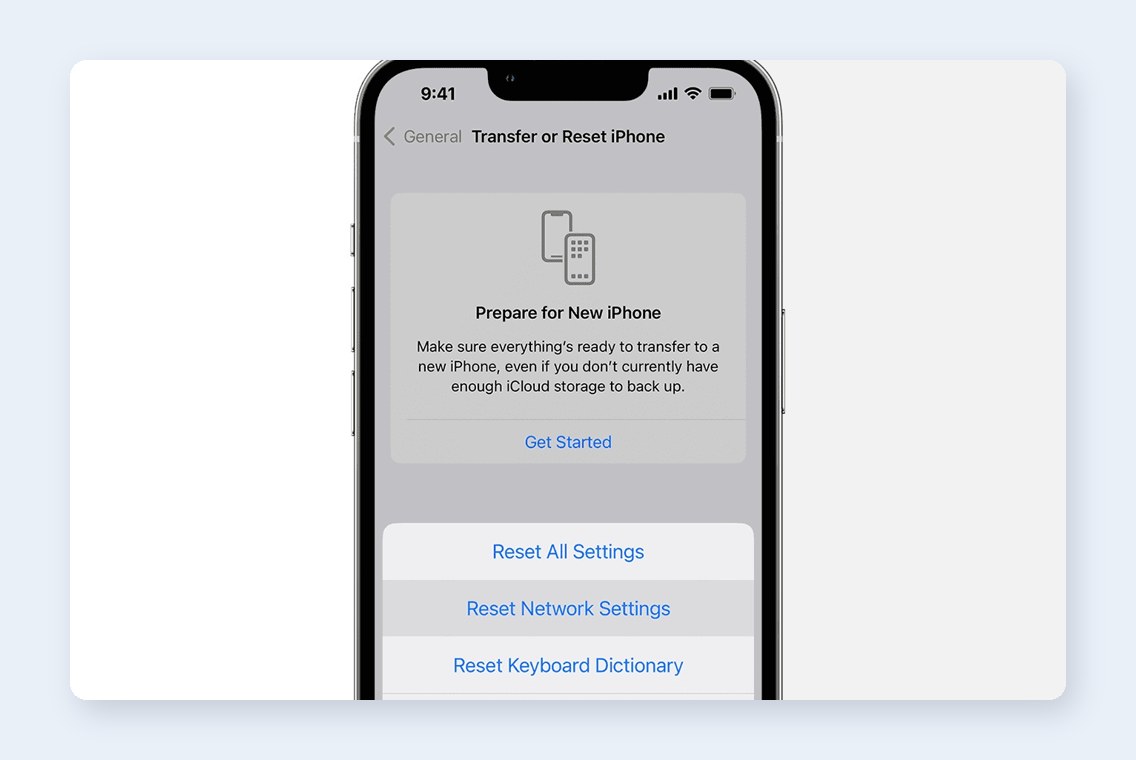
To reset network settings, follow these steps:
- Open Settings and tap General.
- Tap Transfer or Reset iPhone.
- Tap Reset.
- Choose Reset Network Settings.
- Enter your passcode and confirm.
Your iPhone will restart. Once it’s back on, check Personal Hotspot. If it’s still greyed out, contact your carrier, since the problem may be with your account or plan.
Final Thoughts
When Personal Hotspot is greyed out on your iPhone, the most common fixes are turning cellular data on, checking your carrier plan and restarting your phone. If that doesn’t work, check your APN settings, update your carrier settings and iOS, and reset network settings as a last step. Most people get their hotspot back within a few minutes.
Did one of these fixes work for you? Let me know in the comments which one it was, so other iPhone users know where to start.
