 logo
logo
So your iPhone won’t charge. You plug it in and nothing. The battery icon just sits there, mocking you. Honestly it’s rage-inducing, especially if you’re about to head out and your phone’s on 4%.
OK but here’s the thing. A charging port that looks completely dead? Usually it’s fine. Usually it’s pocket lint crammed in there so tight the cable can’t connect properly. Or the cable itself has died (they do that quietly). Or some software thing that a restart clears up in 30 seconds. Actual hardware failure doesn’t happen as often as people assume. It’s almost always the last thing to suspect, not the first.
This guide is for both Lightning and USB-C iPhones. It goes through every fix starting from the free, easy stuff and ending at “ok yeah go see Apple.” Just go through each step one at a time. Odds are you’ll have it sorted before you spend anything.
Basic Details
| Detail | Info |
|---|---|
| Affects | All iPhone models (Lightning and USB-C) |
| Common causes | Debris, faulty cable, software bug, liquid damage, hardware failure |
| Safe cleaning tools | Wooden or plastic toothpick, soft dry brush |
| Tools to avoid | Metal objects, compressed air, liquids of any kind |
| Wireless charging compatible? | iPhone 8 and later |
| When to see Apple | After all software and hardware steps fail |
| Estimated DIY fix time | 5-30 minutes |
Why Your iPhone Charging Port Stops Working
So what actually goes wrong? Four things, basically. The steps below tackle them in the order you should check.
Lint, Dust, and Debris Are the Number One Culprit
Your iPhone lives in your pocket. Or your bag. Either way, tiny fibers work their way into the charging port constantly. After a few months they pack down into a solid little plug at the bottom, and then the cable connector physically can’t reach the contacts. Your phone seems broken but really it’s just stuffed full of fluff. By far the most common cause. And you can fix it at your kitchen table.
A Faulty or Non-Certified Cable Is Often to Blame
Cables take more abuse than any other accessory. They get bent, pulled at weird angles, stepped on. A cable that looks perfectly normal on the outside can have a snapped wire inside. It’ll charge on and off, or just not at all. On top of that, cheap non-certified cables can trigger iOS warnings that actually block charging entirely. Always suspect the cable before the port.
Software Bugs and iOS Glitches Can Block Charging
So iOS actually handles charging through software. Sometimes it just gets confused. Your phone might not show the charging icon even though power is getting through. Or it stops charging halfway. A restart clears that whole communication chain and fixes it way more often than you’d expect.
Step 1 – Clean Your iPhone’s Charging Port the Right Way
This is the first thing to try, and it fixes a huge number of “broken port” cases on its own. The key is using the right tools and being gentle. One wrong move with the wrong tool can bend the pins inside the port and turn a cheap fix into an expensive one.
What You’ll Need Before You Start
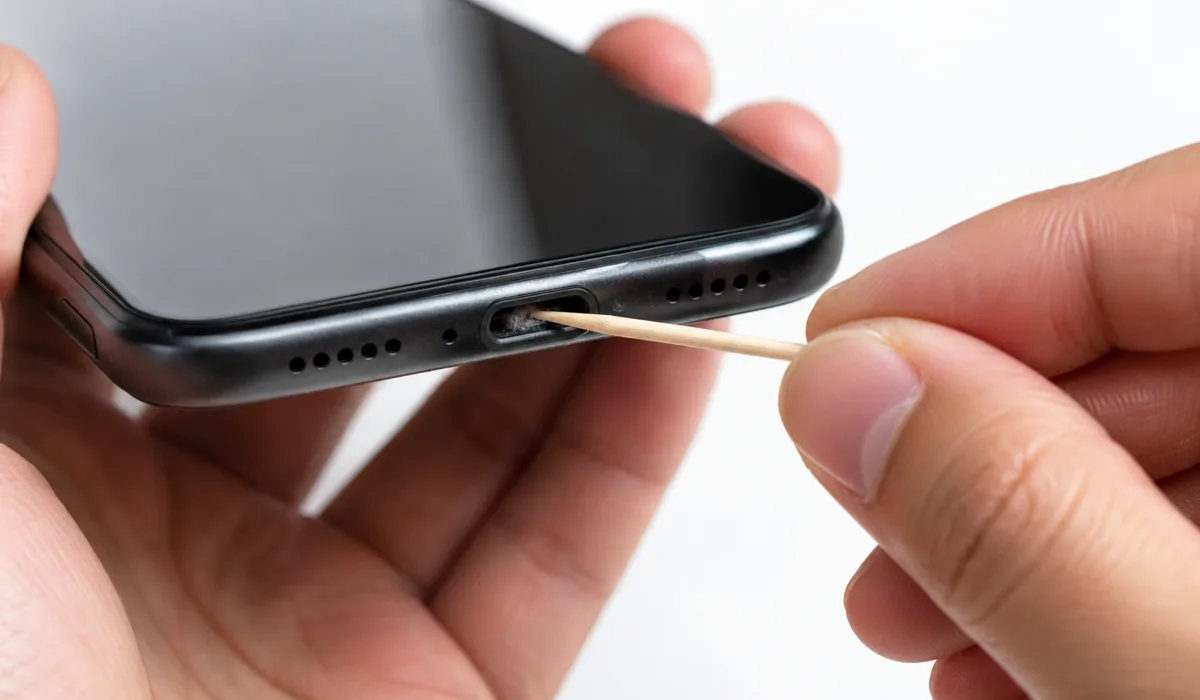
Get this stuff together first. A wooden or plastic toothpick (never metal). A soft dry toothbrush or one of those small paintbrushes with soft bristles. And a bright light, because the port is tiny and dark. A flashlight app on another phone works great for this.
Here’s what to keep well away from the port:
- Metal SIM ejector tools or pins
- Compressed air cans
- Rubbing alcohol or any liquid
- Cotton swabs (the fibers shed and make things worse)
How to Safely Remove Debris From a Lightning or USB-C Port
Go through these one at a time. Don’t rush it:
- Power off your iPhone completely before you touch the port.
- Hold the phone under a bright light and look into the port. You may be surprised how much is packed in there.
- Slide the wooden or plastic toothpick gently along the bottom edge of the port. Don’t jab it straight in toward the center pins.
- Scoop lightly to loosen compacted lint. Go slow. Keep pressure off the pins in the middle.
- Angle the phone so debris falls out on its own instead of getting pushed deeper.
- A few light strokes with a dry soft-bristle brush should get the rest.
- Turn the iPhone back on and try a cable you trust.
One more thing to address here. Some people suggest putting an iPhone in rice to deal with port problems. Just don’t. Rice won’t clear debris. It actually leaves starch residue inside the port, so you end up worse off than before.
Step 2 – Rule Out the Cable and Adapter Before Blaming the Port
You’d be surprised how often this is the whole problem. Port’s totally fine, cable’s just dead. So test the cable before you go any further.
How to Test With a Different Cable and Charger
Grab a completely different cable. Borrow one from a friend, use one from a different brand, whatever. Just make sure it’s one that definitely works. Swap the wall adapter too (those die as well). If there’s an Apple Store near you (Dubai Mall, Mall of the Emirates, Yas Mall), the staff can test with a known-good cable in about two minutes. If your phone charges fine with the other cable, that’s your answer. The port is fine. Just buy a new cable.
Why MFi-Certified Cables and Adapters Matter for iPhone Charging
MFi is Apple’s certification for third-party accessories. Stands for Made for iPhone/iPad/iPod. iPhones have a built-in accessory check that runs when you plug something in, and when it detects a non-certified cable, it can show a warning like “This accessory may not be supported” and block charging entirely. Certified cables pass that check and deliver consistent power. Non-certified cables often don’t.
Here’s a quick comparison:
| Feature | MFi-Certified Cable | Generic/Non-Certified Cable |
|---|---|---|
| Works with iOS accessory check | Yes | Often blocked |
| Consistent charging speeds | Yes | Unreliable |
| Risk of port or device damage | Low | Higher |
| Triggers iOS warnings | No | Frequently |
| Long-term durability | Generally higher | Generally lower |
Step 3 – Restart and Update iOS to Clear Software-Based Charging Problems
Software issues are real and way more common than people realize. Two minutes here can save a trip to the Apple Store.
How a Simple Restart Can Restore Charging on Your iPhone
If you’ve got a Face ID iPhone, hold a volume button and the side button together until the power slider shows up. Slide it off. Touch ID iPhones with a side button, just hold the side button. Older models with a top button, hold that. Then wait about 30 seconds and turn it back on. That resets the whole charging management system and clears out temporary glitches.
Keeping iOS Updated Fixes More Charging Bugs Than You’d Think
Apple actually patches charging bugs in those small point releases pretty often. Settings, General, Software Update. If something’s waiting there, install it. Takes a few minutes, costs nothing.
Step 4 – Understand the “Liquid Detected” Warning on Your iPhone
If you see “Liquid Detected in Lightning Connector” or “Charging Not Available” on your screen, your phone has picked up moisture in the port. Sometimes it’s actual water. But it can also trigger from humidity alone (pretty common here in the UAE, especially in summer or near the coast).
What to Do If Your iPhone Shows a Liquid Detected Alert
Unplug the cable. Set the phone down in a dry spot with some airflow, port facing down. Give it at least 30 minutes, though longer is better. Don’t put it in a bag of rice. Don’t use a hair dryer. Just let it air out. iOS does give you an emergency override option to charge anyway, but only use that if it’s truly urgent because charging with moisture present can cause short-circuit damage. If the warning keeps appearing after the phone has been dry for several hours, that points to possible water damage inside, and it’s time to see Apple.
Step 5 – Use Wireless Charging to Confirm the Problem Is the Port
Got an iPhone 8 or anything newer? Then you can try wireless charging. It’s a good way to test what’s going on, and it keeps your phone running in the meantime.
How to Test Wireless Charging on iPhone 8 and Later
Put your iPhone flat on a Qi-compatible wireless charger or MagSafe charger, screen facing up. If it charges, that actually tells you a lot. Battery’s fine. Charging circuitry works. The problem is the port specifically. Won’t fix the port obviously, but at least you know exactly where the issue is. And your phone stays alive while you sort it out.
Step 6 – Check Battery Health to Rule Out a Deeper Power Problem
Sometimes a really worn-out battery causes weird charging behaviour that mimics a bad port. It’s a quick thing to check before you jump to conclusions about the port.
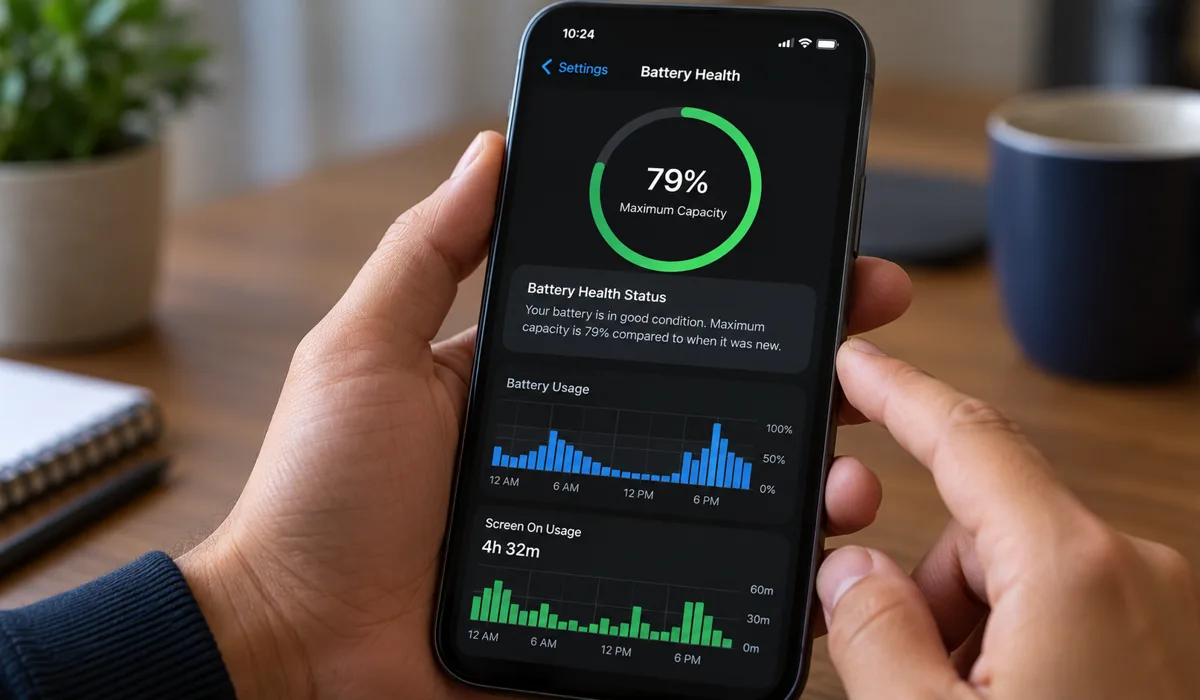
- Open Settings, then tap Battery, then Battery Health and Charging.
- Look at the Maximum Capacity percentage.
- Below 80%? That degradation might be behind slow or stop-start charging, not the port at all.
- See if Apple has flagged any service recommendations on that screen.
When to Visit the Apple Store or an Authorized Service Provider
At some point, DIY doesn’t cut it. And honestly, knowing when to stop poking around is just as useful as knowing where to start.
Signs Your iPhone Charging Port Needs Professional Repair
Some stuff you just can’t fix at home. Here’s what to look for:
- You can see visibly bent, broken, or corroded pins inside the port
- The port wobbles or feels physically loose when you plug in a cable
- The phone shows no response to any cable after a thorough cleaning
- Wireless charging works fine but the port does nothing at all
- A Liquid Detected warning persists after extended drying time
What to Expect at the Apple Store for a Charging Port Issue
The Genius Bar runs diagnostics on the device first. Then depending on the result, they’ll either repair the port, swap the device, or walk you through AppleCare or warranty options. Repair costs outside warranty depend on the model. Before you go, back up your iPhone through iCloud or through your computer. Apple may need to replace the device and you don’t want to lose anything.
Common Mistakes to Avoid When Your iPhone Won’t Charge
A few bad moves can turn a simple problem into a permanent one. Avoid these:
- Using a metal object to clean the port – pins bend permanently and can cause a short
- Blasting compressed air into the port – this pushes debris deeper and can damage internal pins
- Spraying or dripping any liquid into the port – even alcohol corrodes contacts over time
- Putting your iPhone in rice – it adds starch residue and delays proper drying
- Buying the cheapest cable available – non-certified cables trigger iOS blocks and deliver inconsistent voltage
- Skipping the cable swap test – a huge portion of “broken port” cases are actually a dead cable
- Forcing a cable into a lint-packed port – this compresses debris further and risks bending pins
- Ignoring a Liquid Detected warning and charging anyway – genuine moisture inside can cause a short
Final Thoughts
A charging port that isn’t working is almost never the end of the phone. The vast majority of cases come down to one of three things: compacted lint that needs to be cleaned out, a cable that’s given up, or a software glitch that disappears after a restart. All of those are free fixes that take ten minutes or less. Honestly you’ll probably have it fixed before your coffee gets cold.
So if you’ve cleaned the port, tried different cables and adapters, restarted, updated iOS, checked battery health, and wireless charging works but the port still does nothing? Yeah, that port probably needs a professional. Take it to Apple’s Genius Bar or an Apple Authorized Service Provider. That’s literally what they’re there for. Way better than jabbing around with a paperclip and risking bent pins (or your warranty). You can book an appointment or check repair options on Apple Support’s official website if there’s no store close to you.
Just take it one step at a time. Try each fix properly before moving on. And honestly? Nine times out of ten, it’s simpler than you think.
