 logo
logo
Your mic goes silent right before an important call. You’re clicking around, nothing’s working, and the frustration is real. It happens to a lot of people, especially after a Windows 11 update or a fresh install. Something shifts in the settings or a driver gets overwritten and suddenly Windows acts like your microphone doesn’t exist.
Here’s the thing though, most mic problems on Windows 11 boil down to a few repeat offenders. Wrong input device selected. Privacy settings blocking access. A driver that got corrupted after an update. Or some app quietly taking over everything in the background. And once you actually know where to look, none of them take long to sort out.
So below you’ll find nine fixes laid out from fastest to slowest. Most people get it sorted within the first three, so don’t let the length of this page put you off.
Basic Details
| Detail | Info |
|---|---|
| Issue | Microphone not working on Windows 11 |
| Affected Users | Windows 11 Home, Pro, Enterprise |
| Common Causes | Wrong input device, missing permissions, outdated driver, app settings |
| Fixes Covered | 9 step-by-step solutions |
| Difficulty | Beginner to Intermediate |
| Time to Fix | 5 to 20 minutes |
Why Your Microphone Stops Working on Windows 11
Windows 11 added stricter privacy controls compared to older versions. That means a toggle that’s switched off can silently block every app from hearing you, with no error message, no warning. It just doesn’t work and you’re left guessing.
Other common causes include these situations:
- Windows grabbed the wrong default input device, like a monitor’s built-in mic instead of your actual headset (happens a lot with Dell and LG monitors here)
- A Windows Update replaced or broke your audio driver
- An app like Zoom or Discord is holding exclusive control of the mic
- Audio enhancements are interfering with the signal
- The physical mute button on your headset is on and you forgot about it
Knowing which category your problem falls into helps a lot. The symptom-to-fix table later in this guide can point you in the right direction fast.
Fix 1 – Check the Obvious Physical Stuff First
Before going anywhere near settings, do the physical checks. This saves a lot of time.
Confirm Your Mic Isn’t Physically Muted or Disconnected
Work through this list before touching any software:
- Look at your headset, webcam, or standalone mic. Most have a mute button or switch somewhere on the body or cable. Red light or a crossed-out mic icon on screen? That means muted. Flip it off.
- Pull the mic cable out and push it back in properly. Even a slightly loose connection can give you random dropouts or total silence.
- On USB? Try a different port. USB hubs especially can cause power problems. Go straight into the computer if you can.
- Got a 3.5mm mic? Double check it’s in the right jack (the pink one for mic, not headphone).
- If you have another device nearby, a phone, a tablet, whatever, try the mic on that. Just to rule out the mic itself being dead.
Fix 2 – Select the Right Microphone Input Device in Windows 11
Windows has a habit of switching your default input to the wrong device. Happens all the time after plugging in a new monitor that has a built-in mic, or after updates mess with things.
Here’s how to check and fix it:
- Hit the Start menu. Open Settings from there.
- Click System, then Sound.
- Scroll down to the Input section.
- Hit the dropdown under “Choose a device for speaking or recording” and pick your actual microphone.
- See the input volume slider below? Make sure it’s not sitting at zero. Drag it to at least 75%.
How to Test Your Microphone Volume in Sound Settings
After selecting the device, you can test it right there. These steps walk you through it:
- Speak into your microphone while watching the bar labeled “Test your microphone.”
- If the bar moves, Windows can hear you. That means the problem is probably in an app’s settings or permissions.
- If the bar doesn’t move at all, continue to Fix 3 below.
- If you see multiple input devices listed, try each one while watching the test bar to find the active mic.
Fix 3 – Turn On Microphone Access in Privacy & Security Settings
This is the most commonly missed fix. Windows 11 can block all microphone access at the system level. No driver issue, no hardware fault, just a toggle that’s off.
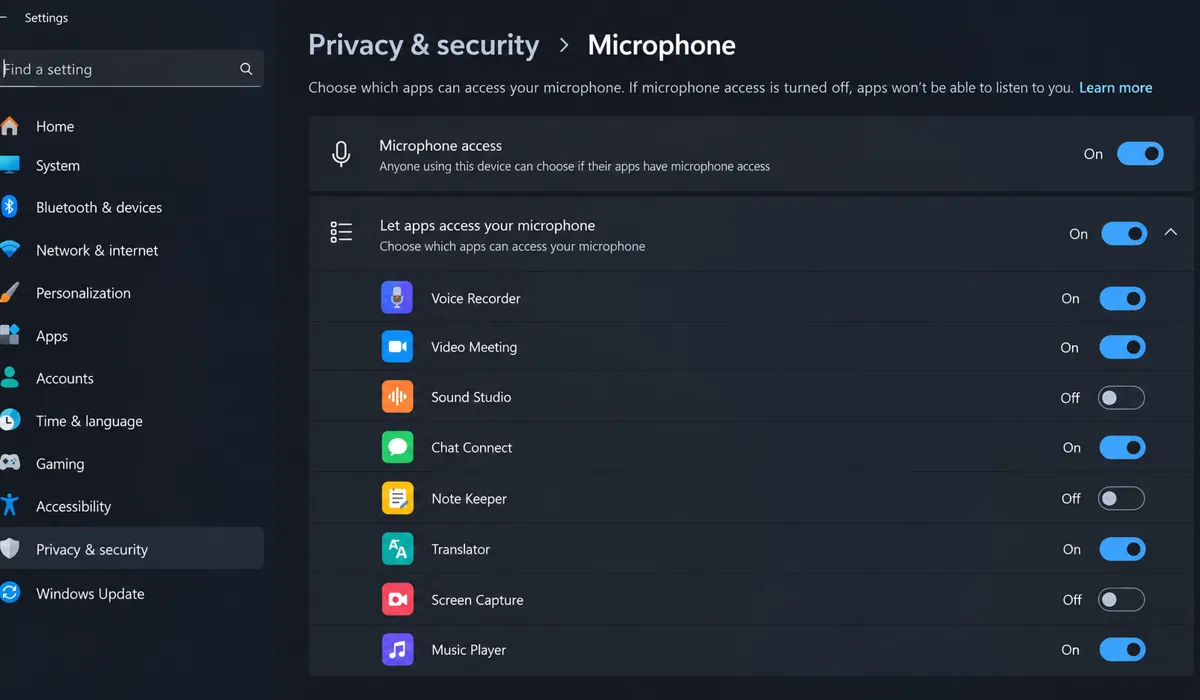
Follow these steps to check and enable it:
- Open Settings.
- Go to Privacy & Security.
- Click Microphone under the App permissions section.
- The toggle at the top is labeled “Microphone access.” Make sure that’s on.
- Below that, confirm “Let apps access your microphone” is also on.
Allowing Specific Apps to Use the Microphone on Windows 11
Even with the main toggle on, individual apps can still be blocked. Here’s what to do:
- Scroll down the same Microphone privacy page to see a list of apps.
- Find whatever app is giving you trouble (Zoom, Teams, Discord, your browser) and toggle it on.
- Scroll further to find “Let desktop apps access your microphone” and turn that on too. This covers apps that don’t appear in the main list.
- Restart the app you were trying to use and test again.
Fix 4 – Run the Windows 11 Recording Audio Troubleshooter
Windows 11 has a built-in troubleshooter for mic problems. It checks for stuff like a wrong default device or a service that stopped running. Not magic, but it does catch things sometimes.
To run it:
- Open Settings and go to System.
- Click Troubleshoot, then Other troubleshooters.
- Look for “Recording Audio” and click Run next to it.
- You can also open the Get Help app (search for it in the Start menu) and type “Fix recording audio” in the search bar. That works too.
- Just follow whatever prompts come up. It’ll apply fixes on its own if it finds anything.
- Restart your computer once it’s done. Even if it says nothing was wrong, reboot anyway (seriously, this helps more than you’d think).
Fix 5 – Update or Reinstall Your Audio Driver in Device Manager
Bad audio drivers cause a ton of mic problems. Especially right after a Windows Update swaps in something generic.
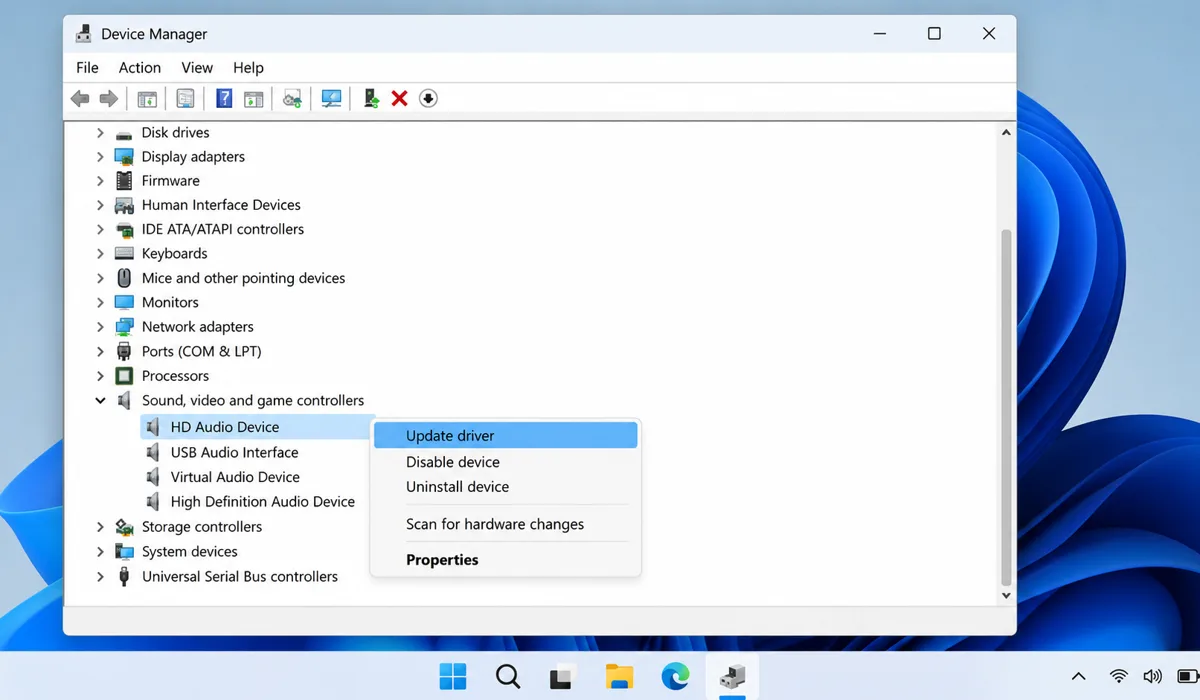
Updating is the first thing to try:
- Right-click the Start button. Pick Device Manager from the menu that pops up.
- Expand the section called “Sound, video and game controllers.”
- Right-click your audio device (usually says Realtek Audio or something along those lines) and hit “Update driver.”
- Pick “Search automatically for drivers” and let it do its thing.
- Still broken? Or no update found? Right-click that same device again and choose “Uninstall device.”
- There might be a checkbox asking about deleting the driver software. Tick that if you see it. Then click Uninstall.
- Restart your computer. Windows will pull in a fresh driver on its own.
When to Roll Back vs. Reinstall the Audio Driver
Two different tools for two different situations here. Rolling back is what you want when your mic was fine, then a specific Windows Update landed and broke it. Right-click the audio device in Device Manager, choose Properties, go to the Driver tab, and click Roll Back Driver (if the button isn’t greyed out).
But if the driver was never right to begin with, or it’s just corrupted, a full uninstall and reinstall (like above) is the way to go. And if Windows doesn’t pull in a working driver on its own after reboot, go to the manufacturer’s support website directly. Realtek’s official site, or your laptop maker’s support page, and grab it from there.
Fix 6 – Disable Audio Enhancements and Exclusive Mode
Audio enhancements are features Windows adds to improve sound quality, but they can actually cause mic problems. Exclusive mode lets one app lock your mic away from everything else.
Here’s how to switch both off:
- Open Settings. Go to System, then Sound.
- Look under Input and click on your microphone. That opens its properties page.
- Scroll down, click “More sound settings” to open the old-school sound panel.
- Open the Recording tab. Then right-click your microphone and choose Properties.
- Find the Enhancements tab. Tick “Disable all enhancements” and click Apply.
- Now go to the Advanced tab. Untick the box that says “Allow applications to take exclusive control of this device.”
- Hit Apply. Then OK. Done.
Fix 7 – Fix Mic Settings Inside Zoom, Teams, and Discord
Here’s what trips people up: apps have their own separate audio settings. Windows can see your mic just fine and the app is still pointed at the wrong input. Or it has its own mute toggled on quietly.
Fixing Mic Input in Zoom on Windows 11
Check these settings in Zoom:
- Open Zoom. Click your profile picture, then go to Settings.
- Go to the Audio tab.
- Under the Microphone dropdown, pick the right mic.
- Hit “Test Mic” and talk. You should see the bar react.
Fixing Mic Input in Microsoft Teams on Windows 11
For Teams, do this:
- Hit the three dots next to your profile picture (that’s the “more options” menu). Then open Settings from there.
- Click Devices.
- Look for the Microphone section. Pick your actual mic from the dropdown there.
- Teams might pop up asking for microphone permission. Just click Allow if it does.
Fixing Mic Input in Discord on Windows 11
In Discord, do this:
- Click the gear icon at the bottom left to open User Settings.
- Go to Voice & Video.
- Find Input Device. Select your microphone from the dropdown list.
- Check Input Sensitivity below that. Leaving “Automatically determine input sensitivity” turned on is usually fine. But if your voice keeps getting cut off mid-sentence, switch to manual and drag the slider lower until it stops clipping you.
Quick-Reference Fix Checklist
Use this table to jump straight to the fix that matches your symptom:
| Symptom | Most Likely Fix |
|---|---|
| Mic not showing up at all | Fix 2, Fix 5 |
| Mic shows but no input detected | Fix 3, Fix 6 |
| All apps silent, mic was working before | Fix 4, Fix 5 |
| Only one app can’t hear you | Fix 7 |
| Mic cuts in and out | Fix 6 (Enhancements / Exclusive Mode) |
| Works on 3.5mm but not USB port | Fix 1 |
Common Mistakes People Make When Fixing Mic Issues on Windows 11
Plenty of people burn time chasing the wrong thing. These are the ones that come up over and over:
- Skipping the privacy toggle. A lot of people head straight to Device Manager assuming it’s a driver problem, when the microphone access switch under Privacy & Security is simply off. Check that first.
- Testing in the wrong app. If Discord has exclusive mode enabled, Teams won’t hear a thing while you test in Teams. Always test in the same app you’re troubleshooting.
- Only using Windows Update for drivers. Windows Update doesn’t always carry the newest Realtek, IDT, or Conexant drivers. Go to the manufacturer’s support site and grab them yourself.
- Not rebooting after a driver reinstall. The new driver needs a full restart to load properly. Seriously, don’t skip it.
- Missing the physical mute button. Nobody wants to admit they spent 20 minutes deep in Device Manager only to realize the mute switch on the headset cable was flipped the whole time. So yeah. Look at the headset first.
Final Thoughts
Physical checks first. Then permissions. After that, input settings, then drivers, then enhancements, and the app settings last. That’s the order because it matches how these problems actually play out for most people. And most people find the fix well before the end of the list.
If nothing above worked, your issue might be tied to a specific hardware model or maybe a bug from a recent Windows build. Go to Microsoft’s official support site or your device manufacturer’s page and search with your exact model name. More often than not somebody already ran into the same thing and there’s a fix sitting in a support thread.
