 logo
logo
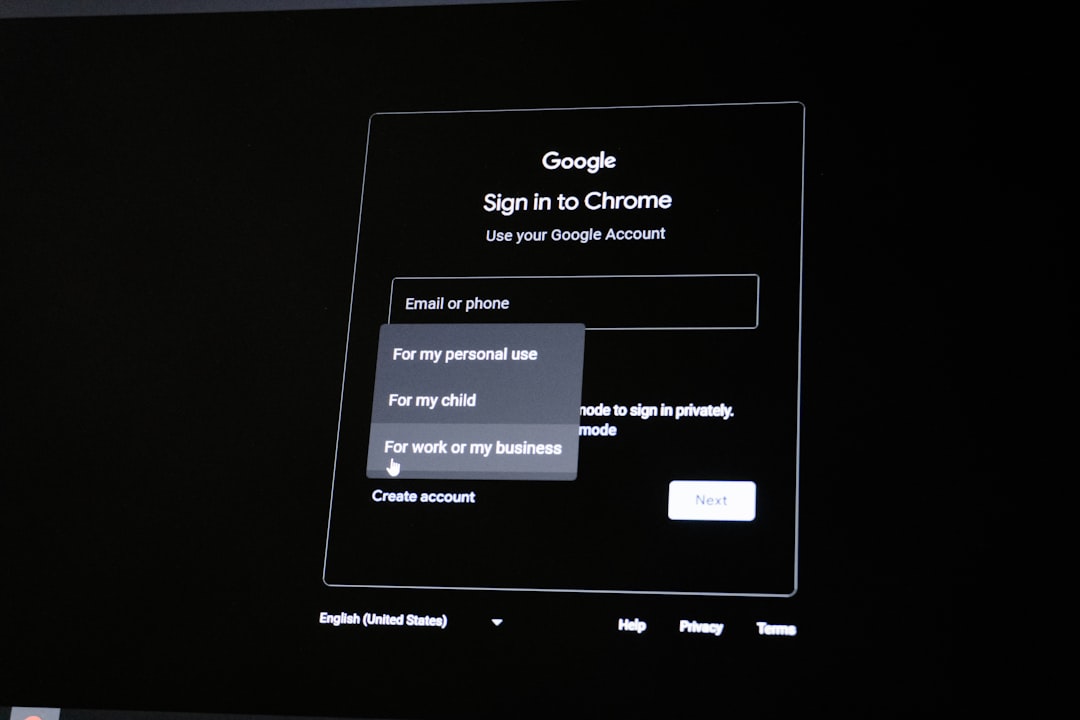
Signing in to ChatGPT with a Google account is one of the quickest ways for a person to access OpenAI’s chatbot without creating and remembering a separate password. Instead of entering an email address and password manually, the user can choose the “Continue with Google” option and authenticate through Google’s secure sign-in system. This method is convenient, familiar, and often faster, especially for people who already stay signed in to Google on their browser or mobile device.
TLDR: A person can log in to ChatGPT with a Google account by visiting the ChatGPT website or opening the app, selecting “Log in”, and choosing “Continue with Google.” The user then selects the correct Google account, completes any required verification, and is redirected back to ChatGPT. If the Google sign-in option does not work, clearing cookies, switching browsers, updating the app, or checking that the same login method is being used can often solve the issue.
Understanding Google Login for ChatGPT
ChatGPT allows users to sign in using several methods, including an email and password, Apple, Microsoft, or Google accounts, depending on availability and region. When someone chooses the Google option, OpenAI does not require that person to create a separate ChatGPT password. Instead, Google confirms the person’s identity and securely passes the authentication result to OpenAI.
This process is commonly known as single sign-on, or SSO. It helps reduce password fatigue and can make account access simpler across devices. For example, if a person already uses Gmail, Google Drive, or YouTube and remains signed in to Google, the ChatGPT login process may take only a few clicks.
However, it is important to understand that the login method matters. If a user originally created a ChatGPT account with “Continue with Google,” that same method should generally be used again. Attempting to log in with a manual password for the same email address may cause confusion, especially if no separate password was ever created.

Step-by-Step: How a User Logs In With Google on the Web
The web version of ChatGPT is typically accessed through a browser on a desktop, laptop, tablet, or phone. The process is similar across most modern browsers such as Chrome, Safari, Firefox, and Edge.
-
Open the ChatGPT website.
The user should go to the official ChatGPT website in a web browser. It is important for the person to verify that the page is legitimate before entering any account information.
-
Select “Log in.”
On the landing page, the user should choose the “Log in” button rather than creating a new account, unless they are signing up for the first time.
-
Choose “Continue with Google.”
The login page will display available sign-in methods. The user should select “Continue with Google” to proceed using a Google account.
-
Select the correct Google account.
If the browser is already signed in to one or more Google accounts, Google may show a list of accounts. The user should choose the account that is connected to ChatGPT.
-
Complete Google verification if required.
Google may request a password, two-step verification code, phone approval, passkey, or another security check. This depends on the person’s Google security settings.
-
Return to ChatGPT automatically.
After authentication is complete, the browser should redirect the user back to ChatGPT, where the account dashboard and chat interface become available.
For most users, the process is straightforward. The most common mistake is selecting the wrong Google account, especially when a person has separate personal, school, and work accounts. If the expected chat history or subscription is missing after login, the user may be signed in with a different account than before.
How to Log In With Google on the ChatGPT Mobile App
The ChatGPT mobile app also supports Google sign-in. While the interface may look slightly different on iOS and Android, the general process remains similar.
- The user opens the ChatGPT app on the mobile device.
- They tap “Log in” on the welcome screen.
- They select “Continue with Google.”
- The device opens a Google sign-in screen or account picker.
- The user chooses the correct Google account and completes any required verification.
- The app returns to ChatGPT and loads the account.
If a person uses an Android device, the Google account may already be available through the phone’s system settings. On an iPhone or iPad, the process may open a browser window or Google sign-in prompt. In either case, the important step is choosing the same Google account that was used to create or access ChatGPT previously.
Creating a New ChatGPT Account With Google
If someone has never used ChatGPT before, the Google login option can also be used to create a new account. Instead of selecting a traditional email-and-password registration method, the new user can choose “Continue with Google” during sign-up. Google will confirm the user’s identity, and OpenAI may request any additional required information to complete account setup.
This approach can be useful because it avoids the need to create another password. It also reduces the chance of forgetting which password was used for ChatGPT. Still, the user should make sure the chosen Google account is one they plan to keep using, because that account becomes tied to ChatGPT access.
For people using school or workplace Google accounts, there may be additional restrictions. An organization’s administrator may control whether third-party sign-ins are allowed. If a school or company account does not work, a personal Google account may be required, depending on the organization’s policies and OpenAI’s availability in the user’s region.
Important Tips Before Logging In
Before using Google to access ChatGPT, a person should keep several practical details in mind. These small precautions can help prevent login issues and protect account security.
-
Use the official ChatGPT website or app.
The user should avoid suspicious links, copied login pages, or websites that imitate OpenAI services. A secure connection and the correct domain are important.
-
Choose the right Google account.
Many people have multiple Google accounts. Selecting the wrong one may create a separate ChatGPT account or show an account with no chat history.
-
Keep Google account security updated.
A strong Google password, recovery email, recovery phone number, and two-step verification can help protect the ChatGPT account as well.
-
Remember the original login method.
If the account was created with Google, the user should continue signing in with Google. If it was created with another method, that original method may be needed.
Why the Google Login Option Is Convenient
Logging in with a Google account offers several advantages. The biggest benefit is simplicity. A user does not have to remember a separate password for ChatGPT, and the sign-in flow is often faster if Google is already active in the browser or device.
Another advantage is security. Google accounts can be protected with advanced security features such as two-factor authentication, passkeys, security keys, suspicious login alerts, and account recovery tools. When those protections are enabled, they also help secure access to services that rely on Google sign-in.
Convenience is especially noticeable for frequent users. A student, professional, writer, developer, or researcher who uses ChatGPT regularly may appreciate being able to move between devices with a familiar sign-in method. As long as the same Google account is used, the user can typically access their saved chat history, settings, and subscription status.
Common Problems When Logging In With Google
Although the process is usually smooth, login problems can happen. One common issue occurs when a person selects “Continue with Google” but chooses a different Google account than the one linked to ChatGPT. This may make it appear that chat history, custom instructions, or subscription features have disappeared, when in reality the user is simply inside another account.
Another issue can involve browser cookies or cached data. If the login page loops, freezes, or returns an error, the user may need to clear browser cookies for the site, try an incognito or private window, disable conflicting extensions, or switch to another browser. Browser extensions that block scripts, cookies, pop-ups, or authentication redirects can sometimes interfere with Google sign-in.
Mobile app users may experience problems if the app is outdated. Updating the ChatGPT app, restarting the device, or reinstalling the app may resolve persistent login issues. If the Google account itself requires attention, such as a password reset or security verification, the person may need to resolve that directly through Google before returning to ChatGPT.

What to Do If ChatGPT Opens the Wrong Account
If ChatGPT opens an unexpected account, the user should first check the profile or account menu to confirm which email address is signed in. If the wrong email appears, the person should log out and repeat the sign-in process, carefully selecting the correct Google account.
In browsers where several Google accounts are active, Google’s account picker may automatically choose a default account. To avoid this, the user can sign out of extra Google accounts temporarily, open a private browsing window, or visit Google’s account chooser page before returning to ChatGPT. These steps often make it easier to select the intended account.
If a paid plan appears missing, the same rule applies: the subscription is usually tied to a specific account. The user should verify the email address associated with the paid plan and sign in with the matching Google account. If the issue continues after confirming the correct account, contacting OpenAI support through the official help options may be necessary.
Security Considerations
Using Google to log in to ChatGPT can be secure, but the user’s overall safety depends heavily on the security of the Google account. If someone gains access to that Google account, they may also be able to access connected services. For that reason, strong security practices are important.
- Enable two-step verification on the Google account whenever possible.
- Use a strong, unique Google password that is not reused on other websites.
- Review recent Google account activity if suspicious behavior is noticed.
- Keep recovery information current, including phone numbers and recovery email addresses.
- Log out on shared computers after using ChatGPT or any Google-connected service.
People using public or shared devices should be especially careful. If a browser remains signed in to Google, the next person using that device may be able to access connected accounts. Logging out of both ChatGPT and Google is a good habit on any computer that is not personally controlled.
Final Thoughts
Logging in to ChatGPT with a Google account is a simple and efficient option for many users. It reduces the need for an additional password, works across web and mobile platforms, and can benefit from Google’s built-in security features. The key is consistency: the same Google account and the same login method should be used each time.
When problems occur, they are often related to account selection, browser data, app version, or Google verification requirements. By checking the email address, clearing browser issues, updating the app, and confirming Google account access, most users can resolve login problems quickly. With the right account and a secure setup, Google sign-in provides a smooth way to access ChatGPT whenever it is needed.
FAQ
Can a user log in to ChatGPT with any Google account?
Yes, a user can generally sign in with a Google account, as long as the account is supported and not restricted by an organization, region, or security policy. Work or school Google accounts may have administrator limitations.
Does logging in with Google create a separate ChatGPT password?
No. When a person uses “Continue with Google,” authentication is handled through Google. The user does not normally create a separate ChatGPT password for that login method.
Why is the user’s chat history missing after signing in?
The most common reason is that the user signed in with a different Google account than before. The person should check the email address in the ChatGPT account menu and log in again with the correct account.
Can a user switch from Google login to email-and-password login?
Account login methods can vary, and switching may not always be straightforward. If the account was created with Google, the user should continue using Google unless OpenAI provides an account setting or support option to add another login method.
Is Google login safer than using a password?
It can be very secure if the Google account is well protected. Features such as two-step verification, passkeys, and security alerts can strengthen account safety. However, if the Google account is compromised, connected services may also be at risk.
What should a user do if “Continue with Google” does not work?
The user can try clearing browser cookies, using a private window, disabling browser extensions, updating the mobile app, switching browsers, or checking whether Google requires additional verification. If the issue continues, official support options may be needed.
Can multiple people use the same Google account for ChatGPT?
Sharing one Google account is not recommended. It can create privacy, security, and account management problems. Each person should use their own account whenever possible.
Does a ChatGPT subscription follow the Google account?
A subscription is tied to the ChatGPT account associated with a specific login identity. If a user signs in with the wrong Google account, the subscription may not appear. The correct email address should be verified before assuming the subscription is missing.
